How to Backup an Encrypted Drive or Container
Encryption protects your files from unauthorized access, but it does not protect them from hardware failure, accidental deletion, or ransomware. A backup of the encrypted container is the only way to recover your data if the original is lost or damaged.
This guide explains why backing up an encrypted drive matters, how to do it safely, and how to restore the backup when you need it.
PAGE CONTENT
- Why Back Up an Encrypted Drive
- What to Back Up: the Container File
- Three Ways to Back Up the Container
- Back Up with Qiling Safe Disk
- How to Restore from the Backup
- FAQs About Backing Up Encrypted Drives
- Back Up Windows Before You Change Settings
Why Back Up an Encrypted Drive
An encrypted container is still just a file, and any file can be lost.
- Hardware failure. If the disk holding the container dies, the data is gone unless you have a copy.
- Accidental deletion. One wrong click can delete the container file, and recovery is not guaranteed.
- Ransomware. Ransomware can encrypt or delete the container file just like any other file.
- File corruption. A power outage or disk error can corrupt the container, making it unmountable.
- Lost or stolen device. If the laptop or USB stick with the container is lost, the backup is your only copy.
Encryption protects confidentiality; backups protect availability. You need both.
What to Back Up: the Container File
With Qiling Safe Disk, your encrypted drive is a single container file, usually with an .fvd suffix. Backing up that one file backs up the entire encrypted drive.
- One file. Everything inside the container lives in one file, so you only need to copy that file.
- Encrypted at rest. The backup is just as encrypted as the original, so storing it on an unencrypted drive is safe.
- No decryption needed. You never need to mount or decrypt the container to back it up. Copy the file while it is unmounted.
- Same password. The backup uses the same password as the original. If you change the password later, make a fresh backup.
The key rule: always back up the container while it is unmounted. Copying a mounted container can produce a corrupted backup because files may be changing during the copy.
Three Ways to Back Up the Container
Choose the method that fits your setup.
- Manual copy. Unmount the container, copy the .fvd file to an external drive or cloud storage, and verify the file size matches. Simple and reliable for occasional backups.
- Automatic backup. Use backup software to copy the container on a schedule. Qiling Disk Master can include the container file in a file or disk backup.
- Disk image. Create a full image of the disk that holds the container. This captures everything on the disk, including the container, and lets you restore the whole disk at once.
For important data, use more than one method. Keep one backup on an external drive and another on cloud storage or a different disk.
Back Up with Qiling Safe Disk
The safest approach is to unmount the container and make a verified copy. Download Qiling Safe Disk if you have not already.
Step 1. Open Qiling Safe Disk. If the container is mounted, select it and click Unmount.
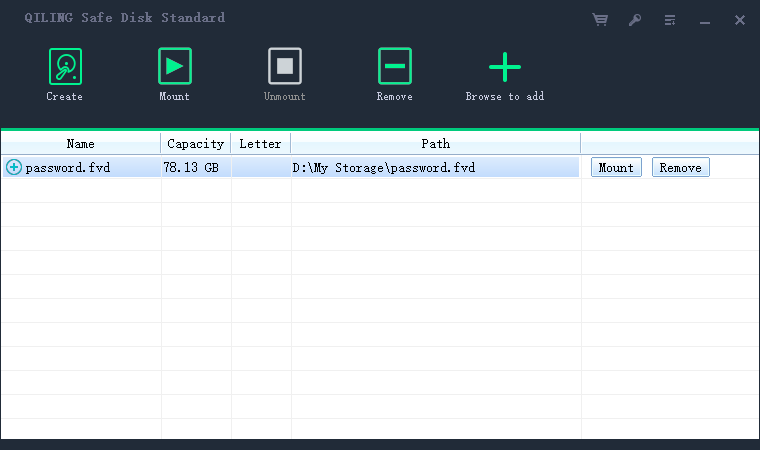
Step 2. Close Safe Disk. This ensures no process is using the container file.
Step 3. Locate the container file (.fvd) in File Explorer. Right-click it and choose Copy.
Step 4. Paste the file to your backup location, such as an external hard drive or a network folder.
Step 5. Verify the backup. Right-click both the original and the copy, choose Properties, and confirm the file sizes are identical.
Step 6. For extra safety, test the backup by mounting it with Safe Disk. If it opens with your password, the backup is good.
Step 7. Schedule regular backups. Set a reminder to copy the container weekly, or use Qiling Disk Master to automate it.
How to Restore from the Backup
If the original container is lost or corrupted, restore from the backup.
- Copy the backup back. Copy the .fvd file from your backup drive to the working disk.
- Open Safe Disk. Click Add Old Image and browse to the restored container file.
- Mount with the password. Enter the same password you used for the original. The files appear as they were when the backup was made.
- Check the files. Open a few files to confirm they are intact.
- Make a new backup. Once restored, the working copy becomes the new original. Back it up again.
Remember that the backup reflects the state of the container at the time it was copied. Any files added or changed after the backup will not be in the restored copy. Back up regularly to minimize data loss.
FAQs About Backing Up Encrypted Drives
Can I back up the container while it is mounted?
Not recommended. A mounted container may have open files, and copying it can produce a corrupted backup. Always unmount first.
Do I need to decrypt the container before backing it up?
No. The container file is encrypted, and the backup is just a copy of that encrypted file. Your files stay protected.
Can I store the backup on the same drive as the original?
No. If that drive fails, you lose both. Store the backup on a separate drive or cloud storage.
How often should I back up?
Back up after every important change, or at least weekly. More frequent backups mean less data loss if something goes wrong.
What if the backup is corrupted?
Always test the backup by mounting it. If it fails, make a new backup from the original while it still works. Keep multiple backup copies for safety.
Back Up Windows Before You Change Settings
Before changing storage or backup settings, create a full Windows backup. Qiling Disk Master creates a system image you can restore from.
Step 1. Open Qiling Disk Master and select "System Backup" to include Windows and the boot partitions.
Step 2. Save the image to a drive other than the Windows disk and start the backup.
Step 3. If a change causes issues, restore from the image to return Windows to its working state.
Conclusion
An encrypted drive is not backed up just because it is encrypted. The container file can be lost to hardware failure, deletion, ransomware, or corruption, and encryption will not bring it back. The solution is simple: unmount the container, copy the .fvd file to a separate drive or cloud storage, and verify the copy. Test the backup by mounting it, and repeat on a regular schedule. With a verified backup, you can restore your encrypted files even if the original is gone. Encryption and backups work together to keep your data both private and recoverable.
For more on protecting your data, see How to Create an Encrypted Virtual Drive, How to Mount an Encrypted Drive on Another Computer, Is Encryption Enough to Protect Your Data?, and How to Use Qiling Safe Disk.
Related Articles
- What is Disk Imaging
Create a full disk image that captures the encrypted container and everything else on the drive. - Should You Encrypt Backups to Protect Against Ransomware?
Learn whether to encrypt the backup drive that holds copies of your encrypted containers. - How to Share Encrypted Files Securely
Share a backup copy of the container by sending the file and password through separate channels. - Forgot Encrypted Drive Password?
A backup does not help if you lose the password, so plan for password recovery too. - How to Encrypt Files Before Uploading to Cloud Storage
Store an extra copy of the container in the cloud, encrypted so the provider cannot read it.
Products
Articles & Tutorials
- Data Recovery
- Data Backup
- File Recovery
- File Backup
- System Backup and Restore
- Disk and Partition Clone
- Technical articles
- Mobile articles
- Disk Master Help
- Windows Data Recovery Tutorials
- Windows Secure Delete Tutorials
- Windows Partition Management Tutorials
- Windows File Backup and Restore Tutorials
- Windows System Backup and Restore Tutorials
- Windows Disk Backup and Restore Tutorials
- Windows Clone Tutorials