How to Share Encrypted Files Securely
You have encrypted files that someone else needs. Sending the container is only half the job. The other person also needs the password, and sending both through the same channel defeats the purpose of encryption.
This guide explains how to share a Safe Disk container and its password safely, what tools to use, and how to revoke access if needed.
PAGE CONTENT
- The Two-Part Rule: File and Password Separately
- Choose a Sharing Method for the Container
- Send the Password Through a Different Channel
- Share an Encrypted Container with Qiling Safe Disk
- What the Recipient Needs to Open It
- FAQs About Sharing Encrypted Files
- Back Up Windows Before You Change Settings
The Two-Part Rule: File and Password Separately
An encrypted container is useless without its password. The security of the shared files depends on keeping the file and the password apart.
- Never send both together. If you email the container and the password in the same message, anyone who intercepts the email can open the files.
- Use different channels. Send the container by one method and the password by another. For example, cloud storage for the file and a phone call for the password.
- Use different devices. Ideally, send the file from your computer and the password from your phone, so a compromised device does not expose both.
- Set a short window. Tell the recipient the password is for one-time use and change it after they confirm they have opened the file.
The container can be sent over an insecure channel because it is encrypted. The password must go over a secure or out-of-band channel.
Choose a Sharing Method for the Container
The container is a single file, so any file transfer method works.
- Cloud storage. Upload the container to OneDrive, Google Drive, or Dropbox and share the download link. The file stays encrypted in transit and at rest.
- USB stick. Copy the container to a USB drive and hand it over physically. Best for large containers or when internet is slow.
- Email. Works for small containers. Most email providers scan attachments, but the encrypted file is unreadable to them.
- Secure file transfer. Use SFTP, a secure messaging app, or a service like WeTransfer for a direct, encrypted transfer.
- Network share. If both people are on the same network, copy the file over a shared folder.
For very large containers, compress the file first to reduce transfer time. The compression does not weaken the encryption.
Send the Password Through a Different Channel
Pick a channel that is different from the one you used for the container.
- Phone call. The most reliable out-of-band method. Call the recipient and read the password aloud.
- Text message. Send the password by SMS or a secure messaging app. Do not use the same email account that received the container link.
- Password manager. Share the password through a password manager's sharing feature, which encrypts it end to end.
- In person. If you meet the recipient, tell them the password directly.
- Encrypted note. Use a service that lets you send a self-destructing note, so the password disappears after it is read.
Never write the password in the same email, chat, or document as the container link. Assume any single channel can be compromised.
Share an Encrypted Container with Qiling Safe Disk
Qiling Safe Disk stores files in an encrypted container. To share those files, share the container file. Download Safe Disk first if you need to create one.
Step 1. Open Qiling Safe Disk. If the container is mounted, select it and click Unmount.
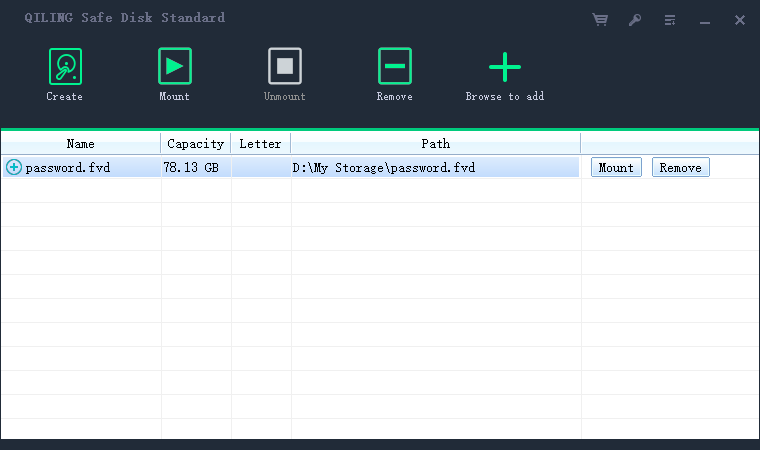
Step 2. Locate the .fvd container file in File Explorer. Copy it to a USB stick or upload it to cloud storage.
Step 3. Send the container or its download link to the recipient through your chosen file channel.
Step 4. Send the container password to the recipient through a different channel, such as a phone call or a password manager.
Step 5. Ask the recipient to confirm they have opened the container. Once confirmed, change the password if the container is a copy you no longer control.
Step 6. If you shared a copy, you can keep or delete the original. The recipient's copy is independent and does not sync with yours.
Step 7. For ongoing sharing, agree on a schedule to update the password and re-share the container after important changes.
What the Recipient Needs to Open It
The recipient needs three things to open the shared container.
- The container file. They must have the .fvd file on a Windows PC.
- Qiling Safe Disk. They need Safe Disk installed or the portable version on a USB stick.
- The password. They enter the same password you set when creating or last changing the container.
The recipient mounts the container by opening Safe Disk, clicking Add Old Image, browsing to the file, and entering the password. The container appears as a drive letter in File Explorer. When finished, they unmount it to lock the files again.
If the recipient uses macOS or Linux, Safe Disk will not work. They need a Windows PC or a virtual machine running Windows. For cross-platform sharing, consider a tool like VeraCrypt instead.
FAQs About Sharing Encrypted Files
Can I revoke access after sharing?
Only if you change the password on your copy. The recipient's copy keeps the old password, so changing it on your end does not lock them out of their copy. For true revocation, use a tool with access control.
Is it safe to share the container over email?
Yes, the container is encrypted, so the email provider cannot read its contents. Just never include the password in the same email.
Can multiple people open the same container at once?
Not recommended. If two people mount the same container file and both write to it, the file can be corrupted. Share copies, not the same file.
What if the recipient forgets the password?
You can resend the password through a secure channel. If you also forget it, the files cannot be recovered.
Can I set an expiration date on the shared container?
Safe Disk containers do not expire. The recipient can open the copy whenever they want, as long as they have the password. Change the password on your copy to prevent future use of new data.
Back Up Windows Before You Change Settings
Before installing software for file sharing or changing security settings, create a full Windows backup. Qiling Disk Master creates a system image you can restore from.
Step 1. Open Qiling Disk Master and select "System Backup" to include Windows and the boot partitions.
Step 2. Save the image to a drive other than the Windows disk and start the backup.
Step 3. If a change causes issues, restore from the image to return Windows to its working state.
Conclusion
Sharing encrypted files securely is a two-step process: send the encrypted container through one channel and the password through a completely different one. The container can travel by email, cloud storage, or USB because it is encrypted. The password must go out of band by phone, password manager, or in person. The recipient needs the container file, Qiling Safe Disk, and the password to open it. Always unmount the container before sharing, and change the password after the recipient confirms access. By keeping the file and the password apart, you ensure that only the intended person can read your files.
For more on encryption and file protection, see How to Create an Encrypted Virtual Drive, How to Mount an Encrypted Drive on Another Computer, How to Backup an Encrypted Drive or Container, and How to Use Qiling Safe Disk.
Related Articles
- How to Encrypt a Folder with Password on Windows
Put a folder inside a container and share the encrypted file with the password sent separately. - Is Encryption Enough to Protect Your Data?
See what else protects shared encrypted files beyond the container password. - How to Change an Encrypted Container Password
After sharing, change the container password so the old password no longer opens your copy. - How to Encrypt Files Before Uploading to Cloud Storage
Use the cloud to transfer the encrypted container, then send the password through another channel. - What is Disk Imaging
Back up the whole disk that holds shared containers so you never lose the originals.
Products
Articles & Tutorials
- Data Recovery
- Data Backup
- File Recovery
- File Backup
- System Backup and Restore
- Disk and Partition Clone
- Technical articles
- Mobile articles
- Disk Master Help
- Windows Data Recovery Tutorials
- Windows Secure Delete Tutorials
- Windows Partition Management Tutorials
- Windows File Backup and Restore Tutorials
- Windows System Backup and Restore Tutorials
- Windows Disk Backup and Restore Tutorials
- Windows Clone Tutorials