How to Change an Encrypted Container Password
Your encrypted container is only as strong as its password. If you think the password has been exposed, if you shared it with someone, or if you simply want to rotate it regularly, you should change it. Changing the password re-encrypts the container so the old password no longer works.
This guide explains when to change the password, how to do it in Qiling Safe Disk, and how to keep your backups and shared copies in sync.
PAGE CONTENT
- When to Change the Container Password
- What Happens When You Change the Password
- How to Choose a Strong New Password
- Change the Password with Qiling Safe Disk
- What to Do After Changing the Password
- FAQs About Changing Container Passwords
- Back Up Windows Before You Change Settings
When to Change the Container Password
Changing the password is not something you need to do every day, but there are clear triggers.
- Shared the password. If you gave the password to someone and no longer want them to have access, change it.
- Suspected exposure. If you typed the password on a public computer, sent it over an insecure channel, or wrote it down insecurely, change it.
- Regular rotation. For high-value containers, change the password every few months as part of good security hygiene.
- Weak original password. If the current password is short or easy to guess, replace it with a stronger one.
- Personnel changes. If someone who knew the password leaves your team or household, change it.
If you forget the password, you cannot change it. You must know the current password to set a new one. There is no back door or recovery option in Safe Disk.
What Happens When You Change the Password
Changing the password re-encrypts the container's key material.
- The old password stops working. After the change, only the new password can open the container.
- Your files are re-encrypted. The data inside is re-encrypted under the new key, so the old password cannot decrypt it.
- Backup copies are not affected. Copies of the container you made before the change still use the old password. Make new backups after changing it.
- Shared copies are not affected. Anyone who has a copy of the container can still open it with the old password. To lock them out, you must change the password on their copy too, or they must re-download the updated container.
- The container size stays the same. Changing the password does not add or remove data, so the file size does not change.
Always back up the container before changing the password. If the process is interrupted, you want a working copy to fall back on.
How to Choose a Strong New Password
A strong password is the foundation of container security.
- Use at least 12 characters. Longer passwords take exponentially longer to brute-force.
- Mix character types. Combine uppercase and lowercase letters, numbers, and symbols.
- Avoid common words. Do not use names, birthdays, dictionary words, or patterns like "123456".
- Do not reuse it. Use a unique password for the container that you do not use anywhere else.
- Store it in a password manager. A password manager lets you use a long, random password without having to remember it.
If you use a password manager, generate a random 16-character or longer password. Store it securely and back up the password manager itself.
Change the Password with Qiling Safe Disk
Changing the password in Qiling Safe Disk takes a few clicks. Download and install Safe Disk if you have not already.
Step 1. Open Qiling Safe Disk. Make sure the container you want to modify is listed in the image list.
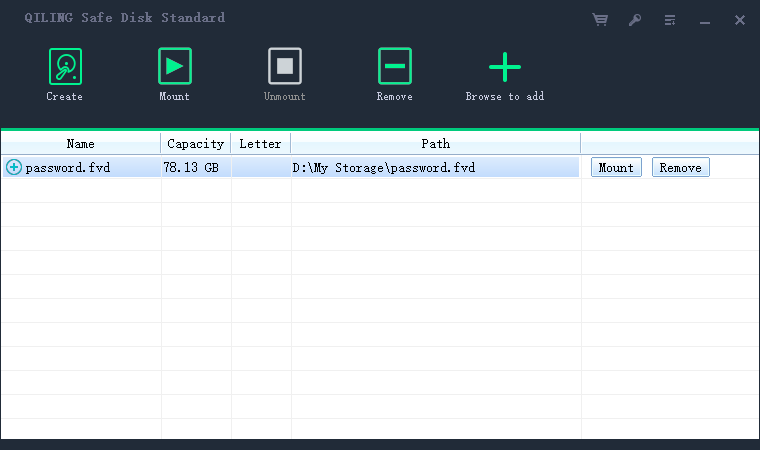
Step 2. If the container is mounted, select it and click Unmount. You cannot change the password while the container is in use.
Step 3. Select the container in the list and click the Change Password or password option.
Step 4. Enter the current password to confirm you are authorized to make the change.

Step 5. Enter the new password twice. Use a strong, unique password that you have not used elsewhere.
Step 6. Click OK or Apply. Safe Disk re-encrypts the container with the new password. Wait for the process to finish.
Step 7. Test the new password by mounting the container. If it opens, the change was successful.
What to Do After Changing the Password
After the password change, take these steps to keep everything working.
- Update the password manager. Replace the old password with the new one in your password manager.
- Make a new backup. Old backup copies still use the old password. Copy the updated container to your backup drive.
- Update shared copies. If you shared the container with others, send them the updated file and the new password through separate channels.
- Verify access. Mount the container on another PC if possible, to confirm the new password works everywhere.
- Secure the old password. Delete any written or stored copies of the old password so it cannot be used.
Keep at least one backup that uses the old password until you are certain the new password works on all your devices. Once verified, update the old backup or delete it.
FAQs About Changing Container Passwords
Can I change the password if I forgot the current one?
No. You must enter the current password to set a new one. If you forgot it, the container cannot be opened or changed.
Will changing the password affect my files?
No. Your files stay exactly the same. Only the encryption key changes. No data is lost or modified.
How long does the password change take?
It depends on the container size. A small container takes seconds, while a large one may take several minutes as the data is re-encrypted.
Can I revert to the old password?
Yes. If you remember the old password, you can change back to it using the same process. But reverting defeats the purpose of the change unless the old password is no longer exposed.
Do I need to change the password if I only shared a copy?
Yes, if you want to ensure the recipient cannot access future versions. Their copy keeps the old password, but your updated container uses the new one.
Back Up Windows Before You Change Settings
Before changing encryption settings, create a full Windows backup. Qiling Disk Master creates a system image you can restore from.
Step 1. Open Qiling Disk Master and select "System Backup" to include Windows and the boot partitions.
Step 2. Save the image to a drive other than the Windows disk and start the backup.
Step 3. If a change causes issues, restore from the image to return Windows to its working state.
Conclusion
Changing the password on your encrypted container is an important security step when the password has been shared, exposed, or is simply too old. The process re-encrypts the container so the old password no longer works, while your files remain unchanged. Always back up the container first, choose a strong and unique new password, and store it in a password manager. After the change, update your backups and any shared copies, and verify the new password works. Regular password rotation, combined with strong password hygiene, keeps your encrypted container secure over time.
For more on container security, see Forgot Encrypted Drive Password?, How to Share Encrypted Files Securely, Is Encryption Enough to Protect Your Data?, and How to Use Qiling Safe Disk.
Related Articles
- How to Mount an Encrypted Drive on Another Computer
Verify the new password works by mounting the container on another PC. - How to Hide Files with Encryption
Hide the container after changing the password for an extra layer of privacy. - How to Backup an Encrypted Drive or Container
Back up the container before changing the password and again after the change. - How to Create an Encrypted Virtual Drive
Learn how the container is created so you understand how the password protects it. - What is Disk Imaging
Back up the whole disk so a failed password change does not cost you the container.
Products
Articles & Tutorials
- Data Recovery
- Data Backup
- File Recovery
- File Backup
- System Backup and Restore
- Disk and Partition Clone
- Technical articles
- Mobile articles
- Disk Master Help
- Windows Data Recovery Tutorials
- Windows Secure Delete Tutorials
- Windows Partition Management Tutorials
- Windows File Backup and Restore Tutorials
- Windows System Backup and Restore Tutorials
- Windows Disk Backup and Restore Tutorials
- Windows Clone Tutorials