How to Lock an Encrypted Drive Automatically
An encrypted drive is only as safe as its current state. While it is mounted, the files inside are as open as any ordinary folder, and a locked container that stays unlocked all day protects almost nothing.
This guide shows how to lock an encrypted drive automatically, so it seals itself when you step away, log off, or shut the PC down.
PAGE CONTENT
- Why Auto-Locking Matters
- How Auto-Lock Works
- Lock a Container with Safe Disk
- Lock the Drive at Shutdown and Logoff
- Tips to Keep the Lock Reliable
- FAQs About Locking Drives
- Back Up Windows Before You Change Settings
Why Auto-Locking Matters
- A mounted drive is exposed. Any app or person at the PC can read the files inside it.
- People forget to unmount. Relying on memory works until the one busy day it does not.
- Walk-away risk is real. A quick coffee break leaves an open drive on an unattended desk.
- Sleep is not enough. A woken laptop can return with the container still mounted.
- Automation removes the gap. A timer closes the drive even when you forget.
Encryption only helps while the container is closed. For the wider picture, see Is Encryption Enough to Protect Data?.
How Auto-Lock Works
- An idle timer. The tool watches for inactivity and unmounts the container after a set period.
- Session events. Locking the screen, logging off, or shutting down can trigger an unmount.
- Dismount on close. Closing the Safe Disk window can lock every open container at once.
- Startup states. Containers stay unmounted after a reboot until you enter the password.
- Manual override. You can always unmount early; the timer simply covers what you miss.
Auto-lock simply turns the safe habit of unmounting into something the software does for you.
Lock a Container with Safe Disk
Qiling Safe Disk opens containers only while you need them and makes locking them simple. Download and install it first.
Step 1. Open Qiling Safe Disk and look at the list of containers and their mount states.
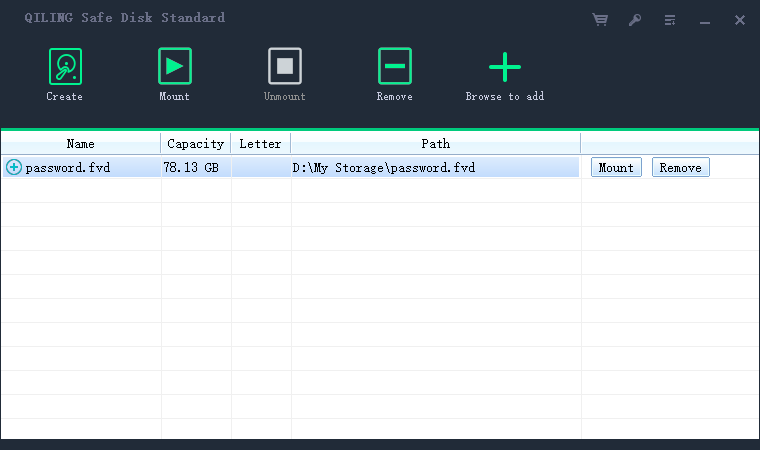
Step 2. Mount a container only when you need it, then set the lock behavior you prefer.
Step 3. When you finish, click Unmount so the container returns to its locked state at once.
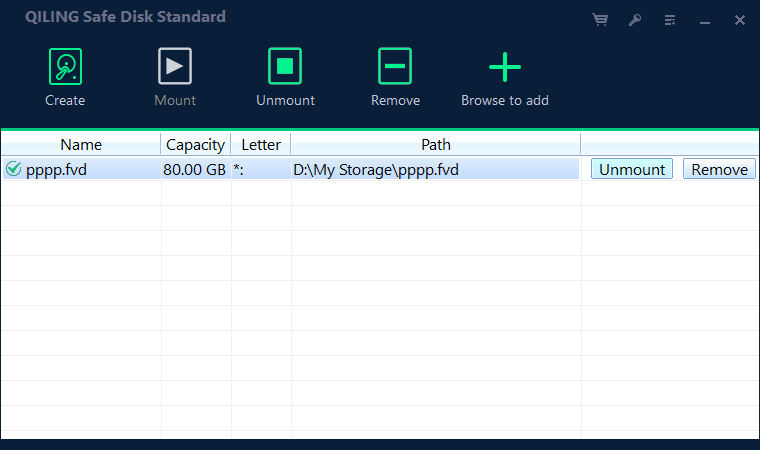
Step 4. Confirm the container is unmounted before you leave the PC.
Lock the Drive at Shutdown and Logoff
- Unmount before shutdown. Closing the container first avoids a dirty state on restart.
- Lock on logoff. Ending a session should also close any container that is still open.
- Reboot leaves it locked. After a restart the container waits for your password again.
- Do not rely on sleep. Suspending a laptop does not always close the container.
- Check after waking. When you resume, verify the container is still locked.
Making shutdown part of your routine means the drive starts every session in its safest state.
Tips to Keep the Lock Reliable
- Set a short timeout. A few idle minutes is enough to cover a coffee break.
- Use screen lock together. A quick screen lock protects the session while the timer handles the drive.
- Close files first. Apps holding files inside the container can block a clean unmount.
- Recheck occasionally. Confirm a container really locks the way you expect.
- Keep the password handy. A drive that locks itself is only useful if you can open it again.
Automation is a safety net, not a replacement for good habits. You can always verify the state yourself; see How to Check If a Drive Is Encrypted on Windows.
FAQs About Locking Drives
Does a container stay unlocked after reboot?
No. A container starts unmounted after a restart and needs the password again before it opens.
Will auto-lock unmount my container while I am working?
No. The idle timer resets with activity, so it triggers only after genuine inactivity.
Can I unmount a container that is busy?
Close any open files inside it first. Once nothing is using it, unmount completes cleanly.
What if I forget to lock the drive?
Short of a timer, lock your screen when you step away. A locked screen limits who can reach the mounted drive.
Is an unmounted container still readable?
No. Unmounted, the data is encrypted and hidden behind your password until you mount it again.
Back Up Windows Before You Change Settings
Before installing security software or changing storage, create a full Windows backup. Qiling Disk Master creates a system image you can restore from.
Step 1. Open Qiling Disk Master and select System Backup to include Windows and the boot partitions.
Step 2. Save the image to a drive other than the Windows disk and start the backup.
Step 3. If a change causes issues, restore from the image to return Windows to its working state.
Conclusion
An encrypted drive protects your files only while it is closed, and people forget to close it. Auto-locking closes that gap by unmounting a container after a period of inactivity and again on logoff or shutdown, so the drive seals itself even on your busiest day. Qiling Safe Disk makes this simple: containers stay unmounted after a reboot, open only when you enter your password, and lock again at a click. Choose a short timeout, lock your screen when you step away, keep files closed before you unmount, and store the password where you can reach it. The drive should be locked by default and open only on purpose.
For more on locking down your data, see How to Hide Files with Encryption, How to Encrypt a Folder with a Password, How to Encrypt Passwords and Credentials, and How to Use Qiling Safe Disk.
Related Articles
- Encryption vs Password Protection: What's the Difference?
Understand why a mounted drive is still a risk. - Can Ransomware Encrypt an Encrypted Drive?
Understand why malware cannot break a locked container. - Does Encryption Slow Down Your Disk?
See how AES encryption affects real-world performance. - Is an Encrypted Drive Safe from Hackers?
See what protects your files and what does not. - How to Mount an Encrypted Drive on Another Computer
Open a locked container safely on a different PC.
Products
Articles & Tutorials
- Data Recovery
- Data Backup
- File Recovery
- File Backup
- System Backup and Restore
- Disk and Partition Clone
- Technical articles
- Mobile articles
- Disk Master Help
- Windows Data Recovery Tutorials
- Windows Secure Delete Tutorials
- Windows Partition Management Tutorials
- Windows File Backup and Restore Tutorials
- Windows System Backup and Restore Tutorials
- Windows Disk Backup and Restore Tutorials
- Windows Clone Tutorials