2 Simple Ways to Backup Gmail to Google Drive
Page Content:
- Why Should Backup Gmail Data to Google Drive?
- Simple Ways to Backup Gmail to Google Drive
- Backup Gmail to Google Drive FAQs
If you've been using Gmail for a long time, you likely have a significant amount of important emails, attachments, and drafts stored in it. The thought of something happening to your account, such as files being lost or contacts being erased, can be daunting and even cause digital disaster.
You can quickly backup Gmail to Google Drive to avoid losing your emails and ensure they remain safe in the cloud. We will show you some Gmail backup tools and walk you through the steps to backup your Gmail data to Google Drive. Let's get started!
Why Should You Backup Gmail Data to Google Drive?
Backing up Gmail to Google Drive is essential as it safeguards vital data and information stored in your Gmail account, preventing potential losses in work or study due to account mishaps. Google Drive, a cloud storage service, allows easy saving, syncing, and sharing of information anywhere and anytime, making it a reliable backup solution for Gmail.
- To keep some important emails safe
- Transfer all your Gmail emails to another account
- Data can be accidentally deleted from a Google account
- Access your Gmail emails anytime
- Share information or data with others quickly and easily
To backup Gmail with attachments, you can use the built-in feature in Gmail to save emails and attachments to Google Drive, or use third-party services like Sanebox or Backupify to automatically backup your Gmail account. You can also use Google Takeout to download your Gmail data, including emails, contacts, and attachments, and then upload them to Google Drive. Additionally, you can use a browser extension like Gmail Backup to manually backup your emails and attachments.
Simple Ways to Backup Gmail to Google Drive
You can save Gmail emails to Google Drive using two reliable methods. The first method involves saving them manually, while the second method uses a professional email backup software. Both methods have been tried and tested, so you can choose the one that best suits your needs.
#1. Backup Gmail to Google Drive Manually
To save your Gmail data, the most immediate way is to use Google Drive. You can create an archive of your Gmail data with Google takeout and then save it in your Google Drive account. Follow these steps to achieve this:
Step 1. To access Google Takeout, open your browser, navigate to takeout.google.com, and log into your Gmail account.
Step 2. To back up your data, select the category you want to back up from the list provided. This could include documents, photos, videos, music, or other types of data. Once you've selected the category, the backup process will be initiated, and your chosen data will be copied to a safe location, such as an external hard drive or cloud storage.
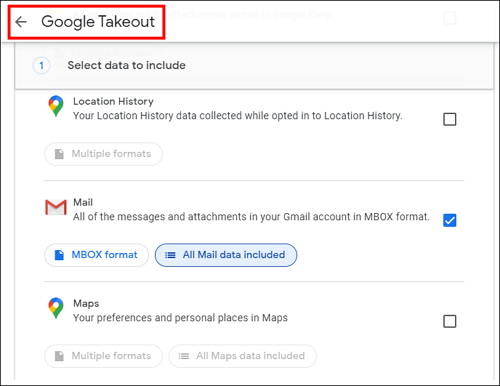
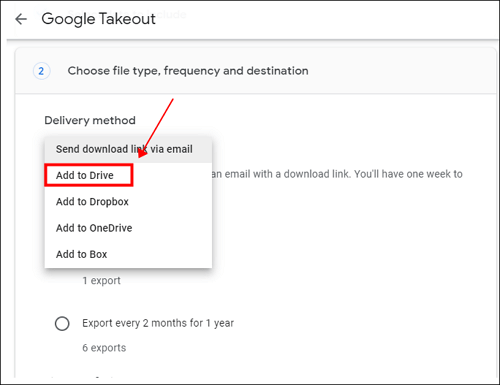
Step 3. Then click Next to select the Delivery Method as Add to Drive, and choose .zip as the file type.
Step 4. Select the desired size of the single archive, keeping in mind the 50GB maximum limit, and then click on the "Create archive" icon.
Step 5. The process will finish on its own, you don't need to intervene or do anything else. Just wait for it to complete.
#2. Backup Gmail Data to Google Drive Automatically with Professional Backup Software
While you can back up Gmail to Google Drive directly, it has limitations, including only 15 GB of free storage, which may not be enough to store an entire Gmail account.
If you want to back up all your Gmail data to Google Drive, you can rely on a backup software like Qiling Disk Master Pro.
This software supports various backup types, including disk backup, partition backup, system backup, file backup, and outlook backup, among others, and helps complete backup activities automatically. It also features a schedule backup option, allowing you to create a backup at a specific time once set. Additionally, it performs well in multiple aspects.
- Allow storing backup files to a created security zone
- Provide a free 250 GB cloud storage
- Help create an emergency USB disk or CD/DVD
- Help clone system or disk
To back up Gmail to Google Drive using Qiling backup software, follow these steps: First, download and install Qiling on your computer. Next, sign in to your Gmail account and grant Qiling permission to access your emails.
Note: To back up Gmail to Google Drive, log in to your Gmail account in Outlook, then follow the step-by-step guide.
Step 1. Launch Qiling Disk Master on your computer, and click the Backup and recovery tab page.

Step 2. Among the four backup options, click "File backup".

Step 3. To back up your Microsoft Outlook data, find and select the "Microsoft Outlook" option from the list of apps that can be backed up. Then, choose the mailbox addresses you want to back up, such as your mail, contacts, or calendars, and click "OK" to initiate the backup.

Step 4. To save the Outlook backup, click on the illustrated area to select a location.

Step 5. The backup location can be another local drive on your computer, an external hard drive, network, cloud, or NAS. We recommend using an external physical drive or cloud to preserve the backup files.

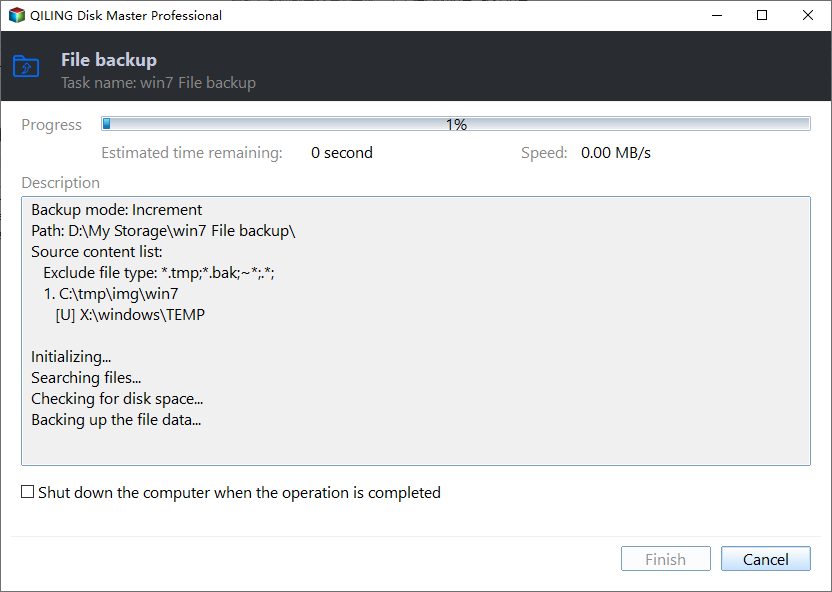
Step 6. Customization settings such as setting an automatic backup schedule in daily, weekly, monthly, or upon an event, and making a differential and incremental backup are available in the Options button. Clicking Proceed starts the Outlook backup process, which displays the completed task on the left side in a card style.
Final Words
To back up your Gmail data to Google Drive, you can use Google Takeout, but it may be a bit complicated and time-consuming. Alternatively, you can use Qiling Disk Master Pro, a professional backup software that can automatically back up your Gmail data in a snap.
Backup Gmail to Google Drive FAQs
1. Can I back up my Gmail emails?
You can back up your Gmail emails by exporting and downloading them manually or using a third-party backup program.
2. Should I back up Gmail?
It's essential to back up your Gmail account data as it contains vital information and data, and losing access to it could result in significant losses in work or study.
Related Articles
- More Windows Guides: Refresh Windows 11
- How to Backup/Export and Restore Chrome History and Cookies
- More Windows Guides: What Changed in Windows 11 KB5012592
- Windows 10 Keeps Freezing on Startup – Causes & Solutions Are Here
- Acronis Universal Restore for Windows & Its Alternative
- [SOLVED] Laptop Keeps Freezing and Crashing
- pCloud Backup vs Sync: What's the Difference & How to Choose
Compare pCloud Backup and Sync to understand how each works, when to use backup or sync, and how to protect files in the cloud.
Products
Articles & Tutorials
- Data Recovery
- Data Backup
- File Recovery
- File Backup
- System Backup and Restore
- Disk and Partition Clone
- Technical articles
- Mobile articles
- Disk Master Help
- Windows Data Recovery Tutorials
- Windows Secure Delete Tutorials
- Windows Partition Management Tutorials
- Windows File Backup and Restore Tutorials
- Windows System Backup and Restore Tutorials
- Windows Disk Backup and Restore Tutorials
- Windows Clone Tutorials