[2 Easy Ways] How to Backup QuickBooks Automatically on Windows 11/10/8/7
Why Do You Need to Backup QuickBooks
QuickBooks is a popular accounting software for small and medium-sized businesses that offers cloud-based and on-premises accounting applications, handling payroll, invoicing, and payments at an affordable cost.

Regularly backing up your QuickBooks files is crucial for business owners, as it allows you to restore data from your most recent backup in case the computer on which QuickBooks is installed malfunctions, preventing data loss.
Creating a backup of QuickBooks data is beneficial to protect your data in case something terrible happens to the original files, such as a computer crash or malware attack. A QuickBooks backup is especially helpful if you want to transfer the data to another computer.
2 Ways to Automatically Backup QuickBooks on Windows PC
Two popular methods exist for automatically backing up QuickBooks data. The first method leverages QuickBooks' built-in backup feature, which allows users to schedule regular backups of their company file. The second method utilizes professional data backup software, providing an additional layer of protection and flexibility in managing backups.
| Workable Solutions | Step-by-step Troubleshooting |
|---|---|
| Solution 1. Backup QuickBooks via QuickBooks Built-in Feature | There are two automated file backup methods in QuickBooks. First, QuickBooks will...Full steps |
| Solution 2. Backup QuickBooks Using Professional APP Backup Software (Recommended) | Using professional APP backup software is another way to back up QuickBooks...Full steps |
Solution 1. Backup QuickBooks via QuickBooks Built-in Feature
QuickBooks automatically creates a backup every time you close the file. You can set the frequency of these backups, and they're saved on your hard drive in a folder called "Auto Backup" within the QuickBooks directory.
The second method allows for an unattended backup, which means you can schedule it without needing to be present in front of a computer. This backup can be stored on a local or network hard drive, and it must be completed with the company file closed.
Set up QuickBooks Automatic Backup
To set an automatic backup in QuickBooks, follow these steps: First, go to the "File" menu and select "Backup Company" to create a backup file. Then, click on the "Options" button and select the "Automatic Backup" tab.
Step 1. Open the File and switch to single-user mode.
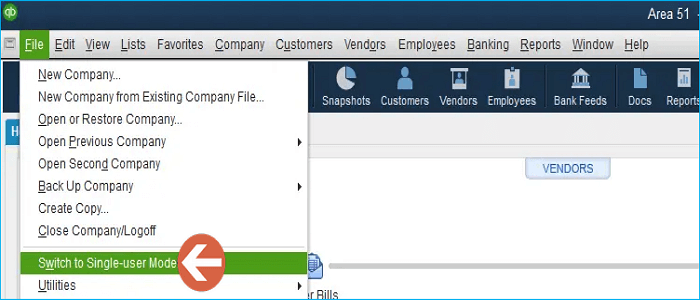
Step 2. Select Backup Company and then choose Save Copy, followed by Create Local Backup.
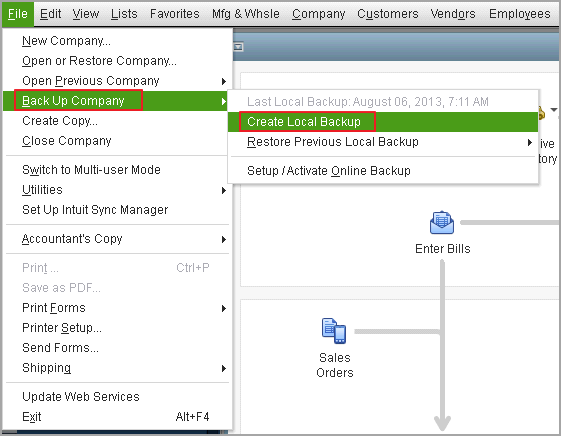
Step 3. In the window, choose Local Backup and then Next.
Step 4. In the Local Backup Only option, select Browse and choose the location where you want to save your backup.
Step 5. Set how many backups you want to save(Optional).
Step 6. In the Online and Local Backup, choose Complete verification.
Step 7. Select OK when you are ready.
Step 8. Click on the "Save it now and schedule future backups" option, and then click Next.
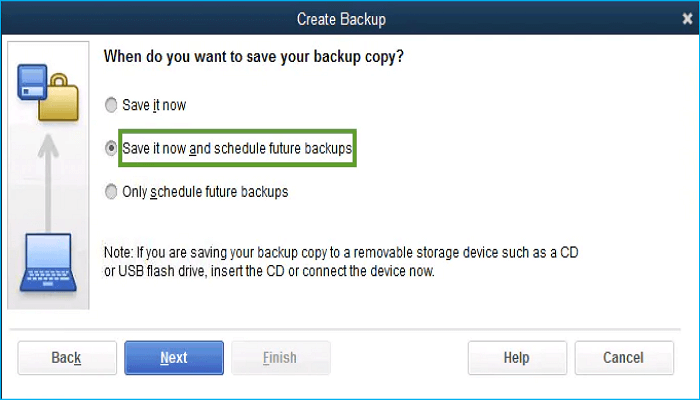
Step 9. To save a backup copy of your company file automatically when closing the file, go to File>Options>Save tab, select the Save backup copy automatically when I close my company file option, and choose the number of times between backups.
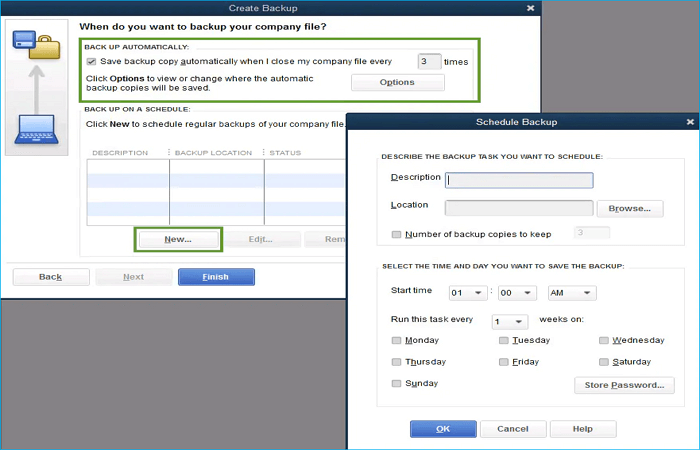
Step 10. To set a schedule, select New and fill in the required fields with specific details, such as a particular hour or day of the week, to create a backup schedule.
Step 11. Select OK after you set your schedule.
Step 12. Select Finish when you are ready to create a backup.
Solution 2. Backup QuickBooks Using Professional APP Backup Software (Recommended)
Using professional APP backup software is another way to back up QuickBooks files automatically. Many backup software options are available, but they often don't allow backing up the whole APP. However, a utility called Qiling Disk Master provides a solution, enabling the backup of the entire APP.
Qiling Disk Master Pro is a practical backup and restore tool compatible with Windows 11/10/8/7, allowing you to automatically back up apps, files, systems, disks, partitions, etc. and create different types of backups that can be saved to diverse locations such as local drives, NAS, Security Zone, and Cloud.
- Install your Windows on a new SSD without a USB.
- Create a hot backup.
- Create an iso image from a hard drive.
- 250G free cloud storage.
- Reinstall Windows without losing games.
- Clone a hard drive.
To back up your QuickBooks, you can follow these steps. First, open QuickBooks and go to the File menu, then select "Backup Company".
Step 1. Download and install Qiling Disk Master on your computer, then click on the "Backup" tab page.

Step 2. To make a backup of your software applications, you can click the "File Backup" option. This will ensure that your software applications are safely backed up.

Step 3. Scroll down through the list of apps that can be backed up on the screen to find the specific app you need to back up.

Step 4. Choose a safe place to store your backup, such as a cloud service, network-attached storage (NAS), or an external hard drive, to prevent data loss in case your computer fails or crashes.

Step 5. You can set customized backup by clicking the "Option" button, which allows you to schedule backups daily, weekly, monthly, or upon an event, and choose between differential or incremental backup options.

Step 6. When you're done setting up, click "Proceed" to start the backup process. The time will depend on the size of your source data, but it shouldn't take too long.
Wrapping Things Up
You can back up QuickBooks automatically using the built-in backup feature or professional software like Qiling Disk Master. However, you may sometimes encounter the "QuickBooks unable to backup company file" error due to various reasons.
Using Qiling Disk Master Pro is the best way to back up QuickBooks, as it can also help restore the backup whenever needed. Additionally, it allows you to compress backups to save storage space and back up SSDs to an image. Just try it, and it will not let you down!
FAQs
1. Where should I save my QuickBooks backups?
To backup your company file in QuickBooks, go to the File menu, select Backup Company, then choose Create Local Backup, followed by Local Backup, and finally select where you want to store the backup, preferably online or on an external hard drive.
2. Does QuickBooks automatically backup?
QuickBooks offers two automated file backup methods: a scheduled backup that runs every time you close the file, and an unattended backup that can be set to run at specific intervals. However, for a more convenient and reliable backup solution, consider using professional APP backup software like Qiling Disk Master, which can automatically back up your QuickBooks file with ease.
3. Why can't I backup my QuickBooks?
QuickBooks may fail to back up the company file if the backup path is faulty or unavailable, so ensure the backup location is correct and the external disk is securely plugged in if necessary.
Related Articles
- How Do I Back Up PC Automatically in Windows 11 [Get 3 Ways]
- [Data Protection] The Differences between System Image and Full Backup
- Everything About S Mode in Windows 11
- How to Fix Windows Defender Not Turning On | 7 Methods
- 5 Best Backup and Restore Software for Windows 10 [Updated 2024]
Are you looking for the best backup and restore software for Windows 10? This article aims to tell you 5 best backup and restore software for Windows 10, tell you an overview of backup and restore in Windows. - How to Backup Chrome Settings Without Sync [Step-by-Step Tutorial]
Learn how to back up Chrome settings without Sync. Use safer local or software backup methods to protect bookmarks, passwords, extensions, history, and cookies.
Products
Articles & Tutorials
- Data Recovery
- Data Backup
- File Recovery
- File Backup
- System Backup and Restore
- Disk and Partition Clone
- Technical articles
- Mobile articles
- Disk Master Help
- Windows Data Recovery Tutorials
- Windows Secure Delete Tutorials
- Windows Partition Management Tutorials
- Windows File Backup and Restore Tutorials
- Windows System Backup and Restore Tutorials
- Windows Disk Backup and Restore Tutorials
- Windows Clone Tutorials