How to Fix Windows Defender Not Turning On | 7 Methods
Key Takeaways
- Windows Defender is a crucial tool to protect your system from malware, viruses, and other online threats when using the internet or downloading files.
- Windows Defender may not turn on due to various reasons such as corrupted system files, incorrect registry entries, or conflicts with other security software. It may also be disabled by the user or by another security program.
- Windows Defender not turning on is a common issue in Windows 11/10/8/7. To fix this, try simple methods such as restarting your computer, checking the Windows Defender service status, and ensuring it's not disabled.
How to Fix Windows Defender Won't Open/Working
Let us dive right into solutions to fix the Windows Defender if it is not working properly. Try these 7 methods one after the other to see if the problem is solved.
- Fix 1. Turn On Real-Time Protection
- Fix 2. Temporarily Disable Third-party Antivirus Program
- Fix 3. Restart the Security Center Service
- Fix 4. Run SFC Scan
- Fix 5. Enable Windows Defender via Group Policy
- Fix 6. Turn on Windows Defender via Registry Editor
- Fix 7. Update Windows
Fix 1. Turn On Real-Time Protection
Windows Defender's real-time protection feature must be turned on in order to use the app and access its features, as many of them are associated with this feature. Turning it back on is necessary.
Step 1. To access the Windows Settings, press the Windows key and the letter "S" simultaneously, then search for "Settings" and open it. From there, navigate to the "Update & Security" section from the left panel.
Step 2. Open the Windows Security section and click on Virus & Threat Protection.
Step 3. Go to the Virus & Threat Protection section and click the Manage Settings link from the options.
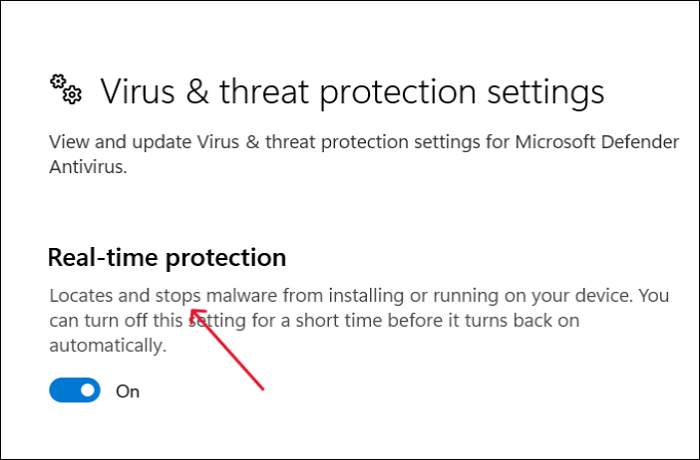
Step 4. In the new window, turn on the toggle for Real-Time protection, then restart the computer to see the changes.
Fix 2. Temporarily Disable Third-party Antivirus Program
To resolve issues with the Defender app, try temporarily disabling third-party antivirus software, as conflicts between the two may be the cause. Disabling the third-party antivirus can be done by following the steps provided, which may resolve the problem.
If you are choosing between built-in and third-party protection, compare Windows Defender vs Norton. For a broader PC security checklist, see antivirus software for PC free download and why backup is still needed.
Note: Not having an active Antivirus program is prone to external risks. Disabling antivirus should only be done if you are aware of the potential risks.
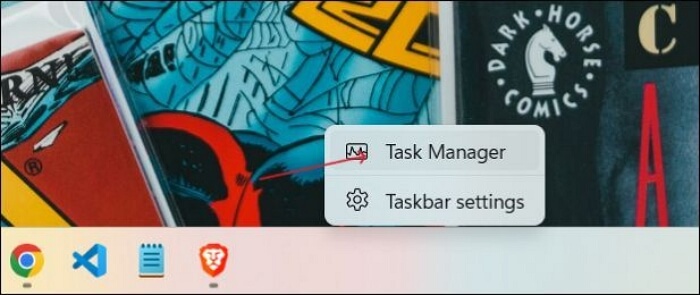
Step 1. Right-click on the empty space on your taskbar and click on Task Manager.
Step 2. To expand the Task Manager window, click on the arrow icon located at the top-right corner of the window. This will allow you to view the contents in more detail, including a list of currently running processes, system performance metrics, and other relevant information.
Step 3. To access the antivirus program, click on the "Start-up" option from the header menu at the top, and then locate the antivirus software installed on your device from the list.
Step 4. Select the program you want to disable by clicking on it, then click the "Disable" button at the bottom to disable it.
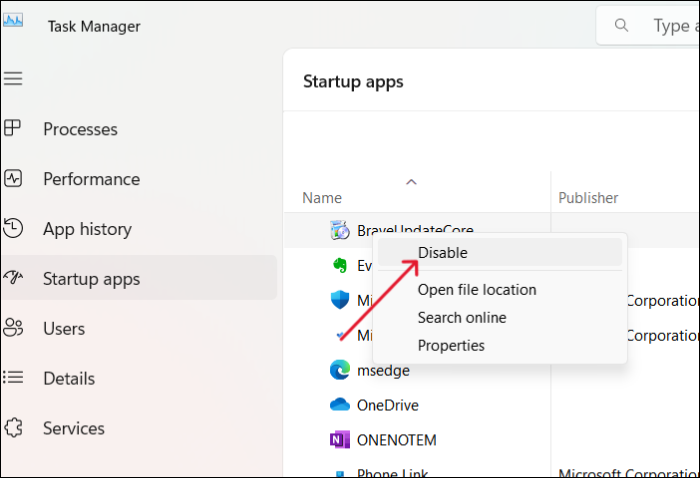
Step 5. You have disabled the app from launching at the start, so now you need to restart your PC to see if the changes take effect.
Fix 3. Restart the Security Center Service
Windows operating system uses various services to run the functions and tasks smoothly. Similarly, the Defender uses the security service to roll out protection measures on your PC. We can try restarting the service to see if it resolves the problem.
Step 1. Press the Windows + R keys to open the Run dialog box. Type services.msc and press Enter. This will open the Services window, where you can view and manage the services running on your computer.
Step 2. The services window will open, and you can find the Security Center service from the list.
Step 3. Right-click on the service and select Refresh from the menu.
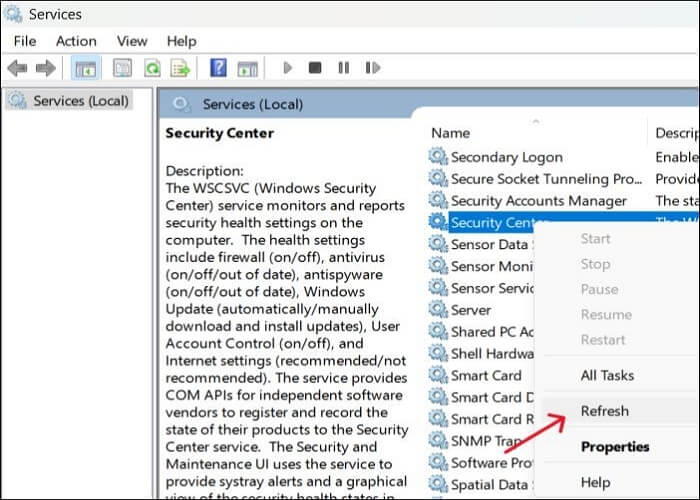
Step 4. The Windows Defender service is being restarted. Please wait for a few seconds and then check if it's running properly. You can do this by going to the Services tab in the Task Manager, looking for the Windows Defender service, and checking if its status is "Running".
Fix 4. Run SFC Scan
The System File Checker (SFC) scans and restores Windows system files for errors and corruptions, potentially resolving issues with Microsoft Defender if corrupted files are the cause.
Step 1. Open Command Prompt (CMD) with the administrative privileges.
Step 2. Type the SFC scan command and press the Enter key.
sfc /scannow
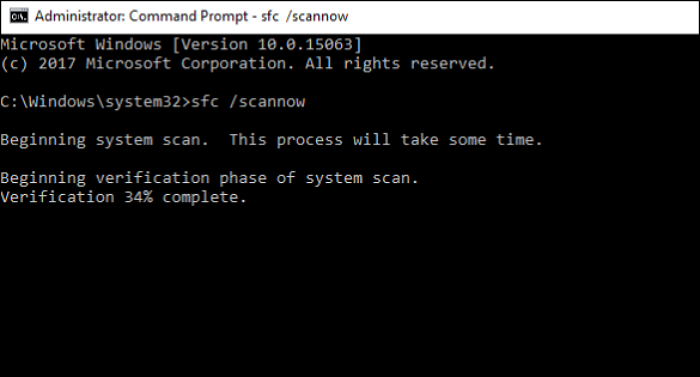
The SFC will start the system scan, taking some time, and verifying until it reaches 100%. Once complete, close the CMD and check if the Windows Defender unexpected error is resolved.
If the SFC scan fails to work with some error message, you can run the command "DISM /Online /Cleanup-Image /RestoreHealth" to fix the issue.
DISM /Online /Cleanup-Image /RestoreHealth
Fix 5. Enable Windows Defender via Group Policy
The Local Group Policy Editor allows you to modify files in the operating system. However, it's possible for the Windows Defender to be turned off by accident or by another user, or even by malware. To rectify this, you can check the Group Policy and enable the Windows Defender again.
Step 1. Press Windows + S, and type Group Policy. Click on Edit Group Policy from the results.
Step 2. To find the Microsoft Defender Antivirus in the Local Group Policy Editor, navigate to Computer Configuration → Administrative Templates → Windows Components → Microsoft Defender Antivirus.
Step 3. To disable Microsoft Defender Antivirus, double-click on the "Turn off Microsoft Defender Antivirus" option, which will open a new window.
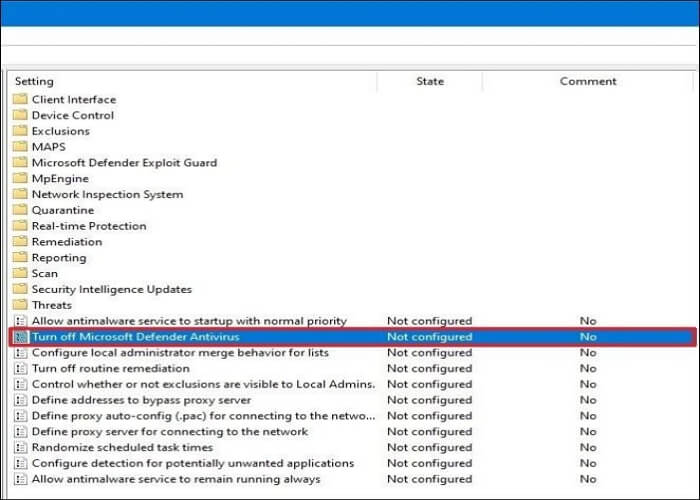
Step 4. To resolve the issue with Windows Defender Antivirus not working, toggle the button beside "Not Configured" and click on the "Apply" button. Then, restart your computer to see if the antivirus software is back in working order.
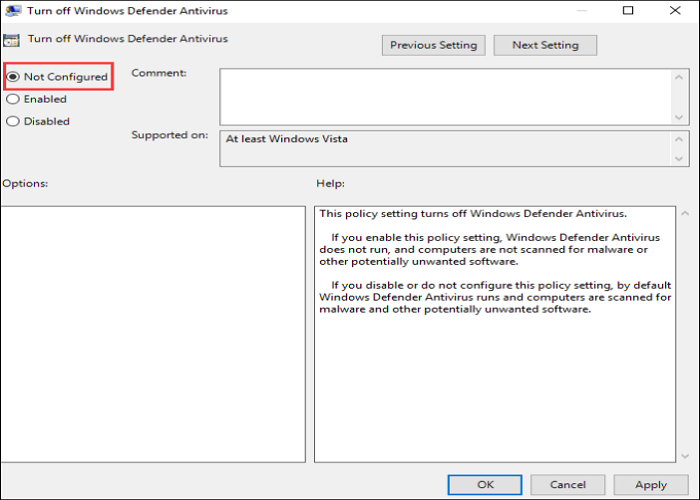
Fix 6. Turn on Windows Defender via Registry Editor
To enable Windows Defender, you can make changes through the Windows Registry, which doesn't require being a Windows 10 business user. This allows you to bypass the need for a Windows 10 business account to make changes through the Group Policy Editor. To do this, navigate to the Windows Registry and add a new DWORD value to the specified key, which will enable Windows Defender.
Step 1. To open the Run dialog box, press the Windows + R keys on your keyboard.
Step 2. To open the Registry Editor, type regedit in the Command Prompt or Windows Search bar and press Enter. This will open the Registry Editor window, where you can view and edit the Windows Registry.
Step 3. To open Windows Defender, you can paste the path "C:\Program Files\Windows Defender" into the Navigation pane. This will open the Windows Defender application.
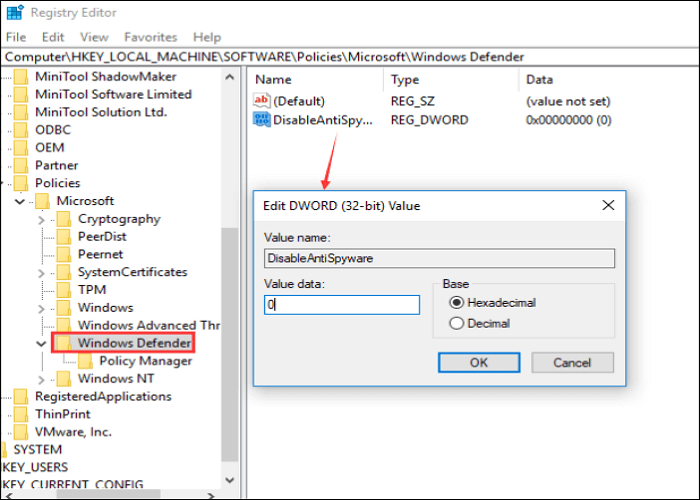
HKEY_LOCAL_MACHINE\SOFTWARE\Policies\Microsoft\Windows Defender
Step 4. Find the registry entry named DisableAntiSpyware in the list and click on it.
Step 5. To create the DisableAntiSpyware entry, right-click on any empty space and select "New > DWORD (32-bit) Value". Name the entry "DisableAntiSpyware" and double-click on it to open.
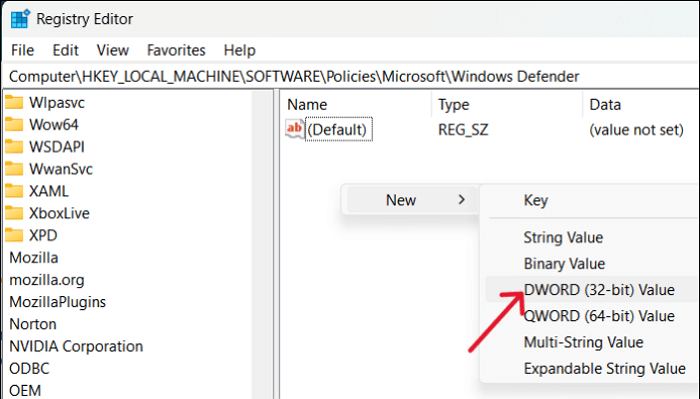
Step 6. To fix the issue where Windows Defender won't open, set the Value data to 0 in the Registry Editor, then restart your computer.
Fix 7. Update Windows
You can check for Windows OS updates to see if they resolve the issue, download any new updates found.
Note: Before updating your system, make a backup of your data to prevent loss in case of any technical issues. This ensures that your important files and information are safe and can be restored if needed.
Step 1. On Windows 10, go to Settings > Update & security, and on Windows 11, go to Settings > Windows Update.
Step 2. Click on the "Check for updates" option to see the available updates for the operating system.
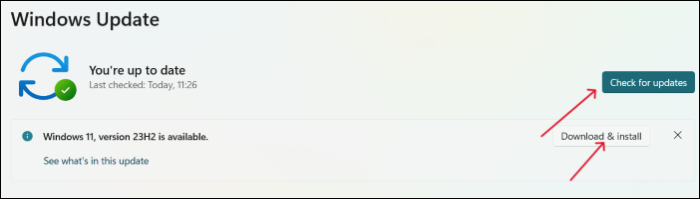
Step 3. Install the updates and restart the system to see if the Defender turns back on.
If you encounter a black screen error after updating your Windows, you can refer to the following article for help.
How to Fix Windows 10 Black Screen After Update
Windows 10 black screen after update error is a common issue users face after updating their system. If you're experiencing this problem, don't worry, as we've discussed 9 methods to fix it. You can read more about these solutions by clicking the link.
How to Protect Your PC's Data from Virus Attack
If your Windows Defender isn't turning on, your system is at risk of external threats. To protect your PC's data, consider backing up your system and restoring it when needed. A free backup program like Qiling Disk Master can help with this.
A reliable backup tool with advanced backup solutions, this software allows you to back up your entire system and create bootable USB drives in case of virus or trojan attacks. It also enables you to perform full, incremental, and differential backups, saving them in various locations.
- Transfer operating system from one computer to another
- One-click backup & restore options with a simple interface
- Create a system image of Windows on an external hard drive
- Clone a hard drive and image a hard disk with a few simple clicks for easy data transfer or system recovery.
- Get 250GB of free cloud storage to safely back up your files to the cloud.
Qiling Disk Master not only protects against viruses and malware attacks, but also safeguards your data in case of drive failure, physical damage, or other unexpected events. By backing up your data or computer with Qiling backup software, you can ensure your files are safe from malware or virus threats.
Step 1. Launch Qiling Disk Master on your computer, and click the Backup tab page.

Step 2. To back up your Windows operating system, click "System backup" to initiate the backup process.

Step 3. Your Windows operating system information and all system related files and partitions will be automatically selected, so you don't need to manually select anything at this step. Next, you'll need to choose a location to save the system image backup by clicking the illustrated area.

Step 4. The backup location can be a local drive, external hard drive, network, cloud, or NAS, with external physical drives or cloud services being recommended for preserving system backup files.

Step 5. The Windows system backup process can be customized with settings like automatic backup schedules in daily, weekly, or monthly intervals, or upon specific events. Additionally, options for differential and incremental backups are available. By clicking "Proceed," the backup process begins, and the completed task will be displayed on the left side of the screen in a card style.

Why Is Windows Defender Not Turning On
Windows Defender not turning on or launching may be due to corruption of the app over time, possibly caused by Windows updates or existing malware infections.
Downloading a third-party antivirus can cause conflicts between the two, preventing Microsoft Defender from turning on. If you're using a third-party antivirus like TotalAV, Norton, or McAfee, it's recommended to disable Windows Defender to ensure smooth security checks.
Windows Defender may not launch on your PC due to various reasons, including corrupted system files, incorrect registry entries, outdated Windows Defender definitions, conflicts with other security software, or issues with the Windows Update service. Additionally, problems with the Windows Defender service, such as a failed start or a stopped state, can also prevent it from launching.
- Conflicts between Defender and third-party antivirus.
- If the time and date of your computer are out of sync.
- Due to a system configuration error present in the device.
- If you have disabled Windows Defender using Group Policy Editor.
- Registry Edit changes are preventing Windows Defender from launching.
- The Windows Defender service is disabled.
The Bottom Line
If you're experiencing the issue of Windows Defender not turning on, it's essential to resolve the problem promptly to prevent potential issues. To fix the issue, you can refer to the post for guidance on troubleshooting and resolving the problem, ensuring your data remains secure.
To protect your PC from external threats or system crashes, it's essential to back up your system. A professional and free backup tool, Qiling Disk Master, can help you achieve this. With Qiling Disk Master, you can automatically back up your data, providing peace of mind and ensuring your important files are safe. Download and try it out!
FAQs on Windows Defender Not Turning On
1. How do I reinstall Microsoft Defender?
To reinstall Windows Defender, follow the steps below:
- Open the Windows Terminal with administrator privileges.
- Execute the command below to reinstall Microsoft Defender:
Get-AppxPackage Microsoft.SecHealthUI -AllUsers | Reset-AppxPackage
2. Can Windows Defender be permanently disabled?
You can permanently disable Windows Defender, but it requires some effort.
- Edit the Group Policy Editor.
- Change the Registry Editor settings.
- Run the below command with CMD.
reg add "HKEY_LOCAL_MACHINE\SOFTWARE\Policies\Microsoft\Microsoft Defender" /v DisableAntiSpyware /t REG_DWORD /d 1 /f
3. Why is Windows Defender not removing a virus?
Windows Defender may not be able to remove a virus due to several reasons. These include the virus being highly advanced and able to evade detection, the user's system being heavily infected and Windows Defender being overwhelmed, or the virus being designed to specifically target and disable Windows Defender.
- If your C drive is running low on space, the Defender may not be able to quarantine malware, as it needs sufficient space to store the quarantined files.
- Temporary files, cookies, and app log files restrict the app.
Related Articles
- Backup WD Hard Drive with Best Free Backup Software
- 5 Best Free Windows 11 Backup Software | Backup Data for Free
- Quick Solutions | Windows Defender Missing Windows 11
- Know All: Qiling Disk Master Security Zone
- How Do I Transfer Windows OS to a Different SSD?🔥
How do I transfer Windows OS to a different SSD? Do you want to get the answer? This article will tell you how to transfer your Windows to a new SSD and introduce a tool to help you. - How Do I Uninstall Ubuntu and Install Windows 10?
I want to uninstall my Ubuntu and get Windows 10 backup, but how do I uninstall Ubuntu and install Windows 10? This article will tell you how to uninstall Ubuntu and install Windows 10 and offer a tool to help you. - 6 Best Free VM Backup Software Examples
Looking for the best free VM backup software? We've compiled the top 6 free VM backup tools, each with detailed features, supported systems, and pros/cons. Find the right virtual machine backup solution for your needs.
Products
Articles & Tutorials
- Data Recovery
- Data Backup
- File Recovery
- File Backup
- System Backup and Restore
- Disk and Partition Clone
- Technical articles
- Mobile articles
- Disk Master Help
- Windows Data Recovery Tutorials
- Windows Secure Delete Tutorials
- Windows Partition Management Tutorials
- Windows File Backup and Restore Tutorials
- Windows System Backup and Restore Tutorials
- Windows Disk Backup and Restore Tutorials
- Windows Clone Tutorials