Why Is My Windows 10 Backup Taking So Long? (Here's the Answer)
Windows native backup tools can be slow, but there are reasons and solutions to this issue.
Why Is My Windows 10 Backup Slow

Windows 10 takes a long time to do a backup due to various reasons, including slow disk speeds, large data sizes, and inefficient backup software. A slow backup process can be caused by factors such as a fragmented hard drive, a full or nearly full hard drive, or a backup being performed on a slow network connection. Additionally, the backup software itself may be inefficient or outdated, leading to a longer backup time. To improve backup speed, users can try defragmenting their hard drive, deleting unnecessary files, or using a faster backup software.
- Fragmented drive. Severe drive fragmentation can lead to decreased system performance and longer backup times due to the increased time it takes to access and read fragmented data.
- Data size. The more data that needs to be backed up, the longer the backup process will take.
- Network connection. When creating a backup over a network, network performance may be affected by the backup process.
- Media failure. The type of media used for a backup can significantly impact the time it takes to complete, with recordable media often taking longer than high-speed hard drives.
- Viruses and malware. Computer viruses can cause performance degradation and slow backups, making them a potential suspect when issues arise.
Is Windows 10 Backup Any Good
Windows has a built-in backup utility that allows users to make backups of files and folders, with two options available: Backup and Restore (Windows 7) and File History.
Windows 10 offers two backup options: Backup and Restore (Windows 7) and File History, which together provide a range of backup capabilities. Windows 10 backup allows users to create a system image, back up files, and set up automatic backups, providing a reliable way to protect data. With Windows 10 backup, users can easily restore their system and files in case of data loss or system failure. This feature has been continuously improved and refined, making it a reliable and user-friendly backup tool for Windows 10 users.
Windows 10 backup has some limitations, offering only basic backup options through Backup and Restore and File History, which can't back up the entire system or open files, and lacks features to meet more advanced needs.
Alternative to Windows 10 Native Backup Tools
Since Windows 10 backup utilities have some limitations, it's a good idea to use professional backup software, such as Qiling Disk Master, to create a backup on your Windows computer.
Qiling Disk Master Pro can solve the limitations of Windows 10 native backup tools, such as slow backup speed, by quickly and automatically backing up various file types, including videos, music, documents, images, and more. It also allows for backing up the operating system, disk, partition, and creating an ISO image from a hard drive, as well as backing up an SSD to an image.
- Compatible with Windows 11/10/8/8.1/7
- Create full, incremental and differential backups.
- Save backups to local drives, Security Zone, NAS devices, and the cloud for a comprehensive backup strategy.
- Clone a hard drive.
- Migrate Windows 10 to SSD.
The following are the detailed steps to make a system backup of your Windows 10 computer.
Step 1. Launch Qiling Disk Master on your computer, and select the Backup and recovery tab page.

Step 2. To back up your Windows operating system, click "System backup" to start the backup process.

Step 3. In Windows, a system image backup will automatically select all system-related files and partitions, eliminating the need for manual selection. Next, choose a location to save the system image backup by clicking on the designated area.

Step 4. The backup location can be another local drive, external hard drive, network, cloud, or NAS. We recommend using an external physical drive or cloud to preserve system backup files.
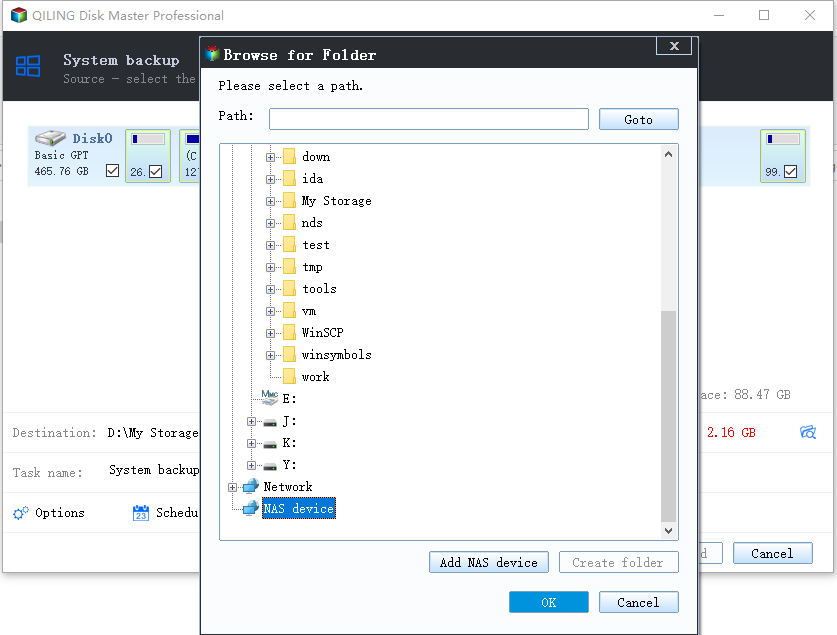
Step 5. Customization settings such as enabling an automatic backup schedule in daily, weekly, monthly, or upon an event, and making a differential and incremental backup are available in the Options button. Clicking "Proceed" starts the Windows system backup process. The completed backup task is displayed on the left side in a card style.

Final Words
Why is my Windows 10 backup taking so long? Windows 10 backup speed being slow is due to various factors, including disk usage, disk space, and network issues. To resolve this issue, check if your disk is being used for other tasks, ensure you have sufficient disk space, and verify your network connection. If the problem persists, consider upgrading your storage device or seeking professional assistance.
Using professional backup software can simplify the Windows 10 backup process. A tool like Qiling Disk Master can help back up everything on your Windows computer, ensuring data security. Just give it a try.
FAQs
1. How do I know if my backup is good?
You can verify a backup by restoring a few chosen files from the full backup to an alternative location and comparing their contents to the original. This quick check provides a snapshot of the data's validity, giving you a sense of whether the backup data is accurate.
2. What does a Windows 10 backup contain?
A Windows 10 backup is typically a system image, which is a full backup that includes all settings, apps, and files on the computer, essentially creating a snapshot of the entire system.
3. How do I know if my Windows 10 backup has been completed?
To check if Windows 10 File History is backing up your data, click on the target backup drive in File Explorer, choose This PC from the drop-down menu, and verify if the backup procedure is ongoing by looking for a progress bar and file size details on the screen. If the backup is ongoing, you can access properties by right-clicking on the File History folder.
4. How do I backup my entire Windows computer?
To create a system image of your Windows computer, click on Start, type backup in the Search box, and click on Backup and Restore. Then, click on Back up files under Back up files or your entire computer. Next, choose where to save the file backup and click Next. Alternatively, you can use professional backup software like Qiling Disk Master to create a system image in a few clicks.
Related Articles
- Windows 10 Keeps Freezing on Startup – Causes & Solutions Are Here
- Top 10 Reasons to Download Qiling Disk Master
- pCloud vs Dropbox: Which Wins?🏆
- How to Disable Windows 10 Update in Every Way
- How to Install Windows 11 on VirtualBox (Never Forget BACKUP!)
- Backup and Restore Not Working Windows 7? 3 Solutions and Best Alternatives
Backup and Restore not working on Windows 7? Learn common causes like corrupted system files and antivirus conflicts, and discover 3 fixes plus reliable alternatives like Qiling Backup to protect your data.
Products
Articles & Tutorials
- Data Recovery
- Data Backup
- File Recovery
- File Backup
- System Backup and Restore
- Disk and Partition Clone
- Technical articles
- Mobile articles
- Disk Master Help
- Windows Data Recovery Tutorials
- Windows Secure Delete Tutorials
- Windows Partition Management Tutorials
- Windows File Backup and Restore Tutorials
- Windows System Backup and Restore Tutorials
- Windows Disk Backup and Restore Tutorials
- Windows Clone Tutorials