How to Create Sector by Sector Backup on Windows 11/10/8/7🔥
Creating a sector-by-sector backup gives your hard drive extra protection by copying every sector, not only the files currently in use. This type of image can help restore data after disk failure, file corruption, or other serious storage problems.
A sector-by-sector backup is useful when you need a precise copy of a hard drive, partition, or storage device. This guide explains what it does and how to create one with backup software.
Can I Create a Sector by Sector Backup of My Hard Drive
The answer is YES. A sector-by-sector backup creates an exact copy of the drive, including used sectors, empty sectors, and sometimes unreadable or bad sectors. This is different from a used-sector backup, which only saves sectors that contain data.

The size of the image file will be the same as your original hard drive, meaning you'll need the same amount of space to store the backup. In the next sections, you'll learn about the best free software for creating a sector-by-sector backup.
Best Sector by Sector Backup Software Free Download
Qiling Disk Master is sector-by-sector backup software that helps users create a precise hard drive image, save all sectors, and store the backup elsewhere for recovery if the original storage device is damaged.
Qiling Disk Master offers a one-click backup feature that enables users to easily save all their data. It allows users to create an image backup to external hard drives, local drives, a network, or the cloud, and also provides advanced backup options such as incremental and differential backups, encrypted backups, and scheduled backups.
The tool allows you to back up all the sectors of your hard drive and also restore files whenever you need them. It also offers additional features for various needs.
- Multi-path backup storage. This software follows the 3-2-1 backup strategy by saving backup files to three different locations: two on-site locations and one off-site location, ensuring data safety and security.
- Secured password-protect backups. Your backups are secured with passwords to prevent unauthorized access.
- Backup scheduling. You can create a monthly, weekly, or daily schedule backup.
- Enhanced backup efficiency. This is evidenced by the differential and incremental backup features.
- Restore the system to dissimilar hardware. You can restore your backup files to a computer with different hardware at any time.
- Bootable backup and recovery. This software simplifies the process of creating a WinPE bootable disk into just three easy steps.
Download the software to access the unique backup features, such as automatic backup and data compression, and start experiencing the benefits of secure and efficient data protection.
How to Make a Sector-by-Sector Backup on Windows 7/8/10/11
With Qiling Disk Master on Windows 7/8/10/11, you can easily back up entire hard drive sectors. The software allows for full, incremental, or differential backups, giving you flexibility in your backup approach. Additionally, you can schedule your backups to occur at specific times, making it convenient to automate your data protection. The process of creating a sector-by-sector backup using Qiling Disk Master on Windows is relatively straightforward.
Step 1. Start with selecting the backup tab page.

Step 2. There are four backup categories: File, Disk, OS, and Mail. Clicking on Disk backup is the next step.
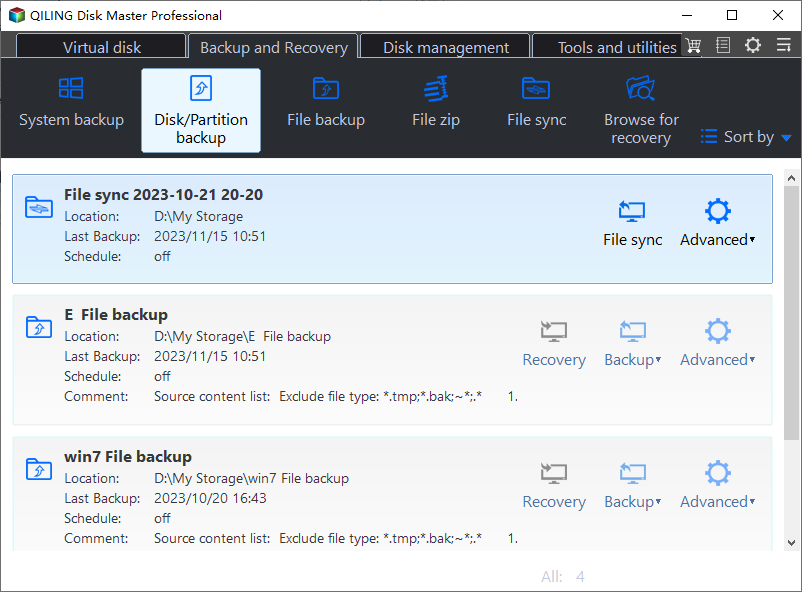
Step 3. You can use this software to back up either your entire disk or a specific partition, depending on your needs.
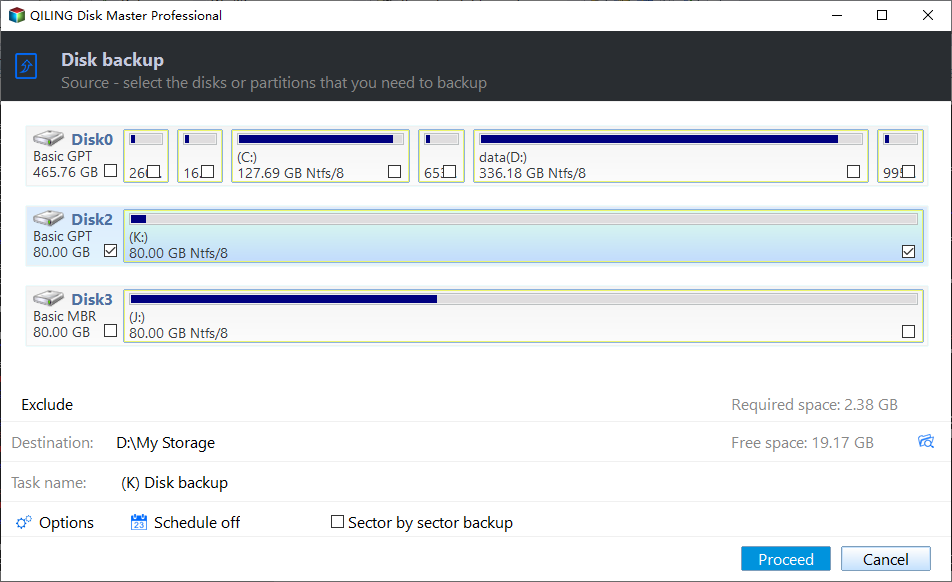
Step 4. Select the destination where you want to save the backup.
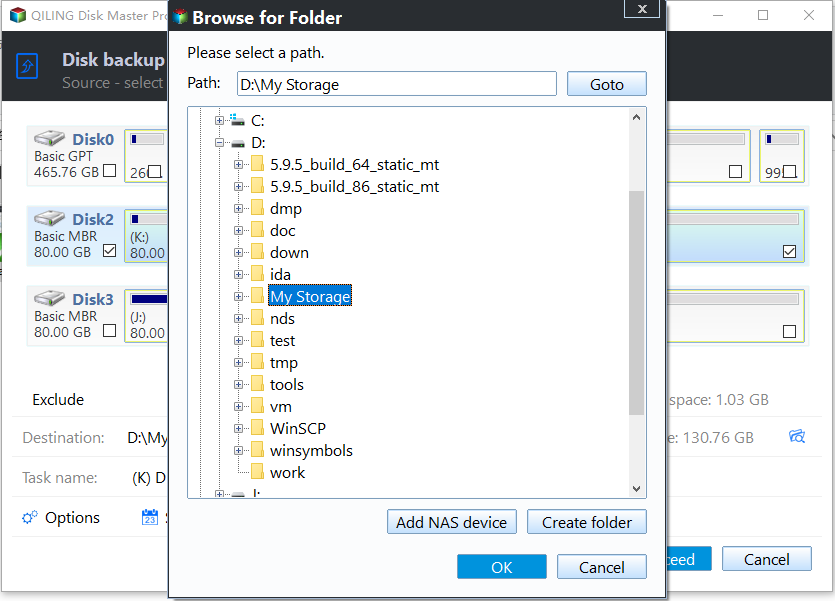
Step 5. For disk or partition backup, you have the option to save the backup to a local drive or directly to a Network-Attached Storage (NAS) device.

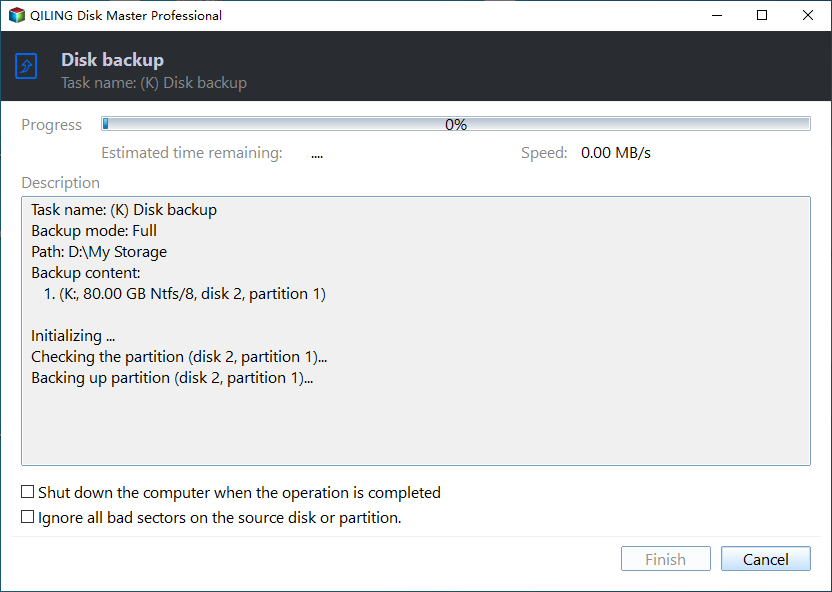
Step 6. After the backup process is completed, the task will be displayed on the left. You can right-click on any task to further manage your backup, such as recovering it, creating an incremental backup, and more.
If you're looking for a helpful resource, please consider sharing this post on your social media to help more people find it.
Pro Tip: How to Perform a Sector-by-Sector Recovery
Once you've performed a sector-You can perform a sector-by-sector backup of your hard drive, which allows you to restore the hard disk image file with Qiling Disk Master anytime. During a sector-by-sector recovery, the software expands compressed files, restoring them to their original size and file system. The process is straightforward, with simple steps to restore files from backup.
Step 1. Launch Qiling Disk Master, click "Browse to Recover".
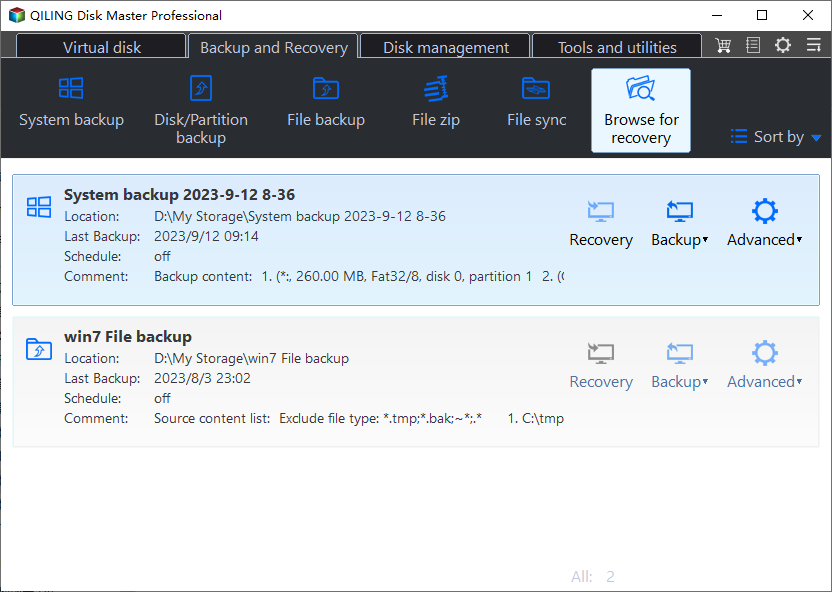
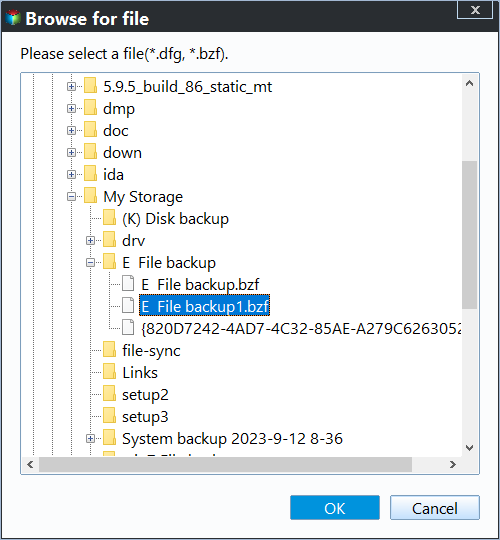
Step 2. To recover a file from your backup, first go to your backup destination and choose the backup file you want to recover. Note that the backup file created by Qiling Disk Master is a pbd file.
Step 3. You can choose to recover data to a specific location or back to its original location.
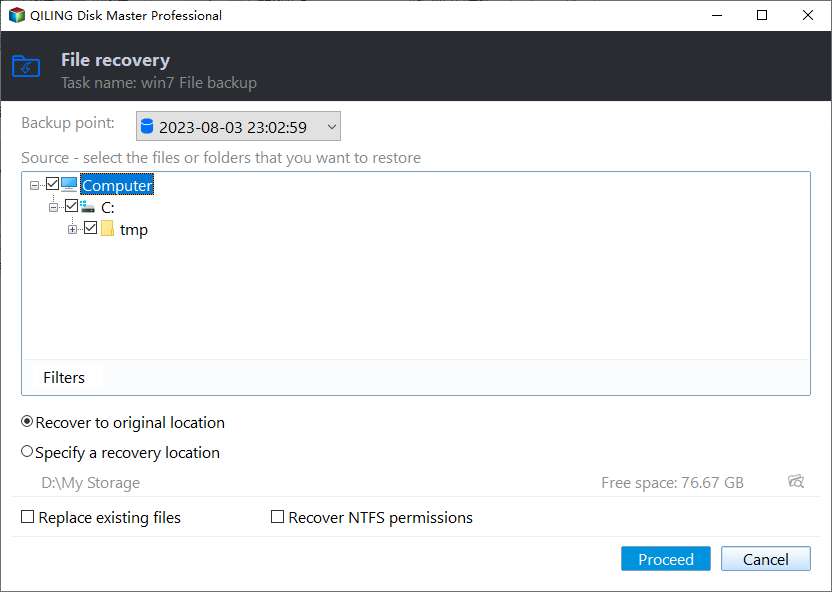
Step 4. Click "Proceed" and the recovery would start.
To Wrap Things Up
A sector-by-sector backup of your computer hard drive helps retain data by saving an exact copy to another drive, allowing you to recover the backup when needed. Qiling Disk Master can guide you through the process.
This software offers enhanced backup efficiency, multi-path storage support, and password protection to keep your data safe, making it a powerful tool that you can download today and start enjoying its unique features.
FAQs on How to Create Sector by Sector Backup
Creating a sector-by-sector backup on your Windows PC involves copying the entire hard drive, including all sectors, to an external drive. This method ensures that every single sector, including those containing operating system files, applications, and user data, is duplicated exactly as it is on the original drive.
1. Is it safe to copy data from a hard disk having a bad sector?
Copying data from a hard disk or partition with bad sectors is safe as the system will only copy the good sectors of the selected partition and leave out the bad ones, making the entire process safe.
2. How to make a backup of a hard disk having bad sectors?
You can back up a hard drive with bad sectors using a free tool like Qiling Disk Master. To do this, simply download and install Qiling Disk Master, then select the hard drive with bad sectors and choose the backup option, which will allow you to create a complete image of the drive, including all files and data. This will help you recover your important files and data even if the drive itself is no longer usable.
- Launch Qiling Disk Master on your computer and go to "Create Backup" to select a backup destination for the data on your computer hard drive.
- Then, click "Select backup contents" and go to "disk".
- To backup your data, first, click on the "Backup" button on the top navigation bar. Then, select the desired backup location and click on "Proceed". After the process completes, your backup data will be displayed on the left side of the screen.
3. How do you clone a sector-by-sector?
You clone sector-A sector-by-sector clone is a type of data clone where the entire hard drive is copied, including all sectors, whether they are bad or unused. This type of cloning involves making an exact copy of the source drive, retaining all aspects of the original hard drive.
4. Does cloning copy bad sectors?
Cloning a hard drive will only copy the good sectors, ignoring or repairing bad sectors, allowing data to be transferred from a drive with issues, but skipping the problematic areas.
Related Articles
- Five Ways to Backup Your Data on Windows [2024 Update]
- How to Backup Entire Computer to OneDrive [Quick & Easy]
- How to Clone Hard Drive in Windows 7 32 Bit or 64 Bit to Another Hard Drive
- [Easy] How to Clone USB Drive to Another Windows 10
- Bare Metal Backup and Restore Windows 10 Tutorial | Your Full Guide Is Here
- What to Do When A Program Won't Open on a Windows 10 PC
Discover five effective ways to backup your data on Windows, including cloud drives, external hard drives, USB drives, NAS, and CD/SSD.
Products
Articles & Tutorials
- Data Recovery
- Data Backup
- File Recovery
- File Backup
- System Backup and Restore
- Disk and Partition Clone
- Technical articles
- Mobile articles
- Disk Master Help
- Windows Data Recovery Tutorials
- Windows Secure Delete Tutorials
- Windows Partition Management Tutorials
- Windows File Backup and Restore Tutorials
- Windows System Backup and Restore Tutorials
- Windows Disk Backup and Restore Tutorials
- Windows Clone Tutorials