How to Make A Copy of A Word Document [5 Ways You Get]
Key Takeaways:
Get five 5 free solutions to fix how to make a copy of a Word document on Windows and Mac.
Quick Navigation:
To make a copy of a Word document online using Qiling Backup, you can follow these steps: upload the document to the Qiling Backup platform, select the desired file format and quality, and then click on the "Copy" button to create a duplicate of the document. The new copy will be saved online and can be accessed and edited from anywhere with an internet connection. This allows for easy collaboration and version control, and helps to prevent data loss in case of any issues with the original document.
#2. How To Copy and Paste Word
To save a copy of a Word document with Save As, follow these steps: Open the Word document you want to save a copy of, click on the "File" tab, then click on "Save As" from the drop-down menu. In the "Save As" window, select a location to save the copy, choose a file name, and select the file type (such as Word Document or PDF). Click "Save" to save the copy of the document.
#4. Open As Copy in Word Doc
How to Duplicate a Word Documents on Mac
Why Need to Make a Copy of a Word Document?
To make a copy of a Word document, you can follow these steps: select the document you want to copy, click on the "File" menu, hover over "Save As", and choose a location to save the copy. You can also use the keyboard shortcut "Ctrl + S" (Windows) or "Command + S" (Mac) to save the document with a new name. This will create a duplicate of the original document, allowing you to work on the copy without affecting the original.
- If you need to make changes to a document but want to keep the original version intact, making a copy allows you to experiment with different edits without risking the integrity of the original document. This way, you can try out various changes without affecting the original content.
- When collaborating on a document with others, making copies can help prevent accidental overwriting of someone else's work by ensuring each person has their own version to work on.
- To prevent unexpected errors like Word crashes when saving, word document corrupted, and word document disappeared, save a copy of the word document.
To make a copy of a Word document, you can simply click on the "File" tab, select "Save As" from the dropdown menu, and choose a location and file name for the copy. Alternatively, you can right-click on the document and select "Copy" and then open a new Word document and click on the "Paste" option to create a duplicate. You can also use the keyboard shortcut Ctrl+S (Windows) or Command+S (Mac) to save the document as a copy.
How To Make a Copy of Word Document on Windows?
You can make a copy of a Word document using various methods, with the fastest being free software. This option is ideal for those who want a quick and efficient way to create a copy. Alternatively, you can choose from other manual modes that suit your needs and preferences, allowing you to decide on your Word copy plan at any time.
#1. Make a Copy of a Word Document Online by Qiling Backup
Microsoft Word is a commonly used program for creating and editing text documents, but it can be tricky to know how to make a copy of a Word document. Qiling Backup is a tool that can help with this, making it easier to work on a presentation or term paper without worrying about losing your work.
Microsoft's free backup software makes it easy to create backups of your Microsoft files, including Word, Excel, and PowerPoint documents, providing a simple way to protect your essential files.
Step 1. Click "File backup" button to initiate a backup.

Step 2. On the left side, local and network files will be displayed, allowing you to extend the directory and choose which files to back up.

Step 3. To store the backup, follow the on-screen instructions to select a location.

Step 4. To encrypt the backup with a password, click on "Options" in the "Backup Options" section. This will allow for various customization options for the backup process.

To set up a backup schedule and initiate a backup at a specific event, go to "Backup Scheme" and choose the desired schedule, then select the event that triggers the backup. This will ensure regular backups are made according to the chosen schedule and event.

Step 5. You can save the backup to a local disk, Qiling's online service, or a NAS.

Step 6. Qiling Backup allows users to back up their data to both a third-party cloud drive and Qiling's own cloud drive.
To back up data to a third-party cloud drive, select Local Drive, scroll down to add Cloud Device, add your account, and log in.
Step 7. To start the backup process, click "Proceed". Once the backup is complete, it will be displayed as a card on the left side of the panel. You can then manage the backup job by clicking on it.

How to Copy Windows from One PC to Another
To clone the hard drive in Windows 10/8/7, you can use the built-in tool called "Windows Backup and Restore" or a third-party software like Qiling Backup. These tools will create an exact copy of the old hard drive, including all settings, programs, and data, which can then be transferred to the new PC. This process is relatively quick and easy to do, and it will save you the time and hassle of reinstalling all your programs and settings.
#2. How To Copy and Paste Word
To copy a page of text from a Microsoft Word document, select the page by clicking on the page number in the bottom right corner of the screen. Alternatively, you can select the entire document by pressing Ctrl+A.
To copy an entire page on Word:
Step 1. You can also use keyboard shortcuts to select the text. To do this, click on the text you want to copy and press Ctrl+C (Windows) or Command+C (Mac) to copy the text.
Step 2. Once the text is highlighted, press "Ctrl+C" on your keyboard to copy it.
Open the destination document where you want to paste the text and place your cursor at the desired location.
Step 3. Press "Ctrl+V" to paste the text into the document.
To copy and paste images and other objects in Word, select the object you want to copy, right-click on it, and choose "Copy" from the context menu. Then, go to the location where you want to paste the object, right-click, and choose "Paste" from the context menu.
You can also copy a word document into another word document. To do this, open the Word document you want to copy and select the content you want to copy. Right-click and select "Copy" or use the keyboard shortcut Ctrl+C (Windows) or Command+C (Mac). Then, open the new Word document and right-click to select "Paste" or use the keyboard shortcut Ctrl+V (Windows) or Command+V (Mac).
Step 1. Select the text you want to copy by highlighting it and then press Ctrl+C (Windows) or Command+C (Mac) to copy the text. You can also right-click on the highlighted text and select "Copy" from the context menu. To paste the copied text, press Ctrl+V (Windows) or Command+V (Mac).
Step 2. To copy the highlighted text, press "control" + "c" on your keyboard.
Step 3. To paste text into a document, open the document you want to paste into, place your cursor where you want the text to be, then press Ctrl + V on your keyboard. This will paste the copied text into the document.
#3. How To Save a Copy of a Word Document with Save As
To copy a page from one Word document to another, you can use the "Save As" function in the Word document.
Follow the step-by-step instructions:
Step 1. Open the targeted Microsoft Word file and click the File tab on the top left side.
Step 2. Click on "Save As" under the Save action.
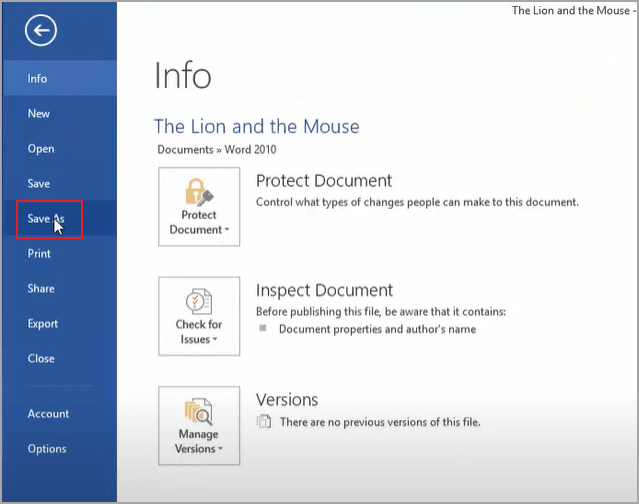
Step 3. Click on the "Browse" button to select a location where the file is stored and name the file.
Step 4. Click on "Save".
Video Guide: How To Create A Duplicate Document In Word 2013
In this video, the YouTuber will demonstrate how to create a duplicate document from an existing document in Word 2013, providing viewers with a step-by-step guide to achieve this task.
#4. Open As Copy in Word Doc
To make a duplicate of a Word document, you can open the original document in Word and choose the "Open As" option, then select "Word" from the dropdown menu. This will create a copy of the original document without modifying the original file.
Step 1. To begin, open Microsoft Word and click on the File tab located in the top left corner of the screen.
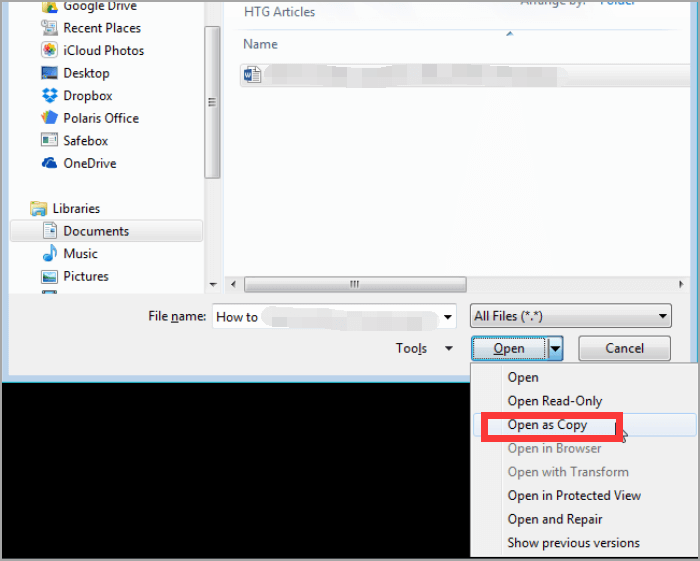
Step 2. To open a file as a copy, click on "Open" and then select "Browse" to choose the file you want to open. This will allow you to select the desired file from your computer or other storage device.
Step 3. Click the three dots behind the "Open" button and select "Open as Copy".
If the original and copy of a Word document are both lost, you can try recovering an unsaved Word document by checking the AutoRecover feature in Word. This feature automatically saves a copy of the document at set intervals, and you can try to recover the document from these saved copies.
How To Duplicate a Word Documents on Mac?
To duplicate a Word document on a Mac, you can use the "Duplicate" feature in Microsoft Word. Alternatively, you can also use the "Copy" feature and then paste the copied document into a new file, or use the "Save As" feature to save the document with a new name and location, effectively creating a duplicate.
To duplicate a document, open the original document, select File > Duplicate, and then save the new copy.
To create an exact copy of a document, you can use the Keyboard shortcut Command + D, which will duplicate the document and allow you to save it with a new name.
You can also create a copy of the document by dragging and dropping it onto your desktop or a new folder, allowing you to rename and move it as needed.
How To Make a Copy of Word Document FAQs
1. Can I duplicate an entire Word document?
You can choose to open a document as a copy in Word by selecting the "Open as Copy" button, or alternatively, you can use the "Save As" button to save the document with a new name and location.
2. To make a copy of a Word document on a Mac, select the document in the Finder, press Command (⌘) + C to copy it, navigate to the desired location, and press Command (⌘) + V to paste the copied document. Alternatively, you can right-click on the document and select “Duplicate” to create a copy.
To make a copy of a Word document on a Mac, open the document in Word, go to File > Save As, select Word Document (.docx) as the format, give the new document a name, and click Save.
3. To copy a Word document into another Word document, you can use the "Paste" function. First, open the Word document that you want to copy from and select the content you want to copy.
Highlight the text you want to copy with your mouse, press Ctrl+C to copy, then open another document and press Ctrl+V to paste.
Related Articles
- How to Backup PST File with 3 Outlook PST Backup Tools
- Essential Guide to Windows 10 Backup and Restore in 2022 [ All You Need to Know]
- 2 Ways: How to Backup Partition to Image File for Free
- Can I Clone BitLocker Encrypted Drive Without Disabling It? Yes! [3 Minutes Guide]
- Download Synology Data Replicator Alternative for Windows 10/8/7
In this article, you can find how to free download Synology Data Replicator alternative and create a backup with Synology NAS. Follow the steps below. - Free and Easy DriveImage XML Alternative - Qiling Disk Master
This article introduces you to the best free and easy-to-use DriveImage XML alternative and how to schedule disk backup automatically in Windows 7, 8, 10, and 11.
Products
Articles & Tutorials
- Data Recovery
- Data Backup
- File Recovery
- File Backup
- System Backup and Restore
- Disk and Partition Clone
- Technical articles
- Mobile articles
- Disk Master Help
- Windows Data Recovery Tutorials
- Windows Secure Delete Tutorials
- Windows Partition Management Tutorials
- Windows File Backup and Restore Tutorials
- Windows System Backup and Restore Tutorials
- Windows Disk Backup and Restore Tutorials
- Windows Clone Tutorials