Tutorial | How to Transfer Windows 10 from HDD to SSD Without Losing Data
You will encounter system migration problems if you currently have a PC with a conventional HDD and want to replace/upgrade it with an SSD. But do you wonder how to move Windows to another drive without losing data or, to be more specific, how to move Windows 10 from an HDD to an SSD without losing data? This article from Qiling will tell how to transfer Windows 10 from HDD to SSD without losing data. Hurry up and learn.
Can I Transfer Windows 10 from HDD to SSD
SSD has faster reading and writing speeds than traditional HDD, less power and energy consumption, and less noise. In addition, it can help improve the overall performance of your computer because it takes less time to boot from SSD.
Therefore, many computer users want to move their Windows from an HDD to an SSD. But have you ever been stuck on a question like "Can I transfer Windows 10 from HDD to SSD?" or "Can you move Windows from HDD to SSD?
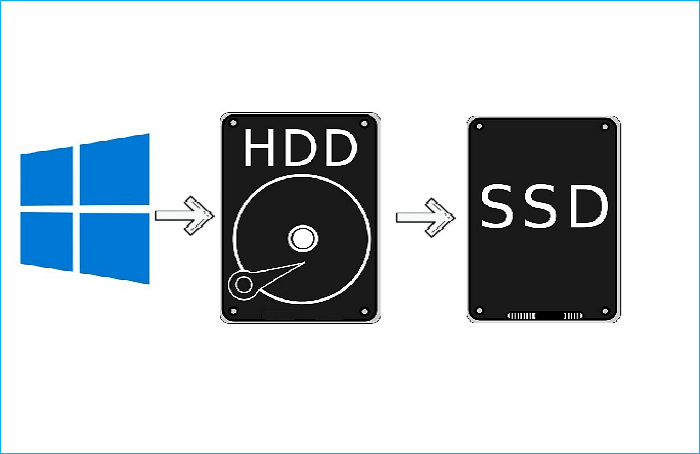
The answer is in the affirmative. You can move Windows from HDD to SSD or move Windows 10 to another drive. And many ways can be used for that purpose.
- Windows Reinstallation. Many users try to fresh install Windows 10 on a new SSD without losing data. For that, you need to back up your essential data first and then perform a clean installation of Windows on the new SSD.
- System Image. Windows 10 has a built-in tool that can let you create a system image backup of your current drive and restore it on an SSD.
- Disk cloning. It lets you directly transfer OS/data from an HDD to an SSD. It can help ensure the destination drive is the same as the target drive.
It is worth noting that Windows reinstallation has many steps to do and is not suitable for newbies, and for creating a system image, you must first shrink the volume to fit the SSD, which may be smaller than the current hard disk. One crucial point is that the backup process may fail if the smaller partition is still too large.
Under such circumstances, cloning will be the best way to help you transfer Windows 10 from HDD to SSD without losing data or change HDD to SSD without losing data.
Best HDD to SSD Cloning Software Free Download
As mentioned above, cloning can help move Windows to another drive without losing data. But for that purpose, you need to use professional disk cloning software because Windows has no such tool to help you perform a cloning task.
Under such circumstances, professional SSD cloning software - Qiling Disk Copy, comes to help. It can help transfer your Windows 10 to SSD without reinstalling Windows.
Qiling Disk Copy is a versatile disk cloning utility for Windows 11/10/8/7. It has a user-friendly interface and a faster cloning speed. It lets you clone your system, disk, and partition and transfer the C drive to a new SSD.
In addition, it allows you to upgrade to a bigger hard disk without reinstalling Windows and migrate Windows 10 to NVME or M.2 SSD. You can also use it to clone your C drive to an external hard disk.
- One-click OS migrate
- Clone a hard drive with bad sectors
- Resize partition when copying disks
- Upgrade hard drive without losing data
- Install Windows 7 on NVMe SSD
If you wish to migrate OS to SSD without data loss, Qiling Disk Copy can suit you well. In addition, it also has a system clone, which lets you migrate only Windows to an SSD. You just need to download and then carry out your cloning task.
If you like this article, share it on your social platforms.
How to Move Windows 10 from HDD to SSD Without Data Loss
Before trying to migrate Windows from HDD to SSD, you need to make some preparations:
- Ensure there is enough space on the destination SSD for storing all data.
- Back up your files on the target drive before continuing if it is not new because the destination disk will be overwritten.
- Ensure the motherboard supports EFI/UEFI before transferring Windows 10 from an MBR drive to a GPT disk. When attempting to boot from the new SSD, please switch the boot mode from BIOS to UEFI.
After you have done these preparations, you can try to clone your Windows 10 from an HDD to an SSD. The detailed steps are as follows:
Step 1: In "Disk list", select the HDD that you want to clone.

Step 2: Select the SSD as your destination.

Step 3: Edit the disk layout and then click "Proceed" to continue.
As the destination is an SSD, you are suggested to tick "Check the option if the target is SSD".

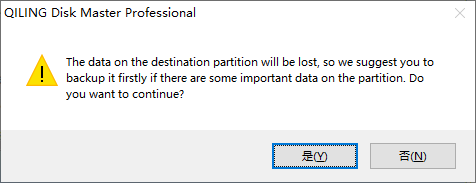
A warning message tells you that the data on the SSD will be erased. Click "OK" to continue if you do not have important data on the destination disk.
Step 4: Wait for the process to complete.

- Tip
- After you have done the cloning process, you need to boot from the SSD. To do so, you can perform the instructions below:
-
Step 1. Shut down your PC, open the back cover or host, then remove the HDD using screwdrivers.
Step 2. Install the SSD and screw it tightly, then put the back cover or host back.
Step 3. Restart the computer, and during restarting, hold down the F2/F12/DEL key to access the BIOS screen.
Step 4. Navigate to the Boot tab and select the SSD as the first boot drive.
Step 5. Save the changes, and your computer will boot from the SSD.
To Wrap Things Up
How to transfer Windows 10 from HDD to SSD without losing data? Or how to transfer windows from HDD to SSD? Have you got your answer now? You can use Qiling Disk Copy to help you easily and quickly clone Windows OS from an HDD to an SSD without data loss.
Remember to back up files on the SSD if it is not new, and if your SSD is not large enough to hold the entire content of the old HDD, you can use Qiling Disk Copy to help you clone only Windows to an SSD or transfer Windows to another drive. Qiling Disk Copy can also help you fix the cloned hard drive showing the wrong size issue. More useful features are waiting for you to explore and use.
FAQs
1. Can I transfer just Windows from HDD to SSD?
Yes, you can just migrate Windows from HDD to SSD. For that, you need to use professional cloning software, like Qiling Disk Copy, to help you. It can perform a sector-by-sector clone, which allows you to transfer the system drive partition to a new drive.
2. How do I transfer everything from my old hard drive to my new SSD?
Prepare a SATA to USB adaptor if you want to transfer data from an HDD to an SSD. To effortlessly migrate your OS to an SSD in Windows 10, you can make a backup of your system and then restore it. Important files should be backed up in advance because, after cloning, the target disk's data will be deleted. Then you can follow the steps in the article to help you transfer data from HDD to SSD.
Was this page helpful? Your supoport is truly important to us!
Qiling Disk Copy
Qiling Disk Copy is a user-friendly tool that allows for easy cloning and migration of HDD/SSD disks, ideal for transferring an existing system to a new disk or SSD with minimal configuration required.
Related Articles
- Detailed Guide | How to Replace Laptop Hard Drive Without Losing Data
- Replace C Drive with SSD for Windows 11/10/8/7 [Without Data Loss]
- Top 5 Best PC Clone Software Free Download🔥
- How to Transfer Data from One Internal Hard Drive to Another with 3 Ways
- How to Fix | Clonezilla Failed to Clone Bad Sectors
- How to Clone SSD to New SSD Without Losing (OS Included)
- How Do I Clone My Windows to External Hard Drive?
Are you looking for a way to clone Windows to external hard drive? You can find a powerful cloning software from this article to do this.
Products
Articles & Tutorials
- Data Recovery
- Data Backup
- File Recovery
- File Backup
- System Backup and Restore
- Disk and Partition Clone
- Technical articles
- Mobile articles
- Disk Master Help
- Windows Data Recovery Tutorials
- Windows Secure Delete Tutorials
- Windows Partition Management Tutorials
- Windows File Backup and Restore Tutorials
- Windows System Backup and Restore Tutorials
- Windows Disk Backup and Restore Tutorials
- Windows Clone Tutorials