Change Directory in Terminal Mac | Get All Information Here
When Need to Change Directory in Terminal Mac
If you're new to using the Mac Terminal, you might feel overwhelmed by the elementary commands being taught to you. However, with regular use, these commands will become second nature, and you'll be able to type them quickly and easily, making tasks like altering directories simple.
Change directory in Terminal Mac cd is the most regularly used command while working in this top-notch command-line ecosystem. It's a two-letter command. It stands for "change directory".
On a Mac, directories in the Terminal are essentially folders that can be used interchangeably. They allow you to group files into a hierarchical structure, providing flexibility and depth to the file system organization. This modular approach helps keep files organized and easily accessible, making it easier to manage and navigate the file system.
When you need to change directories in Terminal on a Mac, you can do so by using the command line. If you're in the Finder and want to move to another folder, you can simply double-click on that folder. Alternatively, you can use the "cd" command to change directories. For example, if you're in your Home directory and want to access the Downloads folder, you can type "cd Downloads" to navigate to that folder.
To change the directory in Terminal on a Mac, you can use the "cd" command followed by the path of the directory you want to navigate to. For example, to change into the "Documents" directory, you would type "cd Documents". You can also use the tilde (~) symbol to refer to your home directory, so typing "cd ~" would take you back to your home directory.
How to Change Directory in Terminal Mac
To view the content of a directory in Terminal on a Mac, you can use the "ls" command followed by the directory name. For example, to view the content of the "Documents" directory, you would type "ls Documents". To change the directory, you can use the "cd" command followed by the directory path.
How to View Directory Content in Terminal on Mac
Folders in operating systems, including Mac, serve as a skeletal address to store acquired data. To view the content inside a specific location or path from the Terminal, you need to input certain instructions. These instructions will display information within the same Terminal, allowing you to see the contents without creating a new screen. Additionally, you may also see any concealed files or directories that are present.
To open the Terminal, enter the command "PWD" in the user section, which will display the preferred path, such as "users/image." You can see what's in the subdirectory by typing "LS" and "images ls," which will show all the files inserted, displaying their complete titles and location in the Terminal.
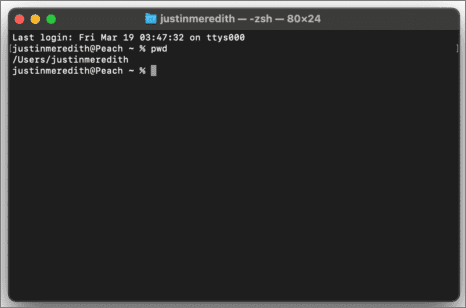
How to Change Directory in Terminal Mac
To change the directory in Terminal on a Mac, use the CD command to navigate to different locations or folders. For example, to move to the desktop, type "CD desktop" into the Terminal. You can also use the LS command to check what a folder contains and the PWD command to view the full folder path.
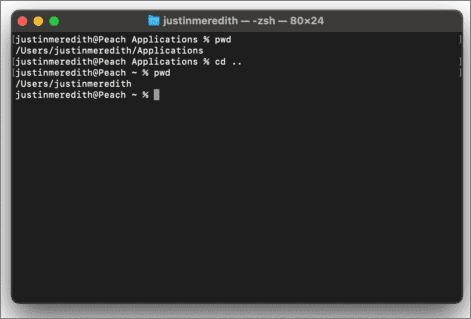
How to Change Directory on Mac [Other Ways]
In addition to using the Terminal, there are two more ways to change the directory on Mac. You can use the "Go" menu in the Finder to navigate to the desired directory, or you can use the "cd" command in the Terminal with elevated privileges by running the command "sudo cd" followed by the path to the directory you want to access.
Using Popd and Pushd
On a Mac, you can change directories without using Terminal by utilizing the Pushd and Popd command line tools. These tools enable you to create a stack structure of directories you're currently working in, allowing for easy navigation between them.
To move to a directory and incorporate it into the list, enter the "pushd directory" command. To navigate to another path, enter "pushd directory2", replacing directory2 with the name of the other folder. To exit and review the list, type "popd".
From System Settings
To access the system preference pane, click on the upper right Apple icon, then select "System Preferences" from the dropdown menu, where you will find a box with various options available.

Here, you need to input users, and you will discover all the files it includes. When selecting one, an address appears at the top, such as "Users/desktop". To move the address of the desktop to another one, you can substitute the word "desktop" with "image" to rapidly input a URL to remove identical pictures.
Tips You Should Follow When Change Directory in Terminal on Mac
Here are the common tips you must consider while changing a directory in Terminal on Mac:
- Never specify a file Path imprecisely. If you try to use the cd command with a file route (such as index.html) instead of a directory path, it will return an error. This is because a file route contains the name of a specific file, whereas a directory path does not.
- Never give spaces in the route. You need to remember to not give space in the path, which often happens intentionally, and surround names with quotation marks if they contain spaces, as the cd command can fail to work with them. The path is the sole issue that the cd command has, but ensuring your path is correct is the main criterion to operate the cd command efficiently.
- No typing errors will be entertained. Typical cd command issues are often caused by faulty route syntax, with common mistakes including missing "/" characters, particularly at the beginning of a route due to typing errors.
- Adding an item to the route. If your route includes a file name, you can't use the `cd` command to swap folders, as it only changes directories, not data. You'll need to manually remove the file name from the route to navigate between folders. For example, if your current route is `/Users/username/Documents/file.
How to Recover Files Accidentally Deleted by Mac Terminal
To avoid data loss when changing directories in Terminal on a Mac, consider using Deep Data Recovery, a top-notch data retrieval software.
Qiling is a professional software that offers the best solution for you. Its top features include the features below
- The ability to examine data and file retrieval. Users can use the preview option to look at each available file for recovery before starting the process, avoiding cluttering their device with unnecessary folders.
- Recuperates a variety of file types. Files and information of various types can be recovered from customers' devices, including deleted photos, documents, videos, audio recordings, texts, and other media.
- Recover permanently deleted files on Mac. Users can recover all their data that was accidentally deleted or lost due to a malware infection.
- Scoops up information and files from the empty Recycle Bin. Consumers may look for specific files and data to retrieve after emptying their recycling bin and perform Mac Trash recovery with Qiling.
- Recovers a deleted disk. Individuals can use the data retrieval procedure to recover a formatted hard drive on Mac, even if it has been completely deleted or the computer cannot recognize it, making it one of the most useful Qiling tools.
To recover Mac Terminal accidentally deleted files with Deep Data Recovery for Mac, follow these steps: First, download and install Deep Data Recovery for Mac from the official website. Then, launch the program and select the drive or volume where the deleted files were located.
Step 1. Search for lost files
To search for lost files on your macOS, select the disk location where the files were last saved, click the "Search for lost files" button.
Note: Before recovering data, it's recommended to create a backup of your Mac using the "Disk Backup" feature to prevent further data loss. This backup can then be used to recover data, allowing you to write new data to your computer.

Step 2. Go through the scanning results
Deep Data Recovery for Mac will immediately scan your selected disk volume and display the scanning results.

Step 3. Select the file(s) and recover
Select the desired file(s) from the scan results, then click the "Recover" button to restore them.

Summary
Changing directories in Terminal on a Mac is a straightforward process. If you accidentally lose data while navigating through directories, consider using Deep Data Recovery for Mac to recover different data types. This professional software can help you recover lost data, so you can download it today and make the most of data recovery.
Change Directory in Terminal Mac FAQs
To better understand changing directories in Terminal on Mac, check out this FAQs section below.
1. How do I change a directory from C to D in Terminal?
To modify or rename an existing drive, type the drive letter followed by a colon, such as "d:" or "c:", and then the new name you want to give it, followed by a colon and a backslash. For example, "d: / New Disk Name" would rename the existing disk D to "New Disk Name".
2. How to factory reset the Terminal on Mac?
You have three ways to factory reset Terminal on Mac.
- 1. Reset the Terminal on Mac with its Reset option.
- 2. Factory reset Terminal on Mac by hard resetting Shell.
- 3. On a Mac, press Control + Option + Command + R on the keypad to initiate a reset, which will erase all data, including the Terminal screen, and display a black screen.
3. How to change the directory on Mac without Terminal?
You can change the directory on a Mac without using the terminal by utilizing the Popd and Pushd commands, as well as System Settings. This allows for navigation through directories without needing to open the terminal.
4. How to go back to the previous directory in Terminal Mac?
To return to the previous directory in Terminal on a Mac, simply type "cd -" and press enter. This will take you back to the directory you were in before.
Related Articles
- Mac Software Update: How to Update Software on Mac [Automatically & Manually]
- Samsung TV USB Format: Best Choice and Efficient Tutorial
- How to Fix Diskpart Failed to Clear Disk Attributes Error
- How to Fix D3dcompiler_43.dll Not Found [Updated 2023]
- (Solved!) Secure Boot Enabled But Not Active🔥
One of the most common problems computer users have faced is secure boot enabled but not active. Learn about the solutions here and solve this problem within minutes. - [All Methods to Fix] Selected Boot Image Did Not Authenticate
Choosing the best Samsung TV USB format can be a bit tricky, but this article will guide you through the process. By selecting the right file system format for your TV, you can ensure seamless playback of your favorite videos and movies.
Products
Articles & Tutorials
- Data Recovery
- Data Backup
- File Recovery
- File Backup
- System Backup and Restore
- Disk and Partition Clone
- Technical articles
- Mobile articles
- Disk Master Help
- Windows Data Recovery Tutorials
- Windows Secure Delete Tutorials
- Windows Partition Management Tutorials
- Windows File Backup and Restore Tutorials
- Windows System Backup and Restore Tutorials
- Windows Disk Backup and Restore Tutorials
- Windows Clone Tutorials