How to Change Your IP Address on Computer
Changing your IP address in Windows 10 can be done using various methods. One way is to use the built-in Windows Settings app, where you can go to Network & Internet > Ethernet > Properties or Wi-Fi > Properties to change your IP address.
| Workable Solutions | Step-by-step Troubleshooting |
|---|---|
| 1. Change IP Address on Windows via Control Panel | To access the 'Networking and Sharing Center', open the Control Panel and select this option.Full steps |
| 2. Change IP Address in Windows 10 via Settings | Open the Settings App by pressing the Windows key + I, then select 'Network & Internet'.Full steps |
| 3. Change IP Address in CMD (Command Prompt) | Press the Windows key + R, type in 'cmd', and then press Enter. A black screen with a blinking cursor will appear, which is the Command Prompt.Full steps |
An IP address is a unique string that identifies a device on a network, allowing computers to communicate and exchange information with each other.
Changing your IP address is usually legal when you do it on your own device or network. It can help fix connection issues, protect privacy, or switch to a different network configuration.
You can save money and avoid paying computer professionals for simple tasks by learning how to do them yourself. For instance, changing the IP address in Windows 10 is a straightforward process that can be completed in just a few steps.
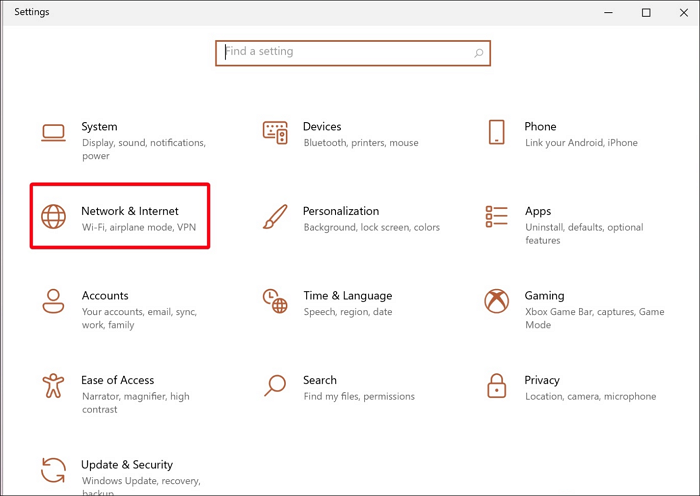
To change your IP address on Windows, follow these steps: first, click on the Start button and then select Settings. Next, click on the Network & Internet option.
Method 1. How to Change IP Address on Windows via Control Panel
Some Windows PCs have static IP addresses, which may not provide sufficient security or access to certain applications in certain locations, requiring alternative solutions.
Here's how to go about it:
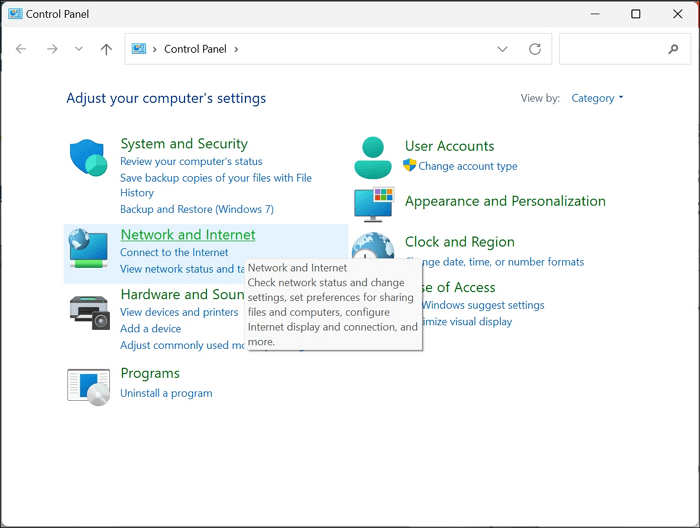
Step 1. Open the Control Panel, and select 'Networking and Sharing Center'. If you don't see it, select 'Network and Internet'.
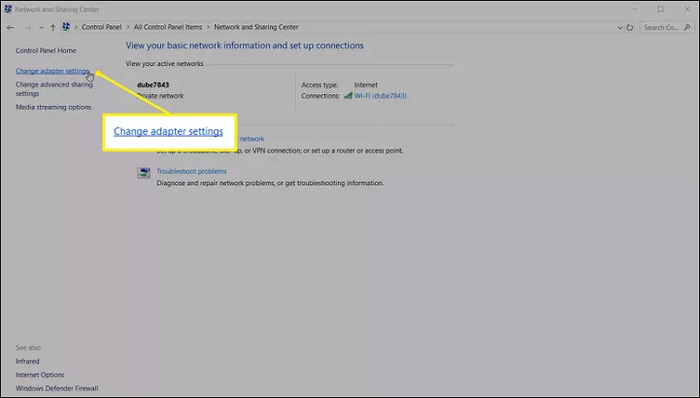
Step 2. Choose 'Change adapter settings'.
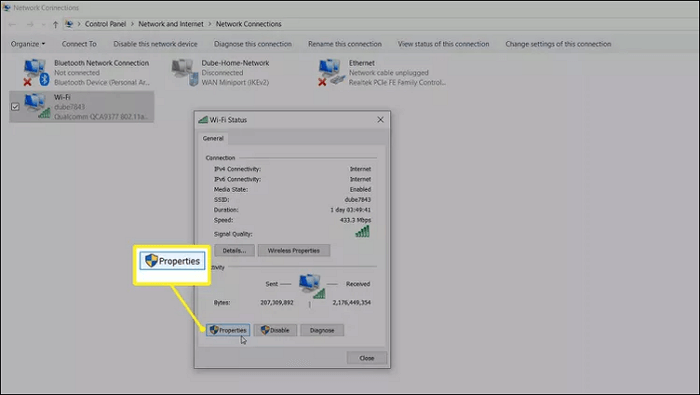
Step 3. Double-click the specific connection whose IP address you want to change.
Step 4. Then, select Properties.
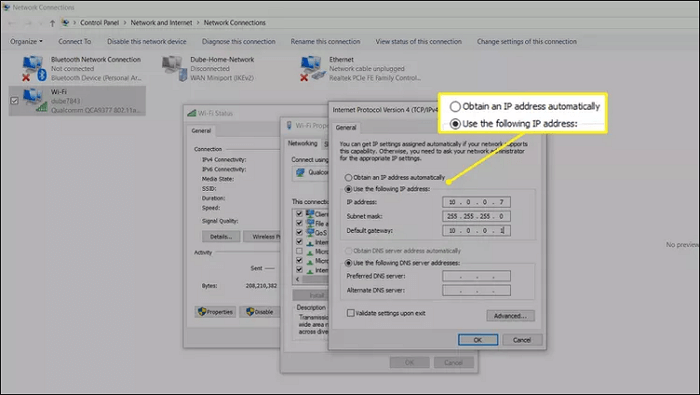
Step 5. Choose 'Internet Protocol Version 4 (TCP/IPv4)'.
Step 6. To set a static or dynamic IP address on your computer, go to your network settings, select 'Obtain an IP address automatically' or enter a static IP address manually. This will either make the router assign a dynamic IP address to your computer or keep the same static IP address.
If the article is helpful, consider sharing it on social media platforms to spread the information and help others who may find it useful.
Method 2. How to Change IP Address in Windows 10 via Settings
To change your IP address, you can use the Settings App. Follow these steps:
Step 1. To open the Settings App, press the Windows key and I, and then select 'Network & Internet'.
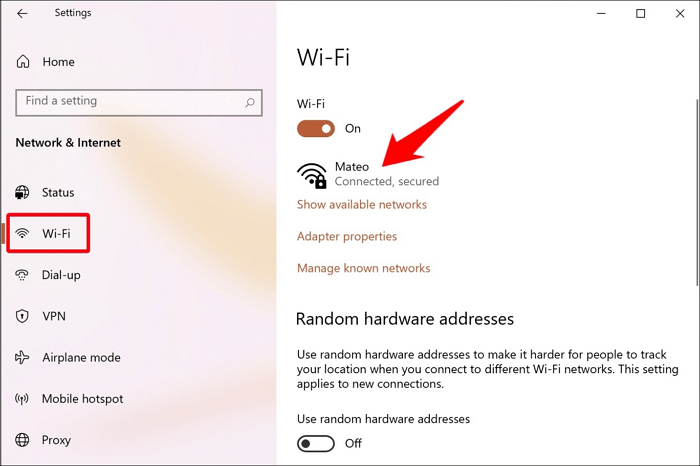
Step 2. Select Wi-Fi, as seen in the screenshot below, and select the network you are connected to.
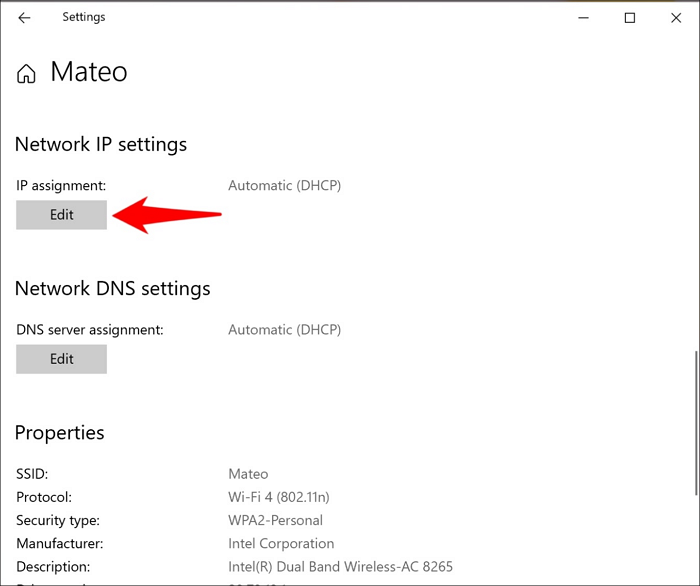
Step 3. To make changes to the IP assignment, click on 'Edit' and you can also modify DNS settings from this page.
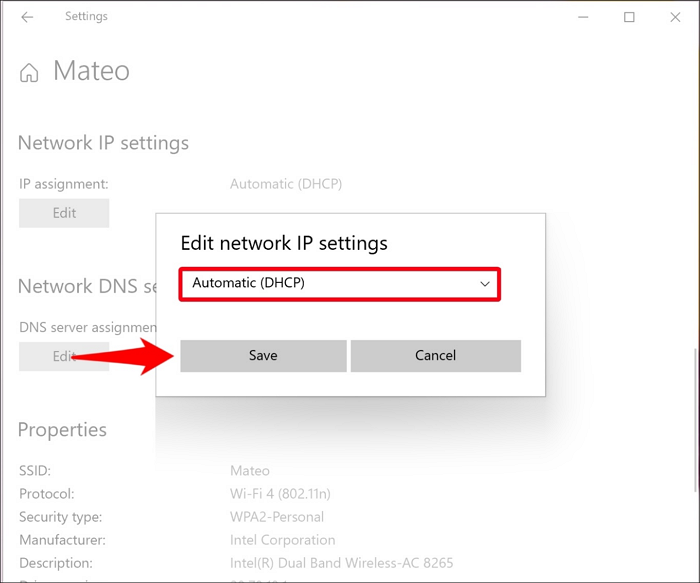
Step 4. To set the IP address automatically, select 'Automatic (DHCP)' from the dropdown in 'Edit network IP Settings' and click Save.
Step 5. Toggle on the IPv4 switch.
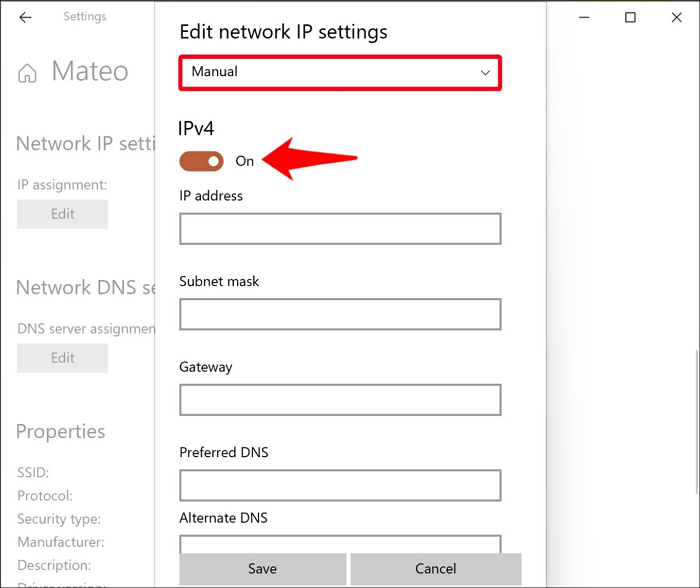
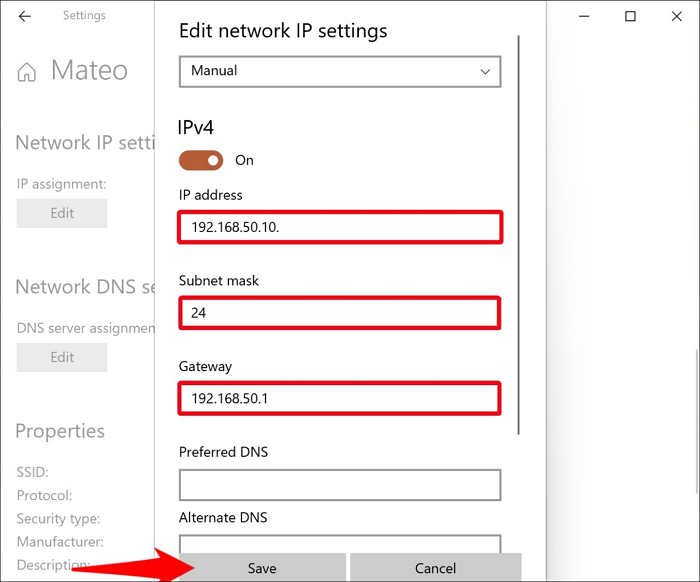
Step 6. Enter your current IP address, subnet mask, and gateway (router IP) to save your new IP address settings.
Method 3. How to Change IP in CMD (Command Prompt)
Alternatively, if you are a fan of the black screen, you can also change your IP address from the Command Prompt. You can boot Command Prompt in Windows 10 and change the IP address in CMD. The steps below will help you achieve this successfully.
Step 1. To open the Command Prompt, press the Windows key and R, and type in 'cmd'. Then press Enter, which will bring up a black screen.
Step 2. To check the current IP address of your computer, type 'ipconfig' and press Enter in the Command Prompt. This will display your current IP address, subnet mask, default gateway, and other network configuration details.
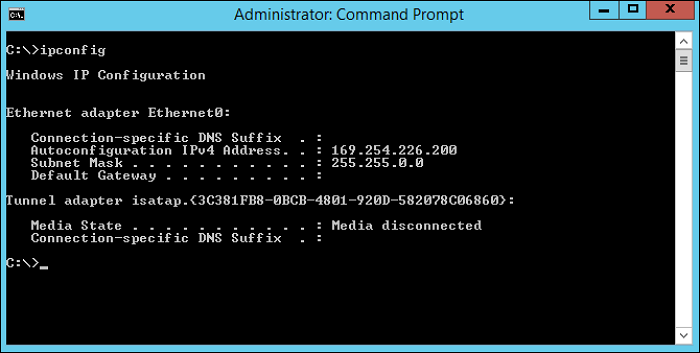
Step 3. To assign an IP to your computer, type 'Netsh' and press Enter. Then, enter 'Interface IP' to change the console from 'netsh>' to 'netsh interface ipv4'.
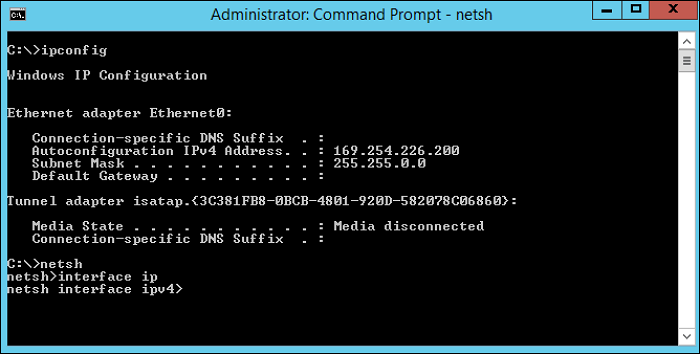
Step 4. The command 'set address "Ethernet0" static 192.168.1.10 255.255.255.0 192.168.1.1' is used to set a static IP address on a device connected to the network via Ethernet0. The IP address is set to 192.168.
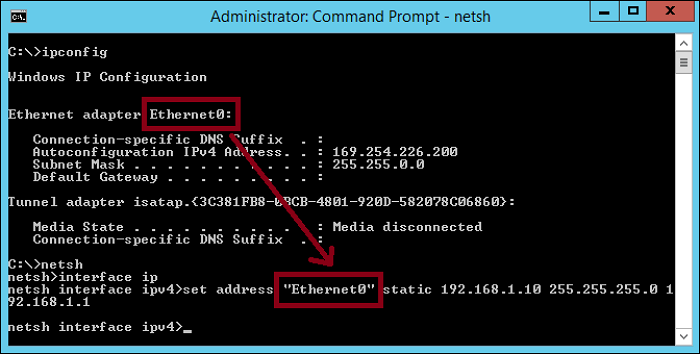
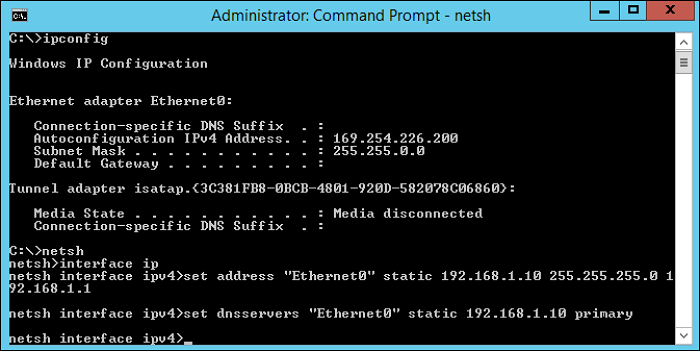
Step 5. To define the DNS information for the device, type 'set dnsservers "Ethernet0" static 192.168.1.10 primary' in the command line. This will configure the device to use the specified DNS server.
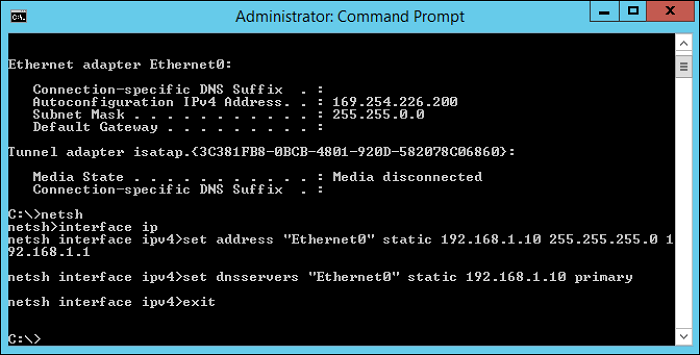
Step 6. Type 'Exit', then press Enter to leave the netsh interface.
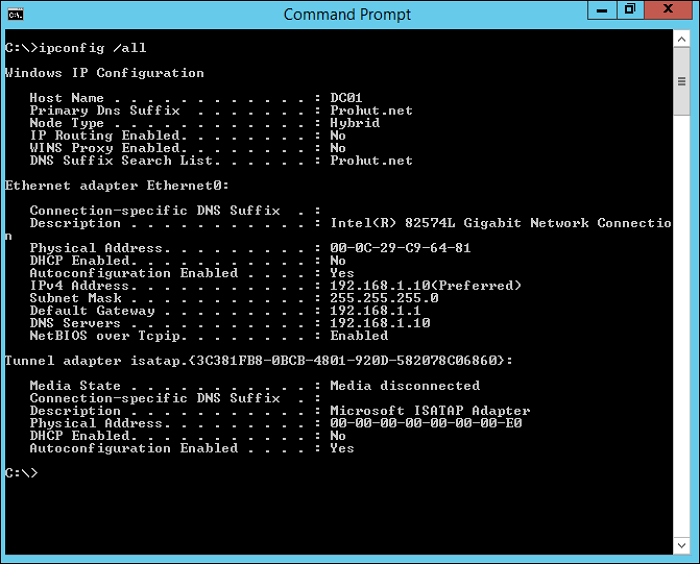
Step 7. Type 'ipconfig/all' to confirm that the static IP address, gateway, subnet mask, and DNS server IP have changed.
Conclusion
Changing your IP address is no longer a superhuman skill, but rather a simple task that can be done to enhance your security and privacy. By knowing how to change your IP address on a computer, you can save and hide your activity from hackers, making it a handy skill to have.
FAQs
Perhaps you have more questions on how to change an IP address on a computer; our FAQ section might help.
1. Can you change your IP address location?
A Virtual Private Network (VPN) is used to achieve a unique IP address anywhere on earth.
2. Is changing an IP address dangerous or illegal?
Changing an IP address is not illegal, as people do it for various good reasons, such as enhancing online security. However, setting this up can be frustrating if not done correctly, which is why it's essential to consult our guide on how to handle system-specific IP addresses.
Related Articles
- What to Do If Computer Restarts After Shutdown (for Windows 11/10/8/7)
- How to Restore Missing Downloaded Files Steam
- MacBook Error Code 50: How to Fix the Mac Error on External Hard Drive
- Reset MacBook to Factory Settings | Complete Guide in 2023
- How to Set Separate Wallpapers on Dual Monitors in Windows 10/11
Adding wallpapers to dual monitors can be done in various ways, with the simplest method being to use the settings app to personalize the setup. - Should I Convert to Dynamic Disk and How to Do Dynamic Disk Convert
Learn whether you should convert to dynamic disk, compare basic and dynamic disks, and understand the risks before changing disk type.
Products
Articles & Tutorials
- Data Recovery
- Data Backup
- File Recovery
- File Backup
- System Backup and Restore
- Disk and Partition Clone
- Technical articles
- Mobile articles
- Disk Master Help
- Windows Data Recovery Tutorials
- Windows Secure Delete Tutorials
- Windows Partition Management Tutorials
- Windows File Backup and Restore Tutorials
- Windows System Backup and Restore Tutorials
- Windows Disk Backup and Restore Tutorials
- Windows Clone Tutorials