MacBook Error Code 50: How to Fix the Mac Error on External Hard Drive
Overview: What Is Mac Error Code 50
Mac error code 50 is a common issue that occurs when trying to copy or move files from an external hard drive to the system, causing panic for new Mac users or those unfamiliar with the problem. However, it's not a cause for alarm, as it can be resolved with the right approach. The error usually occurs due to issues with the external hard drive, such as compatibility problems or file system corruption, but can also be related to the system itself. To resolve the issue, users can try restarting the system, checking the external hard drive's file system, or using a different drive to rule out any compatibility issues. By following these steps, users can resolve the Mac error code 50 and continue using their external hard drive without any issues.
The error code 50 external drive indicates that the Mac is experiencing a problem processing a file, resulting in an unexpected error (error code -50), which prevents the operation from being completed.
There are various reasons that can lead to the occurrence of an error. Understanding these reasons can help you apply the right solution with ease.
In Advance: Recover Data When the Error Code Occurs
If you're experiencing error code 50 on your Mac, you're likely anxious to resolve the issue. While there are various solutions available, it's essential to be aware that data loss can occur. In such cases, you'll need to actively seek out software that can help you recover lost data.
You can use Deep Data Recovery for Mac to recover deleted files on your Mac, which is a reliable and user-friendly software that can help you get back your data quickly, even if it was deleted due to formatting, malware, or other situations.
Highlights:
- The recovery process involves retrieving various data types, including photos, music files, videos, and documents. This comprehensive approach ensures that all types of files are restored, providing a complete recovery of the user's data.
- Easy data retrieval from Mac-based devices like SSD, HDD, fusion drive, etc.
- Restoring data to cloud storage services like Google Drive or Dropbox involves uploading the recovered data to the respective cloud storage account. This process typically requires the user to sign in to their cloud storage account, navigate to the relevant folder or section, and then upload the restored data.
- You can preview files before recovering them to ensure you're making the right decision. This feature allows you to see the contents of the files without actually recovering them, giving you a chance to confirm that you want to retrieve specific files.
Apart from these features, there are other exciting ones too. The tool also offers remote IT support, where specialists are always available to help you.
Step 1. Search for lost files
Select the disk location to search for lost files, which can be an internal HDD/SSD or an external hard drive where you lost data and files, and then click the "Search for lost files" button.
Note: Before attempting data recovery, it's recommended to create a backup of your disk using the "Disk Backup" feature in the software. This will ensure that your data is safe and can be recovered from the backup if needed, allowing you to reuse your HDD or SSD.

Step 2. Go through the scanning results
This software will immediately scan your selected disk volume and display pictures, documents, audio, videos, and emails in the left pane.

Step 3. Select the file(s) and recover
To recover your lost data, click the data preview button to view the contents, and then click the "Recover" button to restore them.

Causes: Why the Error Code 50 on Mac External Drive Happens
Multiple reasons could lead to the occurrence of error code 50 on Mac, and understanding these causes is essential for deciding how to proceed with the solutions. Some possible reasons include the reasons below. Knowing these potential causes can help you take the necessary steps to resolve the issue.
🌩️Reason 1. Damaged NVRAM and PRAM data
Sometimes, NVRAM and PRAM data can get corrupted, which can lead to error code 50 on Mac, and resetting them can aid in fixing the problem.
😈Reason 2. Viruses or malware
Malware or viruses can cause significant damage to your system, leading to error code 50. To resolve this, it's essential to thoroughly clean your system and utilize reputable anti-virus software to eliminate the virus. This will help prevent further system damage and ensure a smooth computing experience.
🗃️Reason 3. Corrupted system files
If the drive holding system files becomes corrupted, you won't be able to copy or move the files, but booting Mac into Disk Utility can help resolve the issue.
💼Reason 4. File metadata issue
The error may be caused by a conflict between the file and name type metadata and the value the Finder expects. To resolve this, manually change the metadata file's name and extension.
⚡Reason 5. Firmware glitch
A temporary file glitch can cause Mac error code 50, and running a power cycle may resolve the issue.
6 Fixes: How to Fix Mac Error Code 50 on External Hard Drive
To address the issue of error code 50 on a Mac, various solutions are available. You can utilize these fixes to resolve the problem. Check them out here -
- 1. Force Reboot Your Mac
- 2. Perform a Power Cycle on Your MacBook
- 3. Unmount the External Hard Drive
- 4. Run Disk Utility First Aid
- 5. Restart Mac in Safe Mode
- 6. Reset Settings in NVRAM/PRAM
1. Force Reboot Your Mac
A simple restart can resolve various errors on a Mac by removing temporary memory and allowing the system to start fresh.
For that, follow these steps -
Step 1. Go to the Apple menu.
Step 2. Select "Re"Proceed from the drop-down menu.
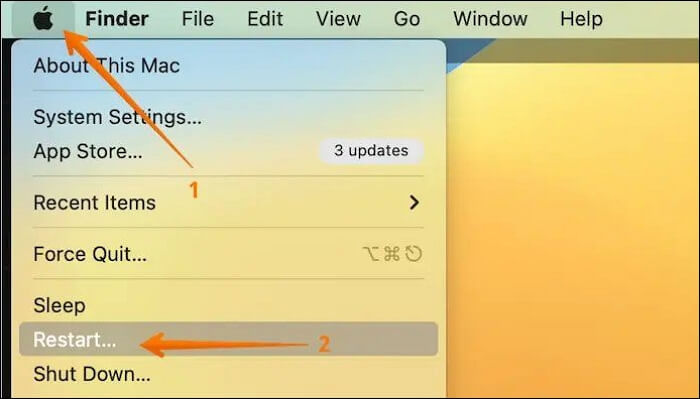
If you're unable to access the screen or your system freezes, you can force a reboot by pressing and holding the power button until the system shuts down, then turning it back on after a few seconds.
2. Perform a Power Cycle on Your MacBook
A power cycle can resolve the error code 50 on a Mac by clearing temporary files that remain after a system restart. This can be a useful troubleshooting step.
Well, take a look at these steps -
Step 1. Remove the external storage device connected to your system.
Step 2. Go to the "Apple icon".
Step 3. Choose the "Shut Down" option.
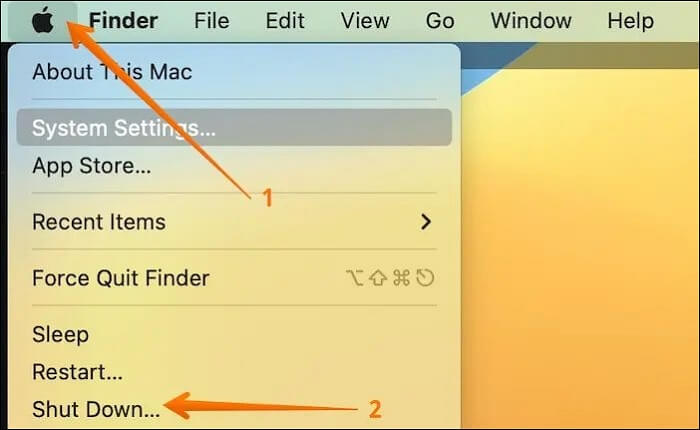
Step 4. Once the system turns off, disconnect the power cable.
Step 5. After some time, reconnect it.
Step 6. Now, turn on the device.
Step 7. To resolve the issue, you can try unplugging all external devices such as the keyboard, mouse, and monitor, and then plugging them back in. This will help reset the connection and see if the problem is resolved.
3. Unmount the External Hard Drive
You can also try removing the external hard drive and mounting it again. This simple act can often resolve the error.
For that, here are the steps you need to follow –
Step 1. To access the Disk Utility app, click on the Applications folder, then select the Utilities folder, and finally, click on the Disk Utility app.
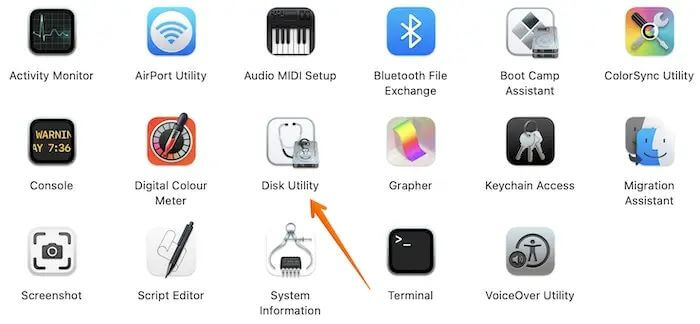
Step 2. Choose the hard drive you want to unmount.
Step 3. Select the Unmount button.
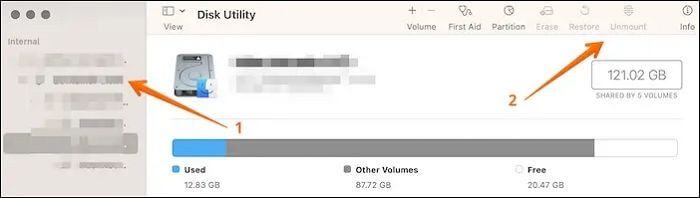
4. Run Disk Utility First Aid
To fix the Mac error code 50, you can use the First Aid feature in Disk Utility, which involves accessing it and following simple steps.
Let's take a look –
Step 1. Open Disk Utility.
Step 2. On the left sidebar, select the external storage device from which you want to copy or move the file.
Step 3. Click on the First Aid button at the top of the screen to proceed.
Step 4. The process will start immediately.
Note: It will take time, depending on the disk volume.
5. Restart Mac in Safe Mode
To resolve the error code 50 on a Mac, restart your system in Mac Safe Mode, but the steps may differ depending on your device model.
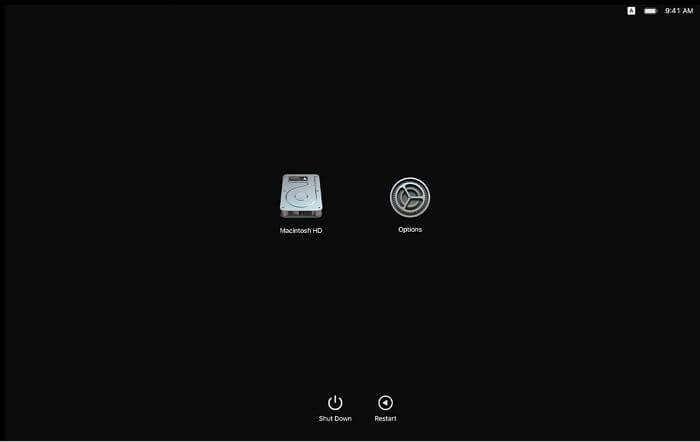
For Macs with silicon -
Step 1. Shut down the system.
Step 2. Press the Power button and hold it.
Step 3. Release it when you see "Loading startup options"

Step 4. Choose the volume.
Step 5. Press the Shift key and hold it.
Step 5. Select "Continue" in Safe Mode.
Step 5. Once the system enters the Safe Mode, you will come across a "Safe Boot" option.
For Intel-based Macs -
Step 1. Turn off your Mac.
Step 2. Turn it on.
Step 3. Press the Shift key and hold it at the same time.
Step 4. Release it when you come across the login window.
Step 5. Log in to the system.
Step 6. If asked, log in again.
Step 7. Once the system enters the Safe Mode, you will come across "Safe Boot" which is a feature that allows you to boot your system in a limited and safe environment.
If one of the methods helps fix Mac error code 50, I'd love to hear about it and share it with others on social media platforms like Facebook, Twitter, Instagram, and more!
6. Reset Settings in NVRAM/PRAM
To troubleshoot issues with your Mac, you can try resetting NVRAM/PRAM, which stores kernel information and other settings that the system can quickly access.
Check out the steps below –
Step 1. Turn off the system.
Step 2. Turn it on.
Step 3. Press and hold the Option, C, P, and R keys together at the same time.
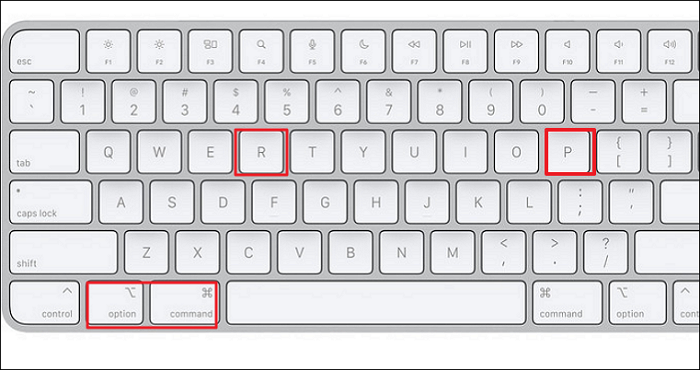
Step 4. When you hear the startup chime twice, release the keys.
Step 5. Wait for the sound to end.
Step 6. Now check if error code 50 is fixed.
Final Thoughts
Mac error code 50 is a common issue where users can't move or copy files from an external drive to their system, caused by various factors like virus attacks, corrupted system files, or firmware glitches, but there are several solutions available.
If you encounter Mac error code 50, you can try to force reboot the system, reset NVRAM or PRAM, or restart Mac in safe mode to fix the issue. However, these solutions may result in data loss. In such cases, you can use Deep Data Recovery for Mac to recover your lost data.
Deep Data Recovery for Mac is a powerful, reliable, and user-friendly data recovery program that can restore any type of data with ease, making it a great tool to install today.
Mac Error Code 50 FAQs
Now that you know what Mac error code 50 is, it's essential to gather more information. This can be done by reading the questions and answers listed below, which provide additional knowledge on the topic.
1. What is error code 50 in the USB drive?
Error code 50 on a USB drive prevents users from moving or copying files from external devices. This issue can be caused by various factors, including corrupted system files, NVRAM/PRAM, or other system-related problems.
2. How do I fix my Mac hard drive error?
To fix a Mac hard drive error, you can try force rebooting the system, running First Aid, or resetting the settings of NVRAM/PRAM.
3. How to fix error 50 on Mac and verify your disk?
To error 50 on Mac and verify your disk, follow these steps –
- Go to Disk Utility.
- Select First Aid.
- Now, choose the Verify Disk option.
- If errors are found, tap the Repair button.
4. How to recover data from a corrupted hard drive?
To recover data from a corrupted hard drive, you can use a professional data recovery tool like Deep Data Recovery for Mac, which makes it easy to restore data from a damaged hard drive.
Related Articles
- [All You Should Know] How to Save Sims 4 While Frozen
- Computer Freezes When Playing Games in Windows 10
- How to Split Your Screen on a Windows 10/11? [Step by Step]
This guide explains how to split screen on Windows using snap layouts and shortcuts. - Fix Windows Taskbar Not Working | For Windows 11/10
If your Windows Taskbar is not working, you can refer to this article to identify the potential causes and solutions in Windows 10/11. However, be aware that resolving the issue might result in data loss, so consider installing Deep Data Recovery to prevent such losses. - What Is Remote Desktop Connection and How To Use It? [Full Guide]
To remotely connect to a Windows PC, you can use Remote Desktop on your Windows, Android, or iOS device. Here is how to configure your PC to accept remote connections before connecting to the computer you have set up. - How to Remove Bad Sector from Hard Disk Using CMD
This tutorial teaches how to remove bad sectors from a hard disk using the command line in Windows 10/8/7. It can help repair corrupted hard drives and recover data when files or programs cannot be opened properly due to bad sectors, corruption, or other disk errors.
Products
Articles & Tutorials
- Data Recovery
- Data Backup
- File Recovery
- File Backup
- System Backup and Restore
- Disk and Partition Clone
- Technical articles
- Mobile articles
- Disk Master Help
- Windows Data Recovery Tutorials
- Windows Secure Delete Tutorials
- Windows Partition Management Tutorials
- Windows File Backup and Restore Tutorials
- Windows System Backup and Restore Tutorials
- Windows Disk Backup and Restore Tutorials
- Windows Clone Tutorials