[Fixed] How To Disable the Keychain on Mac and Remove Saved Password on Mac
You can save your username and password for frequently visited websites on your Mac using the Keychain, which eliminates the need to manually type them in every time. This way, you can access your accounts with just a few clicks, making online interactions more convenient and efficient. By saving your login credentials, you can also avoid the hassle of remembering complex alphanumeric codes, which can be especially helpful for websites that require more secure login processes. By utilizing the Keychain, you can streamline your online experience and make it easier to access your favorite websites and accounts.
A keychain is a password manager on Mac that stores login credentials and other sensitive information. If you need to delete or update a previously saved password, you can remove it from the keychain. Additionally, if necessary, you can also disable the keychain altogether. This article will guide you through the process.
What Is Keychain On Mac
On a Mac, Keychain is a secure database that stores sensitive information such as passwords, login details, credit card numbers, and certificates, saving them locally on the device unless synced with the cloud for cross-device access.
This password generator creates complex and super secure passwords with numbers, random characters, and symbols, and saves them on your Mac so you don't have to remember them.
To export passwords from iPhone, go to Settings, then tap on Passwords, and select the option to export passwords. You will be asked to enter your iPhone passcode or Face ID/Touch ID.
Why Remove Saved Passwords on Mac
On a Mac, saved passwords can sometimes be a problem when you need to declutter your keychain. Initially saved for easy access, these passwords can be removed when you no longer need them, especially for websites or accounts you no longer use. This can help keep your keychain organized and prevent clutter.
You can change a password and still have the old one in your Mac's memory, which might require deleting the password or resetting Mac keychain to resolve the issue.
How to Remove Saved Passwords on Mac
On a Mac, there are several ways to remove saved passwords, each suitable for different situations. One common method is using System Preferences, which is a straightforward approach. Alternatively, you can use the Keychain Access app, which provides more detailed control over password management. Additionally, you can also use the Terminal command line to delete saved passwords, although this method is more advanced and requires some technical knowledge.
How to Turn Off iCloud Keychain on Mac
To remove passwords on Mac from a specific device connected to iCloud, follow these steps. This method is the most suitable for your needs. You can achieve this by using the appropriate method, which involves a series of steps that will guide you through the process.
Step 1. Tap on System Preferences and choose iCloud.
Step 2. Uncheck the keychain box.
Step 3. You are presented with options to either delete your passwords permanently, keep them for later use, or cancel the process.
How to Remove Saved Password in Keychain on Mac
To disable or delete the keychain login on your Mac, you can access Keychain Access through the Utilities folder or by typing "key" in Spotlight, and then follow the steps to delete the keychain.
Step 1. To delete all passwords and data stored on the Keychain, go to File and select "Delete Keychain login".
Step 2. To remove specific information, select Category.
Step 3. Select the item you want to delete, then press the delete button.
How to Remove Saved Passwords in Safari
Here's how to remove your passwords on Safari if it stores most or all of your passwords/login details: To remove your passwords on Safari, go to Settings > Safari > Passwords. Tap on "Passwords" and then tap on "Edit" at the top right corner.
Step 1. To access Safari's preferences, launch the Safari browser and simultaneously press the Command (⌘) and Comma (,) keys on your keyboard. This will open the Safari Preferences window, where you can make various adjustments to your browsing experience.
Step 2. Select Autofill and uncheck all boxes in front.
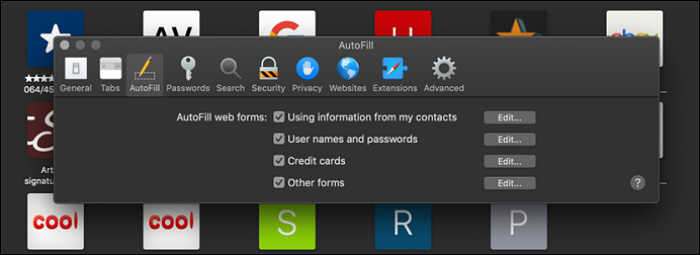
Step 3. To stop Chrome from autofilling user names and passwords, go to the Passwords section, and uncheck the box that says "Autofill user names and passwords". You may be prompted to enter your account password to confirm the change.
Conclusion
After discussing methods to disable the keychain on Mac, you might encounter issues with your keychain. To resolve this, choose a suitable method to remove saved passwords or reset your Mac keychain.
Related Articles
- [New Tutorial] Backup Game Saves on PS4 in Three Methods
- What Happens If You Delete the System32 Folder? Here Are the Answers
- Acronis Clone Disk Wizard Stuck During Cloning Process - How to Fix
- How to Solve Webcam Freeze Up in Windows 10 Error?
- (Solved!) Windows Update Stuck on Restarting🔥
If your Windows update gets stuck on restarting, there are ways to fix the issue. This article will guide you through the solution and also recommend using Qiling Disk Master, a tool that can help protect your data. - 4 Ways Included | How to Fix Windows Won't Boot from CD
Windows won't boot from CD - how to fix it? In this article, you can learn how to fix Windows that won't boot from CD in 4 ways and how to make a CD bootable using Qiling Disk Master.
Products
Articles & Tutorials
- Data Recovery
- Data Backup
- File Recovery
- File Backup
- System Backup and Restore
- Disk and Partition Clone
- Technical articles
- Mobile articles
- Disk Master Help
- Windows Data Recovery Tutorials
- Windows Secure Delete Tutorials
- Windows Partition Management Tutorials
- Windows File Backup and Restore Tutorials
- Windows System Backup and Restore Tutorials
- Windows Disk Backup and Restore Tutorials
- Windows Clone Tutorials