How to Fix Error Code 100060 on Mac [Step-by-Step Tutorial]
When critical processes like file operations or backups are interrupted on a Mac due to an error, it can be difficult. Error code 100060 is a specific issue that can pop up unexpectedly and halt certain tasks. This guide will walk you through the process of resolving Mac error code 100060, covering each stage to help you get back on track.
We'll guide you through troubleshooting steps to fix Mac problem 100060, including cleaning up disk space, updating your Mac, and repairing external drives. By following these methods, you should be able to resolve the issue and have your computer running normally again.
What Does Error Code 100060 Mean
The 100060 is a Mac error code that can cause various tasks to become corrupted, often appearing while trying to copy, move, or delete files.
The system encountered an unexpected error, preventing the task from being completed successfully, likely due to various causes, and resolving this error requires understanding its significance and the contributing factors.
Common Causes of Error Code 100060 on Mac
Mac OS X error 100060 can be caused by a variety of factors, and identifying these underlying issues is crucial to resolving the problem. Some common contributing factors include, among others.
💾Insufficient Disk Space: When deleting files on a Mac, if you still have no free space on the disk, it's likely due to the disk running out of space, which can cause error code 100060 when working with files.
⚠️Incomplete File Uninstallation: Error 100060 might be caused by incomplete file removal or remnants of a previously deleted file on the system, leading to issues like suddenly disappeared files on Mac.
🍏Outdated Software: Using outdated or mismatched types of macOS can lead to problems, including error code 100060, when working with files, especially if the operating system is updated via Mac Software Update.
😫Excessive Trash and Pointless Files: Error 100060 might be caused by a congested hard disk with too many unnecessary files and data, slowing down file access.
Understanding and addressing the underlying causes of Mac error code 100060 can be facilitated by recognizing common factors that contribute to its occurrence. By identifying these factors, finding the source of the problem and implementing effective remedies becomes more manageable, allowing for a more targeted approach to resolving the issue. The following sections will delve into the specific factors that contribute to Mac error code 100060 and provide guidance on correcting them.
3 Quick Solution to Fix Error Code 100060 Mac
If you're experiencing error code 100060 on your Mac, there are a few easy fixes you can try. These include attempting the suggested changes. No further details are provided in this response.
Fix 1. Clean Up Disk Storage
To free up space on your Mac, clear your hard disk by deleting unnecessary programs, files, and junk. This will make room for file operations.
Fix 2. Reduce the Size of Large Files and Retry
If you're experiencing issues transferring huge files, consider resizing them by compressing them using your system's built-in tools or breaking them down into smaller, more manageable chunks before retrying the transfer.
Fix 3. Disable Security Applications
To resolve error code 100060 on your Mac, temporarily disable your antivirus and other protection applications to see if they're causing the conflict with file operations. This may help identify if these programs are the issue.
The simple fixes for Mac error number 100060 target the most common causes of the issue, and attempting these steps can resolve the problem. If the issue persists, further options can be explored.
Advanced Fix 1. Update macOS to Fix Error Code 100060
Updating macOS fixes various errors, including 100060, and also resolves problems, speeds up the system, and improves compatibility with third-party devices. To upgrade macOS, follow these steps:
Step 1. Select "System Preferences" from the Apple menu in the top left corner.
Step 2. Check Mac Software Update for updates.
Step 3. Choose "Update Now" to begin if there is an update available.
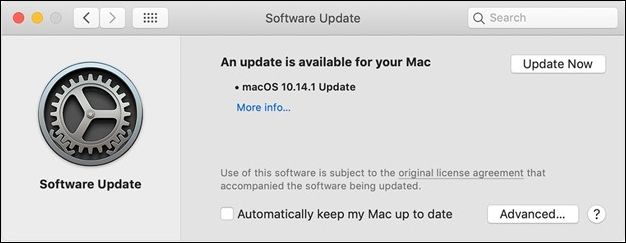
Step 4. Follow on-screen instructions to complete the upgrade.
Installing the latest macOS version may resolve the error 100060 caused by a software issue, improving your Mac's performance and reducing the likelihood of encountering problems.
To update your Mac, make sure you have a stable internet connection and enough free space on your hard drive for the download and installation process.
If you're unable to update your Mac to the latest macOS Big Sur, try restarting your Mac, checking for available updates in System Preferences, and running the macOS installer again. You can also try resetting the System Management Controller (SMC) and the power management unit (PMU), and check for any issues with your internet connection. If you're still having trouble, you can try using the built-in Recovery Mode or the macOS Utilities app to update your Mac.
This article provides a comprehensive list of potential reasons why you may be unable to upgrade your Mac via Apple's software update, the macOS installer, or by resetting macOS.
Share this article on social media to help others learn how to fix the error 100060 on Mac.
Advanced Fix 2. Repair SD Card to Fix Error 100060
If your Mac reports error 100060 for an SD card or external hard drive, act quickly to prevent data loss. Before attempting to repair the storage device, retrieve its data. You can recover your data from a damaged SD card or external hard drive with Deep Data Recovery.
With the professional Qiling recovery tool on Mac, you can quickly recover lost and deleted data in just 3 steps. Simply follow these steps to retrieve your lost data.
Step 1. Select the drive to be scanned
In the main Deep Data Recovery window, select the drive you need to recover lost/deleted files from and click the "Search for lost files" button.
Note: Before attempting data recovery, it's recommended to create a backup of your Mac using the "Disk Backup" feature, located in the left sidebar, to prevent further data loss. Once the backup is created, the software can recover data from the backup, allowing your computer to be used again for writing new data.

Step 2. Select your lost data/files
Deep Data Recovery for Mac will immediately scan your selected disk volume and display the scanning results on the left pane. Sorting the results allows you to find specific files if needed.

Step 3. Recover lost/deleted data
Once you have located the desired files, preview them and then click "Recover" to initiate the recovery of your deleted or lost Mac files.

To resolve the issue of a corrupted file system on an external drive or SD card, it's recommended to format the drive on a Mac after backing up any essential data. Formatting will erase the corrupted file system and allow you to start fresh, but it's crucial to create a backup first to prevent losing any important files. Once backed up, you can proceed with the formatting process, which will then enable you to attempt corrupt SD card recovery on your Mac.
To fix a corrupted SD card or external hard drive file system, you can try formatting the device. This process can repair your SD card or external hard drive by deleting all data and resetting the file system, allowing you to start fresh.
Step 1. Connect your Mac to the SD card or external hard drive.
Step 2. To pull up the Disk Utility, you can either search for it using Spotlight by pressing Command + Space and typing "Disk Utility", or you can navigate to the Applications/Utilities folder. Once you've located it, you can open it by double-clicking on the Disk Utility icon.
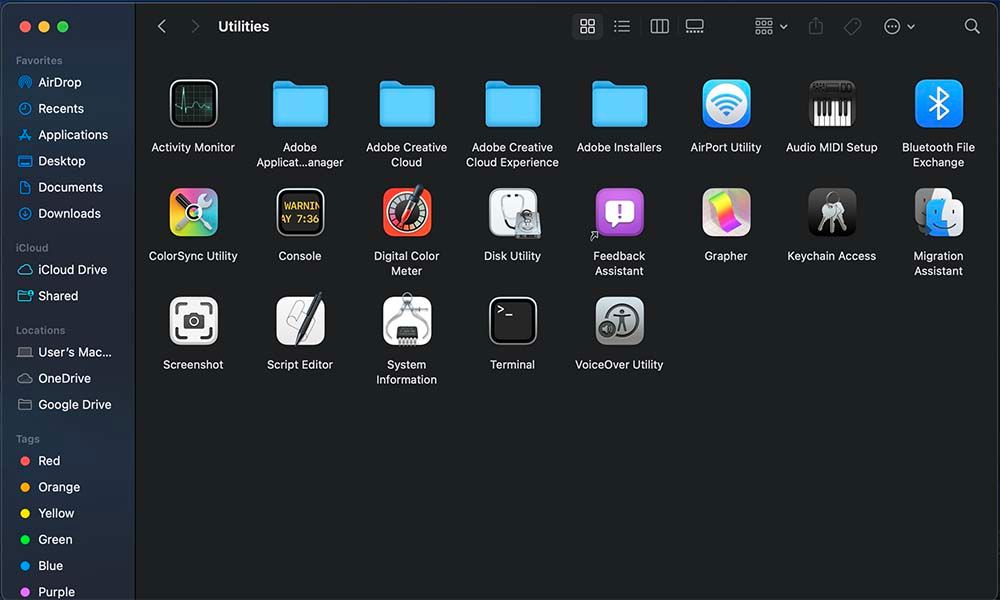
Step 3. Locate the linked storage device in Disk Utility's left sidebar.
Step 4. Click "Erase" after selecting the device.
Step 5. Format the storage drive (exFAT vs Mac OS Extended).
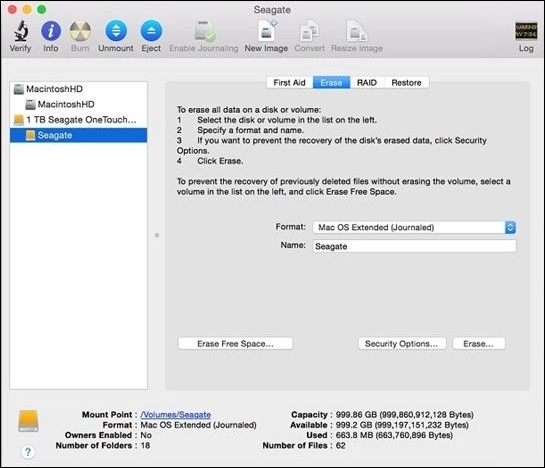
Step 6. Identify the formatted device.
Step 7. Click "Erase" after checking the settings.
Step 8. Click the "Confirm" button when asked.
Step 9. Once the formatting process is complete, the SD card or external hard drive should be functional again.
2 Tips to Avoid Mac Error Code 100060
To avoid Mac error code 100060, consider using an external USB adaptor to transfer files, which can bypass the issue with the built-in USB port. Alternatively, you can use the Terminal command to transfer files, which can also resolve the problem.
Use External USB Adaptor
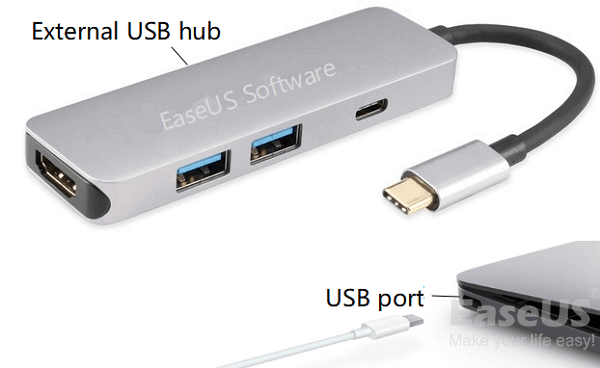
If you're experiencing error code 100060 on your Mac when trying to transfer files from an external device, a potential solution is to use an external USB adapter. This adapter acts as a middleman between your Mac and the peripheral, providing a stable connection. To utilize this, you can connect an external USB hub to your Mac, which will then connect to the external device, ensuring a smooth file transfer process. This can resolve the issue by bypassing any potential connectivity problems with the external device itself.
Step 1. Plug the extra gadget into the USB adapter, then plug the adapter into a USB port on your Mac.
Step 2. Check that the link is stable and secure. Try sending the file again if it was interrupted.
100060 error can be resolved by using an external USB converter to solve connection issues between Mac and external device.
Using a USB hub or a powered USB hub can improve file transfer reliability and reduce errors like 100060, benefiting devices like SD cards and external hard drives. This technique can make file transfers more reliable and less prone to errors.
A USB flash drive may not show up on a Mac due to various reasons, including a faulty drive, outdated Mac operating system, or incorrect drive formatting. To fix the issue, users can try restarting their Mac, checking the drive's compatibility, and formatting the drive in a compatible format such as FAT32 or APFS.
If your USB flash drive isn't showing up or being recognized on your Mac, don't worry - there are 10 solutions to help you fix the issue. You can try restarting your Mac, checking the USB port, using a different USB port, checking for software updates, using a different USB cable, checking the drive's file system, formatting the drive, using a different drive, checking for disk errors, and using a USB drive with a built-in light to see if it's being recognized. By trying out these solutions, you should be able to get your USB flash drive working again on your Mac.
Transfer Files with Terminal
If Mac problem 100060 prevents file transfers, try Terminal, the command line interface. Transferring files is only one of the many helpful operations the Terminal's command line interface can accomplish. Follow the steps below to send files using Terminal:
Step 1. Type Terminal into Spotlight to open Terminal.
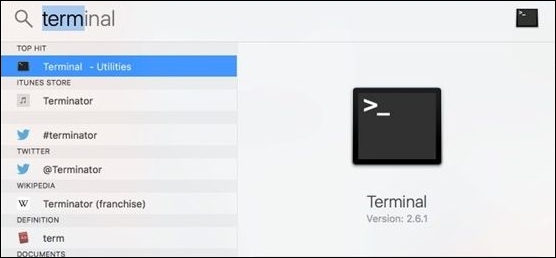
Step 2. To change the directory to the source file directory, you can use the "cd" command followed by the entire path to the source file directory. For example, if the source file is located at `/path/to/source/file.
Step 3. Use "cp" and the directory's complete path to move files.
Step 4. To copy multiple files using the "cp" command, you can use the names of several files or a wildcard (*) to transfer them all. For example, if you want to copy all files with the ".
Step 5. To initiate the file transfer, press "Enter" after typing the command. This will start the process, allowing you to send the file to the intended recipient.
To ensure a successful file transfer, make sure you have the correct permissions to enter both the original and final folders. Double-check the syntax and verify the paths to avoid any mistakes.
The Mac error code 8076 is commonly reported by users while performing file operations like renaming or relocating files and folders. Similar to error code 100060, this issue can be resolved using Terminal commands.
Error code 8076 on Mac is a common issue that can occur due to various reasons such as corrupted system files, software conflicts, or hardware problems. This error can cause your Mac to freeze or shut down unexpectedly, making it difficult to use your device.
Error code 8076 on Mac can be frustrating, but there are ways to resolve it. This error code typically occurs when there's a problem with the operating system, such as a software conflict or a corrupted system file. To fix it, you can try restarting your Mac, checking for software updates, running a disk utility scan, resetting the System Management Controller (SMC), or using a third-party repair tool like Disk Utility or a Mac repair software.
Conclusion
The macOS error number 100060 is a common issue that prevents access to files, but it can be resolved by following the steps outlined in this article. Clearing up disk space, shrinking huge files, turning off security software, connecting an external USB adapter, upgrading macOS, and fixing SD cards and external hard drives are among the detailed remedies that can fix error number 100060 and get your Mac back to normal.
You can resolve the issue and safeguard your data by following the instructions and utilizing trusted software like Deep Data Recovery for Mac. Don't let the 100060 issues stop you from using your Mac; find a solution now.
Error Code 100060 on Mac FAQs
People often ask about the error code 100060 on Mac, which is usually related to kernel mode issues, and the possible solutions to fix it, such as restarting the computer, checking for software updates, or running a System Report to identify the problematic software. They also ask about the symptoms of this error, which may include the computer freezing or crashing, and how to prevent it from happening again.
1. What is Mac error code 100060?
Mac users may encounter error 100060 when attempting to perform file actions like copying, renaming, or deleting files, often due to insufficient disk space, file system issues, or software incompatibilities.
2. How do I fix error code 100060 on Mac?
To resolve error number 100060 on a Mac, you can try various troubleshooting steps. These include cleaning up disk space, shrinking huge files, turning off security software, connecting an external USB adapter, upgrading macOS, and fixing SD cards and external hard drives. For detailed instructions on each of these steps, you can refer to the relevant tutorials.
3. Why does the system prompt, "The operation can't be completed because an unexpected error occurred (error code -50)"?
The error "The operation can't be completed because an unexpected error occurred (error code -50)" is caused by a file operation error, likely due to issues with disk space, the file system, or security programs.
4. How do I fix the error code on Mac?
Mac users can resolve the problem code by taking a few steps. First, clean up disk storage and minimize huge files. Additionally, deactivate any security software that may be interfering.
Related Articles
- How to Fix User Profile Cannot Be Loaded in Windows?
- How to Delete Everything on MacBook [Two 2024 Solutions]
- Factory Reset Mac Without Password [for macOS Ventura/Monterey]
- Steam Deck Format SD Card Grayed Out? How to Fix
- Ways to Remove Green Check Mark on Desktop Icons
Green Check Marks on Desktop Icons indicate that the app or file is uploaded to OneDrive, but they can be removed by making changes in the OneDrive app, and trying different methods to see which one works. - How to Repair Your Drive in Windows 10 Without Losing Your Data
If you're experiencing any weird Windows 10 troubles, it's possible that a hard drive issue is to blame, and the problems can be various. This article, tailored to Windows 10, describes how to repair faults on a computer hard drive.
Products
Articles & Tutorials
- Data Recovery
- Data Backup
- File Recovery
- File Backup
- System Backup and Restore
- Disk and Partition Clone
- Technical articles
- Mobile articles
- Disk Master Help
- Windows Data Recovery Tutorials
- Windows Secure Delete Tutorials
- Windows Partition Management Tutorials
- Windows File Backup and Restore Tutorials
- Windows System Backup and Restore Tutorials
- Windows Disk Backup and Restore Tutorials
- Windows Clone Tutorials