An Error Occurred While Processing Your Request [How to Fix]
In this article, you'll learn:
- An Error Occurred While Processing Your Request Overview
- Why Does an Error Occurred While Processing Your Request
- 6 Fixes to the Error Occurred While Processing
- An Error Occurred While Processing Your Request FAQs
An Error Occurred While Processing Your Request Overview
Have you ever encountered the frustrating "an error occurred while processing your request?" error? This standard issue can be resolved quickly with just a few clicks. The internet has become an integral part of our daily lives, making the sudden appearance of this error on various apps and browsers particularly worrisome.
The error is caused by a failure or issue in completing a requested action or task, but the error message does not provide specific details about the root cause, making it more difficult to resolve.
An "an error occurred while processing your request" error can be frustrating, but don't worry, it's a common issue. This error can occur due to various reasons such as server overload, cache issues, or even browser glitches. To resolve it, try refreshing the page, clearing your browser cache, or checking the website's status on a website like DownDetector.
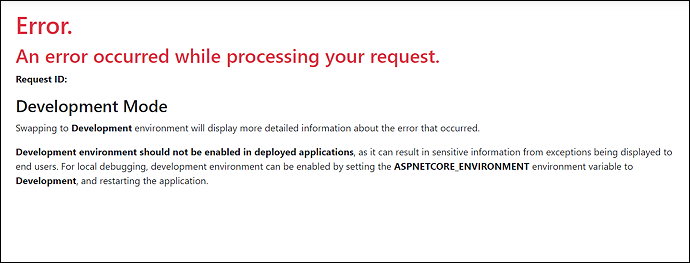
Why Does an Error Occurred While Processing Your Request
The leading reasons for this error occurred while processing your request are:
- 🔢Malfunctioned or damaged browser data: Corrupt browser cookies or cache might lead to this error, as well as certain extensions. To resolve the issue, you may need to disable the extensions and temporarily delete browser cookies or cache. This should help to clear up any issues and allow you to access the website again.
- 🔒Imprecise user input: This error may occur unexpectedly if incorrect or incomplete information is entered in a web form, and it can be resolved by verifying and correcting the entered details.
- 🌐Network errors: Poor network conditions may also trigger this message, including issues with your internet service provider's connectivity.
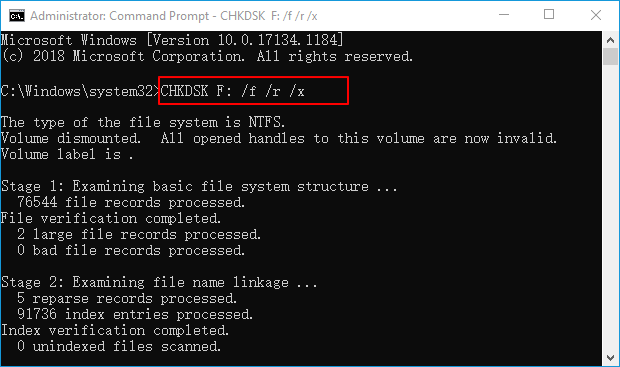
If you encounter a fatal device hardware error, don't panic! There are ways to fix it without losing your precious data.
If you encounter the error 'The request failed due to a fatal device hardware error', your internal or external storage media may become inaccessible.
6 Fixes to the Error Occurred While Processing
If you're met with the frustrating error message "an error occurred while processing your request", don't worry - these 6 fixes can help you troubleshoot and resolve the issue. However, the specific action to take will depend on the system's characteristics and the error involved, so be sure to prioritize data security before attempting any fixes.
Before you are going to fix "an error occurred while processing your request", watch this video first. It provides you with more details.
Here are the top 6 fixes shown below:
Solution 1. Change your browser
If you're experiencing issues with your current web browser, consider switching to a different one. There are several browsers that prioritize user privacy, making them a suitable alternative to Google Chrome.
Opera One is a reliable browser option that stands out for its stability, thanks to its ultra-modern Chromium engine. It's also lightweight and highly customizable, allowing users to personalize their experience with extensions. Additionally, it comes with a built-in VPN and ad-blocker, providing an extra layer of security and convenience.
Solution 2. Check your internet connection
If you encounter the message "an error occurred while processing your request," the first step is to verify that your internet connection is stable. This involves checking the following:
- To confirm there's no internet outage in your area, you can ask your internet service provider for details or check their website.
- If there's no power interruption, check the hardware connected to the internet, including the modem, router, and primary power source, to ensure they're not corrupted and are working correctly.
- If the hardware is functioning properly, the next step is to verify that the cables are securely plugged into the correct ports.
- If you're experiencing a slow internet connection, it might be because the distance between your Wi-Fi router and the device receiving the signal is too great. To improve the connection, try moving the router closer to the device. Alternatively, you can directly connect your device to the internet using an Ethernet cable, which typically provides a faster and more stable connection than Wi-Fi. This can be a good option if you have a stable internet connection and can run an Ethernet cable to your device.
To fix the DNS PROBE FINISHED NO INTERNET error, try restarting your router, checking your internet connection, and updating your network adapter drivers. If the issue persists, try flushing your DNS cache, resetting your internet settings, or using a VPN. Additionally, check for any malware or viruses on your device and ensure that your antivirus software is up-to-date.
To resolve the DNS Probe Finished No Internet Error issue, try restarting your router, checking your internet connection, and ensuring your DNS settings are correct. If the issue persists, consider resetting your network settings, checking for firmware updates, and verifying your internet subscription. If you're still experiencing problems, reach out to your internet service provider for further assistance.

To improve WiFi signal strength, you can eliminate other electronic appliances that interfere with the signals, and mount the WiFi router on an elevated platform to ensure a clear connection.
Solution 3. Refresh the webpage
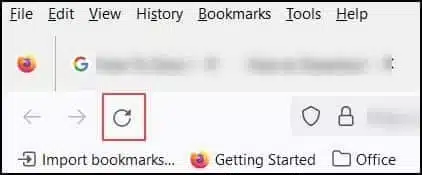
Refreshing a webpage is not a feature that can be performed on a webpage, as it is a browser function. However, you can reload the webpage by clicking the reload button or pressing the F5 key on your keyboard. If you want to reload the webpage, you can follow the steps below:
Step 1. To force a refresh from the server, shift-click the refresh button in your web browser's address bar. This will reload the page from the server, rather than relying on cached information.
Step 2. To recover browser Internet history in Internet Explorer, hold the "Ctrl" key and hit the refresh button.
Step 3. If you're a Google Chrome user on a Windows PC, you may hit the "Ctrl + F5" keys together. This keyboard shortcut can refresh the current web page and force it to reload from the server, which can be helpful if you're experiencing issues with the page not updating properly.
Many PC users have successfully resolved the issue using these methods. If you're interested in resolving the issue, consider sharing this solution on social media platforms like Facebook, Twitter, Instagram, and others to help others who may be experiencing the same problem.
Solution 4. Disable the HTTPS Everywhere extension
The HTTPS protocol encodes data and safeguards privacy, but not all websites support it. To bypass this, some users rely on third-party browser extensions like HTTPS Everywhere, which forces websites to use HTTPS protocol instead of HTTP. However, this can sometimes result in an error message, such as "an error occurred while processing your request", if a website doesn't comply with the HTTPS protocol.

To resolve issues with HTTPS Everywhere, you can either disable the extension for specific sites that cause problems or completely remove the extension from your browser. This may resolve the issue.
Solution 5. Delete the SSL certificate
If you're experiencing issues with "an error occurred while processing your request" or "An Error Occurred While Preparing The Installation", consider getting a new SSL certificate. This might resolve the issue, as deleting and reinstalling the security certificate can resolve the problem. Additionally, since SSL certificates typically expire after a year, manually removing the expired certificate and reinstalling a new one may also be a viable solution.
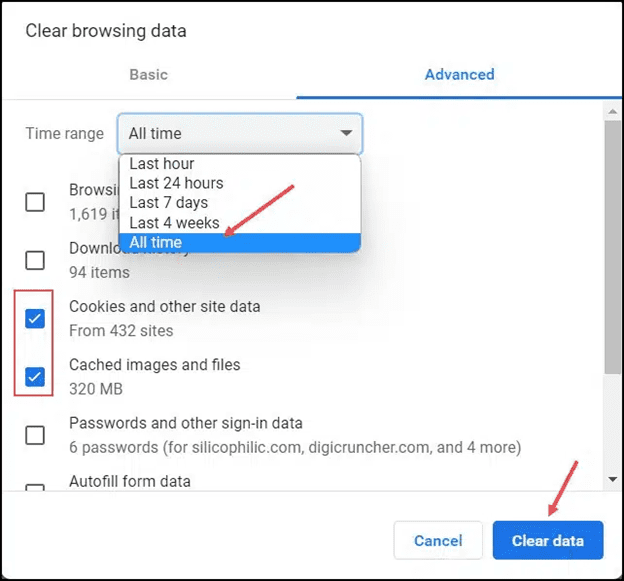
Solution 6. Clear cache and cookies
Clearing browser cache and cookies eliminates the user's site data and customized settings, which can resolve issues related to website privacy, performance, and browser functionality. To do this, follow the steps below:
Step 1. Open "Chrome," and hit the "three-dot menu."
Step 2. Expand the "More Tools" option and choose "Clear browsing data."
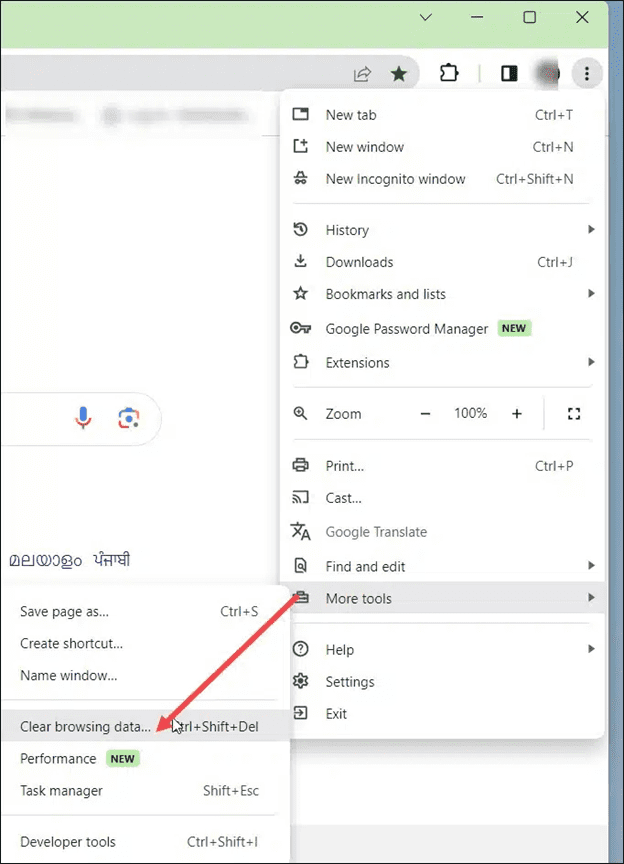
Step 3. Select the "All time" time frame, search for "Cookies and other site data", and remember to check the box next to "Cached images and files".
Step 4. Clear all browser data and then relaunch Google Chrome to search for the problem.
Accidentally deleting browser caches and cookies can lead to data loss, but professional data recovery software can help you recover Chrome history and other lost data due to various reasons such as clearing and deleting, partition loss, formatting, crashed or unbootable systems, and virus attacks. With a 99.7% success rate, Deep Data Recovery can retrieve limitless data.
This all-in-one data recovery software can:
- Recover files from accidental deletion.
- Retrieve files from formatted hard drives.
- Restore lost files from deleted or lost partitions, hard drives, external hard drives, and memory cards.
- Recover files from corrupted HDDs.
This professional data recovery tool can retrieve over 1000 file types and files from more than 2000 storage devices, making it a powerful tool for data recovery.
Bottom Line
To avoid the "an error occurred while processing your request" error, clear cache and cookies daily, use an updated browser, verify website links before clicking, and ensure a credible internet connection. This will help prevent the issue from recurring and ensure smoother online interactions.
An Error Occurred While Preparing the Installation FAQs
Consider the FAQs below to understand the topic better:
1. How do you fix an error that occurred while processing your request?
If you're experiencing issues with your request, try checking your internet connection as a possible solution. Ensure that your internet connection is stable and not experiencing any outages in your location. You can verify your network speed on various websites to confirm its stability. This can help resolve the problem and allow your request to proceed smoothly.
2. What does an error processing request mean?
This error occurs when login information or email is entered incorrectly, or when device data needs to be updated. It can also happen if an expired SSL certificate is being used.
3. What an error occurred while the server was processing your request?
The most common cause of this error is a disrupted network for the application or website, requiring a patient wait for it to be fixed. Additionally, corrupted browser data, such as damaged add-ons, cache, or cookies, can also lead to this error.
4. How do I get rid of server errors?
Server errors may occur due to security or permissions issues on the server, exceeding the website's memory limit, poor cache or file storage, or device issues. To resolve this, try refreshing the browser by pressing Ctrl + F5 keys.
Related Articles
- Download macOS Monterey DMG File [2023 Guideline]
- How to Fix Spotlight Search Not Working Ventura/Sonoma
- Hogwarts Legacy Save File Gone: How to Fix It
- How to Fix Macintosh HD Greyed Out in Disk Utility Without Data Loss [ 4 Solutions ]
- Where Is The Hard Drive on A Laptop?
Do you find it difficult to locate the hard drive on your laptop? In this article, you will learn all you need to know about a laptop hard drive and how to remove a hard drive from a laptop. Read on to find out. - Windows 10 File History Backup, Everything You Should Know
this guide covers a detailed introduction to File History. Besides, it elaborates on the specific steps to perform a Windows 10 File History backup.
Products
Articles & Tutorials
- Data Recovery
- Data Backup
- File Recovery
- File Backup
- System Backup and Restore
- Disk and Partition Clone
- Technical articles
- Mobile articles
- Disk Master Help
- Windows Data Recovery Tutorials
- Windows Secure Delete Tutorials
- Windows Partition Management Tutorials
- Windows File Backup and Restore Tutorials
- Windows System Backup and Restore Tutorials
- Windows Disk Backup and Restore Tutorials
- Windows Clone Tutorials