How to Recover Deleted History on Google Chrome Windows 10/Android/iPhone
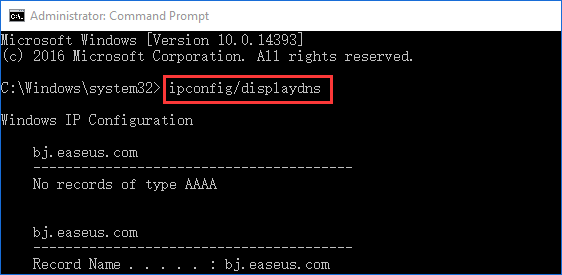
How to recover deleted history on Google Chrome using CMD:
1. Press Windows + R to open the Run dialog.
2. To open the Command Prompt, type cmd into the box and click the OK button.
3. The command you requested is "ipconfig /displaydns" and then press Enter on the keyboard. This command will display the DNS cache for the current system.
4. To recover deleted browsing history in Chrome, you can try using the "History" feature in the browser. If you've recently deleted your browsing history, you might be able to recover it by going to Chrome's settings, clicking on "History," and then selecting "History" again from the dropdown menu. From there, you can try to recover your deleted browsing history by clicking on "Restore" or "Recover" button. However, if you've cleared your browsing history for a longer period, it's less likely that you'll be able to recover it. Additionally, if you've used incognito mode or cleared your browsing history regularly, it's also less likely that you'll be able to recover your deleted browsing history. It's also worth noting that some browser extensions may also have their own history features that can be used to recover deleted browsing history.
Quick Navigation: Recover Deleted History on Chrome Windows 10
If you've accidentally deleted your Chrome browsing history on Windows 10, there are still ways to recover it. You can try using the Chrome browser's built-in history recovery feature, which can be accessed by typing chrome://history/ in the address bar.
| Workable Solutions | Step-by-step Troubleshooting |
|---|---|
| Recover deleted history from backup | Check Chrome history from local backup C:/Users/Name/AppData/Local/Google/Chrome...Full steps |
| Recover history with DNS | Press Windows + R, type cmd, and click "OK". Or, you can type cmd in the Windows search bar...Full steps |
| Recover history from My Activity | Search Google History > Click "Welcome to My Activity - Google" > Sign in with your Google account...Full steps |
| Restore Chrome deleted history from previous versions | You can recover deleted history on Google Chrom from previous versions if you have enabled the File Backup option...Full steps |
If you've inadvertently deleted all your Chrome browsing history or it's been lost due to a Windows/Google Chrome update or other unexpected causes, you may be able to recover it using specific methods and tools, such as Chrome's built-in history recovery feature or third-party software.
If you've accidentally deleted your Chrome history on Windows 10, don't worry - there are several ways to recover it. You can try using the Command Prompt, restoring from your "My Activity" page, or using Chrome backups. If you've lost your Chrome backup, you can use a data recovery software to restore the backup file and continue the recovery process.
You will learn how to recover deleted browsing history in Chrome on Android and iPhone devices, as well as how to recover deleted history in Chrome on Android and iPhone devices.
Method 1. Recover Deleted History of Chrome from Backups
When you browse pages in Chrome, your history is saved automatically on your local computer. If you delete your Chrome history, the local records are also removed. However, if you've made a backup of your local history database before deleting the history, you can recover your Chrome history by importing the records from the backup file.
The path of local backup of Chrome history:
Google Chrome: C:\Users\(username)\AppData\Local\Google\Chrome\User Data\Default\
You can back up your local history file to another location on your computer or any storage device. If you accidentally delete, format, or lose your backup files, you can still recover them using Deep Data Recovery.
Bonus Tip - How to Recover Deleted Chrome History Backup
Deep Data Recovery, a world-class data recovery program, helps you retrieve lost data and files with just a few clicks. It allows you to recover permanently deleted files in Windows 7, 8, and 10 with ease.
Deep Data Recovery
- You can recover data from various storage devices, including the Recycle Bin, hard drive, memory card, SD card, flash drive, digital camera, and camcorder.
- Repair corrupted files easily with this tool, which supports recovery of Excel, MP4, MOV, GIF, JPEG, and JPG files. The software can effectively restore damaged files, making it a reliable solution for data recovery.
- Restore lost data on Windows 10/8.1/8/7/Vista/XP and Windows Server 2019 - 2003.
Go ahead and download this tool, and then follow the following three steps to retrieve deleted Chrome history.
Step 1. Select file types and click "Fast Scan" to start
Launch Deep Data Recovery on your PC, select file types, and click "Fast Scan" to initiate the recovery process.

Note: You can choose different search modes based on where and why the data was lost.
Step 2. Select a drive and start scanning
Hover over the partition where you lost data, then click "Scan".

Step 3. Check and preview scanned files
To narrow down scan results, use the file format filter to find specific files, and then preview their content by clicking the "Preview" button or double-clicking a file.

Step 4. Recover lost data to a secure location
To recover lost data, select the file by checking the box next to it, then click "Recover" to restore it to a secure location. It's recommended to avoid storing the recovered data on the same disk where it was initially lost.
Method 2. Use DNS Cache to Recover Deleted History Chrome
To recover deleted Chrome browsing history, keep your computer connected to the internet and do not shut down or restart your computer. Follow the steps below to use DNS to restore your lost browsing history.
Step 1. To open the Command Prompt, press Windows + R, type "cmd", and click "OK", or type "cmd" in the Windows search bar.
Step 2. In the Command Prompt, type ipconfig /displaydns, and press Enter.
Once you complete the steps, all recently visited websites will be displayed, allowing you to view your entire recent browsing history of Chrome and copy and paste important websites into Chrome, where they will be saved again.
To recover your full Chrome history, you can use the Chrome Sync feature to sync your browsing history across all devices. This will allow you to access your full browsing history from any device that is synced with your Google account. To do this, go to the Chrome browser on any device, click on the three vertical dots at the top right corner, select "Settings," scroll down to the "Advanced" section, and toggle on "Sync" if it's not already enabled.
Related reading: How to fix Google Chrome high RAM usage
Method 3. Find Deleted History of Google Chrome from My Activity
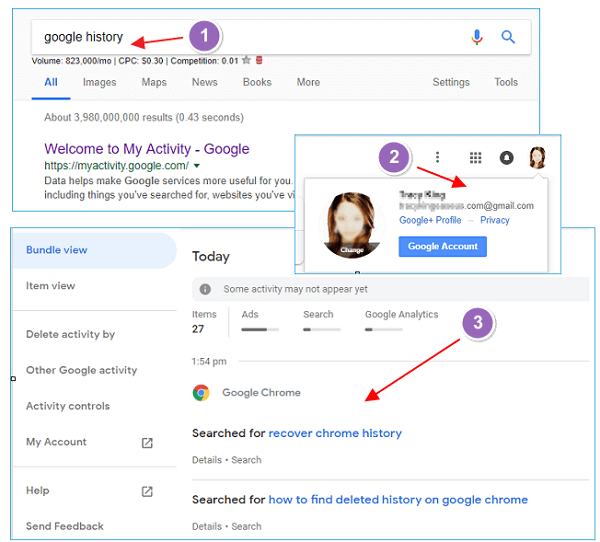
You can recover deleted Chrome history by accessing Google History, which stores all your browsing histories in your Google account, if you have one.
Step 1. Search Google History
Step 2. Click Welcome to My Activity - Google.
Step 3. Sign in to your Google account.
Step 4. All of your browser/internet history files will be displayed along with the date/time.
Step 5. Browse your history as needed.
Method 4. Restore Deleted History on Chrome from Previous Versions
If you've enabled File History on Windows 10, you can restore lost files from previous versions. Additionally, you can also restore deleted Chrome history from previous versions by learning how to do so.
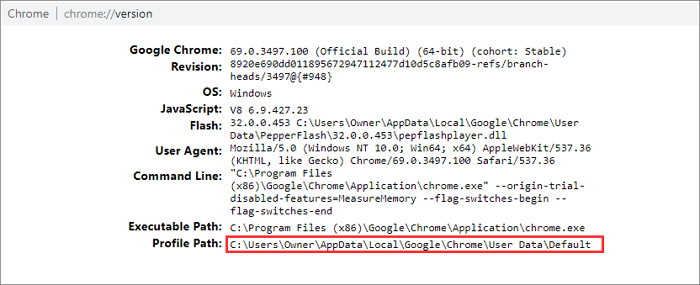
Step 1. Find your local Google Chrome location, which is usually C:\Users\Username\AppData\Local\Google\Chrome.
To find your Google Chrome path, simply type chrome://version/ in the address bar and it will display the detailed information of the storage path, which may be different for you.
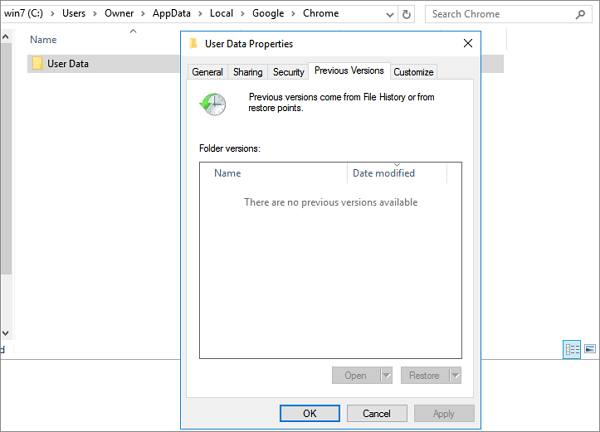
Step 2. Right-click on the User Data folder and select "Restore previous versions".
Step 3. To restore Chrome browser history, select the version you want, click the "Restore" button, and recover your browser history.
How to Recover Deleted History on Google Chrome Android
Unfortunately, Google Chrome does not have a built-in feature to recover deleted browsing history on Android. However, you can try using a third-party app or a data recovery tool to scan your device's storage for any remaining browsing history data. Some apps, like Disk Cleanup, can help you recover deleted files, including browser history.
This method works for users with a Google account and Google sync enabled, syncing Chrome browsing history across devices.
Step 1. To access Google's account settings, open Google Chrome and navigate to the website https://myaccount.google.com. This link will take you directly to the account settings page.
Step 2. When you sign in to your Google Account, you'll be able to see all the information Google has recorded from your browsing activity.
Step 3. To view your browsing history on Android, scroll down to Chrome Bookmarks. This will display all the browsing history that your Android phone has accessed, including bookmarks and apps.
Step 4. You can restore deleted browser history in the form of bookmarks.
If you have a Google account, you can recover deleted Chrome history by going to Google's My Activity page, signing in, and selecting the time period you want to recover. If you don't have a Google account, you can use professional Android data recovery software like Qiling MobiSaver for Android to help you recover deleted Chrome history.
To recover data using this method, you must first root your phone before beginning the process. This involves gaining superuser access to your device, which can be done through various methods such as KingRoot or TowelRoot, depending on your device's operating system.
Step 1. Connect your Android phone to the computer
To use Qiling MobiSaver for Android, install the software and connect your Android phone to the computer with a USB cable. Then click the "Start" button to allow the software to recognize and connect your device.
Step 2. Scan Android phone to find the lost data
The software quickly scans the Android device to find existing and lost data, allowing you to easily locate and recover lost files by selecting the correct file types.
Step 3. Preview and recover data from Android phone
After previewing all the recoverable files, quickly select the ones you want to recover and click the "Recover" button to get them back.
How to Recover Deleted History on Chrome iPhone (2 Ways)
You can try to recover deleted history on Google Chrome iPhone by trying the following two ways. You can try the following two ways. Note: The ability to recover deleted browsing history depends on your iPhone's settings and the version of Google Chrome you're using.
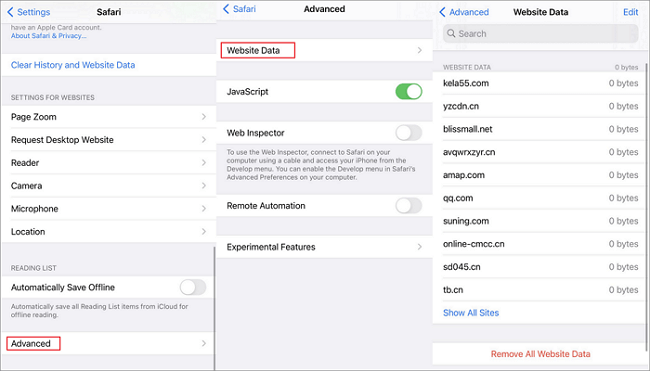
1 - Recover Deleted Chrome History from Website Data
Step 1. Open your iPhone and go to "Settings" > "Safari".
Step 2. Tap Safari, scroll down to the bottom, and tap on the "Advanced" option. Then, tap on "Website Data" and select "Remove All Website Data".
Step 3. Find and tap on "Website Data" and you will see some of your deleted browser history listed there.
Step 4. You can recover deleted history on Chrome as you need.
2 - Recover Deleted History on Chrome with iPhone Data Recovery Software
If you've accidentally deleted your Chrome history on your iPhone, you can try using iPhone data recovery software to recover it. This software can scan your iPhone, iTunes, or iCloud backups to retrieve deleted Chrome history.
Step 1. Choose Recovery Mode
Connect your iPhone to your PC, launch Qiling MobiSaver, select "Recover from iOS Device" and click "Start".
Step 2. Scan iPhone for Safari Bookmarks/History
Qiling MobiSaver automatically scans iPhone/iPad/iPod and finds Safari bookmarks and history.
Step 3. Preview and Restore Safari Bookmarks and History
To recover bookmarks or history from Safari, select "Safari Bookmarks" or "Safari History" on the left, choose the specific items you want to recover, and then click "Recover to PC" or "Recover to Device" to initiate the recovery process.
Conclusion
To prevent unexpected loss of your Chrome history, it's essential to back it up regularly. You can manually access the Chrome history to find the records, but to avoid the hassle, you can use schedule backup software for automatic backup. This way, you can ensure that your browsing history is safely stored and easily recoverable in case of deletion.
Recover Deleted History Chrome FAQs
If you're experiencing issues with recovering deleted history in Chrome, you're not alone. Many users face problems with this, and fortunately, there are solutions available. If you're having trouble with recovering deleted history, you can find the answers to your questions here.
Can you recover deleted history on Google Chrome?
You can find deleted history in Google Chrome using one of four methods. These include checking the browsing history, looking at the recently closed tabs, examining the browsing history from the last 24 hours, and using the "History" tab in the browser settings.
- Make use of DNS cache to recover lost Chrome history
- Restore deleted Chrome history via Google History
- Recover deleted Chrome history from local backups
- Restore Chrome history to the Previous Versions
How can I retrieve deleted browsing history?
How to find deleted history in Google Chrome by using Command Prompt:
Step 1. Press Windows + R to open the Run dialog box.
Step 2. Type cmd in the text box and click on the OK button to confirm.
Step 3. The command `ipconfig /displaydns` is used to display the DNS cache on a Windows system. When you type this command and press Enter, it shows you the DNS records that have been cached on your system, including the IP addresses associated with domain names.
Step 4. Wait a moment for the command to complete.
How do I restore my Google search history?
Step 1. To restore your system to a previous state, click on the "Start" button, navigate to "Programs", then select "Accessories". From there, click on "System Tools" and choose "System Restore".
Step 2. Click "Restore my computer to an earlier time" and then click "Next."
Step 3. To restore the system, select the desired date and time from the calendar, click "Next", and the system restore process will begin. After completion, the computer will restart.
Step 4. Click "OK" when you see the confirmation message once your computer boots up. Your Internet Explorer Google search history has now been restored.
How do I recover deleted cache in Chrome?
To recover deleted cache in Chrome, open Chrome, type "About:cache" in the address bar, press Enter, and a list of cached files and their addresses will appear. Press Ctrl + F to open the find bar, where you can search for and recover deleted cache.
Can you retrieve deleted text history?
You can recover deleted text messages on Android and iPhone devices using a reliable data recovery program. For Android, try Qiling Android data recovery, while for iPhone, use Qiling iOS data recovery software to easily retrieve the deleted messages.
- How to recover deleted text messages on iPhone 12/X/8/7
- How to recover deleted text messages on Android
Related Articles
- How to Fix Folders Turned into Shortcuts
- Microsoft Word Has Stopped Working [9 Useful Fixes]
- How to Recover Deleted PST File in Outlook 2019/2016/2013/2010
- How to Remove Folders and Files from Quick Access Windows 10/11
- How to Recover Files from Folder Lock Without Password Step-by-Step
If you've forgotten the password to your Folder Lock and need to access your files, this page can help. - How to Recover Files from Found.000 Folder
Can you find ways to recover files from Found.000 folder? Simple troubleshooting steps are here to help you convert .chk files to original format or use data recovery software for Found.000 folder recovery.
Products
Articles & Tutorials
- Data Recovery
- Data Backup
- File Recovery
- File Backup
- System Backup and Restore
- Disk and Partition Clone
- Technical articles
- Mobile articles
- Disk Master Help
- Windows Data Recovery Tutorials
- Windows Secure Delete Tutorials
- Windows Partition Management Tutorials
- Windows File Backup and Restore Tutorials
- Windows System Backup and Restore Tutorials
- Windows Disk Backup and Restore Tutorials
- Windows Clone Tutorials