How to Factory Reset MacBook Air
A factory reset on your MacBook Air can resolve technical issues and improve system performance by restoring it to its original settings, making it run faster and more efficiently.
You can factory reset your MacBook Air by going to System Preferences > Erase All Content and Settings. This will completely wipe the system, removing all personal data, apps, and settings. It's a good idea to do this before selling or giving away your MacBook Air to ensure your personal information is protected.
Factory resetting a MacBook Air means returning its settings to their original format, essentially making it like new again, allowing users to resolve issues or sell the device with a clean slate.
To factory reset a MacBook Air, you'll need to follow a series of steps that will erase all of your data and restore the laptop to its original settings. First, make sure you've backed up any important files and data to an external drive or cloud storage service, as this process will delete everything on the laptop.
To factory reset your PC, follow these steps: Turn off your PC, then press the power button and immediately start tapping the F2, F12, or Del key to enter the BIOS settings. From there, navigate to the Boot section and set the boot order to USB or CD/DVD.
Why Do You Need Macbook Air Factory Reset
Before opting for a factory reset, consider the age of the system and the existing operating system. The age of the system is a crucial factor, as older systems may not be compatible with the latest operating systems, making a factory reset potentially problematic. Additionally, the age of the system can impact the availability of support and updates, which may be a consideration if you're planning to keep the system in use.
Factory resetting a MacBook Air from 2018 or later is relatively straightforward, thanks to the T2 security chip and Erase Assistant feature. However, those with older models, such as the 2017 MacBook Air, may need to follow alternative instructions to achieve the desired results. The process for these earlier models can be more complicated.
To avoid losing data, it's essential to log out of all accounts and backup your data before factory resetting your device. You can use the Time Machine feature to securely back up your information. This will ensure that your data is safe and can be easily restored if needed.
You can choose a professional yet efficient data backup software, such as Qiling Disk Master, which allows you to develop backups of your files easily without requiring technical knowledge.
You can create backups of your entire OS, files, disks, and partitions, which can then be saved to external hard drives, local drives, the cloud, or even a network. This process is surprisingly efficient, allowing you to safeguard your data with ease.
How to Factory Reset Macbook Air?
1. For macOS Big Sur or Intel chip
The 2017 or earlier MacBook Air didn't have a smooth factory resetting procedure due to its hardware not being equipped to integrate the Erase Assistant feature. To reset, you need to follow specific instructions, which may involve booting in recovery mode and using Terminal commands.
Firstly, you need to sign out of iCloud.
Step 1. To access System Preferences on a Mac, go to the Apple Menu and click on System Preferences from the dropdown list.
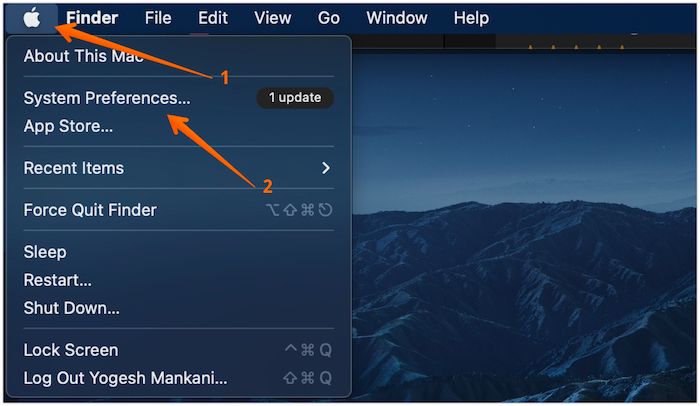
Step 2. To access your Apple ID, click on the "Apple ID" icon in the top right-hand corner of your screen.
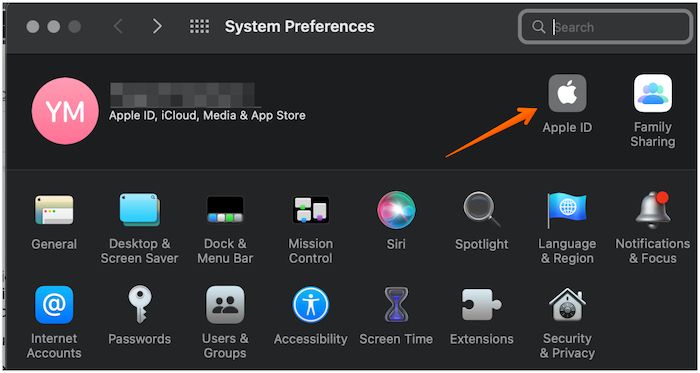
Step 3. To sign out of your Google account, select "Overview" from the left-hand settings bar and click the "Sign out" option at the bottom of the screen.
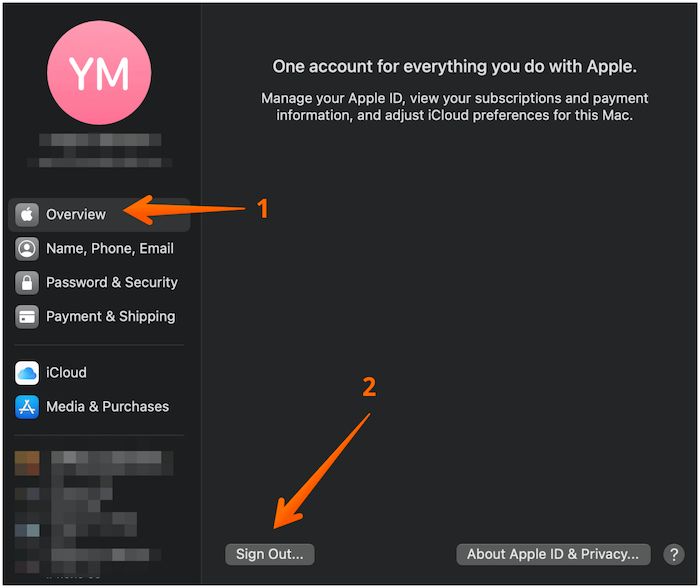
Step 4. To access the Messages app preferences, go to the Messages app, select "Messages" in the menu bar, and choose "Preferences."
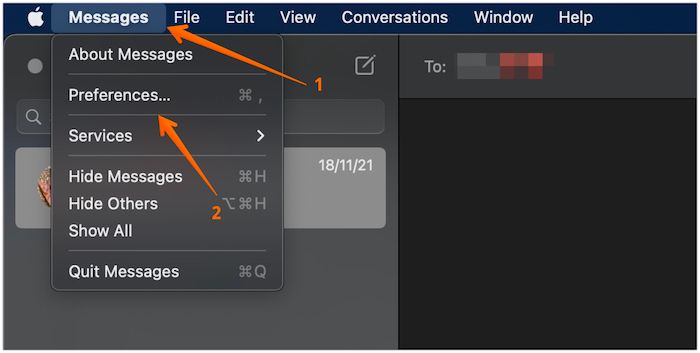
Step 5. To sign out of iMessage, click on the Apple menu, select "System Preferences", click on "iMessage", and then click on "Sign out" from the top menu.
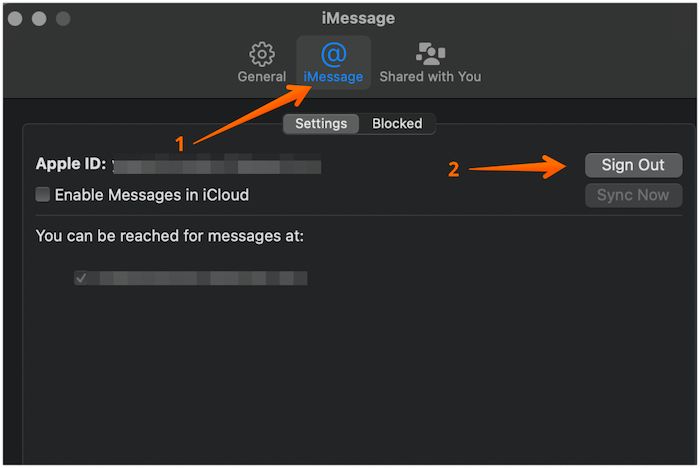
Step 6. To shut down the system, press the Power button and select Shut Down. Then, turn it on and press the Option, Command, P, and R keys simultaneously and hold them down. The system will enter Recovery Mode. From there, choose Disk Utility and tap Continue.
Step 7. To factory reset your Mac, select the "Macintosh HD" option, then press the Erase button, which will initiate a factory reset and require you to reinstall macOS if you need to use the system again.
2. For macOS Monterey
With macOS Monterey, factory resetting the system is made easy by the Erase Assistant feature, which streamlines the process for users.
You need to follow some simple steps shown below.
Step 1. To access the System Preferences on a Mac, click on the Apple logo in the top left corner of the screen, which will open a drop-down menu, and from there, select "System Preferences".
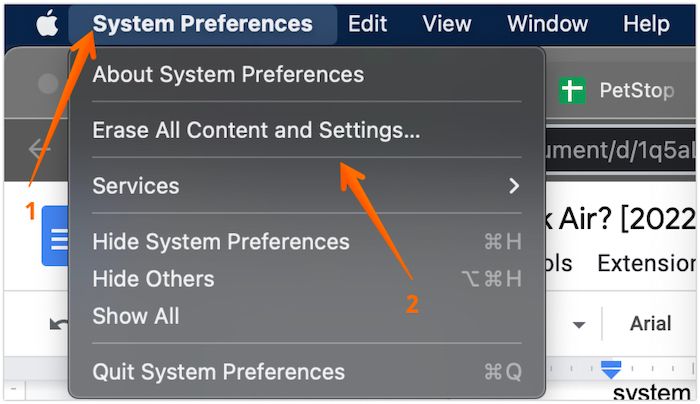
Step 2. To reset your Mac, click on the Apple menu, then select System Preferences. From the drop-down menu, choose the "Erase All Contents and Settings" option.
Step 3. You will see a pop-up window that lists various places where your data will be deleted from, including Google account, Google account apps, Google account services, Google account history, and Google account location history.
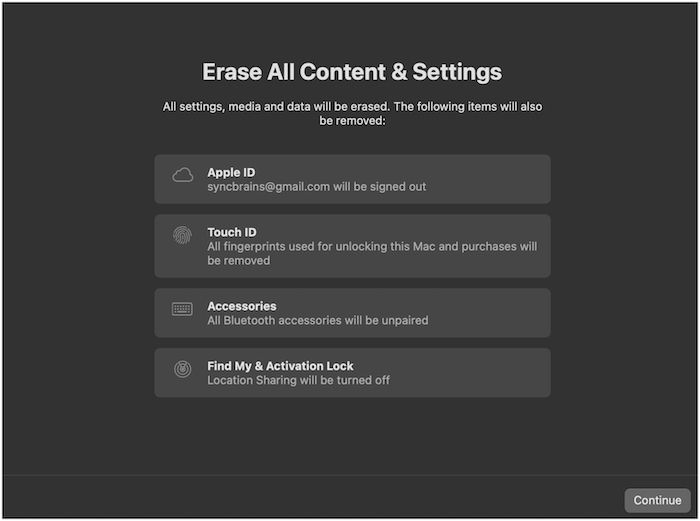
Step 4. To resolve the issue, follow the on-screen instructions and log out of iCloud. This will trigger a system reboot and restore the original state, but the current macOS version will remain.
Conclusion
Choosing a factory reset for your MacBook Air is a great option if you're looking to sell it or resolve technical issues, as it will erase all data from the system and restore it to its original settings, similar to when it was first assembled. However, before proceeding, it's essential to back up any important data to prevent loss.
Opting for a professional data backup program is crucial to prevent data loss, and Qiling Disk Master is a reliable option. This user-friendly tool offers a wide range of features, allowing you to easily back up various data files and save them in different locations.
Frequently Asked FAQs
To factory reset a MacBook Air, follow these steps:
1. How do you factory reset a MacBook without getting into it?
To factory reset a MacBook without logging in, you can use the Recovery mode, which allows you to reinstall macOS or run Disk Utility to clean the system.
2. How do I reset my MacBook air without the admin password?
To reset a MacBook Air without knowing the admin password, restart the system and hold down the Cmd + Opt + R keys. This will boot the system in recovery mode, allowing you to access Disk Utility and erase the drive using Mac OS Extended. You can then choose the Reinstall Mac OS option to start the installation process.
3. How to Recover Lost Data after Factory Reset on Mac?
To recover lost data after a factory reset on Mac, it's essential to back up your data first. You can use iCloud to store your data securely, or consider a professional data backup tool like Qiling Disk Master for efficient results. This ensures that your data is protected and can be easily restored in case of a factory reset.
Related Articles
- How to Mount a Disk on Mac [Step-by-Step Tutorial in 2023]
- Windows 11 White Screen? Top 9 Ways to Fix It!
- External Hard Drive Heating Up: Everything You Should Know
- macOS Monterey Update Not Found | How to Solve Monterey Update Issue
- 6 Best Nintendo Switch SD Card: Everything You Should Know
What SD card is best for Nintendo Switch? This article will list five of the best Nintendo Switch SD cards and give detailed scale information to help you make a better choice. - All About Novo Button [2023 Full Guide]
This post is focused on the Lenovo Novo button. What is the Novo button? Where to find it? And how does the Novo button work? All the answers are shown in this post.
Products
Articles & Tutorials
- Data Recovery
- Data Backup
- File Recovery
- File Backup
- System Backup and Restore
- Disk and Partition Clone
- Technical articles
- Mobile articles
- Disk Master Help
- Windows Data Recovery Tutorials
- Windows Secure Delete Tutorials
- Windows Partition Management Tutorials
- Windows File Backup and Restore Tutorials
- Windows System Backup and Restore Tutorials
- Windows Disk Backup and Restore Tutorials
- Windows Clone Tutorials