How to Solve the Mac Error Code 100006 [ 8 Proven Ways]
Mac error code 100006 can occur due to a conflict between programs or an issue with security settings, preventing access to programs or completing operations on Mac devices, including MacBook, MacBook Pro, and iMac.
Fortunately, several options are available to assist you in resolving Mac error number 100006 and getting your Mac back up and running properly. This article will go through the numerous reasons for the error and provide step-by-step instructions to cure it.
| Workable Solutions | Step-by-step Troubleshooting |
|---|---|
| Fix 1. Change the Permissions | Connect the external drive that will be used for both reading and writing to your Mac...Full steps |
| Fix 2. Clean Up for More Disk Space | To clear it up, you need to know which files and apps take up the most space on your Mac...Full steps |
| Fix 3. Reinstall macOS | Reinstall macOS using Recovery Mode. The problematic OS will be replaced with a fresh installation...Full steps |
| Fix 4. Uninstall Any Suspicious App | Select "Applications" in Finder. Locate the app's desktop icon, then drag it to Trash...Full steps |
| Fix 5. Run Mac's Disk Utility First Aid | Select "View > Show All Devices" in Mac's Disk Utility to see all connected storage media...Full steps |
| Other Workable Solutions | Select "System Settings" from the Apple menu and choose the "Spotlight" option...Full steps |
Overview: What Does Mac Error Code 100006 Mean
The Mac error code 100006 is a common issue that can occur on Mac devices, typically caused by app conflicts or security setting problems, preventing access to specific apps or tasks. It's a minor issue that won't harm the device, but can be bothersome to resolve.
Reasons: Why the Error Code 100006 Occurs on Mac
Here are some potential reasons for Mac error code 100006:
- Interference between two or more apps.
- Security settings prevent some applications from running or accessing resources.
- Issues with file or directory permissions or ownership.
- Malware or virus infections on your Mac are possible.
- Your device does not have enough disk space.
- Hardware issues, such as a failing hard drive or faulty RAM, can cause system crashes and data loss, making it difficult to access important files and programs.
- A bug in the macOS operating system.
- Corruption or damage to system files.
- Outdated or incompatible applications or software.
- A network or internet connectivity issue.
Solutions: How to Fix Mac Error 100006 with External Hard Drive
Now that you know what the Mac error 100006 is and the potential reasons for this error, it's time to learn about the solutions. Eight workable solutions have been compiled after testing them on a Mac for the same problem, each method being straightforward.
Fix 1. Change the Permissions
Permissions on Mac determine who has access to, reads, writes, and executes files and folders. If permissions are denied, users can't assign access to all files and folders. Changing permissions can resolve error code issues by allowing programs or users to access specific resources. To change permissions and resolve the error, follow the procedures.
Step 1. Connect the external drive that will be used for both reading and writing to your Mac.
Step 2. If you right-click the disk and choose "Get Info", you can learn more about it.
Step 3. To enter your password, click on the yellow padlock in the lower right corner of the pop-up window.
Step 4. To find "Sharing & Permissions", look for it.
Step 5. To grant yourself read/write access, go to your user profile under the Name column and click the corresponding checkbox.
Step 6. Select "Apply to enclosed items" from the Action drop-down menu.
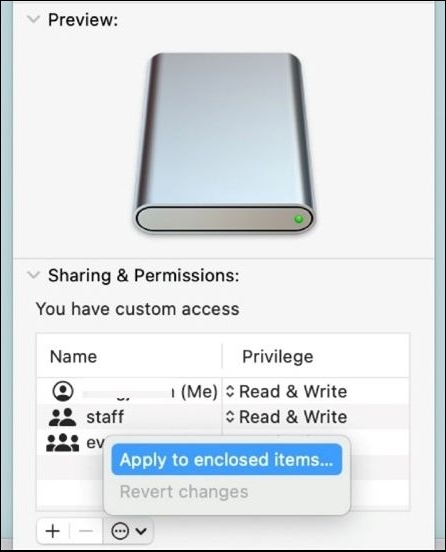
Step 7. Modify the external hard drive's permissions by clicking "OK" and then confirm your changes by clicking the lock.
Fix 2. Clean Up for More Disk Space
If you're experiencing the Mac Error Code 100006, it's possible that limited disk space is the culprit. A full hard drive can cause various problems, including error codes, so cleaning up your Mac to free up some extra space might help resolve the issue. You can try deleting unnecessary files, emptying the trash, and organizing your files to make some space. Alternatively, using software to clean up your Mac can also be an option. By freeing up some space, you might be able to resolve the error code and get your Mac running smoothly again.
Note: To clear up space on your Mac, you need to identify which files and apps are taking up the most space.
Step 1. To identify large files and apps on your Mac, use the Storage tab in the About This Mac window. This feature allows you to see which files and apps are taking up the most space on your computer, making it easier to free up storage space by deleting or moving unnecessary items.
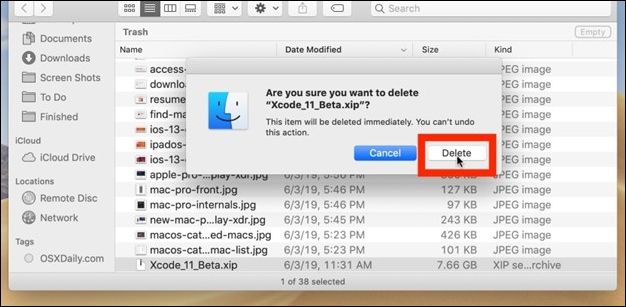
Step 2. Once you've found any extra files, remove them to make room. You can move them to the Bin by dragging them.
Share this article on social media to read it anytime.
Fix 3. Reinstall macOS to Fix the Error Code
You can reinstall macOS using Recovery Mode, which will replace the problematic OS with a fresh installation, and your data will remain safe even if you don't format the starting drive first.
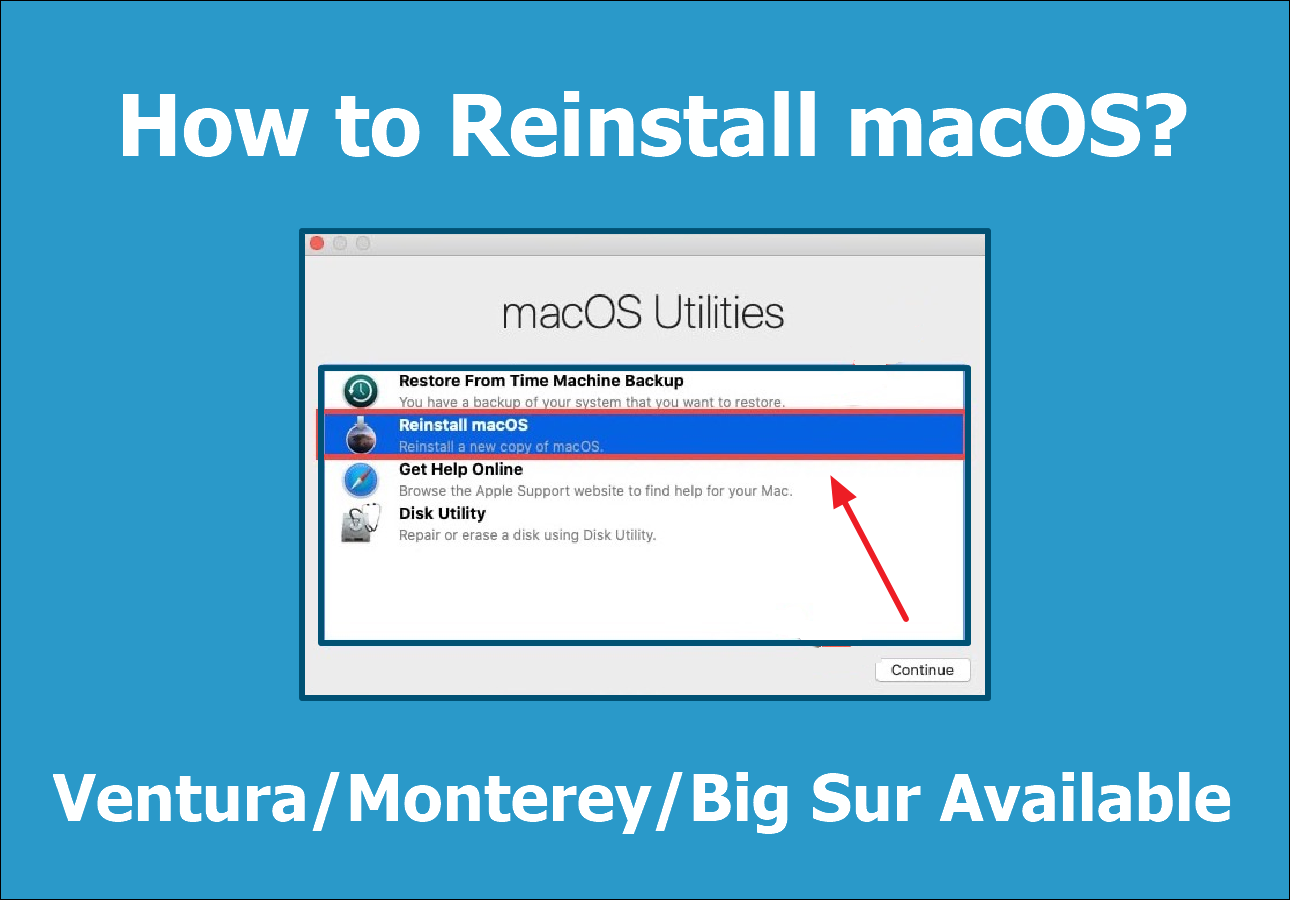
[macOS Guide] | How to Reinstall macOS
If you're looking to reinstall macOS on your Mac device, you might encounter some issues that can make it difficult to complete the installation process. If you're not careful, you could lose motivation and struggle to finish the job.
Fix 4. Uninstall Any Suspicious App
Mac Error Code 100006 can be triggered by a virus or malicious software. Malware and viruses can cause significant damage to a Mac, and error codes like 100006 are just one symptom. When malicious software is installed, it can negatively impact the computer's operation. To resolve the issue, you should carefully examine each software and uninstall any potentially dangerous programs. This can be done by following the steps to uninstall applications on a Mac.
Step 1. Select "Applications" in Finder.
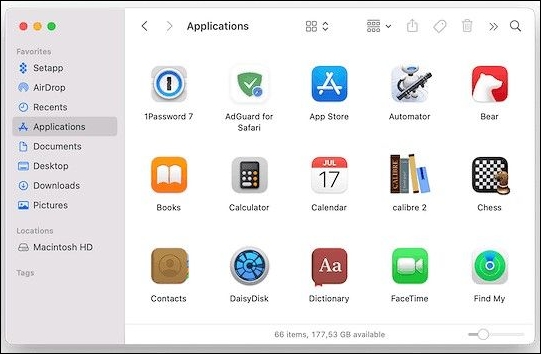
Step 2. Locate the app's desktop icon, then drag it to Trash.
Step 3. To empty the trash, select the "Empty Bin" option from the context menu of the Trash icon.
Fix 5. Run Mac's Disk Utility First Aid
Running Mac's Disk Utility First Aid can help resolve Mac Error Code 100006 by inspecting and correcting hard disk problems, including fixing disk permissions, restoring disk issues, and identifying faulty sectors, all through a straightforward process involving launching Disk Utility, selecting the affected disk, and initiating the First Aid process.
Step 1. To view all connected storage media on a Mac, select "View > Show All Devices" in Disk Utility.
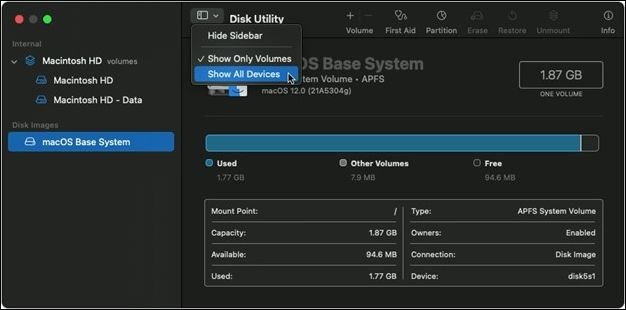
Step 2. To access the First Aid feature, navigate to the sidebar and select a volume, then click the "First Aid" button.
Step 3. Choose "Run" from the dialogue box to proceed with the First Aid procedure.
Step 4. Click the "Done" button after First Aid is complete.
Step 5. If there are many volumes on the storage device, repeat steps 2–4.
Step 6. To provide first aid, click the "First Aid" button after selecting a container from the sidebar.
Step 7. Choose "Run" from the dialogue box to proceed with the First Aid procedure.
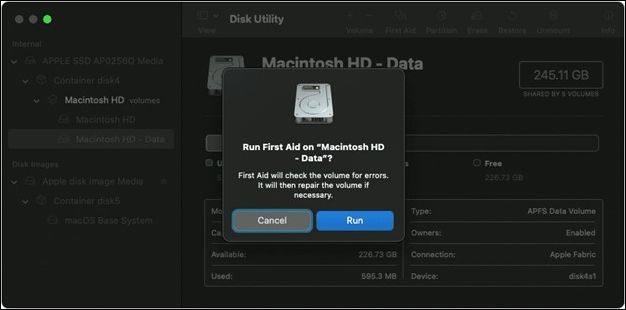
Step 8. Click the "Done" button after First Aid is complete.
Step 9. For each additional storage unit, repeat steps 6–8.
Step 10. To fix an unbootable iPhone or iPad, select the storage device in the Finder sidebar and click the "First Aid" option. This will run a built-in diagnostic and repair tool that can fix issues with the device's file system or other low-level system components.
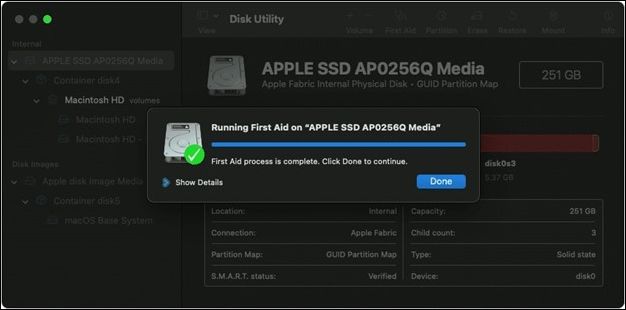
Step 11. To continue with the First Aid procedure, select the "Run" option from the dialogue box and then click "Done".
Fix 6. Stop Spotlight from Indexing Folders
Stopping Spotlight from indexing your Mac folders can aid in resolving Mac Error Code 100006 by preventing Spotlight from accessing and damaging certain files or directories. This is because Spotlight, a built-in search engine on Mac, indexes your hard drive's contents to make searching for files quicker and simpler. If Spotlight detects a faulty file or folder, it can generate errors such as Mac Error Code 100006. To prevent this, you can follow these steps to stop Spotlight from indexing specific folders on your Mac.
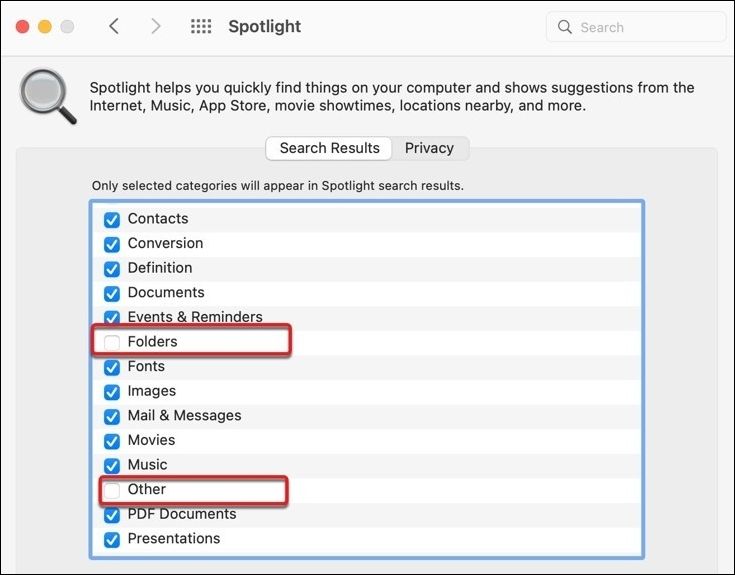
Step 1. Select "System Settings" from the Apple menu and choose "Spotlight".
Step 2. Select "Search Results" and deselect "Folders" and "Other".
Fix 7. Repair Mac External Hard Drive
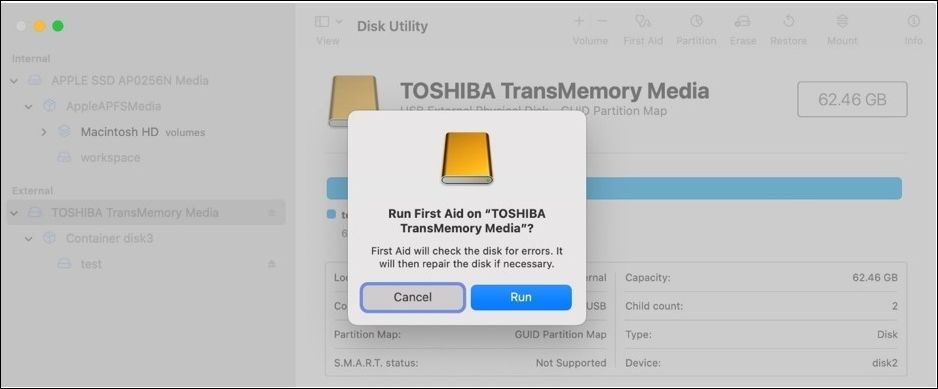
If you suspect disk corruption on your external drive, you can run Disk Utility First Aid to fix the issue. To do this, plug the drive into your Mac, then open Disk Utility and select the drive. Click the "First Aid" button, and follow the on-screen instructions to run the First Aid process. This will scan the drive for any problems and attempt to fix them.
Step 1. Launch Utilities from the Applications menu in Finder and click "Disk Utility".
Step 2. To use an external disk or USB, select it on the left side of the screen.
Step 3. To apply the first aid, click on the "First Aid" tab at the top of the page and then click on the "Run" button. This will initiate the first aid protocol and guide you through the necessary steps to help the person.
Fix 8. Reformat the External Hard Drive
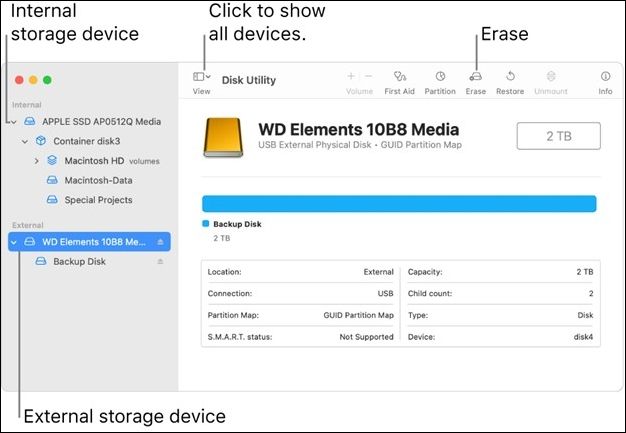
To resolve Mac Error Code 100006, you can try reformatting your external hard drive, which may help by fully wiping the device and restoring it to its factory settings, potentially removing corrupt or damaged files causing the error. This process, however, will erase all data on the disk, so it's crucial to back up any important files beforehand. If you're ready to proceed, follow these steps to reformat your external hard disk on your Mac.
Step 1. Launch the Mac's Disk Utility program.
Step 2. Click the "View" menu, then "Show All Devices".
Step 3. To delete data from a storage device, choose it in the sidebar and then hit the Erase button.
Step 4. Select "GUID Partition Map" from the Scheme drop-down option.
Step 5. To format a file, select a file type from the pop-up menu when you click "Format".
Step 6. Select "Eraser", then the "Done" button.
Extra Tip: Recover Data When You See the Error Code
When a Mac error code occurs, it can lead to data loss, which is a significant concern. To mitigate this risk, using a data recovery solution specifically designed for Macs can be helpful. A software like Deep Data Recovery for Mac can assist in recovering lost, erased, or formatted data from various storage devices, including computers, external hard drives, and flash drives. This can help users regain access to their important files and data.
Deep Data Recovery
- Recover various file systems and data from a wide range of file types, including deleted pictures, documents, videos, etc.
- Recover files from various devices, including formatted hard drives, memory cards, flash drives, and more.
- Data recovery solutions can help restore lost data due to sudden deletion, formatting, hard drive corruption, virus attacks, and system crashes, providing a lifeline in various situations such as accidental file deletion, hardware failure, software glitches, and cyber threats.
Qiling data recovery tool is a user-friendly interface that allows even inexperienced users to recover their lost information, providing dependable solutions for users to secure their data and recover any lost information caused by Mac Error Code 100006 or other difficulties.
To recover your account, follow these steps:
Step 1. Select the drive to be scanned
In the main Deep Data Recovery window, select the drive you need to recover lost/deleted files from and click the "Search for lost files" button.
Note: Before recovering data, it's recommended to create a backup of your Mac using the "Disk Backup" feature from the left sidebar to prevent further data loss. Once the backup is made, the software can then recover data from the backup, allowing you to write new data to your computer again.

Step 2. Select your lost data/files
Deep Data Recovery for Mac scans the selected disk volume, displaying the results in the left pane, allowing for sorting to find specific files if needed.

Step 3. Recover lost/deleted data
Once you have identified the desired files, preview them and then click "Recover" to initiate the recovery process of your deleted/lost Mac files.

Final Words
Mac Error Code 100006 can cause data loss and productivity disruptions, but adjusting permissions, freeing up disk space, removing suspicious software, running Disk Utility First Aid, and preventing Spotlight indexing can resolve the issue. If files are lost, Deep Data Recovery for Mac can quickly and easily recover them.
Mac Error Code 100006 FAQs
Here are some questions people also ask when they search for Mac error code 100006: What is error code 100006 on Mac? How to fix error code 100006 on Mac?
1. What are the other common Mac error codes?
Mac users may encounter various error codes, including Error Code 36, Error Code 43, Error Code 50, and Error Code 8076, among others.
2. What is copy error 100006 on Mac?
On a Mac, the error code 100006 is a file copy issue that may occur due to permissions, disk space, or a faulty file.
3. Why am I unable to copy files from my Mac?
If you're unable to transfer files from your Mac, it could be due to several reasons, such as running out of disk space, damaged data, issues with file permissions, or problems with the file system itself.
4. How to force copy a file on a Mac?
On a Mac, use the Terminal command "cp -R" followed by the file path and destination folder to copy a file forcibly, or drag the file to the new place while holding down the Option key.
Related Articles
- [Solved!] Your Device Is Missing Important Security and Quality Fixes
- 3 Ways to Fix USB Device_Descriptor_Failure Error in Windows
- How to Solve "Can't Delete Volume on USB" [100% Working Solutions]
- How to Clear Recents on Mac Without Losing Data [2023 Guideline]
- MP3 Recovery Software: How to Recover MP3 Files for Free from All Devices
Lost MP3 files from your hard drive, SD card, or music player? Recover deleted or corrupted MP3 files for free with Deep Data Recovery. Easy 3-step recovery guide for all devices. - How to Recover Windows 10 Product Key from Unbootable Drive [2022 New]
If you're wondering if it's possible to recover a Windows 10 product key from an unbootable drive, there are three easy solutions. Qiling Key Finder is the most suitable and convenient tool for this task, making it easy to recover your Windows 10 product key.
Products
Articles & Tutorials
- Data Recovery
- Data Backup
- File Recovery
- File Backup
- System Backup and Restore
- Disk and Partition Clone
- Technical articles
- Mobile articles
- Disk Master Help
- Windows Data Recovery Tutorials
- Windows Secure Delete Tutorials
- Windows Partition Management Tutorials
- Windows File Backup and Restore Tutorials
- Windows System Backup and Restore Tutorials
- Windows Disk Backup and Restore Tutorials
- Windows Clone Tutorials