5 Most Common Mac Startup Key Combinations You Need to Know [for macOS Ventura/Monterey]
There are many built-On a Mac, you can boot into various functional modes using specific key combinations, allowing you to troubleshoot and fix issues such as macOS Ventura problems, startup disk issues, and boot issues. These modes include Recovery Mode, Mac Safe Mode, Target Disk Mode, and Startup Manager, which can be accessed by pressing unique key combinations, enabling you to access built-in tools and resolve Mac problems.
In the following parts, This guide shows you some often-used Mac startup critical combinations on Apple Silicon Macs and Intel-based Macs.
Mac Startup Key Combinations [for Apple Silicon Mac]
If you're not sure, go to the Apple menu and click on "About This Mac", then click on the "Overview" tab. If you see "Apple M1" or "Apple M2" under the "Chip" section, your Mac is an Apple silicon Mac.
How to Check if You Have an Apple Silicon Mac
The following Mac or MacBook models have Apple Silicon inside: check this list to see if your Mac or MacBook is on it.
- MacBook Air (M2, 2022)
- MacBook Pro (13-inch, M2, 2022)
- Mac Studio (2022)
- MacBook Pro (14-inch, 2021)
- MacBook Pro (16-inch, 2021)
- iMac (24-inch, M1, 2021)
- Mac mini (M1, 2020)
- MacBook Air (M1, 2020)
- MacBook Pro (13-inch, M1, 2020)
If you're unsure about the exact Mac model of your device, you can easily find out by checking the information about your Mac. To do this, click the Apple logo in the top left corner of your screen, then select 'About This Mac' from the dropdown menu.
Step 1. Turn on your Mac and open the Apple menu.
Step 2. To view information about your Mac, click on the Apple logo in the top left corner of the screen, then select "About This Mac" from the drop-down menu. This will display a window with various details about your Mac, including its name, processor, memory, storage, and more.
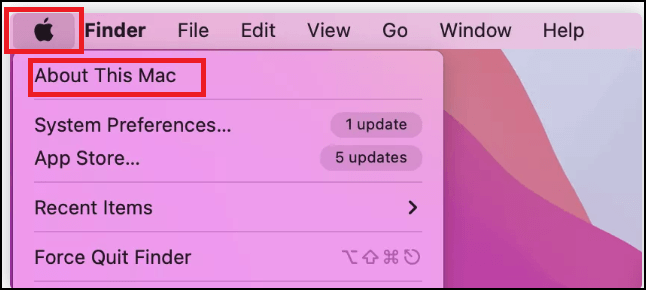
Step 3. Check the information in the "Chip" column.
Apple Silicon Mac Startup Key Combinations
For Apple Silicon Mac users, remembering the startup key combination is simple, as all you need to do is press the power button or use Touch ID.
Press the power button or use Touch ID, and hold it until the startup options appear on the screen.
In the Mac startup window, you can access various tools or options, such as the System Preferences, Startup Disk, and Time Machine settings, as well as options to restart or shut down the computer.
- macOS Recovery.
- System Restore Mac.
- Install or reinstall macOS.
- Safari.
- Disk Utility Mac.
- Startup Security Utility.
- Terminal.
- Startup Disk.
Mac Startup Key Combinations [for Intel-Based Mac]
There are numerous Mac startup key combinations for Intel-based Macs, but here are four sets you may often use: pressing Command (⌘) + R to restart your Mac, Command (⌘) + Option (⌥) + P + R to reset the System Management Controller, Command (⌘) + Option (⌥) + R to reset the NVRAM, and Command (⌘) + S to boot in Safe Mode. These shortcuts can help troubleshoot and resolve various issues with your Mac.
Shortcut 1. Enter the Recovery Mode Using Command + R
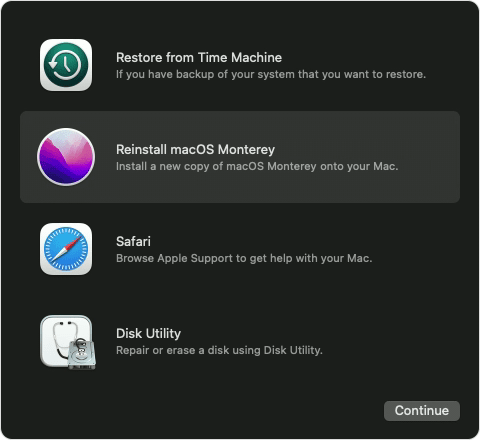
In Recovery Mode, you can select from four options to troubleshoot Mac issues: Internet Recovery, Reinstall macOS, Disk Utility, and Terminal.
- You can restore a Mac to a previous state using Time Machine.
- You can reinstall macOS, including macOS Ventura or other macOS systems, if needed.
- Safari: browse Apple Support to get help with your Mac.
- Disk Utility: erase or repair disks on Mac.
To enter macOS Recovery Mode, press and hold the power button on your Mac until the login window appears. Then, release the power button and immediately press the power button again.
Step 1. Turn off your Mac by clicking "Shut Down".
Step 2. Restart your Mac by pressing the power button or using Touch ID.
Step 3. To enter macOS recovery mode, press the Command + R keys while your Mac is turned on, and release them until you see the macOS recovery options on the screen.
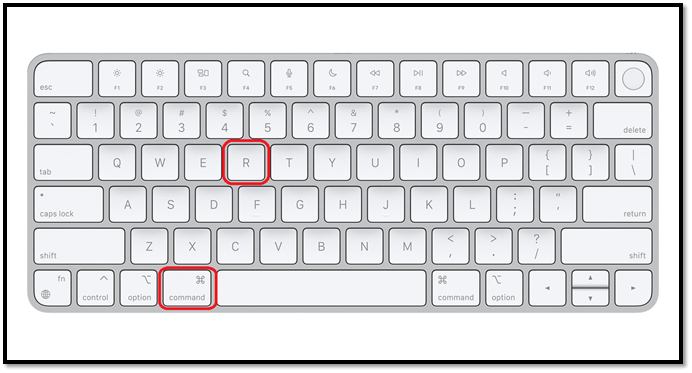
Step 4. If your Mac is experiencing issues, you have various options to resolve the problem. You can visit the Apple Support website for troubleshooting guides and resources, contact Apple Support directly for personalized assistance, or visit an Apple Store for in-person help.
Note: If you're experiencing issues with Mac Recovery Mode not working, there are several troubleshooting steps you can take to resolve the problem. Firstly, ensure that your Mac is set to boot from the correct device, such as the startup disk or an external drive.
Shortcut 2. Start Up to Startup Manager with Option or Alt
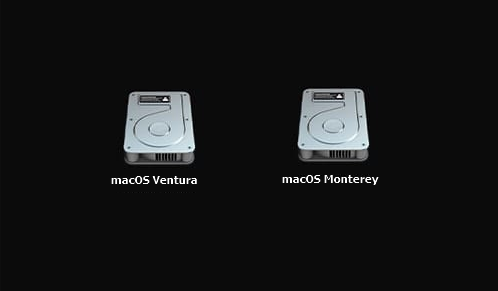
To access the Startup Manager, hold down the Option (⌥) key on your Mac while restarting it. Alternatively, you can hold down the Alt key. This will allow you to choose which disk to start your Mac from, enabling you to dual-boot macOS Ventura and Monterey.
Step 1. Turn off your Mac by clicking "Shut Down".
Step 2. Press the power button or use Touch ID to restart your Mac.
Step 3. To access the Startup Manager on your Mac, press the Option or Alt key and hold it until you see the Startup Manager on the screen while your Mac is turned on.
Step 4. Select a startup disk and press the Return key.
Shortcut 3. Boot Mac into Safe Mode with Shift Key
To boot your Mac into Safe Mode, hold the Shift key while restarting your Mac. This will allow you to access third-party applications and potentially resolve startup disk and system issues.
Step 1. Turn off your Mac by clicking "Shut Down".
Step 2. Press the power button or Touch ID to start the Mac again.
Step 3. To boot your Mac in Safe Mode, press the Shift key immediately after turning it on, and release the key when you see the Apple logo on the screen.

Step 4. To enter Mac Safe Mode, you need to restart your Mac and immediately hold down the Shift key. This will prevent any startup items from loading, and you will be in a safe environment where you can troubleshoot and fix any issues without any interference from other applications.
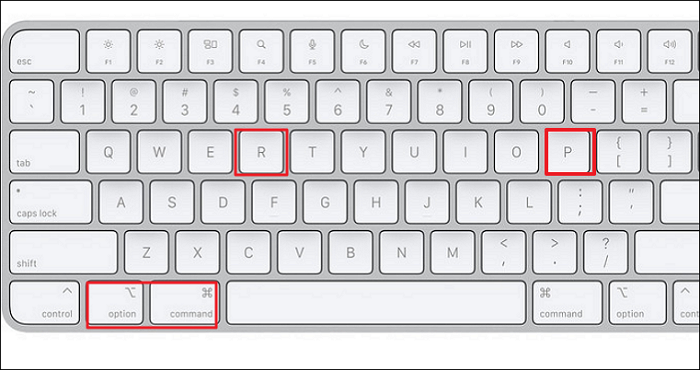
Shortcut 4. Reset NVRAM Using Command + Option + R + P
When your Mac experiences display issues, won't shut down, has hard drive problems, or incorrect time settings, resetting NVRAM is necessary.
Step 1. Turn off your Mac by clicking "Shut Down".
Step 2. Press the power button or Touch ID to start the Mac again.
Step 3. To reset your Mac to its factory settings, press the Command + Option + R + P keys and hold them until you see the Apple logo on the screen. Release the keys once you see the logo, and follow the on-screen instructions to complete the reset process.
Rescue Data When Your Mac Encounters Startup Issues
To troubleshoot Mac startup issues, you need to apply Mac startup key combinations to enter macOS Recovery Mode, Safe Mode, or Startup Manager, but be aware that this may put your data at risk.
When your Mac can't boot or has startup issues, the best way to rescue your data is to use a professional data recovery program called Deep Data Recovery for Mac.
Deep Data Recovery
- Data can be rescued from various storage devices, including Mac hard drives, USB drives, SD cards, memory cards, and more, through recovery processes.
- Recover deleted files on a Mac can be a lifesaver when you accidentally delete important photos, music, emails, documents, videos, audio, or other files. To recover deleted files on a Mac, you can try using built-in features like Time Machine or the "Command + Z" shortcut to undo recent changes.
- Keep your data safe in various situations, such as when your Mac won't start, macOS Ventura upgrade fails, or the system crashes.
[Fixed] Mac Startup Key Combinations Not Working
If your Mac startup key combinations are not working, you can try three methods to fix the issue. Your Mac may just start up normally without entering Recovery Mode or Safe Mode, which can be frustrating. Fortunately, there are ways to resolve this problem, and I can provide you with the necessary information to get your Mac up and running smoothly again.
- Method 1. If your keyboard isn't working properly, check your keyboard performance and consider replacing or repairing it. If you're using a Magic Keyboard, try reconnecting it to your Mac.
- Method 2. Sometimes, disk problems on a Mac can cause startup key combinations to fail, but you can repair the disk using Disk Utility, which may resolve the issue.
- Method 3. Update to the latest macOS version to fix system issues.
Mac Startup Key Combinations FAQs
What are some common Mac startup key combinations?
How to fix Mac that won't start in Safe Mode?
If your Mac won't start in Safe Mode, you can try the following:
- 1. Use the Option key to boot Mac into Safe Mode.
- 2. Check Mac security settings.
- 3. Reset SMC.
- 3. Try to reboot into Safe Mode.
How do I boot Mac from USB with startup key combinations?
To boot Mac from a USB flash drive, you can use the Mac Startup Manager. Here's how: Insert the USB flash drive into your Mac, then restart your computer. Immediately hold down the Option (⌥) key while the computer is booting up.
- 1. Connect your USB installer to your Mac.
- 2. Press the power button to turn on the Mac.
- 3. To boot your Mac into Startup Manager, hold the Option (⌥) key while turning it on. This will allow you to select a USB drive as the startup device.
How do I start my Mac when it is frozen?
To check if your Mac is Apple silicon or Intel-based, simply navigate to the "About This Mac" menu. This menu can be accessed by clicking the Apple logo in the top left corner of the screen and selecting "About This Mac.
- 1. For Apple silicon Macs, press the power button and release it until the options appear.
- For Intel-based Macs, press the Option or Alt key and release it until the Startup Manager appears on the screen.
Can I recover data from a Mac which won't start?
If your Mac can't boot, you'll need a portable recovery tool to recover your data. Fortunately, Deep Data Recovery for Mac can help you do just that in three simple steps, making it possible to recover your important files even when your Mac is unbootable.
- 1. Scan your Mac disk to find files on your Mac.
- 2. Filter files and select important files to recover.
- 3. Preview and retrieve essential files.
Related Articles
- How to Fix Can't Type in Command Prompt [6 Working Ways on Windows 11/10]
- How to Fix Grayed Out Folders or Files on Mac
- How to Backup Outlook Emails to Gmail [2024 Detailed Tutorial]
- Windows Update Something Went Wrong - How to Fix?
The 'Windows update something went wrong' error message can occur due to several reasons. This issue may arise from various factors, and the article will explore some of the common causes of this problem. - How to See Saved Passwords in Opera GX
The Mac folders or files grey out and show a "24 January 1984" error, which can be caused by various reasons. This issue can often be resolved by adjusting the date of the greyed out folders using the Mac Terminal. - How to See Wifi Password Windows 11
Forgot your WiFi password on Windows 11? Learn three simple methods to view your WiFi password using Control Panel, Windows Terminal, or Qiling Key Finder.
Products
Articles & Tutorials
- Data Recovery
- Data Backup
- File Recovery
- File Backup
- System Backup and Restore
- Disk and Partition Clone
- Technical articles
- Mobile articles
- Disk Master Help
- Windows Data Recovery Tutorials
- Windows Secure Delete Tutorials
- Windows Partition Management Tutorials
- Windows File Backup and Restore Tutorials
- Windows System Backup and Restore Tutorials
- Windows Disk Backup and Restore Tutorials
- Windows Clone Tutorials