How to Fix MacBook Pro Touch Bar Not Working with 7 Easy Ways in 2023
If your MacBook Pro's Touch Bar is not working, try restarting your laptop, checking for software updates, resetting the Touch Bar, and checking for loose connections. If none of these solutions work, you may need to visit an Apple Store or authorized service provider for further assistance.
| Workable Solutions | Step-by-step Troubleshooting |
|---|---|
| Fix 1. Restart MacBook Pro | Hit the Apple menu and click "Restart". Opt for the Restart in the dialogue box to validate the action...Full steps |
| Fix 2. Update macOS | Hit the Apple logo on the top-left side of your screen. Choose "About This Mac" under the apple logo...Full steps |
| Fix 3. Adjust Touch Bar Settings | Hit System Preferences, and choose "Keyboard". Opt for App Controls from the dropdown...Full steps |
| Fix 4. Restart TouchBarServer | You can use the Mac Spotlight shortcut to open Spotlight Search on your Mac, simultaneously...Full steps |
| Other Solutions | Your Intel-powered MacBooks have a chip called the System Management Controller (SMC)...Full steps |
Why Is My MacBook Pro Touch Bar Not Working
If your MacBook Pro's touch bar is not working, the steps below can help with the necessary fixes to quickly resolve the issue. The touch bar, an OLED multi-touch strip, offers a convenient way to access app-oriented and system-level functions, but when it malfunctions, it can be difficult.
Despite its maximum usability, the issue of the MacBook Pro Touch Bar not working could appear anytime out of the blue! The most common reasons for an unresponsive touch bar on your MacBook Pro include a faulty or loose connection, a software glitch, a problem with the Touch Bar itself, or even a hardware issue such as a malfunctioning logic board or a faulty display.
- Water damage
- Malfunctioning apps
- Hardware issues
- Severe usage of CPU, memory, and disk space
- Running outdated versions of the macOS base system
- Software glitches
If your MacBook Pro's Touch Bar is not working due to water damage, don't worry, as there are several fixes that can help resolve the issue. By trying out the top 7 fixes listed in this article, you can troubleshoot and potentially eliminate the problem, whether it's the touch bar not lighting up, freezing frequently, or remaining unresponsive. These fixes can help you get your MacBook Pro's Touch Bar up and running smoothly again, even after water damage.
Fix MacBook Pro Touch Bar Not Working [7 Best Methods]
If your MacBook Pro's Touch Bar is not working, don't worry, as there are several solutions to resolve this issue. This guide provides seven amazing fixes that can help you troubleshoot and resolve the problem in different scenarios, making it easy to get your Touch Bar up and running again.
Fix 1. Restart Your MacBook Pro to Fix the Touch Bar
In several instances, a hassle-If your MacBook Pro's Touch Bar is unresponsive due to minor issues, a simple restart can resolve the problem. Some minor bugs may be causing the issue, and a free restart can help resolve them. To fix the problem, simply restart your MacBook Pro, and the Touch Bar should become functional again.
Step 1. Hit the Apple menu and click "Restart".
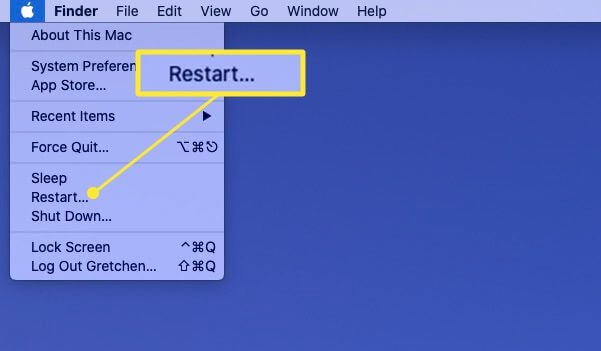
Step 2. The system will restart after the validation of the action, as you chose to restart in the dialogue box.
If your MacBook Pro's screen has frozen, you can initiate a force restart by pressing and holding the Command button along with the power button. This will resolve the issue.
Fix 2. Update the macOS to the Latest Version on MacBook Pro
Bugs in some versions of macOS could affect the functionality of specific parts of your MacBook, but updating to the latest macOS version can resolve these issues.
Step 1. Hit the Apple logo on the top-left side of your screen.
Step 2. Choose "About This Mac" under the apple logo.
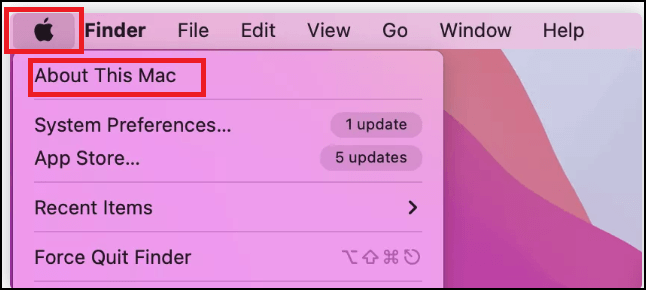
Step 3. A pop-up window will open with detailed information about your Mac, and you'll need to select "Software Update." If the macOS Monterey update gets stuck, you can find various solutions by clicking on this link.
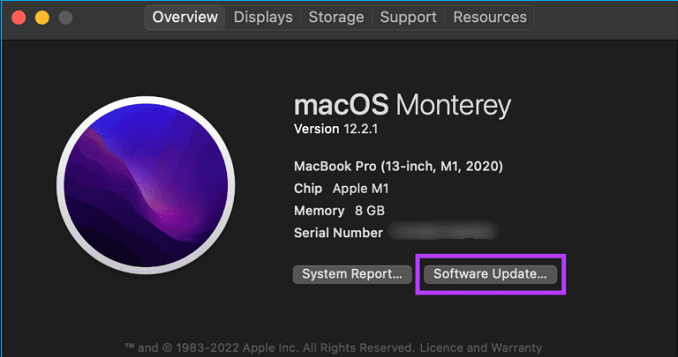
Step 4. Mac will check for available updates and notify you if any latest update is available.
Step 5. Choose the "Update Now" option and wait a few minutes to get the update done. If the update is not showing, you can download macOS Ventura from the App Store instead.
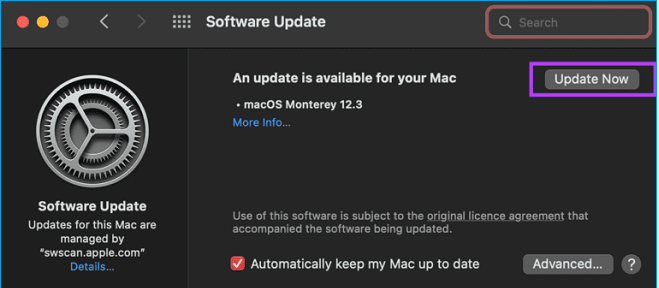
Step 6. Wait for your Mac to restart and for the update to install, then verify that the problem has been resolved.
Fix 3. Adjust Touch Bar Settings on MacBook Pro
If your touch bar is not working, you may need to check your settings to ensure that it's enabled and configured correctly. This could be a simple fix, such as adjusting the touch bar settings in your device's control panel or restarting your device. If you've already checked your settings and the touch bar is still not working, you may want to consider contacting Apple support or visiting an Apple store for further assistance.
Step 1. Hit System Preferences, and choose "Keyboard".
Step 2. To access App Controls, select the App Controls option from the dropdown list shown on the Touch Bar. This will allow you to customize and control various aspects of your Mac's apps and features.
Step 3. Make sure the Control Strip is enabled.

Fix 4. Restart TouchBarServer with Activity Monitor
The touch bar on a Mac can display a specific set of keys and functions based on the application being used, but sometimes the software controlling it may malfunction.
To resolve the issue of a non-responsive Touch Bar on your Mac, you can try restarting the Touch Bar server using the Activity Monitor. To do this, open the Activity Monitor, search for "Touch Bar Server" in the search bar, select it, and click on the "X" button in the top left corner to force quit the process. Then, click on the "Go" menu, select "Utilities," and open the Terminal app.
Step 1. To open Spotlight Search on your Mac, press the Command key and the space bar simultaneously. This will instantly open Spotlight Search, allowing you to quickly search for files, applications, and more.
Step 2. To open Activity Monitor, look for it in the Applications folder, then click on it to open the program.
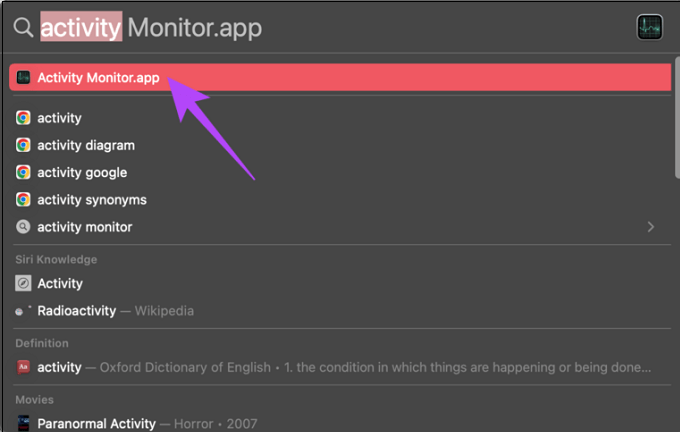
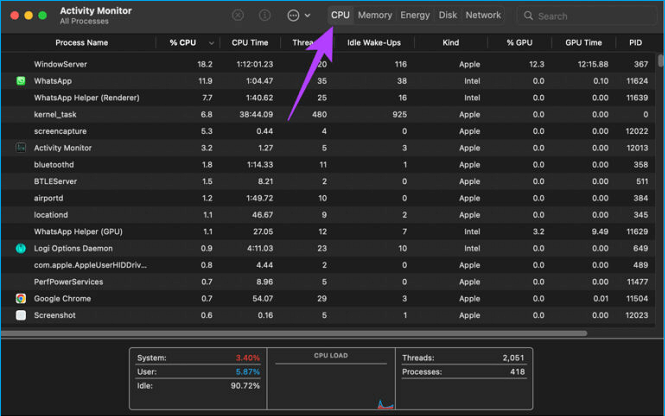
Step 3. Go to the CPU tab at the window's top.
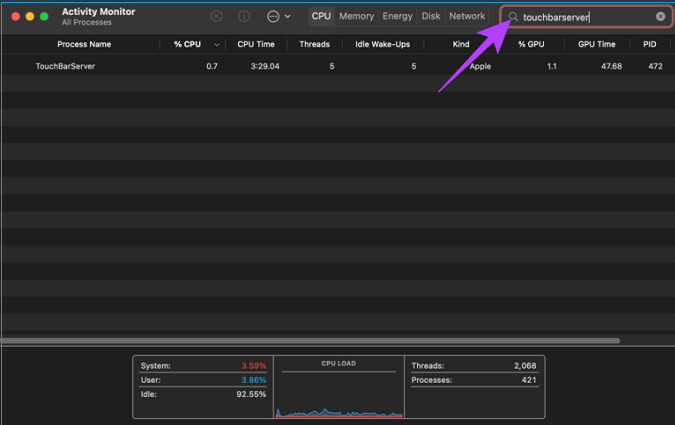
Step 4. Check if Touch Bar Server is running by searching for "TouchBarServer" in the top-right search bar.
Step 5. Click the Stop button at the top after selecting the TouchBarServer activity.
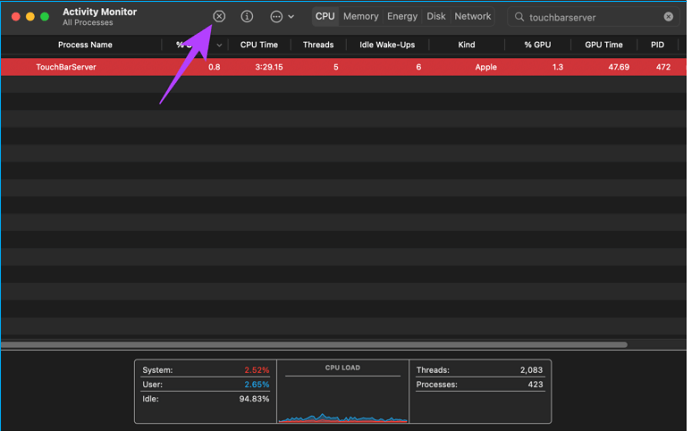
Wait until the Activity Monitor has restarted before shutting it down, which should resolve the issue with the touch bar.
Fix 5. Reset SMC/NVRAM/PRAM on MacBook Pro
Your Intel-On newer, powered MacBooks have a chip called the System Management Controller (SMC) that manages several operations and features connected to the hardware, including the power button, LED indicators, battery, CPU, and keyboard.
If the Touch Bar on your MacBook Pro has frozen, become unresponsive, or stopped working, you can attempt resetting the System Management Controller (SMC) to resolve the issue.
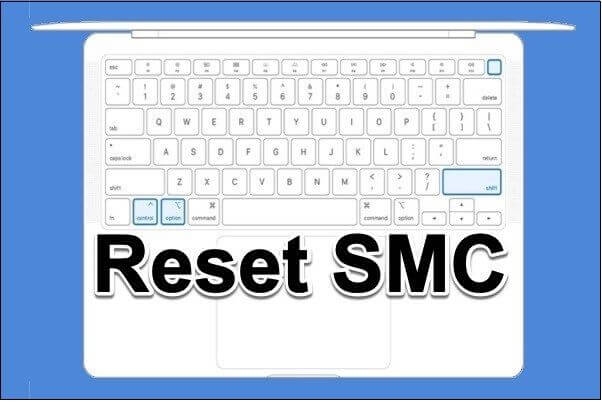
To reset the System Management Controller (SMC) on T2 Chip MacBooks, follow these steps: Shut down your MacBook, press and hold the power button for 10 seconds, release it and wait 10 seconds, press it again to turn it on, then immediately hold down the Command (⌘) + Option (⌥) + P + R keys until you hear the boot chime for the second time, release the keys, and let your MacBook continue to boot normally. The SMC reset process may take a few minutes to complete, but it will not affect any of your data or settings, and can be verified by checking the System Information app.
Step 1. Switch off your MacBook.
Step 2. Hold the Power button for 10 seconds. Release it.
Step 3. Turn on your smartphone after a little delay.
If your MacBook Pro's Touch Bar is still malfunctioning, you can try resetting the System Management Controller (SMC) by shutting down your MacBook Pro, pressing the power button and the command (⌘) + option (⌥) + shift (⇧) keys, and holding them for 10 seconds. If the issue persists, contact Apple support.
Step 1. Switch off your Mac.
Step 2. To start up your gadget, press and hold the Control, Option (Alt), and Shift keys on the built-in keyboard simultaneously. This might initiate the startup process.

Step 3. Press and hold the Power button while holding down three keys for a total of seven seconds. This will turn off your MacBook if it's currently on.
Step 4. Hold the four keys down for a further seven seconds.
Step 5. Wait for some time after releasing the keys.
Step 6. Switch on your device.
If none of the previous fixes worked, resetting the PRAM (Parameter RAM) can help restore the Touch Bar to its default settings. PRAM stores default values for starting disk, virtual memory, and some hardware components. To reset PRAM, follow the steps: 1) Shut down your Mac. 2) Locate the following keys: Command (⌘), Option (⌥), P, and R.
Step 1. To safely shut down your Mac, press the Power button until the shutdown options appear, then select the "Shut Down" option. This will completely power off your Mac, and you can then safely remove the battery or unplug the power cord.
Step 2. Hold down the Command, Option, P, and R keys while turning on your Mac. This will reset the System Management Controller (SMC) and Power Management Unit (PMU).
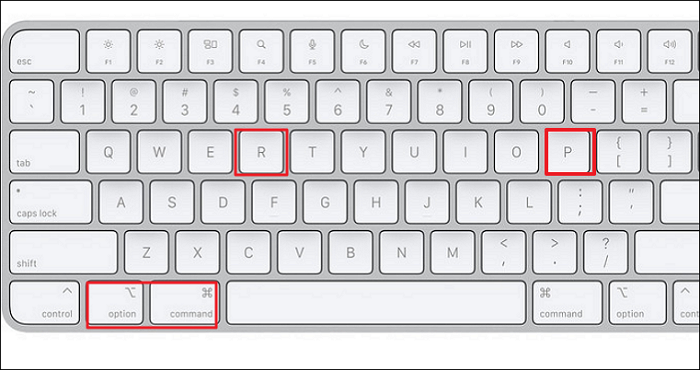
Step 3. To reset the PRAM, keep all four keys pressed - Command (⌘), Option, P, and R - until you hear the startup sound twice. This is confirmed when the startup sound plays twice.
Fix 6. Force Quit or Reinstall the Problematic Applications on MacBook Pro
If the Mac Touch Bar isn't functioning or displaying controls after switching to a specific app, it's likely that the app is causing minimal issues and crashing hidden processes, preventing the Touch Bar from working correctly. To fix this, you'll need to close the troublesome app with force, which can be done by following the steps provided, effectively resolving the issue and getting the Touch Bar up and running again on your MacBook Pro.
Step 1. To open the Force Quit Dialogue, press Command + Option + Esc simultaneously.
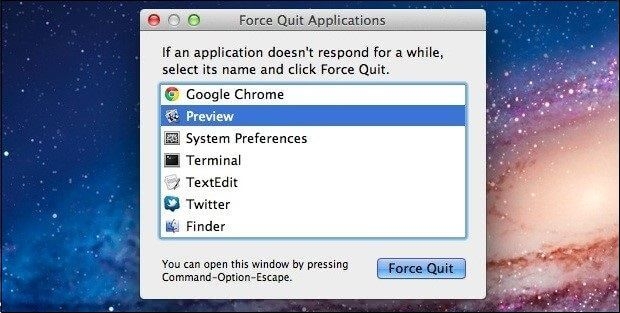
Step 2. If you're experiencing issues with Touch ID, choose the app that's causing the problem and click Force Quit. This will close the app and potentially resolve the issue.
If forcing the app to close didn't work, you can try to fix the MacBook Pro Touch Bar not working issue by resetting the System Management Controller (SMC) and the Power Management Unit (PMU). To do this, shut down your MacBook Pro, locate the power button and the keyboard backlight button, press and hold them for 10 seconds, release them, and then press the power button again to turn it back on.
Fix 7. Fix Touch Bar Issues with Apple Support
If you've tried everything to fix your MacBook Pro Touch Bar not working issue, whether it's powered by Intel or M1, it's time to seek professional help. Sometimes, a serious issue may arise that's beyond your capabilities to resolve on your own.
If your MacBook Pro has hardware or water damage, you may experience issues with the Touch Bar. It's recommended to have your Mac diagnosed at the Apple store in such cases. Using cheap substitutes can further damage your MacBook beyond repair.
Bonus Tip: How to Recover Data Lost While Fixing Touch Bar Problem
If your MacBook Pro Touch Bar isn't working, it may cause data loss when trying to fix the issue, especially when updating macOS. However, you can avoid data loss with top-notch data recovery software like Deep Data Recovery for Mac, which can retrieve deleted data.
This professional tool can recover files of all sizes, including a single Office Word document and a large number of photos, from various data loss scenarios on your Mac. It offers advanced recovery features that help retrieve your Mac's data.
- To recover data from a dead MacBook Pro, use Deep Data Recovery for Mac. This software can extract data from a MacBook Pro even if it's not turning on or has a faulty logic board.
- If macOS Ventura installation failed on your MacBook Pro, you can try to recover lost data by using the built-in Time Machine feature or a third-party data recovery software. If you have a Time Machine backup, you can restore your MacBook Pro to a previous version and then use the backup to recover your lost data.
- Recover deleted files and folders after forcing empty Trash Mac.
To recover lost data from a MacBook Pro using Deep Data Recovery for Mac, simply follow the tutorial which involves using the software to scan your device, select the files you want to recover, and then restore them to their original location or a new location of your choice.
Step 1. Select the location to scan
Launch Deep Data Recovery for Mac, select the storage device where data was lost, and click "Search for lost files" to initiate scanning.
Note: Before attempting data recovery, it's recommended to click "Disk Backup" from the left sidebar to create a backup of your Mac, which will prevent further data loss. After backing up, the software can recover data from the Mac backup, allowing your computer to write new data again.

Step 2. Filter lost Mac data
The software will automatically scan for lost data on MacBook/iMac, and once the scan is complete, users can filter their wanted data through the "Type" and "Path" buttons.

Step 3. Recover lost data or files
Double-Click a file to preview it, then click the "Recover" button to restore the lost data to another place.

Summary
Our tutorial on resolving the MacBook Pro Touch Bar not working issue has come to an end. We hope the seven efficient workarounds provided have been helpful in resolving the problematic issues and getting your Mac Touch Bar up and running smoothly. If you accidentally lost data while trying the fixes, consider using Deep Data Recovery.
MacBook Pro Touch Bar Not Working FAQs
The FAQs are listed below to understand the topic better:
How do I fix the unresponsive touch bar on MacBook Pro?
To force quit your MacBook Pro, click the Apple logo in the upper left corner, select Force Quit, choose the app with the non-functional Touch Bar, and confirm the shutdown.
How to download the latest macOS version on MacBook Pro?
You can update or download macOS Ventura by going to System Settings, clicking on General, then Software Update, and following the prompts to download and install the latest version. Alternatively, you can also download the installer from the Apple Support website and run it from your Applications folder.
- 1. To access the General settings, go to the Apple menu and click on "System Settings", then navigate to the sidebar and select "General".
- 2. To update your Mac, click Software Update on the right to download the latest macOS upgrades.
- 3. To update any software you've downloaded from the App Store, click the Apple menu.
How do I unfreeze my MacBook Pro Touch Bar?
You can unfreeze your MacBook Touch Bar by following this tutorial:
- 1. To open Activity Monitor, start the Finder, type "activity" into the search bar, and double-click Activity Monitor when it appears in the search results.
- 2. Look up "control" in the Activity Monitor. Select Control Strip when you see it.
- 3. After clicking the X at the top of the Activity Monitor window, choose Quit to terminate the service, which will then automatically restart right away.
Why is half of my Mac Touch Bar not working?
Hardware issues or any software glitch might be the reasons why half of your Mac touch bar is not working. Try to find the hardware issues by contacting Apple Support.
Related Articles
- HP USB Disk Storage Format Tool Free Download [New]
- How to Backup Outlook Emails to Gmail [2023 Detailed Tutorial]
- How to Transfer Stardew Valley Saves Between Different Devices
- Guide on Diskpart Create FAT32 Partition | How to Create FAT32 Partition with Diskpart
- Accidentally Formatted Hard Drive? Unformat Hard Drive Right Now!
How to unformat a hard drive or HDD? A solution to unformat hard disk drive provided by Qiling will help you recover lost data from an accidentally formatted hard drive disk. - How to Upgrade Switch SD Card and Transfer Switch Games to A New SD Card
This page provides you with a straightforward guide for you to upgrade the Switch SD card and transfer all Switch games to a new SD card. Follow to see how to efficiently upgrade your Nintendo Switch SD card without losing any game files now.
Products
Articles & Tutorials
- Data Recovery
- Data Backup
- File Recovery
- File Backup
- System Backup and Restore
- Disk and Partition Clone
- Technical articles
- Mobile articles
- Disk Master Help
- Windows Data Recovery Tutorials
- Windows Secure Delete Tutorials
- Windows Partition Management Tutorials
- Windows File Backup and Restore Tutorials
- Windows System Backup and Restore Tutorials
- Windows Disk Backup and Restore Tutorials
- Windows Clone Tutorials