Different Ways to Turn Off Mac Startup Sound Temperaily and Permanently
To turn off the startup sound on your Mac, you can use Terminal commands to permanently disable it, or adjust your audio settings to temporarily silence it. This is a simple process that can be completed on subsequent boots, making it a convenient solution for those who find the startup chime distracting or inappropriate in certain settings.
How to Turn Off Mac Startup Sound Temporarily
The startup sound on a brand-new Mac is set to its highest volume, but can be turned off by muting the volume before shutting down.
There are two ways to temporarily mute your MacBook Air or MacBook Pro or reduce the level.
Method 1. Turn off Mac Startup Sound by the Mute Key
To turn off the Mac startup sound, you can follow these steps: Go to System Preferences, then click on "Sounds" in the Hardware section. In the Sounds window, uncheck the box next to "Play user interface sound effects" and also uncheck the box next to "Play all alert sounds.
To entirely silence your Mac's boot sound and any other sound, press the "F10" key on your keyboard.

Method 2. Turn off the Mac Startup Sound Temporarily via Preferences
To disable the startup sound on a Mac temporarily, you can use the Terminal app. Open Terminal, then type 'sudo nvram SystemAudioStatus=0' and press Enter.
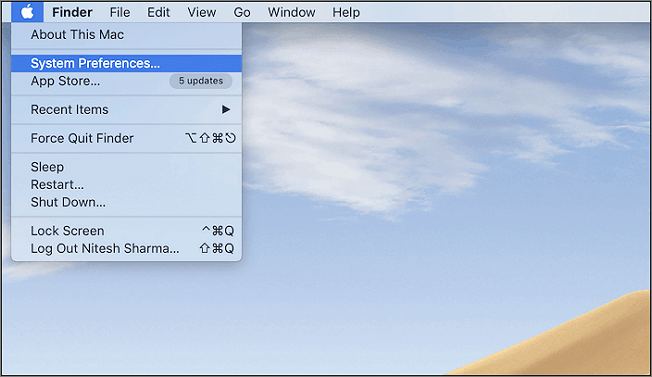
Step 1. To open the Apple menu, go to the desktop screen's upper left corner and click on it. This will open the menu.
Step 2. Select "System Preferences..." from the drop-down menu on the screen.
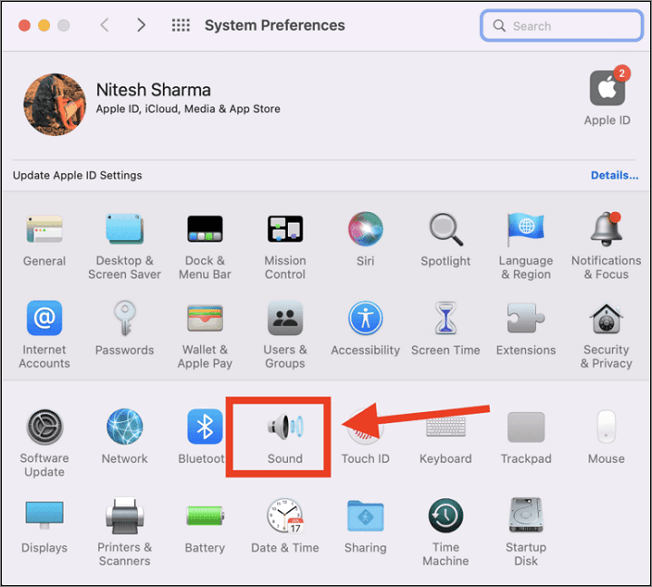
Step 3. Select "Sound" in the newly opened window.
Step 4. To disable the sound effect on startup, go to the top menu bar and select "Sound Effects". Then, uncheck the option that says "Play sound on startup".
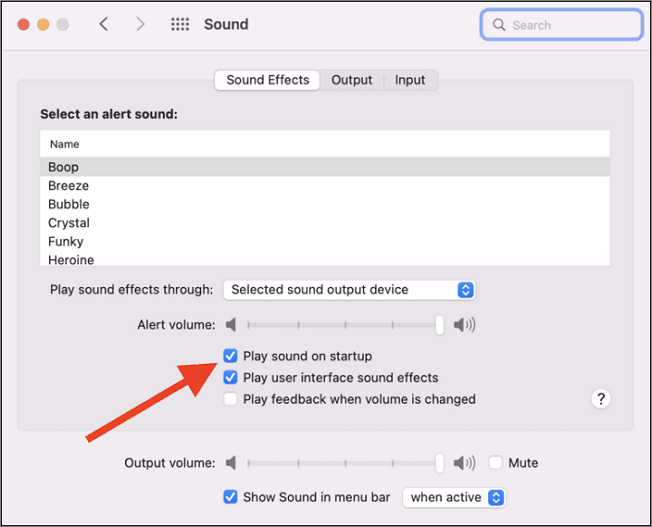
Step 5. You can adjust the output volume by dragging the cursor over the volume range on the same screen.
The issue with sound not working on a MacBook Pro or Air can be caused by a variety of factors, including a faulty audio jack, a software glitch, or a problem with the internal speakers. To troubleshoot the issue, you can try restarting your MacBook, checking the audio settings, and ensuring that the volume is turned up.
How to Turn Off Mac Startup Sound Permanently
To permanently disable the startup sound on a Mac, you need to use the Terminal app, even if your volume is set to the lowest, as simply shutting down won't be enough. This involves running a terminal command that will prevent the startup sound from playing during the startup process. It's a straightforward process that can be completed using the Terminal app on your Mac.
To turn off the startup sound permanently via Terminal, follow these steps: Open Terminal, type "sudo nvram SystemAudioStatus=No" and press Enter, then type "sudo shutdown -r now" and press Enter. This will disable the startup sound on your Mac.
Step 1. To open the Terminal app, you can either find it in the Launchpad under the "Others" category, or use Spotlight search by pressing Command + Space and typing "Terminal" to open it.
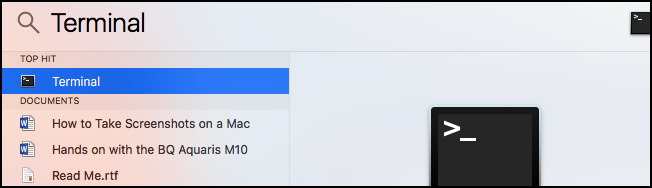
Step 2. In the terminal window, enter the following command:
sudo nvram SystemAudioVolume=%80
Step 3. When asked, enter your "password," and press Return. You won't hear the sound till you restart your Mac.

Step 4. Run the command "nvram SystemAudioLevel=0" to remove your modification and restore the startup chime to its normal state the next time your Mac boots.
sudo nvram -d SystemAudioVolume
Conclusion
To minimize the startup sound, you can lower the volume or change the tone to a lighter one. If you want to completely eliminate the sound, you can turn it off.
Related Articles
- How to Clean Install macOS Ventura [2023 Detailed Guide]
- Access Denied When Copying Files Windows 10/8/7
- [Solved] How to Fix DISM Error 2 Unable to Access the Image Windows 11/10
- How to Keep Hard Drive Cool [Step-by-Step Guide]
- SanDisk Extreme Pro Portable SSD Not Detected: Troubleshooting and Data Recovery
The SanDisk Extreme Pro Portable SSD not being detected or recognized by a PC or Mac is a common issue. This problem can be caused by a faulty USB port, a corrupted driver, or a failing SSD. To resolve the issue, try using a different USB port, updating the driver, or restarting the device. - Frustration and Loss: The Sandisk Extreme Pro Portable SSD Not Working
Fix SanDisk Extreme Pro Portable SSD not working, not detected, or not showing up. Learn troubleshooting steps and how to recover important data.
Products
Articles & Tutorials
- Data Recovery
- Data Backup
- File Recovery
- File Backup
- System Backup and Restore
- Disk and Partition Clone
- Technical articles
- Mobile articles
- Disk Master Help
- Windows Data Recovery Tutorials
- Windows Secure Delete Tutorials
- Windows Partition Management Tutorials
- Windows File Backup and Restore Tutorials
- Windows System Backup and Restore Tutorials
- Windows Disk Backup and Restore Tutorials
- Windows Clone Tutorials