Mac Clipboard History - How to View and Clear Clipboard History on Mac
On a Mac, the clipboard can only hold one piece of information at a time, and this information is lost as soon as you log off or restart your computer. This means that you can't copy and reuse a piece of information multiple times on a Mac, unlike on a Windows PC.
The clipboard on a Mac is a temporary storage that retains the last item copied, and to view and clear clipboard history, you can use the Command + Shift + V keys to view the clipboard content, and Command + Shift + F3 to clear the clipboard history. Additionally, you can use the Universal Clipboard feature to share clipboard content between Macs and iOS devices. However, the clipboard history is not retained after a reboot, making it a short-lived memory.
What Is Clipboard History on Mac
Clipboard history allows devices to retain previously copied or cut information, enabling users to paste older content alongside the most recent one, even if it's not the last item copied. For instance, if a user copied their name, age, and address from a text file, they can still paste the name, despite the address being the most recent item copied. This feature provides convenience and flexibility in editing and filling out forms, among other tasks.
The Clipboard history feature on Mac allows for storing multiple items that were copied or cut, but unlike Windows, it only stores the most recent item by default, with no allowance for other items copied around the same time. However, Mac has two additional features that enhance the default clipboard capabilities.
Universal Clipboard
The feature, introduced in iOS 10 and macOS Sierra, allows for seamless copying and pasting of information between Apple devices with a shared iCloud account and a Wi-Fi connection, with Bluetooth enabled.
To make this work, the devices must be in close range, and you can copy on the Mac and paste it to the other device as if it was one single device. However, if you encounter issues, try logging out all devices from the iCloud account and logging in again.
Hidden Secondary Clipboard
This clipboard has a hidden secondary keyboard that can store double the capacity of the standard Mac clipboard. To access it, select the text, press "Control + K" to cut, and then use "Control + Y" to paste the information.
This feature allows you to cut and paste information, but copying is not possible. However, you can still access previously copied information using "Command + C" on your clipboard.
Where Is Clipboard on Mac
The Mac clipboard runs quietly in the background, using minimal processing power, and requires a small amount of space, only saving the most recent item copied. To view the clipboard on a Mac, you can simply click on the "Edit" menu, hover over "Paste", and select "Paste from History" or click on the "Paste" option in the menu bar to view the clipboard. Alternatively, you can use the keyboard shortcut Command + V to view the clipboard.
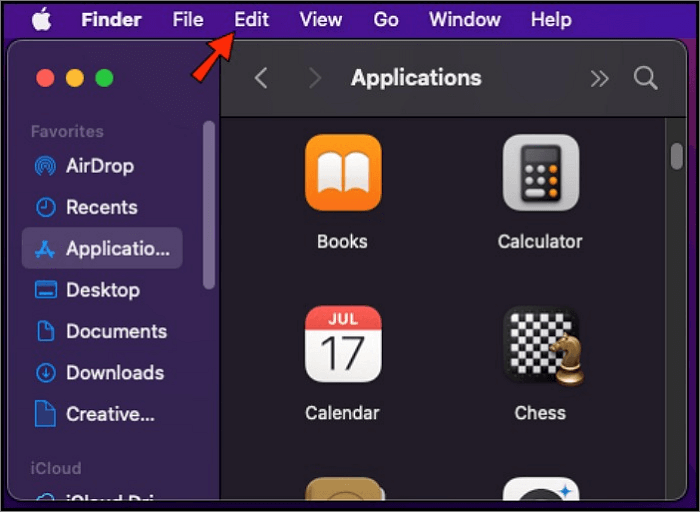
Step 1. To open the Finder app, click on the "Edit" menu located in the top left corner of the screen.
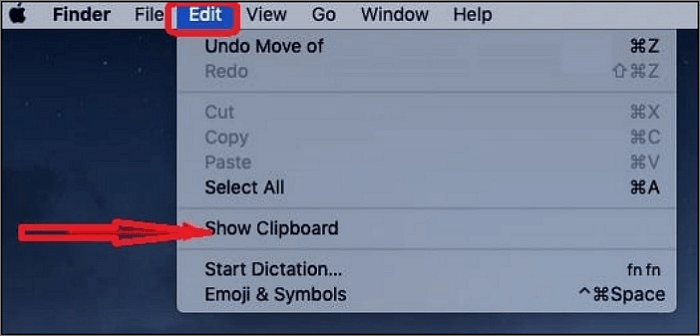
Step 2. Select "Show Clipboard" to find the most recently copied item.
How to View and Manage Clipboard History on Mac
On a Mac, when you copy an item, the previously copied item is lost, as the computer's memory function is designed to hold only one item at a time. This means that if you copy a text, object, or picture, it will overwrite any previous item that was copied. This can be frustrating if you need to copy multiple items.
To view clipboard history on a Mac, developers have created applications known as Clipboard Managers. These apps allow you to access your clipboard history, providing a solution to the problem of accessing previous copied content on a Mac.
How to Clear Clipboard on Mac
Clearing the clipboard on a Mac can be done in several ways. One method is to click on the "Show Clipboard" button in the top right corner of the screen, which will open a window displaying the contents of the clipboard.
- The process of copying a new item, replacing the previously copied one, is referred to as rewriting or overwriting the copied item. This action involves selecting a new item to copy and pasting it into the destination, effectively replacing the original copied item.
- Deleting the clipboard history with some clicks using clipboard managers.
- Restarting your computer will clear out everything on the clipboard
To clear the clipboard on a Mac using the Terminal, follow these steps: Open the Terminal app, type "pbcopy < /dev/null" and press Enter. This command copies nothing to the clipboard, effectively clearing it.
Step 1. To view the contents of the clipboard, go to the Finder Menu, click on "Edit," and then select "Show Clipboard" from the dropdown options. This will display the currently stored data in the clipboard.
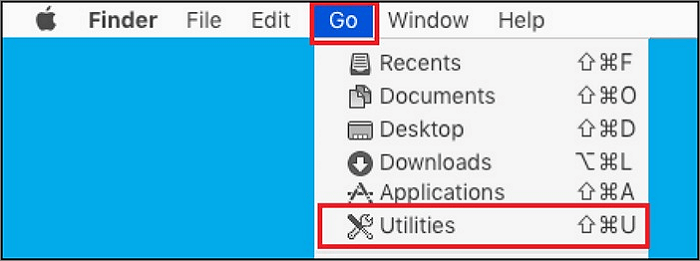
Step 2. In the Utilities panel, click the "Go" tab and select "Utilities" in the dropdown menu.
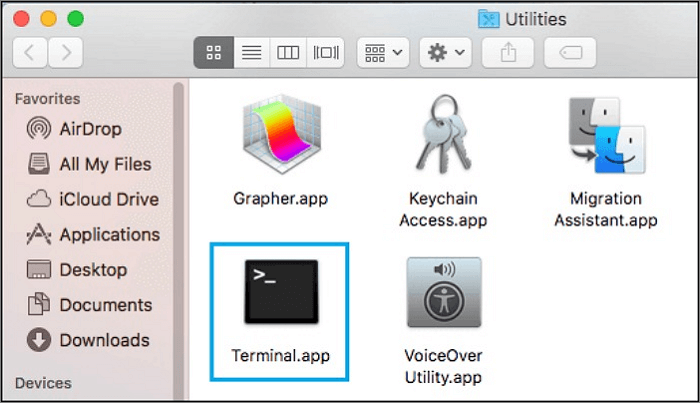
Step 3. On the next screen, click on the "Terminal" Icon.
Step 4. Then type pbcopy.
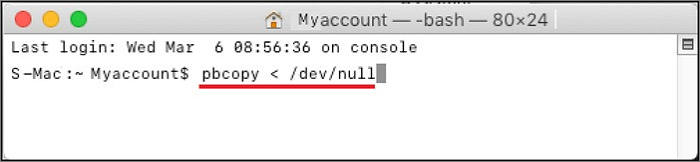
Check the open Clipboard Window, and you will discover it has no information.
Conclusion
We explained the definition of clipboard history and where the clipboard is, and provided guidance on how to view and manage clipboard history on your Mac, as well as clear the clipboard, in order to help you complete these operations.
Related Articles
- 2 Available Ways | How to Update BIOS Without USB
- [Problem Solved] How to Install Mods in Sims 4 in 2024
- (Top 8 Ways) How to Fix Windows 10 Black Screen with Cursor
- Windows 11 Update Slows Down SSD Performance? Newest Guide
Windows 11 update slows down SSD performance. Is that true? How to fix it? If you are considering updating to Windows 11 or have updated to Windows 11, don't miss this article. - [Fixed] Target Disk Mode Not Working on macOS Ventura/Monterey
Having trouble with Target Disk Mode not working on your Mac? Check out these tricks to solve your Target Disk Mode problems and learn how to fix Target Disk Mode not working to safeguard your data. - 9 Ways to Fix "The Remote Computer Requires Network Level Authentication"
Are you seeing the error 'The remote computer requires network level authentication'? Keep reading this article as we discuss different methods that you can use to resolve this issue.
Products
Articles & Tutorials
- Data Recovery
- Data Backup
- File Recovery
- File Backup
- System Backup and Restore
- Disk and Partition Clone
- Technical articles
- Mobile articles
- Disk Master Help
- Windows Data Recovery Tutorials
- Windows Secure Delete Tutorials
- Windows Partition Management Tutorials
- Windows File Backup and Restore Tutorials
- Windows System Backup and Restore Tutorials
- Windows Disk Backup and Restore Tutorials
- Windows Clone Tutorials