How to Connect HP Printer to WiFi? Follow A Full Guide
Introduction
The rapid advancement of technology has significantly impacted various industries, and the IT sector is no exception. Since the introduction of Wi-Fi, IT devices like mobile phones, laptops, and desktop computers have transitioned from using infrared connections to Bluetooth and ultimately to Wi-Fi.
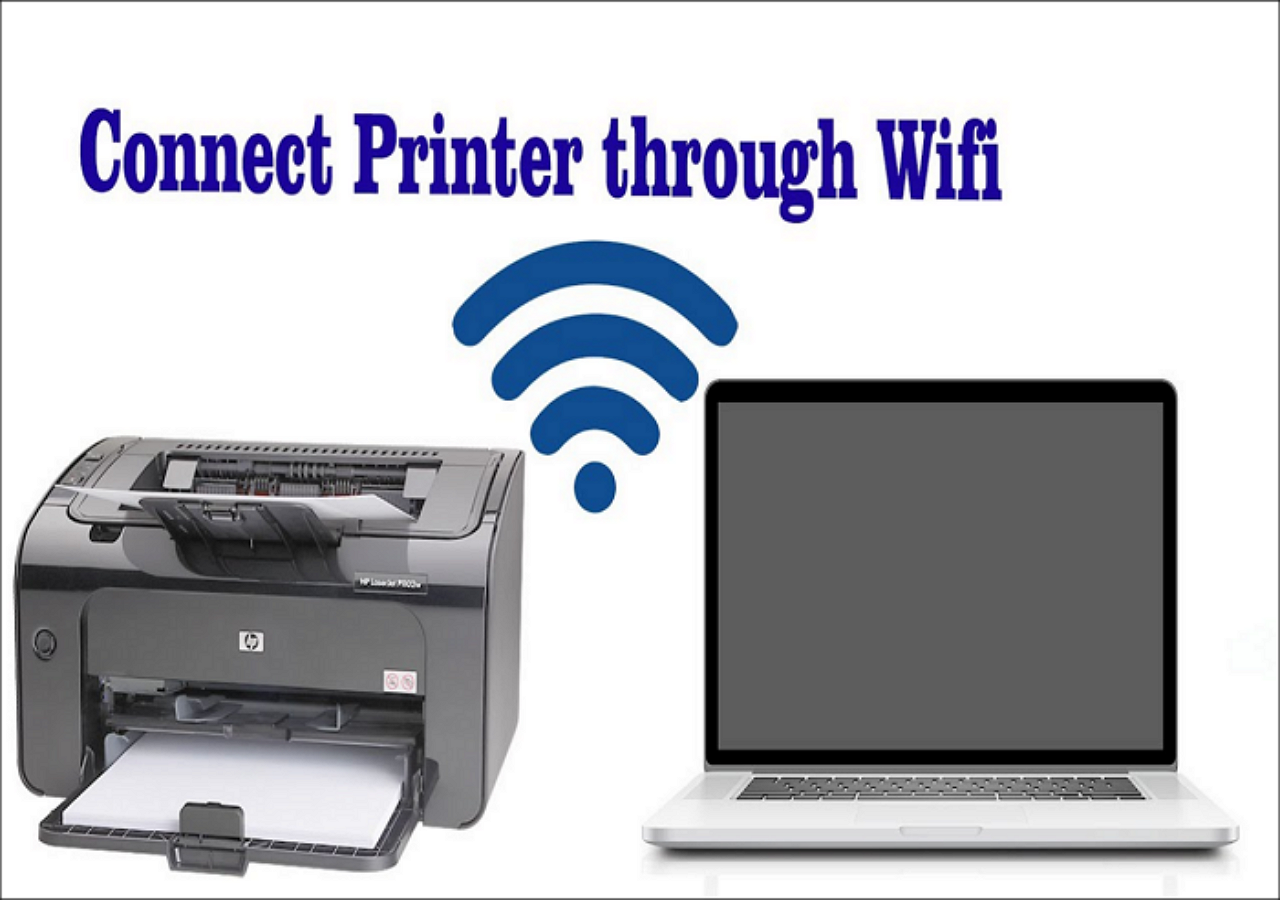
HP printers have become more intelligent and can now print wirelessly through Wi-Fi, eliminating the need for traditional printing methods and allowing users to print from a variety of devices such as phones, laptops, and desktop computers.
To connect an HP printer to Wi-Fi, you can use one of four methods. Firstly, you can use the HP Smart app to connect your printer to your Wi-Fi network.
- 1. HP Auto wireless connection
- 2. HP Printer Wireless Setup (for touch and non-touch screens)
- 3. WPS Push Button Connect
- 4. Connect your HP Printer without a router
Method 1: HP Auto Wireless Connect
Auto Wireless Connect is a feature that allows your HP printer to automatically connect to your wireless network, eliminating the need for a network cable or manual network settings entry.
To connect your HP printer to Wi-Fi using the HP Auto Wireless Connect, start by turning on your printer and computer. Then, go to the HP printer's control panel and select the "Wireless" or "Network" option.
Step 1. To start, you'll need to install the HP software for your printer on your IT device, whether that's a phone, laptop, or desktop computer.
Step 2. Visit the HP Support page to download your device's recommended HP Printer software by entering your printer model, then download the driver and follow the on-screen prompts to complete its installation on your computer.
Step 3. To set up your printer, turn it on first. When prompted for the connection type, select wireless. Then, confirm by clicking "Yes, send my wireless settings to the printer (recommended)".
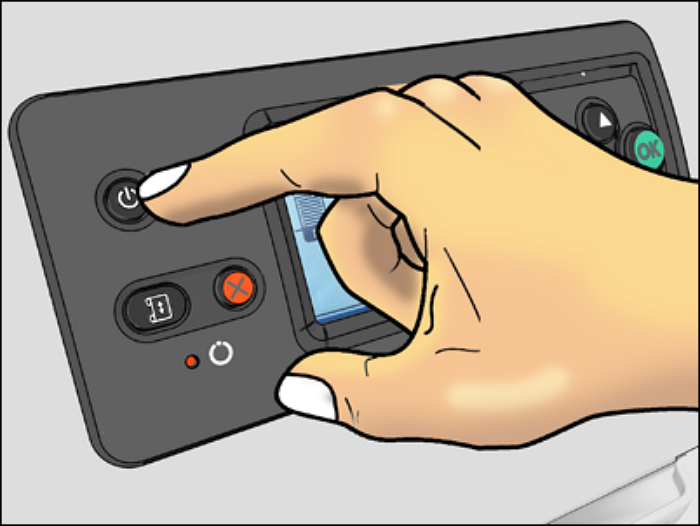
Step 4. After a few minutes, the printer should connect. Once it's done, click 'Finish' to complete the setup process, and your HP Printer will be ready to print your desired document.
Method 2: HP Printer Wireless Setup
This method is most effective when a local network is unavailable or when you change your ISP or router. HP Printer Wireless Setup is done through the Control Panel of your printer, and it applies only to HP printers with a graphics display.
The HP printer wireless setup (Wi-Fi) process differs depending on whether you have a touchscreen or not. Let's start with the setup for touch screen HP printers.
1. HP Printer Wireless Setup (Wi-Fi) for Touch Screen
To connect your HP touchscreen printer to a Wi-Fi network, use the Wireless Setup feature from the control panel. Follow the on-screen instructions to select your network, enter the password, and complete the setup process. This will allow your printer to connect to the internet and enable wireless printing capabilities.
Step 1. To ensure your HP printer is connected to your Wi-Fi network, place it near your Wi-Fi router and remove any Ethernet cables or USB connections from the printer. This will allow the printer to establish a wireless connection with your router.
Step 2. To set up the printer wirelessly, open the control panel of the printer and tap the Wireless icon, or go to the Network menu to select the Wireless Setup Wizard.
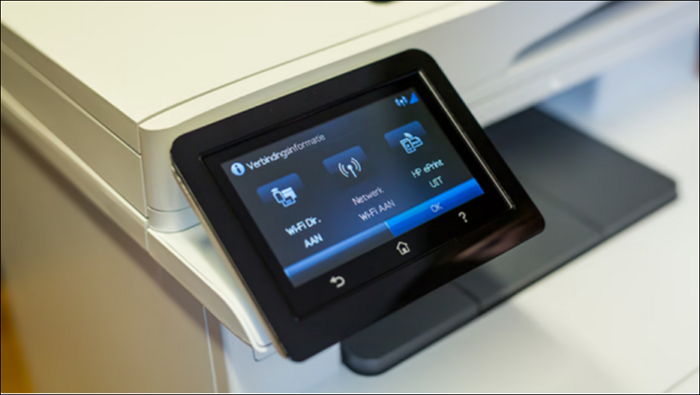
Step 3. Connect to the desired network by selecting its name and entering the password, or manually add the network name if the printer doesn't detect it.
2. HP Printer Wireless Setup (Wi-Fi) for Non-Touch Screen
Non-Touchscreen printers are unusual because you can't access the Control Panel on the printer itself. Instead, you need to use the Control Panel on your IT device, and to do this, you press the Wi-Fi and power buttons located at the back of the printer.
The solution involves using the `sort()` method with the `reverse()` method to sort the array in descending order. The `sort()` method sorts the array in ascending order by default, but by chaining it with the `reverse()` method, we can achieve the opposite effect.
Method 3: WPS Push Button Connect
You can connect your printer to Wi-Fi using the WPS Push Button mode on your router and printer, which allows a connection within 2 minutes by pressing a button on both devices within that timeframe.
Step 1. Place the printer around the Wi-Fi router.
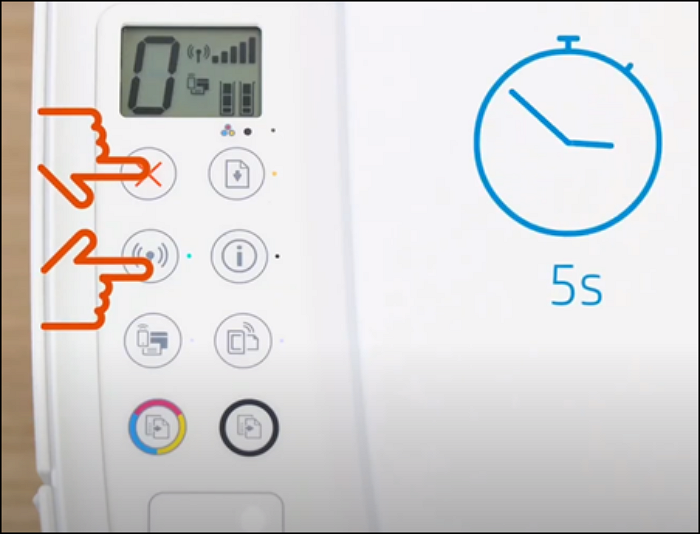
Step 2. To connect your printer to Wi-Fi, press the Wi-Fi button on your printer. For HP printers without a touchscreen, press the Wireless button for five seconds until the light starts to flash. For Tango printers, press the Wi-Fi and power button at the back of the printer for five seconds until the blue light flashes.
Step 3. Hold the WPS button on your router for about two minutes until the connection begins.
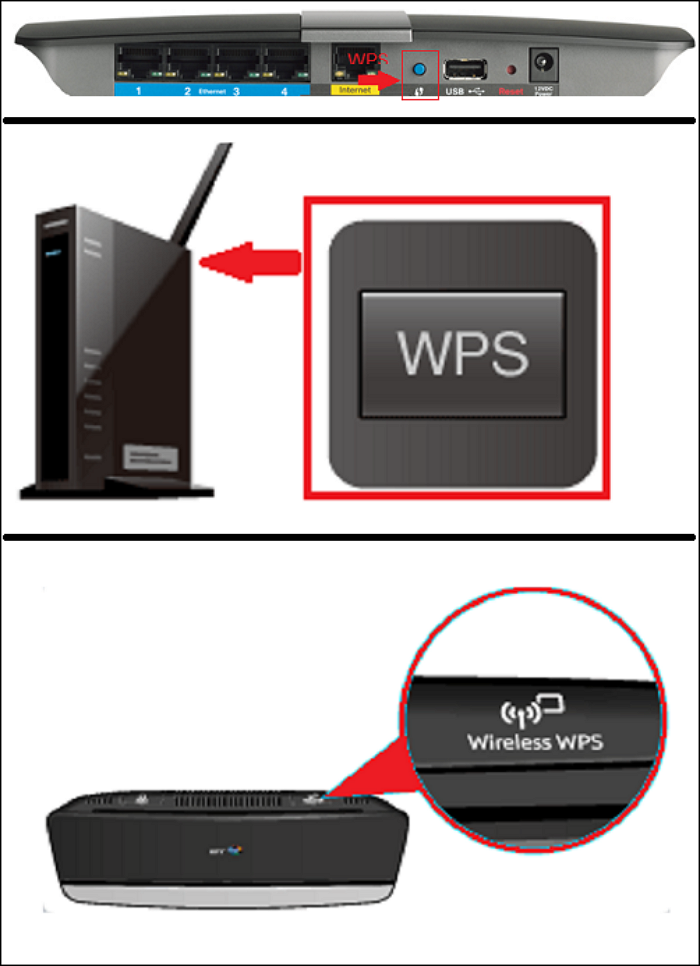
Step 4. Wait until you see the wireless bar or light on the printer stop flashing; there you go, your printer is now connected to the Wi-Fi network.
- To set up your HP printer wirelessly, start by ensuring it is turned on and has a steady orange light. If your printer has a touchscreen, navigate to the Wireless menu. If it doesn't, refer to the printer's control panel for instructions.
Method 4: Connect your HP Printer without a router
For home or small business use, a printer router might be a significant investment. However, there is an alternative solution - HP's Wireless Direct and Wi-Fi Direct feature, introduced in 2014, allows you to connect your HP printer directly without needing a router. This feature provides a convenient and cost-effective way to print wirelessly, eliminating the need for a separate router.
Wi-Fi Direct allows for simultaneous internet connection and printing, whereas HP Wireless Direct does not permit this.
To connect to HP Wireless Direct or Wi-Fi Direct, follow these steps: HP Wireless Direct is a feature that allows you to connect your HP printer to your device without the need for a physical connection. To access this feature, go to the HP Wireless Direct settings on your device, which can usually be found in the device's settings menu.
Step 1. To enable HP Wireless Direct, turn on Wi-Fi Direct or HP Wireless Direct from your printer's Control Panel, then click the HP Wireless Direct icon or go to the Network Setup/Wireless Settings to activate the Wireless Direct connection.
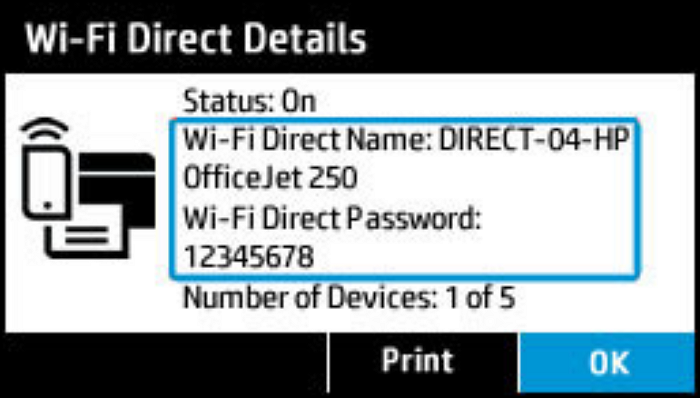
Step 2. To connect to the HP Wireless Direct or Wi-Fi Direct, follow the same steps you would to connect to any wireless network on your mobile device or computer. This involves searching for available wireless networks, selecting the HP Wireless Direct or Wi-Fi Direct network from the list, and entering the password or network key if required.
Step 3. When you connect to a Wi-Fi network, you may be prompted to enter a WPA2 password, which is a security measure to protect your data from unauthorized access. This password is used to encrypt your internet connection and ensure that only authorized devices can access the network.
Step 4. To print a document, open the document you want to print on your IT device and click 'File', then 'Print.'
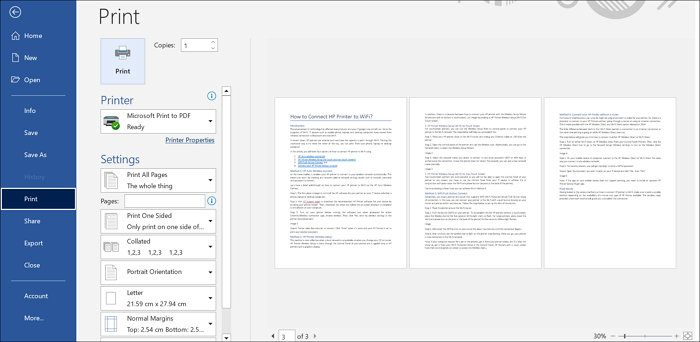
- If your mobile device's app doesn't support printing, you'll need to install an updated HP Printer Service Plugin app to enable printing capabilities.
Final Words
To connect an HP printer to Wi-Fi, choose a suitable method based on the availability of a router and the type of HP printer you have. If you have a router, you can use the WPS method, which involves pressing the WPS button on your router and printer, or use the HP Smart app to connect. If you don't have a router, you can use the HP Smart app to connect the printer directly to your device.
Related Articles
- Fixed: SFC (SFC / SCANNOW) Is Not Working on Windows
- Fix: There Was a Problem Resetting your PC in Windows 10/8.1/8
- PC Not Working Properly? Try A Fresh Install Windows 10
- Fix Windows 10 Hangs or Stuck on Shut Down Error
- How to Find Windows 8 Product Key | Quick Methods to Get Windows 8 Product Key
Can't find your Windows 8 product key? Discover 6 quick methods to retrieve your Windows 8 product key, including Qiling Key Finder, Command Prompt, PowerShell, Registry, and more. - Fix a Broken USB Stick and Recover Data
Is your USB stick broken or not recognized? Learn 5 proven fixes for RAW, unreadable, and not-showing USB drives, plus recover lost data with Qiling data recovery software. - Fix Windows 11 Printer Not Working (2026 Guide)
Products
Articles & Tutorials
- Data Recovery
- Data Backup
- File Recovery
- File Backup
- System Backup and Restore
- Disk and Partition Clone
- Technical articles
- Mobile articles
- Disk Master Help
- Windows Data Recovery Tutorials
- Windows Secure Delete Tutorials
- Windows Partition Management Tutorials
- Windows File Backup and Restore Tutorials
- Windows System Backup and Restore Tutorials
- Windows Disk Backup and Restore Tutorials
- Windows Clone Tutorials