How to Fix Starfield Save Games Missing and Restore Progress
What Causes Starfield Games Missing
Starfield is a well-performing action role-play video game that has received plenty of positive reviews, making it a great choice for science fiction fans.
You may encounter issues playing Starfield on PC or Xbox, potentially due to entering a cheat code or other common reasons, which can cause saved games to be missing.
| ⚡Faulty Starfield Updates | Updates or patches for video games may cause issues with existing save files, potentially leading to lost progress or corrupted data. |
| ⚠️Starfield File Corruption | If saved games are lost due to damaged or corrupted saved files caused by malware or computer viruses, they will be lost. |
| 💽Storage Problem | If the storage device does not have enough storage space or the system does not have the necessary permissions to write to the device, the backup process may fail. This could be due to a variety of reasons, such as a full storage device, incorrect permissions, or a corrupted system.disk structure is corrupted and unreadable, the saved game files may get lost or unreadable. |
| ❌Human Errors | In Starfield, players may unintentionally delete game progress or lock game files, which can cause issues with their saved game. This can happen due to various reasons such as accidental deletion of save files, corrupted game data, or issues with the game's save system. |
To recover deleted game files, first, check the default save path for Starfield, which is C:/Users/Username/Documents/My Games/Starfield.

Method 1. Recover Starfield Missing Saves with Recovery Software
If the Starfield game folder is empty, you can recover deleted files from the Recycle Bin by finding the deleted Starfield files, right-clicking on them, and selecting the option to restore them to their original location.
If you can't find Starfield files in the Recycle Bin, try using Deep Data Recovery software to recover them. You can download the software in advance and refer to the detailed information in the following paragraphs for assistance.
Deep Data Recovery can help game players in various ways, such as recovering deleted game data, restoring corrupted files, and retrieving lost game saves. This can be particularly useful for players who have experienced game crashes, bugs, or other issues that have resulted in lost progress. Additionally, Deep Data Recovery can also help players recover data from outdated or unsupported games, allowing them to continue playing and enjoying their favorite games even after they have been discontinued.
- ✅Recover Steam missing downloaded files from internal hard drives.
- ✅To recover missing saves in Baldur's Gate 3, Starfield, Hogwarts Legacy, and other 3A games, follow these steps: Check the game's save folder for corrupted files. If the save is corrupted, try deleting it and restarting the game to see if it autosaves a new file.
- ✅If you've accidentally deleted screenshots or game recordings, this tool can help you recover them. It can also help you recover deleted screenshots of Starfield or other games, as well as any other game recordings you may have deleted.
- ✅Restore lost game data from various storage devices, including internal HDD/SSD, SD card, external hard drive, and USB flash drive.
Now, you can follow the instructions below to retrieve deleted Starfield game files:
Step 1. Run Deep Data Recovery on your computer, choose the drive where you lost files, click "Search for Lost Data", and if lost files were on an external storage device, connect it to your computer first.

Step 2. The software quickly scans deleted files, then performs a deep scan to find more lost files. After scanning, you can use "Filter" or "Search box" to locate specific file types.

Step 3. Click the "Preview" button or double-click on a file for a full preview. Select the desired files, click "Recover" and choose another safe location or Cloud drive to save them all at once.

Feel free to share this page on social media platforms like Instagram, Linkin, Facebook, and others.
Method 2. Restore Lost Saves of Starfield on Steam
If you're a Steam user who has enabled cloud sync, you can use this method to recover your game data. However, if you haven't turned on Steam cloud sync, this method won't be suitable for you.
Step 1. To access the Steam Cloud, visit the official Steam Cloud page and log in with the correct Steam account.

Step 2. After logging in, find all the synced games and click on Starfield. Then, click "Show Files".
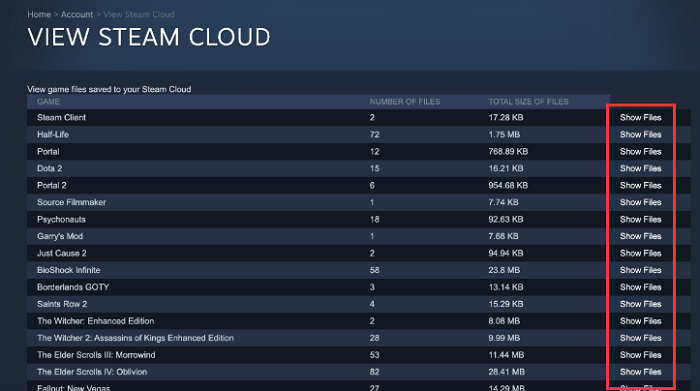
Step 3. Locate the exact saved file and select "Download".
If you're experiencing issues with your Steam account, such as lost game data, you can try the following steps to resolve the problem. First, ensure that you are logged in to the correct account on Steam.
If you've lost game data on your PC, Steam, or PS4, don't worry - there are ways to recover it. You can try reinstalling the game, checking the Steam Cloud or PS4's autosave feature, or using a cloud storage service like Google Drive or Dropbox to access your saved games.
Don't panic if you've lost game data on your PC, Steam, or PS4 - there are ways to recover it. You can try reinstalling the game, checking the Steam or PS4 cloud saves, or using a backup service. If you've lost data on a PC, you might be able to recover it using a data recovery software. Additionally, some games have built-in data recovery features, so it's worth checking the game's settings. If all else fails, you can try contacting the game's support team for assistance.
Method 3. Get Back Missing Saves of Starfield on Xbox
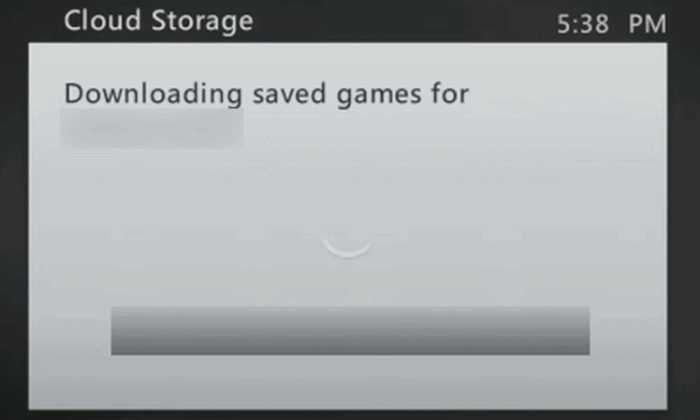
If you're playing Starfield on Xbox Series X/S and experience issues with game progress, the cloud storage feature can automatically sync your game, ensuring you don't lose any progress. This is similar to Steam Cloud, which allows you to sync your game progress across devices. If you're experiencing issues with missing progress, the Xbox cloud will automatically sync the game.
If your Xbox Series X game saves aren't syncing automatically, you can manually download the game files to recover your saved game data. To do this, follow the tutorial to manually download the game files. This should help you recover your saved game data.
Step 1. To access your Xbox's settings, turn on your Xbox and navigate to the home screen. From there, select "My games & apps".
Step 2. Navigate to the "Manage game" section for the Starfield.
Step 3. Use the controller to select the "Saved data" section.
Step 4. To recover your Starfield save file, select "In the cloud" and choose the specific save file you want to recover, then download it to your Xbox console.
To recover lost data in Hogwarts Legacy on Xbox, follow these steps: Make sure you're signed in to your Xbox account, then go to the "Settings" icon on the home screen, select "System," and choose "Storage." Check if there's available space on your console.
If you've lost your save in Hogwarts Legacy on Xbox, don't worry - there are ways to recover it. You can try restarting your Xbox and checking if the game automatically loads your last save.
If Hogwarts Legacy is not saving on Xbox, don't worry, as there are still ways to recover your lost save. This post provides three methods to help you recover your game progress. Read more >>
Bottom Line
Have you recovered Starfield's missing saves with the recommended methods? It can save much time to recover lost game saves with Deep Data Recovery.
To avoid losing game progress, back up your game disk regularly, refrain from using cheat codes, mods, or custom content, and keep your game updated.
Share this article on social media to discuss recovery methods with fellow Starfield players and explore ways to overcome challenges in the game.
Starfield Data Recovery FAQs
If you're looking for more information on Starfield data recovery, This guide can help. Check out the following questions and answers for more essential details.
1. How do I recover my Starfield saves on PC?
You have multiple solutions to recover lost Starfield game saves on the PC:
- Recover deleted game files from the Recycle Bin.
- Recover lost Starfield data with Deep Data Recovery
- Restore game data from Steam/Xbox cloud storage.
2. Where are Starfield save files located on Xbox?
You can find Starfield save files in this path: C:/Users/_your_username_here_/AppData/Local/Packages/BethesdaSoftworks.ProjectGold_3275kfvn8vcwc/SystemAppData/wgs/_string_of_numbers.
3. How do I access old Starfield saves?
On the PC, you can find all Starfield saved files in the C:/Users/Username/Documents/My Games/Starfield folder. If you can't find them there, try restoring old saves from cloud storage.
4. How does the save system work in Starfield?
Starfield saves your progress automatically when you change locations in the game, and you can also access additional autosave options under Settings>Gameplay.
Related Articles
- Create Bootable Media of Data Recovery Wizard for Mac
The software allows you to create a bootable disc on a USB drive, so you could set the computer to boot from the disc and start the data recovery. - Load System Extension to Recover Lost Data from the Mac with M1 & M2Chips
To enable system extensions on your Mac, you'll need to start your Mac in Recovery mode, which is a separate mode that allows you to access and manage your Mac's system settings. - 3 Ways to Change/Find Kik Usernames
If you've forgotten your Kik username. There are easy ways to change it, which you can find in this article. Additionally, if you've lost important messages, Qiling MobiSaver is a recommended tool to help you recover them. - 3 Ways to Fix Invalid B-tree Node Size Error and Recover Data
If you're experiencing an invalid b-tree node size error on your Mac's hard drive, there are a few potential fixes. - Kik Shows Notification but No Message iPhone [Solved]
Does Kik show notifications but no message on your iPhone? You shouldn't worry as this article will solve kik shows notification but no message iOS 15 issue. Follow the solutions or download Qiling MobiSaver now! - iPhone Photos Gray Box | How to Fix Grey Boxes Photos on iPhone/Android
If your pictures are appearing gray on your iPhone or Android, you can figure out why and easily fix the issue. Whether you're seeing a gray box over photos or contacts on both iPhone and Android, you can resolve the problem with a few simple steps.
Products
Articles & Tutorials
- Data Recovery
- Data Backup
- File Recovery
- File Backup
- System Backup and Restore
- Disk and Partition Clone
- Technical articles
- Mobile articles
- Disk Master Help
- Windows Data Recovery Tutorials
- Windows Secure Delete Tutorials
- Windows Partition Management Tutorials
- Windows File Backup and Restore Tutorials
- Windows System Backup and Restore Tutorials
- Windows Disk Backup and Restore Tutorials
- Windows Clone Tutorials