Backup Error 0x80070020: The File Is in Use
Quick Navigation:
- Why the File Is Locked
- Close the Holder and Let the Snapshot Work
- Filter Out What Should Not Be Copied
- Back Up the Folder with Filters
- Frequently Asked Questions
0x80070020 is the Windows sharing violation, the same message you see when two programs try to open one document. During a backup it means a file was held by an application that had it open for writing, so the copy could not read it. The file is not damaged and the disk is not failing. Either a program needs to close, or the file should never have been in the selection. This page separates those two cases and shows a task that finishes even when some files stay open all day.
Why the File Is Locked
A sharing violation appears when one process opens a file with a lock that does not allow a second reader. Databases, mail clients, virtual machines, and security scanners all do this as part of normal work. The backup tries to open the file, is refused, and reports 0x80070020. Nothing is corrupt; the copy simply arrived while another program was writing.
The same code appears for files that should never be backed up. A browser cache, a temporary folder, a log written every second, and the offline cache of a mail client all stay open for hours. Copying them is futile even when the read succeeds, because the content changes the moment it is captured and the restored file is useless. Which of the two cases you have decides the fix.
Close the Holder and Let the Snapshot Work
Close the program that owns the file when you can name it. The lock usually belongs to the application that created the file, and the error often names the full path. Save and close the document, exit the mail client, or pause the virtual machine, then run the task again. Restarting the service that owns the file is enough in many cases and avoids a reboot.
A volume snapshot is the better answer for files that must stay open. VSS is built into Windows and belongs to Microsoft; it is not part of Qiling Disk Master. When a snapshot is available, the backup reads the frozen copy instead of the live file, so an open database or mailbox no longer blocks the read. Qiling Disk Master uses the snapshot where the system provides one and falls back to direct reads when it does not.
If the snapshot is refused as well, the snapshot layer is the problem rather than the file. A volume with almost no free space cannot hold the change log, and a writer in a failed state cancels the freeze. Free space on the source volume and restart the snapshot services before you retry the file task. Free space first, then retry the same selection.
Filter Out What Should Not Be Copied
Some folders deserve exclusion rather than a snapshot. Browser caches, the Windows temporary directory, thumbnail stores, and the offline cache of a mail client hold files that are large, busy, and worthless after a restore. Excluding them removes the lock and the wasted space at the same time, and shrinks the job by gigabytes on an ordinary desktop. Browser caches change every minute and restore to nothing useful.
Add exclusions by pattern, not by absolute path, so the rule survives a move to a new user profile or a new drive letter. A folder rule for caches and a file rule for temporary extensions cover most cases. Review the list once a year, because an exclusion that was right for an old application can silently hide live data after an upgrade.
Keep the last good backup while you test the new filter list. An exclusion takes effect without any warning, and a job that suddenly runs faster may simply be copying less. Compare the size of the new set with the previous one, and open the archive to confirm that the folders you need are still inside it. An archive that opens cleanly is the only proof the filters were safe.
Back Up the Folder with Filters
Qiling Disk Master shows the folder tree and the filter list in the same task, so a lock on a cache file costs one rule instead of a failed run. The filter set is saved with the task, which matters when the locked file is written by a program that starts with Windows every morning. Select, exclude, preview, and the job runs on the set you can defend.
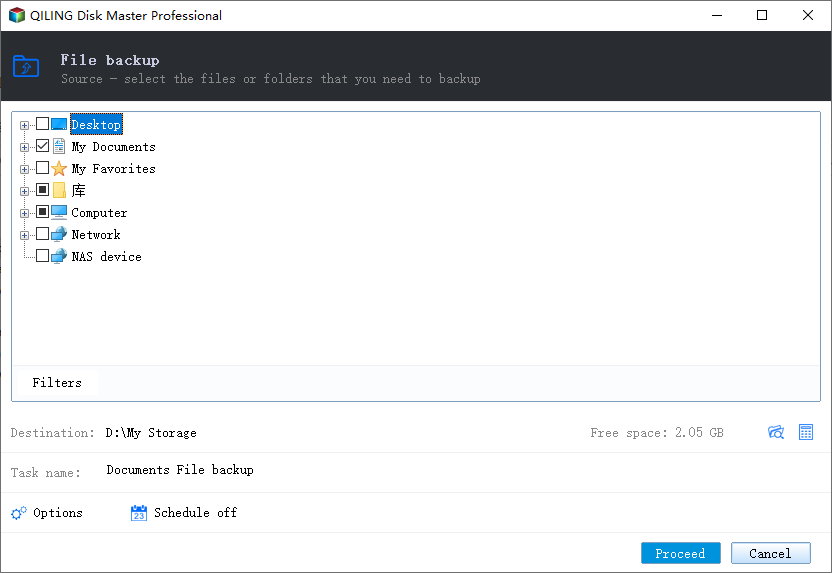
Step 1. Open File Backup and Select the Folder
Click File Backup on the Backup and Recovery tab, then expand Computer and tick the folder that holds the data. The tree reports the size of each item, so you can tell a real data folder from an application cache before you add it to the job and inherit its locks. The tree also shows free space per drive, which helps you choose the source.
Step 2. Exclude Cache and Temporary Folders with Filters
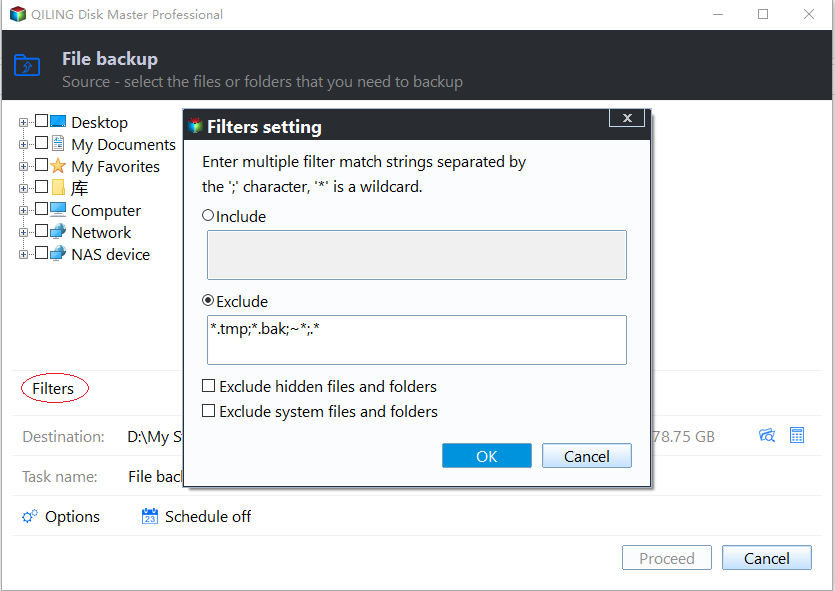
Open Filters and add the folders that stay open all day: browser caches, the temporary directory, thumbnail stores, and the offline cache of the mail client. Patterns are safer than absolute paths, because they keep working after a profile move or a drive letter change on the same machine. Save the list before you leave the dialog, or the next run starts without it.
Step 3. Set the Target, Preview, and Click Proceed
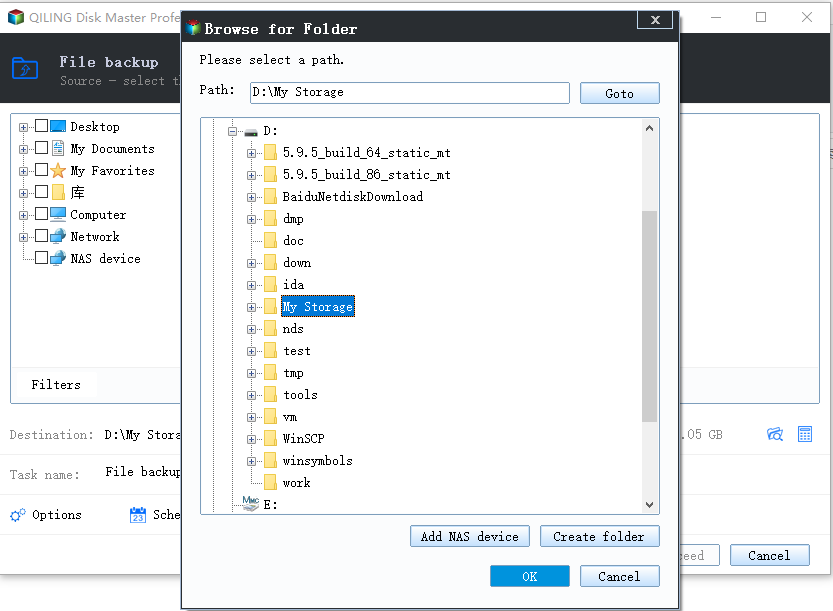
Choose a destination on another disk, then open Preview to read the pending operation and confirm the exclusion list one more time. Click Proceed and wait until the progress window reports completion. If a file is still locked, the log names it, and one more filter rule is usually enough to finish the run. Store the log until the archive has been opened once.
Frequently Asked Questions
Is 0x80070020 dangerous for my data?
No. It is a sharing violation, not corruption. The file was open in another program and the backup could not read it at that moment. The data on disk is untouched, and a later run or a snapshot usually copies it without any change. The disk is fine; only the moment of the copy was the problem. Retry after the holder closes.
Why does the error name a file I never opened?
A background service holds it: an indexer, a sync client, a security scanner, or a mail client that never fully exits. The file is open without a visible window. Closing the tray icon or restarting the service releases the lock in most cases. Check the tray area and the startup list before you suspect a hardware fault or a bad sector.
Should I exclude the mail client data file?
Only if you protect the mailbox another way. The data file stays locked while the client runs, so a direct copy often fails or captures a broken state. Export the mailbox, or let a snapshot copy the file while the application is still open. Keep the exported copy on a separate disk and test one restore before you rely on it.
Related Articles
- Backup Error 0x8007002F on the D Drive
- Backup Error 0x80070015: The Device Is Not Ready
- Backup Error 0x81000037: Reparse Point Cannot Be Read
- Windows Backup Error 0x81000019: Shadow Copy Failed
- Backup Error 0x8007045D: An I/O Device Error
Products
Articles & Tutorials
- Data Recovery
- Data Backup
- File Recovery
- File Backup
- System Backup and Restore
- Disk and Partition Clone
- Technical articles
- Mobile articles
- Disk Master Help
- Windows Data Recovery Tutorials
- Windows Secure Delete Tutorials
- Windows Partition Management Tutorials
- Windows File Backup and Restore Tutorials
- Windows System Backup and Restore Tutorials
- Windows Disk Backup and Restore Tutorials
- Windows Clone Tutorials