Backup Error 0x800705AA: Insufficient System Resources
Quick Navigation:
- What 0x800705AA Means
- Close What Consumes Handles and Memory
- Resize the Job and the Page File
- Narrow the Scope and Schedule the Task
- Frequently Asked Questions
A backup that has copied for twenty minutes stops with 0x800705AA and a message about system resources. The wording sounds like a hardware fault, but the disks are usually healthy. What failed is a request: the backup process asked Windows for a handle, a buffer, or a block of paged pool and was refused, because another workload had already taken the resource or a fixed limit had been reached. The same code also appears when the destination quietly refuses a write. This page shows how to separate the two cases and finish the job.
What 0x800705AA Means
0x800705AA maps to the Windows error named ERROR_NO_SYSTEM_RESOURCES. The process that copies your files allocates a handle for each open item, a buffer for each read, and memory for the metadata it keeps about the set. When any of those allocations fails, Windows returns this code and the job stops at the point of failure rather than at the end of the list.
The code also appears when the destination refuses a write. A share that has reached its quota, a disk that has been set read-only, or a security filter that blocks the file handle produces the same symptom at a lower layer, and Windows reports it with the same generic wording. Confirm the target before you spend time on memory tuning, because both causes look identical in the log.
Close What Consumes Handles and Memory
Start with what is running. A full backup reads hundreds of thousands of files, and each open item costs a handle. When a file indexer, a sync client, a database, and a browser all hold handles at the same time, the process reaches a per-process or system limit and stops. Close what you do not need, then run the same selection again and note where it stops.
Paged pool is the second limit. Drivers allocate from it, and a leaky filter driver can consume it over days until any large job fails. Task Manager and Resource Monitor are built into Windows and belong to Microsoft; they are not part of Qiling Disk Master and are used here only to read the numbers. A reboot clears a leak in the short term, and updating the driver clears it for good.
Resize the Job and the Page File
A page file that is too small hurts a backup more than most people expect. The engine maps file data into memory, and when physical memory runs short, Windows pages it out. If the page file has a hard cap, the allocation fails and the job returns this code. Let Windows manage the page file, or set a fixed size at least equal to physical memory on a server.
Splitting the job is usually more effective than tuning. One task that covers three drives and a million small files asks for far more handles than three tasks that each cover one drive. Run the large folders as separate jobs, and use an incremental schedule after the first full pass so every later run touches a much smaller set of changes.
A scheduled task also avoids the hour when users are busiest. Run the full copy outside working hours, keep the schedule weekly, and let incremental runs fill the days between. If a full job still fails at night, cut the selection in half and test each half; the half that fails tells you which folder or file type is responsible, and the answer is often a cache directory.
Narrow the Scope and Schedule the Task
Qiling Disk Master lets you reduce the source selection to the folders you would actually restore, then keep that scope in a scheduled task so the resource peak repeats at a quiet hour instead of during the working day. Filters remove caches and temporary folders that add millions of small items without adding recovery value. Smaller selection, smaller peak, fewer failures.
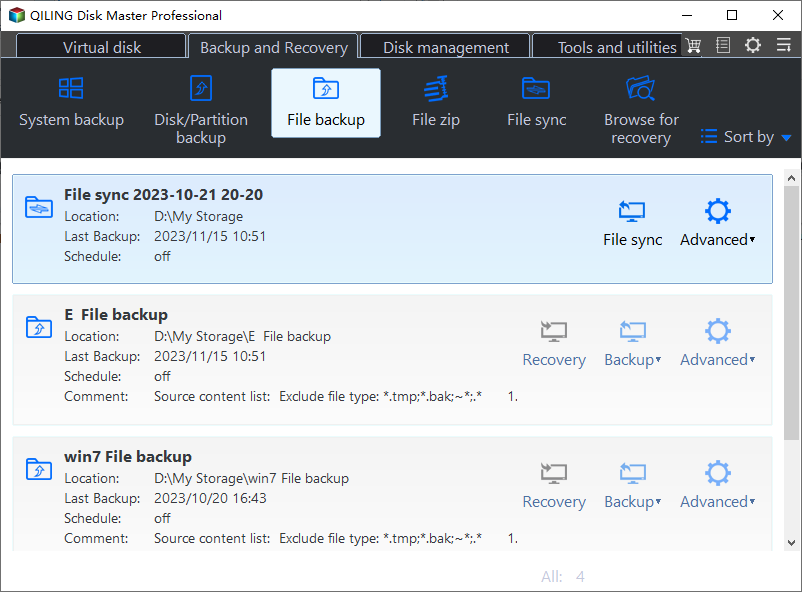
Step 1. Open File Backup
Click File Backup on the Backup and Recovery tab. The task list shows the destination and the last result of every existing job, so you can tell whether an older task is still holding handles on the same folders you are about to select for the new run. A task that already points at the same folders can be reused instead of created again.
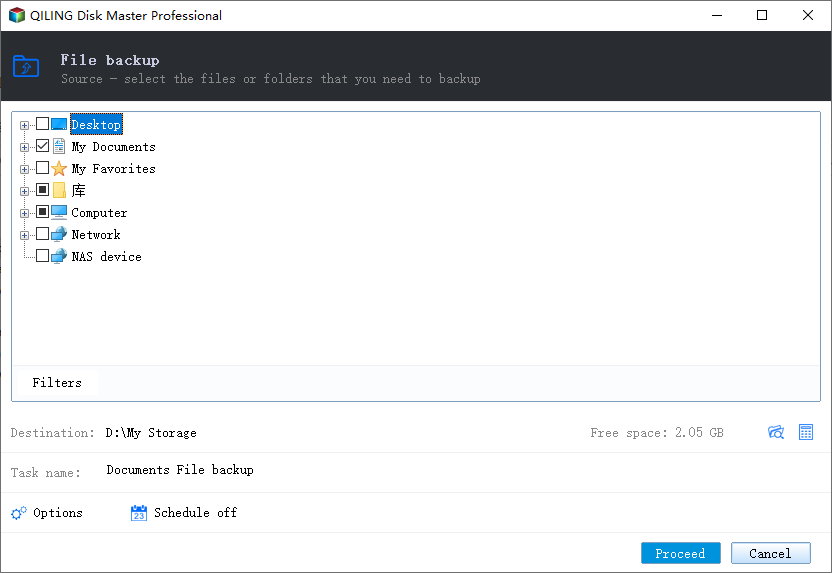
Step 2. Narrow the Source Selection
Expand Computer and tick only the folders that hold data you would really restore. Leave application caches, temporary directories, and downloaded installers out of the job. The fewer items in the tree, the fewer handles the process needs and the smaller its memory peak becomes during the first full pass. Caches and installers change constantly and add handles without adding value.
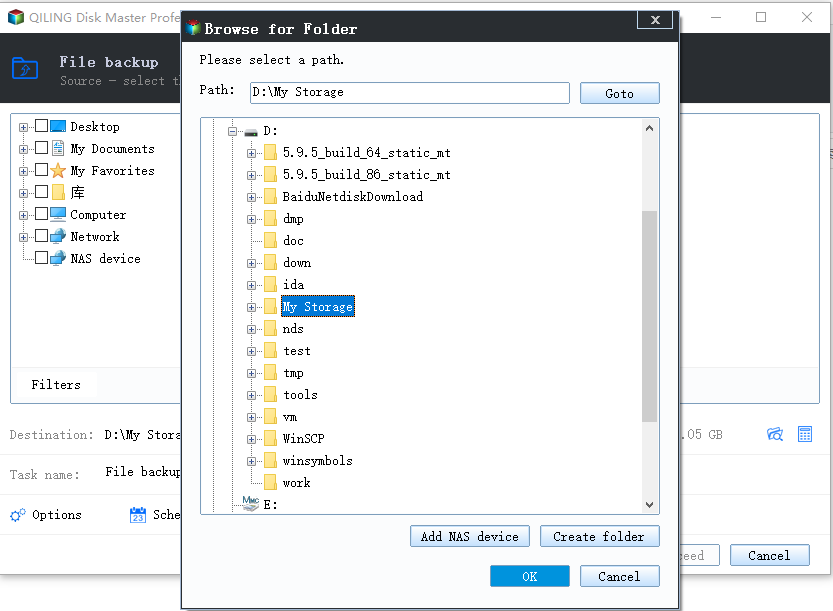
Step 3. Set the Destination, Preview, and Click Proceed
Pick a destination on a different disk with free space larger than the selection, and confirm that the folder is online and writable. Open Preview to review the pending operation, click Proceed, and wait until the progress window reports that the run has finished. Add a schedule afterwards so later runs stay incremental and small. Verify the free space on that target before the first scheduled run.
Frequently Asked Questions
Is 0x800705AA caused by a failing hard drive?
Usually not. A failing drive reports read errors, timeouts, or bad blocks of its own. This code says that Windows refused a resource request. Check the drive health separately with the vendor tool, but fix the workload, the page file, and the target permissions first. A healthy drive can return this code when a single folder is locked or a quota is reached.
How much free memory does a backup need?
There is no fixed figure, because it depends on the number of files and the size of the largest ones. As a rule, keep at least one gigabyte free plus a page file that can grow. Watch memory during the first run and reduce the selection if the free figure keeps falling. A server with less than that is better served by a smaller nightly scope.
Can a scheduled task fix the error on its own?
It can when the cause is contention with daytime work. A nightly task runs while users are away, so handles and memory are free. If the job still fails at night, the scope is too large or the destination is refusing writes, and splitting the task is the next step. Move the schedule, then measure again before you change anything else.
Related Articles
- Backup Error 0x80070015: The Device Is Not Ready
- Backup Error 0x80070017: CRC Error
- Backup Fails with VSS Error 0x800423F4
- Backup Error 0x8007045D: An I/O Device Error
- Why the Backup Stops When the PC Sleeps
Products
Articles & Tutorials
- Data Recovery
- Data Backup
- File Recovery
- File Backup
- System Backup and Restore
- Disk and Partition Clone
- Technical articles
- Mobile articles
- Disk Master Help
- Windows Data Recovery Tutorials
- Windows Secure Delete Tutorials
- Windows Partition Management Tutorials
- Windows File Backup and Restore Tutorials
- Windows System Backup and Restore Tutorials
- Windows Disk Backup and Restore Tutorials
- Windows Clone Tutorials