Backup Stops When the PC Sleeps: Keep It Running
Quick Navigation:
- What Sleep Does to a Job
- Desktop and Laptop Differences
- Keep the Job Alive Unattended
- Resume Instead of Restarting
- Frequently Asked Questions
The backup starts, the screen turns off, and the next morning the task shows as interrupted or failed. Nothing was wrong with the disk; the machine stopped running the job when it entered sleep. Windows suspends the processor and the USB bus, so the backup engine never gets to finish the write it had open.
What Sleep Does to a Job
Sleep is a system-wide state, not a screen state. In the classic sleep state the processor and most devices lose power, and in Modern Standby the machine stays partly awake while the network and USB devices can still be suspended. Either way, an open handle on the destination can time out.
A locked screen is different. Locking does not stop a backup by itself; the job continues as long as the machine stays awake. The failure appears when the power plan allows sleep after a set idle time, and the lock screen is simply when you notice it.
The destination matters too. A USB enclosure that follows the bus into suspend may return as a new device instance, and the task then reports a missing path rather than a sleep event. That variant overlaps with the device not ready error and is fixed by the same power settings.
Desktop and Laptop Differences
On a desktop, the usual causes are the sleep timer in the active power plan, hybrid sleep, and USB selective suspend. A wired network adapter that is allowed to power down adds a second failure point when the target is a share.
On a laptop, the lid close action and the battery threshold matter more. Many machines sleep on lid close and defer background work on battery, so a job that runs overnight on AC still fails when the user shuts the lid.
Modern Standby laptops can stay connected while asleep, but only when the system allows it and the adapter supports it. A USB-C dock that drops power in standby takes the backup disk offline with it, and the job fails for a reason that has nothing to do with the schedule.
Keep the Job Alive Unattended
Set the sleep timer to Never while plugged in, and set the hard disk timer to Never as well. These are Windows power options rather than settings of the backup software described below, and they apply to every task on the machine.
Disable USB selective suspend for the port that carries the destination disk, and keep the laptop on AC power for overnight runs. If the lid must stay closed, change the lid close action to Do nothing for the plugged-in plan.
Schedule the job inside a window when the machine is normally in use, and add a wake timer if the plan supports one. A job set for 2 a.m. on a machine that sleeps at midnight will never run, however the task itself is configured.
Test the setup once with a short manual run, lock the screen, and leave the machine alone until the task reports a finish time. That single test proves the power settings before you depend on them for a full backup.
Resume Instead of Restarting
An interrupted job is not a lost job. The task keeps its last completed backup as the baseline, and an incremental run writes only what changed since then, so a failure at eighty percent does not send you back to the first file. Keep the same task and the same destination to preserve that baseline.
Qiling Disk Master shows each task with its destination, schedule, and last result, and it supports incremental backup so a rerun stays short. If the first disk proves unreliable, point the task at a second destination instead of rebuilding the whole job.
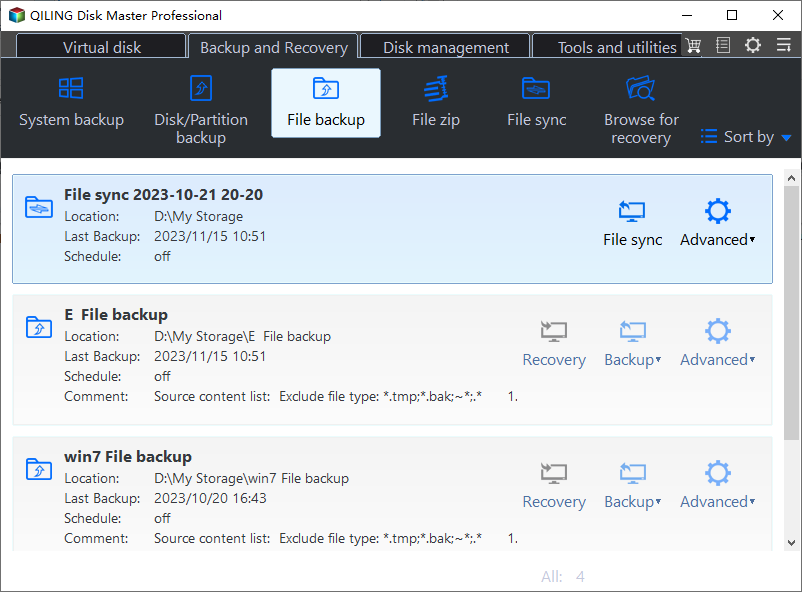
Step 1. Open File Backup
On the Backup and Recovery tab, click File Backup. The task cards show the last backup time, so a run that was cut short is easy to spot before you start another one.
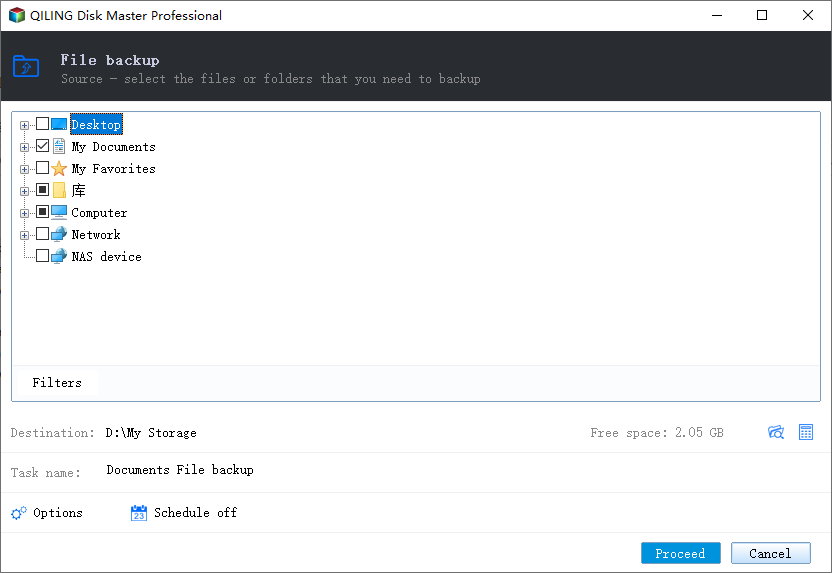
Step 2. Select the Files and the Destination
Confirm that the folders and the destination path are unchanged, because a new destination forces a new baseline and a fresh full run. The free space figure next to the path should leave room for another incremental set.
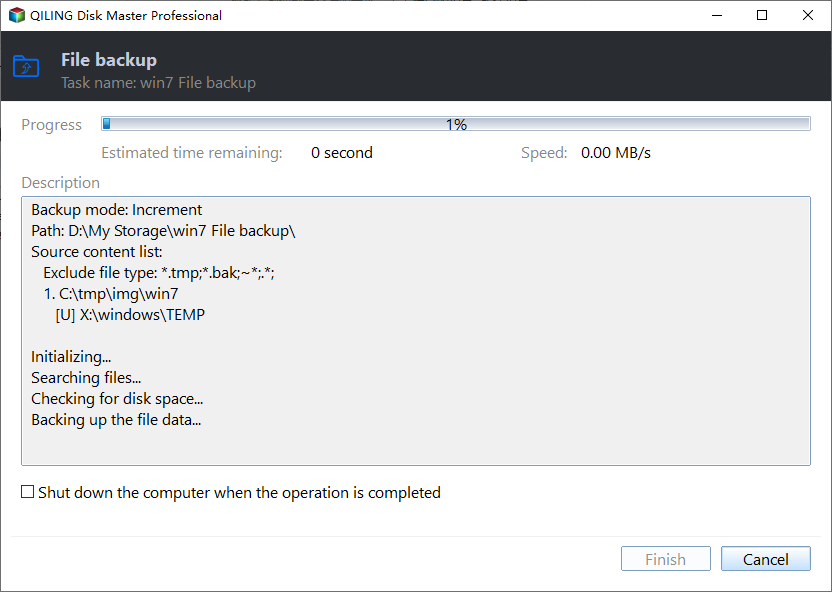
Step 3. Start the Backup
Open Options, confirm the schedule still matches your power settings, and click Proceed. Once the rerun completes, the task records a new baseline and later runs stay incremental.
If the job fails again at the same point with an I/O message rather than a missing path, the cause has moved from power to hardware, and the steps for a backup I/O device error apply instead.
Frequently Asked Questions
Does locking Windows stop a backup?
No. Locking keeps the session running and the job continues. Sleep is what suspends the processor, the disk, and the network, so check the sleep timer first.
Can a scheduled backup wake the computer?
Only if a wake timer is enabled and the power plan allows it. On many laptops the lid and battery settings still block the wake, so test it once before relying on it.
Will resuming create a second full backup?
No. The task continues from its last completed baseline. A new task, a new destination, or a deleted backup set is what forces a full run.
Related Articles
- Backup Error 0x80070015: The Device Is Not Ready
- Backup Error 0x8007045D: I/O Device Error
- Windows 10 Backup Is Disabled? 3 Tricks for Activating Backup
- How Do I Back Up PC Automatically in Windows 11
- Windows 11 Guide: How to Put a Windows 11 PC to Sleep
Products
Articles & Tutorials
- Data Recovery
- Data Backup
- File Recovery
- File Backup
- System Backup and Restore
- Disk and Partition Clone
- Technical articles
- Mobile articles
- Disk Master Help
- Windows Data Recovery Tutorials
- Windows Secure Delete Tutorials
- Windows Partition Management Tutorials
- Windows File Backup and Restore Tutorials
- Windows System Backup and Restore Tutorials
- Windows Disk Backup and Restore Tutorials
- Windows Clone Tutorials