Backup Error 0x80780119: Shadow Copy Storage Area Too Small
Quick Navigation:
- What 0x80780119 Reports
- Secure the Data First
- Work on the Shadow Area
- Back Up Without a Growing Snapshot
- Frequently Asked Questions
A system image backup of Windows 11 or Windows 10 stops after a few minutes and reports 0x80780119, with a message that there is not enough disk space to create the volume shadow copy on the storage location. The destination drive still shows hundreds of gigabytes free, and that is the point of the code: the disk that ran out is the source volume. The snapshot that holds the volume still during the image needs room of its own on that same disk. This page explains what the number reports, how to protect the files before you change anything, and how to finish a backup that does not depend on that narrow area.
What 0x80780119 Reports
A shadow copy area, also called shadow storage, is a hidden region inside each volume that holds the blocks changed while a snapshot stays open. Windows Backup takes a snapshot of the system volume, writes the image from that stable view, and releases it at the end. The area has a maximum size of its own, so the volume can report plenty of free space while the snapshot has nowhere left to grow.
0x80780119 is returned when that maximum is reached before the image is complete. The service cannot extend the snapshot, the snapshot is dropped, and the job is cancelled. The destination is only written after the snapshot exists, which is why the drive holding your backup is never the one that is full.
Four conditions produce it most often. The limit on the source volume is small, because older builds reserve only a few gigabytes by default. The volume itself is nearly full, so the area has no free clusters to claim. Restore points from a year of updates already fill the area. Or the job runs for hours on a busy system, and the difference data grows faster than the reservation allows.
None of this means the disk is failing or the image is corrupt. It means the source volume could not host the snapshot for the length of the job, and that is a capacity problem you can work around.
Secure the Data First
Copy the folders you cannot rebuild to an external disk before you change a setting. A job that fails late has written nothing useful to the destination, and a volume that is about to be cleared is the worst place to discover that the only copy of a project sits on it.
Keep the last image that completed, even if it is months old. Do not delete it to make room, because the space you need is on the source, and an older image is still a working rollback path.
Write down the date of the newest image and compare it with the folders that changed since. That gap is the data at risk, and those folders should be copied by hand before any repair attempt starts.
Work on the Shadow Area at the System Level
Start with numbers. The shadow storage report for a volume shows how much space is allocated, how much is used, and what the maximum is. A maximum far below the free space explains the failure at once, and a used figure that almost matches the maximum confirms that old restore points are holding the area.
If restore points are the cause, remove the older ones and keep the newest. The newest point is the one you would actually use after a bad update, and it costs the least space because it shares blocks with the points before it.
If the volume is simply full, free space before you raise the limit. A larger maximum on a volume with 500 MB free changes nothing, because the area can only claim clusters that already exist.
Then raise the maximum with headroom for the longest job in your schedule rather than an average one, and rerun the backup while you watch the clock. A job that now finishes confirms the diagnosis. A job that fails at the same minute points at a filter driver or an application that writes far more than a normal system does.
vssadmin, wbadmin, Disk Management, and PowerShell all ship with Microsoft Windows and belong to Microsoft, not to Qiling Disk Master. They appear here only because they read and change the same shadow area that Windows Backup uses. If you would rather not edit system settings on a working machine, the operations below reach the same data without a snapshot that has to grow.
Back Up Without a Growing Snapshot
Qiling Disk Master writes an image of the selected disk in one pass and reads the source in block order, so the job does not depend on a difference file that grows for two hours. The destination can be another internal disk, an external drive, or a network share, and the source volume keeps its restore points instead of spending them on backups.
Operation 1: Image the System Disk
Use this operation when the system volume is the one that returns 0x80780119 and you want a full rollback path that needs no snapshot reservation.
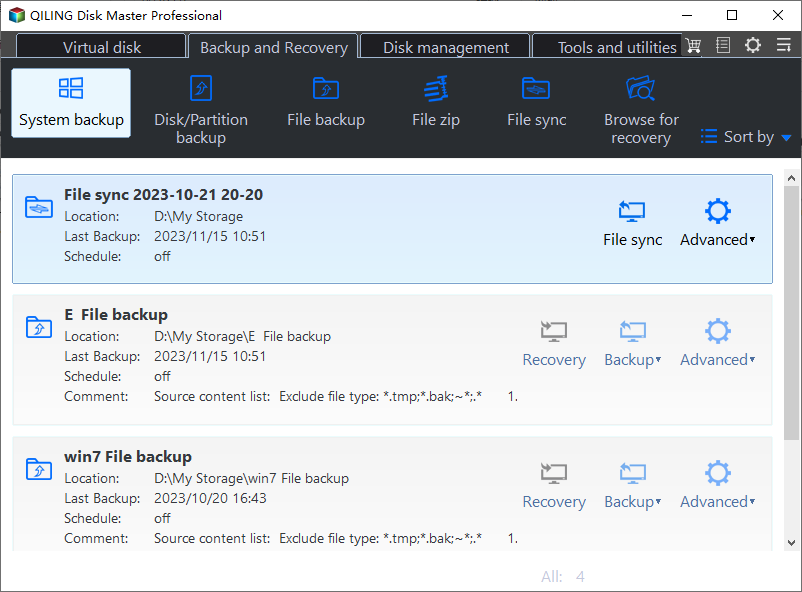
Step 1. Open System Backup. On the Backup and Recovery tab, click System Backup. The wizard selects the system partition and the boot partition together, so the image can start the machine without a repair step.
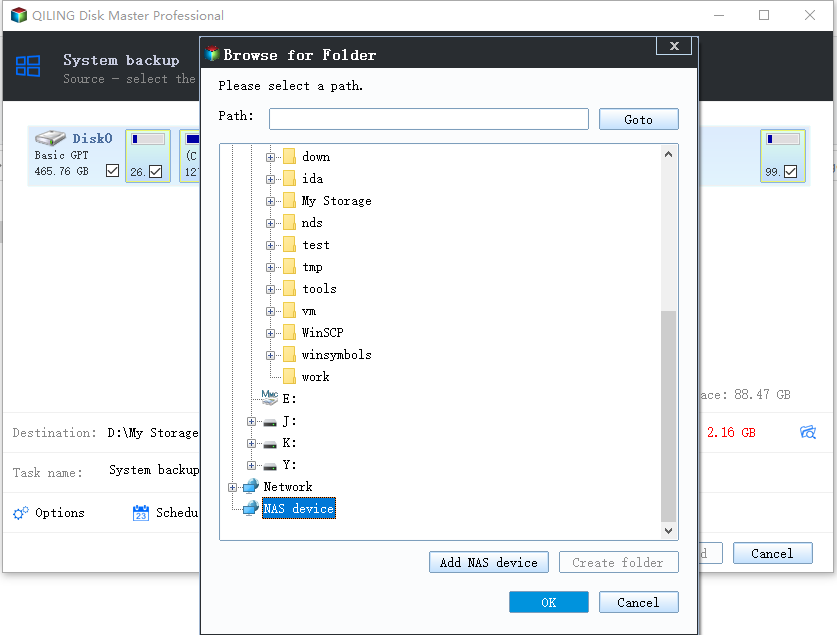
Step 2. Set a destination on another disk. Use the folder icon beside Destination to pick a folder on a disk other than the source, and read the free space shown under the path. Leave room for one more full image, because the next run needs it before the old one is replaced.
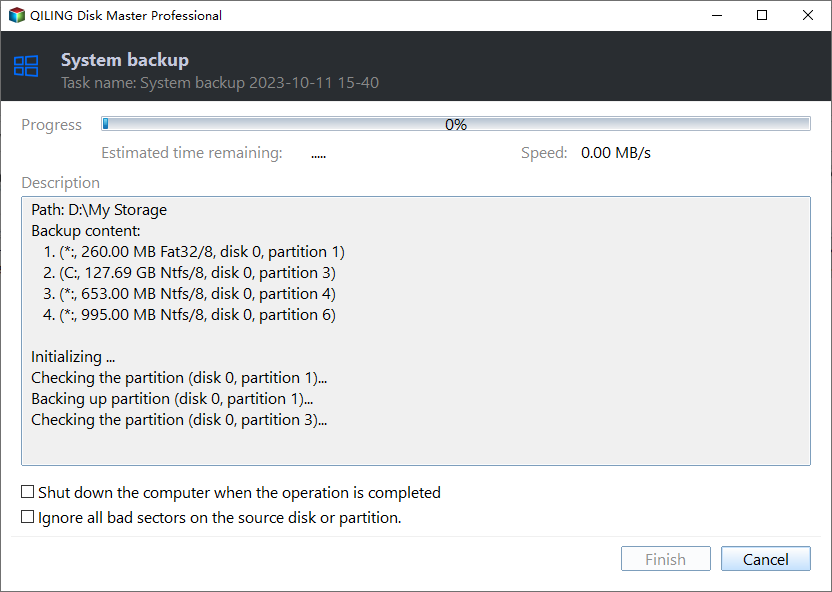
Step 3. Preview the task and click Proceed. Open Preview to confirm the source partitions, the destination, and the compression level, then click Proceed and wait until the window reports that the backup has finished before you close it.
Operation 2: Back Up the Working Folders to a Second Target
Use this operation when an image alone is not enough, or when the volume is so full that the documents should leave it before you free space.
Step 1. Open File Backup and tick the folders. Click File Backup on the same tab and expand Computer until your user folders appear. Tick Desktop, Documents, Pictures, and any project folder that lives outside the profile.
Step 2. Choose the destination and a schedule. Pick the external disk that will hold the copy, then set Schedule to Daily if those folders change every working day. A daily job stays small and finishes hours before the volume fills again.
Step 3. Preview the job and click Proceed. Check the task summary in Preview, click Proceed, and wait for the completion prompt. Open the destination afterwards and confirm that the folder tree and the file count match the source.
Frequently Asked Questions
Why does the error name disk space when the destination drive is empty?
The space that ran out belongs to the shadow area on the source volume. The destination is only written after the snapshot exists, so the check that fails happens before any data reaches it.
Will a bigger shadow area slow the machine down?
No. The reservation is a ceiling, not an allocation, so the area only grows when blocks actually change while a snapshot is open.
Can I turn System Protection off to avoid the error?
You can, and the backup stops failing for that reason, but you also lose every restore point. A separate image on another disk covers the same ground without switching protection off.
Related Articles
- Windows Backup Error 0x81000019: Shadow Copy Failed
- VSS Error 0x8004231F: Not Enough Shadow Copy Storage
- Windows Backup Error 0x8098011E: Image Backup Failed
- Windows Server Backup 0x8078001F: VSS SPP Failure
- Windows Backup Stuck at 97 Percent
Products
Articles & Tutorials
- Data Recovery
- Data Backup
- File Recovery
- File Backup
- System Backup and Restore
- Disk and Partition Clone
- Technical articles
- Mobile articles
- Disk Master Help
- Windows Data Recovery Tutorials
- Windows Secure Delete Tutorials
- Windows Partition Management Tutorials
- Windows File Backup and Restore Tutorials
- Windows System Backup and Restore Tutorials
- Windows Disk Backup and Restore Tutorials
- Windows Clone Tutorials