Backup Fails When the BitLocker Volume Is Locked
Quick Navigation:
- Why a Locked Volume Stops a Backup
- Unlock the Volume with the Right Key
- Confirm the Recovery Key Is Safe
- Back Up the Unlocked Volume
- Frequently Asked Questions
A backup job that targets a BitLocker-protected volume can stop within seconds, before a single byte is written to the image file. The reason is not a broken backup engine. A locked volume exposes no readable file system, so any tool that asks Windows to open a file on it receives an access error and ends the job at the preparation stage. The volume stays sealed until someone supplies the password or the 48-digit recovery key, and the backup cannot proceed until that happens.
Why a Locked Volume Stops a Backup
BitLocker encrypts the whole volume and keeps the decryption key behind a protector. When the volume is locked, Windows mounts nothing at that drive letter: there is no directory tree to walk and no metadata to read. A backup engine that expects to enumerate folders sees either an empty volume, a volume marked RAW, or an outright error such as the device being unavailable. All three describe the same condition, an encrypted container that has not been opened.
This is why the failure usually appears early. Image-based tools take a snapshot and read clusters; file-based tools enumerate files first. Neither can do its work on a locked volume, and retrying with a different tool changes nothing, because the block sits in the operating system rather than in the backup software. The same volume backs up normally as soon as it is unlocked.
Two related cases are worth separating. A volume that reports RAW after it was unlocked points at file system damage, not encryption, and needs a repair step before any image is taken. A volume that disappears from the list entirely often has a disconnected USB enclosure or a drive letter that was never assigned. Confirm the state in Disk Management before you assume the worst.
Unlock the Volume with the Right Key
Open BitLocker Drive Encryption in Control Panel, find the volume, and choose Unlock Drive. BitLocker asks for the password first; if the password is unknown, the recovery key is the only other accepted input. The key is a group of 48 digits, normally stored in your Microsoft account, printed on paper, or saved as a text file when protection was turned on.
On a server or a domain-joined machine, the key may be escrowed in Active Directory instead. An administrator can read it from the computer object in AD DS. If the volume was encrypted on another machine and the object was deleted, the key is gone with it, which is why escrow checks belong in the routine and not in the emergency.
Command-line users can work from an elevated prompt. The command manage-bde -status reports the protection and lock state of each volume, and manage-bde -unlock E: -RecoveryPassword followed by the key opens the volume. manage-bde is a Microsoft tool that ships with Windows; it is used here only to read the state and to unlock, and it is not part of Qiling Disk Master.
If the operating system volume itself is locked, the machine has to reach the recovery screen during boot, where the key can be typed. Auto-unlock through a TPM protector normally handles that volume without input, and it stops working when the boot files or the firmware settings change. Unlocking it once with the recovery key restores normal access.
Confirm the Recovery Key Is Safe
Before the backup starts, verify where the key is stored. Sign in to your Microsoft account and open the devices page to confirm the key for this volume is listed, or ask the domain administrator to confirm the Active Directory escrow. A key that exists only in one place, on the very disk being backed up, protects nothing.
Keep a second copy offline: printed and filed, or saved to a password manager that is not on this machine. Do not delete the key or remove its protector after a successful backup. Turning protection off to make backups easier leaves the data in plain text and removes the very key you may need after a disk failure, a firmware update, or a motherboard replacement.
Also note how long the unlock lasts. A data volume typically stays unlocked until the machine restarts or a policy re-locks it, while the system volume is unlocked again at each boot by the TPM. Run the backup in the same session in which you unlocked it, and do not reboot in between.
Back Up the Unlocked Volume
Qiling Disk Master reads the volume through Windows like any other, so an unlocked BitLocker drive behaves exactly like an unencrypted one. Take the image while the volume is open, and place the image on a target that is itself encrypted or physically protected, because the data inside the image is readable once the container is opened.
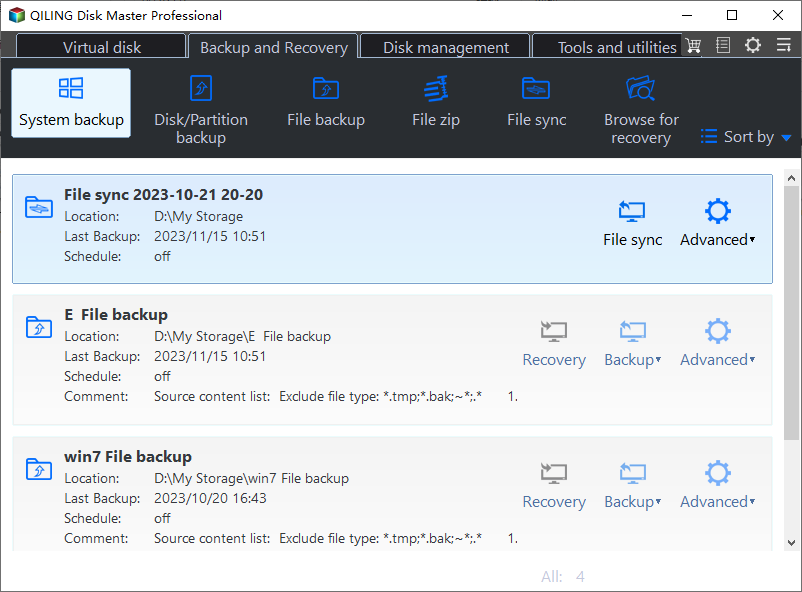
Step 1. Open System Backup from the Backup tab. Launch Qiling Disk Master, open Backup and Recovery, and click System Backup. The entry reads through Windows, so the volume you unlocked in the previous section appears exactly like an unencrypted one.
Step 2. Confirm that the selected source is the unlocked BitLocker volume. The disk map shows the Windows partition with its letter, size, and file system, already ticked together with the boot partitions. Check that the letter is the one you unlocked, and untick anything that should stay out of the image.

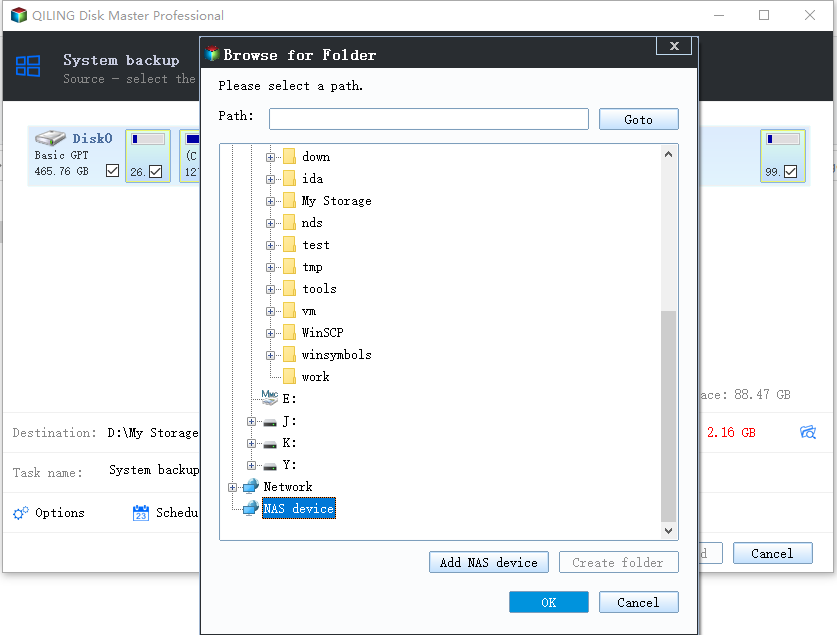
Step 3. Choose a backup destination that is encrypted or physically controlled. An external SSD with BitLocker enabled, a lockable NAS share, or a drive that stays in a locked office all qualify. Avoid a shared network folder that other accounts can browse, and avoid the same physical disk that holds the source.
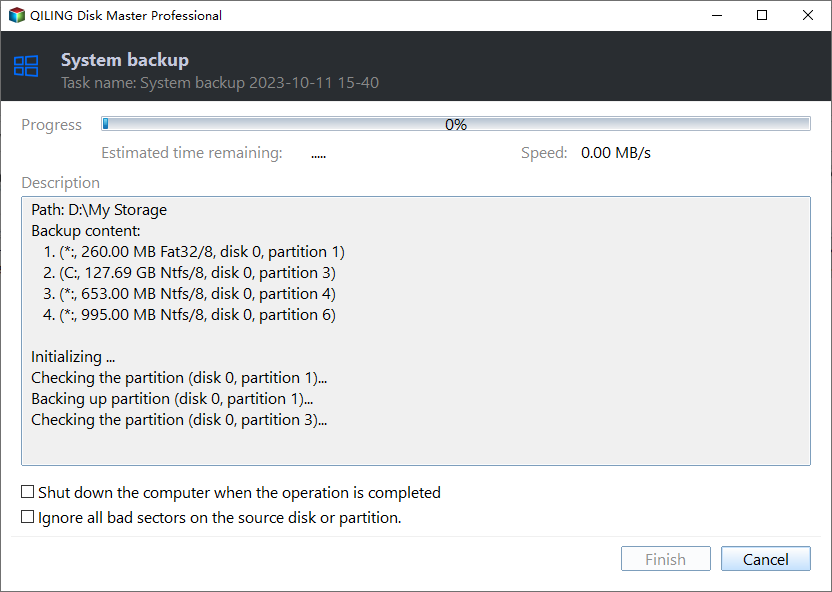
Step 4. Review the plan and click Proceed, then wait for the job to complete. The summary shows the source volume, the destination, and the image name. Leave the machine running while the progress bar advances, and wait for the completion window before you close the program or lock the drive again.
Once the image exists, test it by mounting or restoring a single folder to a spare location. A backup that has never been restored is only a promise. Keep the recovery key with the image, separated from the disk it protects.
Frequently Asked Questions
Does a locked BitLocker volume show up as RAW in a backup tool?
It can. Because the encrypted container cannot be mounted, some tools describe the volume as RAW or as having an unrecognized file system. That label reflects the lock state rather than corruption, so unlock the volume first and check the file system again before running any repair.
Can I image a BitLocker drive without unlocking it?
A sector-level copy made outside Windows can capture the encrypted bytes, and the result restores only on a machine that can unlock it. Ordinary file-based or snapshot-based backup inside Windows needs the volume open, so unlock it with the password or recovery key and take the image in that session.
Should I delete the recovery key after the backup succeeds?
No. The key is what opens the volume after a failed boot, a BIOS update, or a disk swap into another machine. Deleting it, or disabling the protector, can lock you out of data that the backup does not cover, such as changes made after the image was taken.
Related Articles
- How to Back Up a BitLocker Encrypted Drive
- Recover Files From a BitLocker Drive That Won't Unlock
- BitLocker Recovery Key Requested After Cloning to an SSD
- Clone a BitLocker Drive to a Smaller SSD
- Backup Error 0x80070015: The Device Is Not Ready
Products
Articles & Tutorials
- Data Recovery
- Data Backup
- File Recovery
- File Backup
- System Backup and Restore
- Disk and Partition Clone
- Technical articles
- Mobile articles
- Disk Master Help
- Windows Data Recovery Tutorials
- Windows Secure Delete Tutorials
- Windows Partition Management Tutorials
- Windows File Backup and Restore Tutorials
- Windows System Backup and Restore Tutorials
- Windows Disk Backup and Restore Tutorials
- Windows Clone Tutorials