Backup to NAS Fails 0x8007003B: Network Connection Lost
Quick Navigation:
- What the Code Says
- Match the SMB Settings
- Stop the Link From Sleeping
- Stage Locally, Sync Later
- Frequently Asked Questions
The job runs for ten minutes, sometimes for an hour, and then stops with 0x8007003B and a message that the network name is no longer available. The share did not disappear because somebody deleted it; the session between Windows and the NAS ended while a write was still in flight. Small test copies succeed, which is why this error looks random until you notice that only long jobs fail.
What the Code Says
The status is reported by the SMB client when the server side of a session stops answering. It can come from a cable that lost a link for a second, from a NAS that went to sleep, from a session that the server dropped after an idle period, or from a switch that reset a port under load.
The code is not a permission error. A wrong password or a missing share fails at connect time with a different message, so an existing job that reports the network name as gone has a transport or session problem.
Length is the useful clue. A backup writes for a long time and keeps the session busy, and any setting that quietly resets idle or long-lived connections will land in the middle of that write. The larger the job, the more likely it is to hit the reset.
Look at the NAS log as well. Many appliances record SMB session closes, drive spin-down, and firmware events with timestamps, and a match with the failure time ends the guessing.
Match the SMB Settings
Windows and the NAS negotiate an SMB dialect. If one side offers only SMB1 while the other has removed it, the session may connect and then fail under load; if both offer SMB3 but signing or encryption is enforced on one side only, every packet pays a cost that a slow CPU on the NAS cannot carry.
Set both ends to allow SMB2 and SMB3, and keep SMB1 off unless an old appliance leaves no choice. On a home NAS, enable signing only if the vendor recommends it, because a weak ARM processor can drop a session when signing and a large write arrive together.
Guest access is another trap. A share that allows anonymous connections is opened without credentials, and the appliance closes the session when its policy refreshes. Use a named account instead.
Firmware matters more than on a desktop. A NAS left unpatched for years often has a session timeout no client setting can override, and the release notes usually name the fix.
Stop the Link From Sleeping
Network adapters are allowed to turn off to save power, and that setting is enabled by default on many laptops and on some desktops. When the adapter sleeps during a long write, the session ends and the job reports the network name as gone.
In Device Manager, a Windows built-in tool that is separate from the backup software, open the adapter properties and clear the power saving option on the Advanced and Power Management tabs. Do the same for the USB or Thunderbolt Ethernet adapter if one is in use, because those sleep more aggressively than a built-in port.
Jumbo frames are the opposite problem. A frame size of 9000 set on the PC but not on the switch or the NAS produces retransmissions that only appear under sustained load, and the link eventually resets. Leave jumbo frames off unless every device in the path is configured for them.
Check the NAS hibernation timer and the saved credentials together. An appliance that parks its drives after twenty idle minutes may close sessions when it wakes, and a password the NAS no longer accepts is reported late, when the session is reused rather than at the start. Extend the timer and re-enter the credentials in the task.
Stage Locally, Sync Later
If the link cannot be trusted for two hours, shorten the time it has to stay up. Write the backup to a local disk first and copy the finished file to the NAS afterwards, so a dropped session costs a copy rather than the whole job. Qiling Disk Master keeps the destination inside the task, which makes switching it between a local folder and a share a matter of one setting.
A local staging disk also removes the NAS from the critical path during a restore, and the slow LAN transfer guide explains how to keep the nightly copy short.
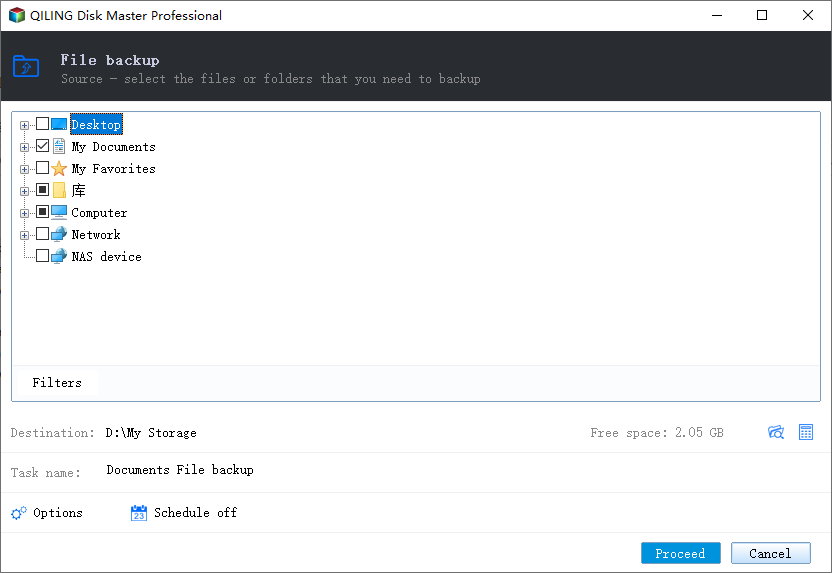
Step 1. Select the Folders to Back Up
Open File Backup on the Backup and Recovery tab and tick the folders on the left. The tree also lists network devices, so a share that fails to expand here will fail in the job as well.
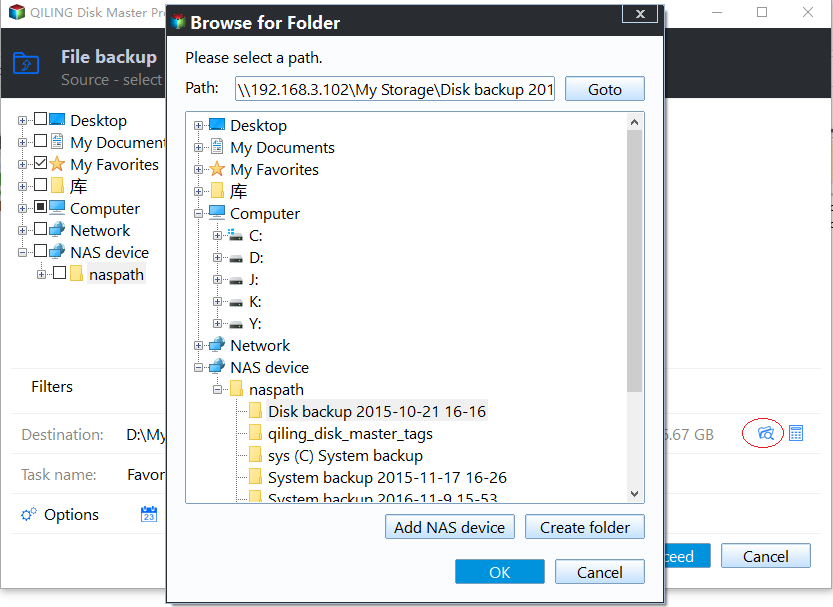
Step 2. Add the NAS as the Destination
Click the destination field, browse to Network, and add the NAS with its share path and a named account. Test the connection here before the schedule runs, because this window uses the same session the job will use.
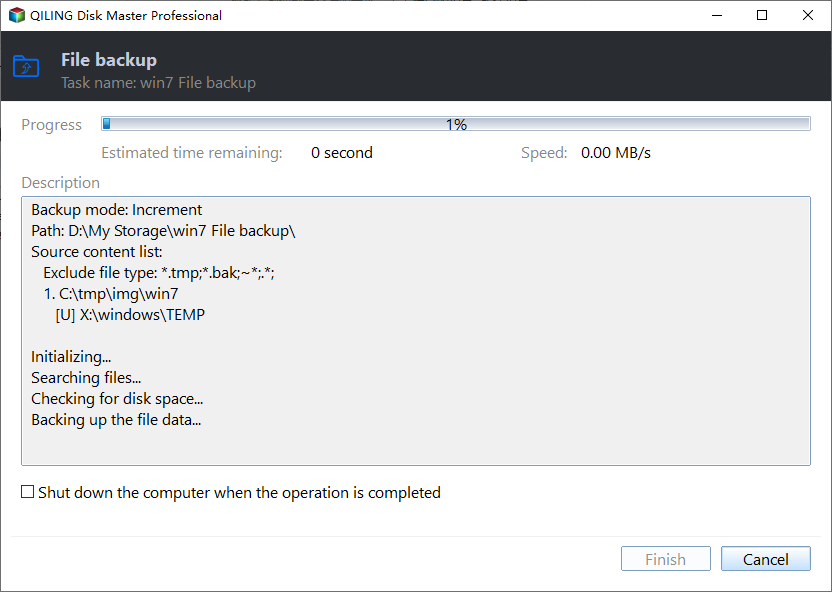
Step 3. Preview and Click Proceed
Preview the pending operation and click Proceed. Watch the first run to completion, and note the percentage where a failure appears; a repeat at the same point suggests a size limit on the share rather than a random drop.
Frequently Asked Questions
Why do small copies to the NAS work?
They finish before any idle timeout, power saving, or session refresh can fire. The fault is in the link or the session policy, not in the share itself.
Does 0x8007003B corrupt the backup file?
The partial file is unusable, but earlier complete sets are not touched. Delete the incomplete file before the retry so the space is returned.
Is Wi-Fi good enough for NAS backups?
For small jobs it can work. For a full image, a cable removes a whole class of drops, and it is the first change worth making when the error repeats.
If the NAS never appears in the destination picker at all, start with the NAS backup checklist instead of the session settings above.
Related Articles
- How to Back Up Windows 10 to a Network Drive
- The Best Way to Back Up a NAS
- File Transfer Slow Between Computers on the LAN
- How to Back Up an External Hard Drive to the Cloud
- USB External Hard Drive Not Showing Up in Windows 11
Products
Articles & Tutorials
- Data Recovery
- Data Backup
- File Recovery
- File Backup
- System Backup and Restore
- Disk and Partition Clone
- Technical articles
- Mobile articles
- Disk Master Help
- Windows Data Recovery Tutorials
- Windows Secure Delete Tutorials
- Windows Partition Management Tutorials
- Windows File Backup and Restore Tutorials
- Windows System Backup and Restore Tutorials
- Windows Disk Backup and Restore Tutorials
- Windows Clone Tutorials