File History Error 0x80070006: The Handle Is Invalid
Quick Navigation:
- What the Error Means
- Reconnect the History Drive
- Check the Folder and Share
- Run the Backup Again
- Frequently Asked Questions
File History keeps its versions in a folder on a drive or a network share and holds a handle open to that folder between runs. Error 0x80070006 means the handle no longer points at anything: the drive was unplugged, the share went offline, or the folder was renamed or moved. The files are not lost; the service simply cannot reach the place where it was writing.
1 What the Error Means
0x80070006 is the Windows error for an invalid handle. In File History it appears when the target drive is removed during a run, when a USB drive reconnects with a different letter, or when the FileHistory folder is renamed or deleted.
The error also appears after a share is remapped to another path, or when a NAS device restarts and the session it held expires. File History does not reconnect on its own in that case, so the next scheduled run fails at once.
Because the fault is in the connection and not in the data, the old versions on the drive are still readable. Do not reformat the drive or create a new FileHistory folder before you check what the service expects.
2 Reconnect the History Drive
Plug the drive back into the same port and check the letter it receives. A drive that returns as E: when the task was written for F: fails with this code even though the hardware is fine.
Open Disk Management and confirm that the disk is online and the volume has a letter. If the letter changed, assign the original one to the volume, then let the drive settle for a moment before the next run.
For a USB enclosure, avoid hubs and front-panel ports during the test. A drive that disconnects under load produces this error on a schedule, and the event log shows the disconnect a moment before the backup fails.
3 Check the Folder and Share
Open the drive and confirm that the FileHistory folder still exists at the root. If it was renamed, rename it back rather than pointing the service at a new folder, because a new folder starts with no history.
For a network target, open the share from the same account that runs the backup and confirm that it is reachable and writable. A share that asks for credentials again after a NAS restart fails with this code until they are supplied.
Check the power settings of the NAS and of the USB drive. A device that sleeps after a period of inactivity is offline when the scheduled run starts, which is why the error tends to appear at the same time every night.
4 Run the Backup Again
Once the target is back at its original path, the next File History run can finish. Qiling Disk Master is a useful second copy for the same folders, because it writes an independent set to a destination you choose and reports the result when the job ends.
Step 1. Review the Existing Tasks
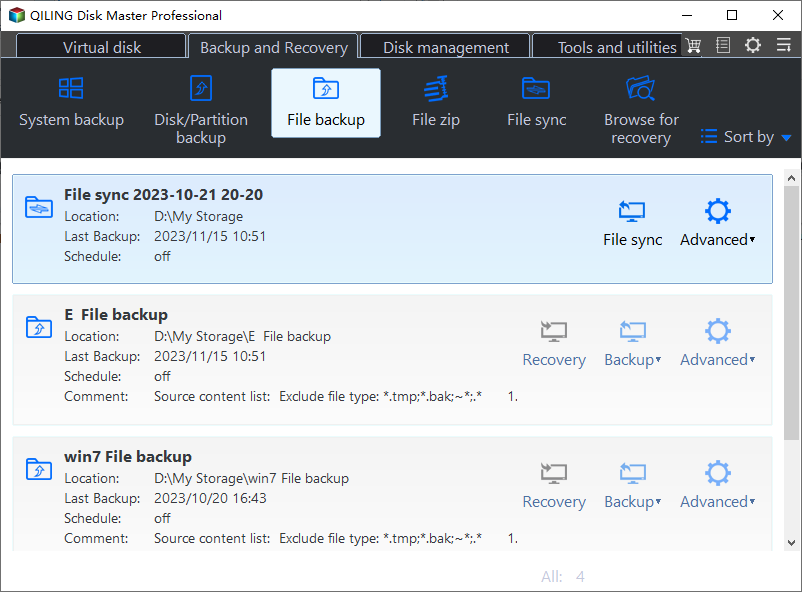
Open the program, go to Backup and Recovery, and click File backup. Each card shows the location of an existing job, the last backup time, its schedule, and the Recovery, Backup, and Advanced actions, so you can see which destination is current before you add another.
Step 2. Select the Same Folders
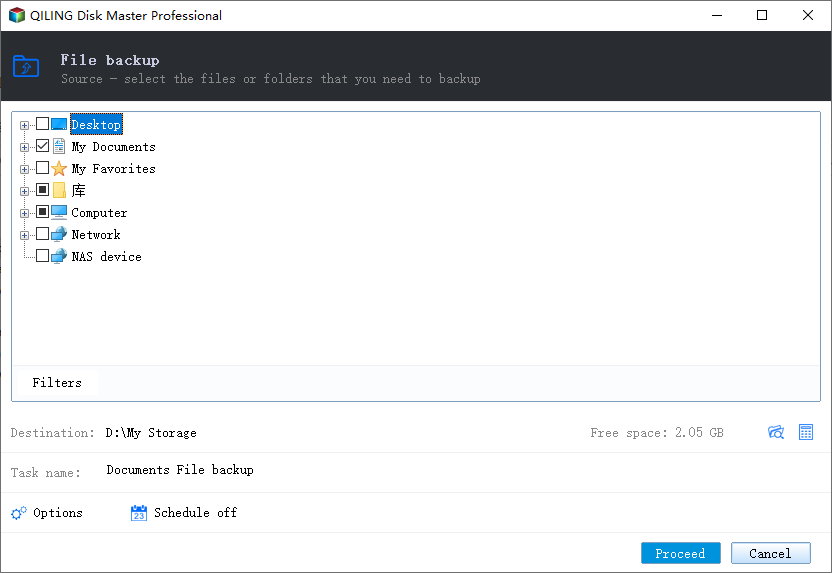
Expand the tree and tick the folders that File History protects: Desktop, My Documents, My Favorites, or a volume under Computer. Keep the selection identical to the File History set so the two copies can be compared later.
Step 3. Choose a Destination and Finish
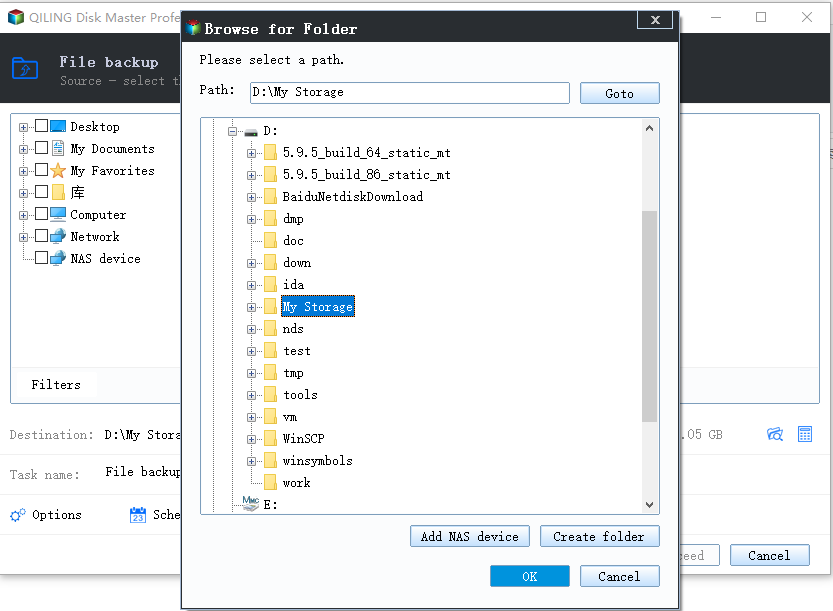
Open Browse for Folder from the destination line, pick a folder on the drive you just reconnected, and click OK. Check the free space figure, name the task, and click Proceed to start the copy.
Then return to File History, confirm that the drive is still listed under Select drive, and click Run now. If that run completes, keep the independent copy as the fallback for the next time the drive drops out.
5 Frequently Asked Questions
Does the error delete my old file versions?
No. The versions already written stay on the drive. Only the new run fails, and it resumes with the next scheduled pass.
Can I move File History to a new drive?
Yes, through Select drive. The versions on the old drive are not copied, so keep it attached if you still need them.
Why does the error appear only at night?
The drive or the NAS sleeps after a period of inactivity and is offline when the schedule fires. Change its power settings or run the job while the device is awake.
Related Articles
- Windows Backup Error 0x8078005D
- System Restore Fails After Windows 11 26H2
- Backup Fails on a Deduplicated Volume
- Back Up Before Windows 11 26H2
- Backup Fails With VSS Error 0x800423F4
Products
Articles & Tutorials
- Data Recovery
- Data Backup
- File Recovery
- File Backup
- System Backup and Restore
- Disk and Partition Clone
- Technical articles
- Mobile articles
- Disk Master Help
- Windows Data Recovery Tutorials
- Windows Secure Delete Tutorials
- Windows Partition Management Tutorials
- Windows File Backup and Restore Tutorials
- Windows System Backup and Restore Tutorials
- Windows Disk Backup and Restore Tutorials
- Windows Clone Tutorials