Transfer Files and Applications to New Mac without Migration Assistant
To transfer applications and personal data from one Mac to another, you can use the built-in feature called "Migration Assistant" that comes with macOS. This tool helps you transfer your applications, settings, and files from your old Mac to your new one, making the process much easier and less time-consuming. Simply boot up your new Mac, open Migration Assistant, and follow the on-screen instructions to complete the transfer process. You can also use other methods like using a Time Machine backup or a third-party transfer software, but Migration Assistant is the most convenient and hassle-free option.
When transferring data on a Mac, Migration Assistant is often the best choice to copy all of your documents, apps, user accounts, and settings to a new Mac from another computer.
If your Mac is too old to work with Migration Assistant or it's stuck and failed to work, you can transfer applications or data to a new Mac without Migration Assistant by using other methods such as transferring files manually, using a cloud storage service like iCloud or Google Drive, or using a third-party transfer tool like Carbon Copy Cloner or SuperDuper. These methods can help you transfer your essential files, applications, and settings to your new Mac.
What will you need to transfer applications and data to new Mac without Migration Assistant?
Here, you usually have two choices: reinstalling applications manually or using third-party Mac backup software to transfer everything via disk clone, with most users likely preferring the latter for its convenience.
If it is the case, now the problem becomes how to find a reliable Mac cloning software. Here we would like to introduce Qiling Backup for Mac, which has a wizard-like interface and advanced features, making it a great alternative to Migration Assistant for Mac data transfer.
Steps to transfer data and applications to new Mac without Migration Assistant
1. Connect the new Mac to the old machine and launch Qiling Mac cloning software.
2. In the From drop-down list, select the old Mac disk that you want to clone.
3. In the "To" drop-down list, select the new Mac hard drive as the destination disk where you want to save the duplicate.
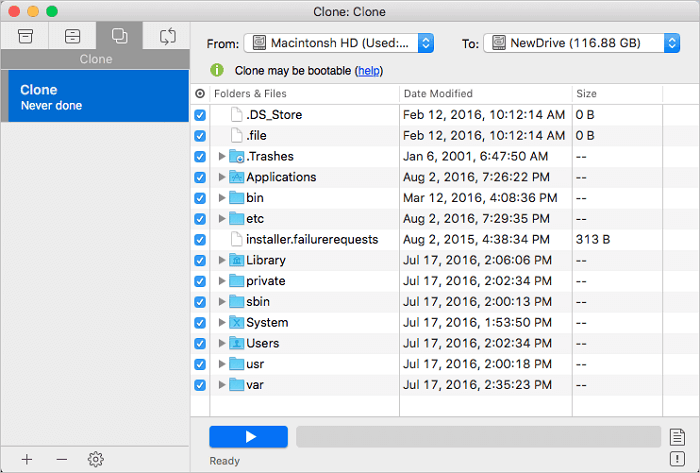
4. Set up the disk cloning properties, allowing you to exclude files or folders if needed, to customize the cloning process.
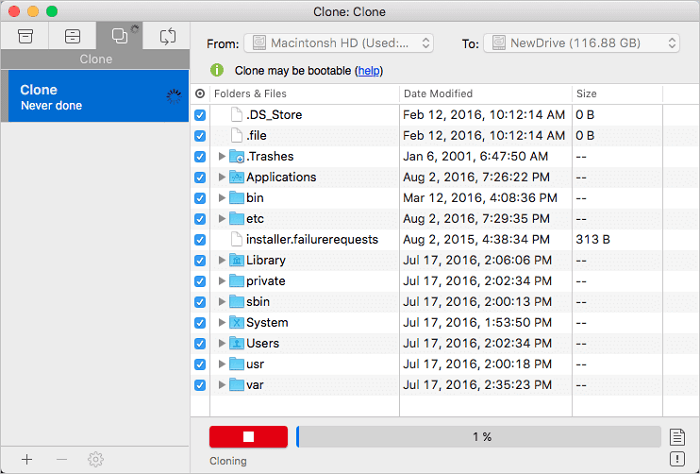
5. Finally, click the Start button to execute the cloning operation.
Transferring from an old Mac to a new one is a straightforward process that can be completed in a few steps. First, you'll need to prepare your old Mac by backing up your data and applications, and then create a backup of your system using Time Machine.
Related Articles
- How to Fix Mac Migration Assistant Stuck or Frozen
- 3 Ways to Backup Mac Mail
- How to Clone Mac Hard Drive to SSD
- How to Clone USB Drive on Mac
- How to Back Up Windows 10 to QNAP NAS (2 Simple Ways)👍
You can back up Windows 10 to QNAP NAS using two methods. This post will outline these methods for performing a Windows 10 System Backup to QNAP NAS. - How to Back Up Windows 11 to Synology NAS (3 Working Ways)👍
Backing up Windows 11 to a Synology NAS can be easily done in three convenient ways, making recovery and collaboration a breeze.
Products
Articles & Tutorials
- Data Recovery
- Data Backup
- File Recovery
- File Backup
- System Backup and Restore
- Disk and Partition Clone
- Technical articles
- Mobile articles
- Disk Master Help
- Windows Data Recovery Tutorials
- Windows Secure Delete Tutorials
- Windows Partition Management Tutorials
- Windows File Backup and Restore Tutorials
- Windows System Backup and Restore Tutorials
- Windows Disk Backup and Restore Tutorials
- Windows Clone Tutorials