Simple Solution! Transfer Files from Google Drive to Dropbox Easily
| Workable Solutions | Step-by-step Troubleshooting |
|---|---|
| Method 1: Transfer Files by Downloading | Step 1: Open your internet browser and log in to your Google Drive account. Step 2: Create a new folder in Google Drive...Full steps |
| Method 2: Transfer Files by Exporting All | Step 1: Go to your Google account page, or click here, to open it directly. Step 2: Log in to your google account, or skip...Full steps |
| Method 3: Transfer Files by Syncing | Step 1: Go to the Chrome Web Store, and on the top left of the menu, go to the search bar and type "Sync Google...Full steps |
| Bonus Tip. Transfer Dropbox by Qiling Disk Master | Step 1. Connect two computers. Ensure that the two computers are on the same LAN. You need to run Qiling Disk Master...Full steps |
| Further Reading: Transfer Google Drive to Mega or Another Account | Click the links...Full steps |
Google Drive and Dropbox are two of the most popular cloud storage platforms, offering convenient features for storing data online. Google Drive comes with a basic 15 GB of storage, with additional storage charged on a monthly basis. To avoid these charges, users can transfer excess files to Dropbox, which can be a cost-effective solution for those with large data storage needs.
Transferring files from Google Drive to Dropbox can be a bit confusing, but this article will guide you through some simple methods to make the process hassle-free. With these easy-to-follow steps, you'll be able to transfer files from Google Drive to Dropbox without any complications, navigating you effectively and efficiently to achieve your goal.
Method 1: Transfer Files from Google Drive to Dropbox by Downloading
You can manually save Google Drive files in Dropbox by following these steps:
Step 1: To log in to your Google Drive account, open your internet browser and go to drive.google.
Step 2: Create a new folder in Google Drive and collect all the files you want to move into Dropbox.
Step 3: Right-click on the folder where you have collected the files, and select the "Download" option from the context menu.
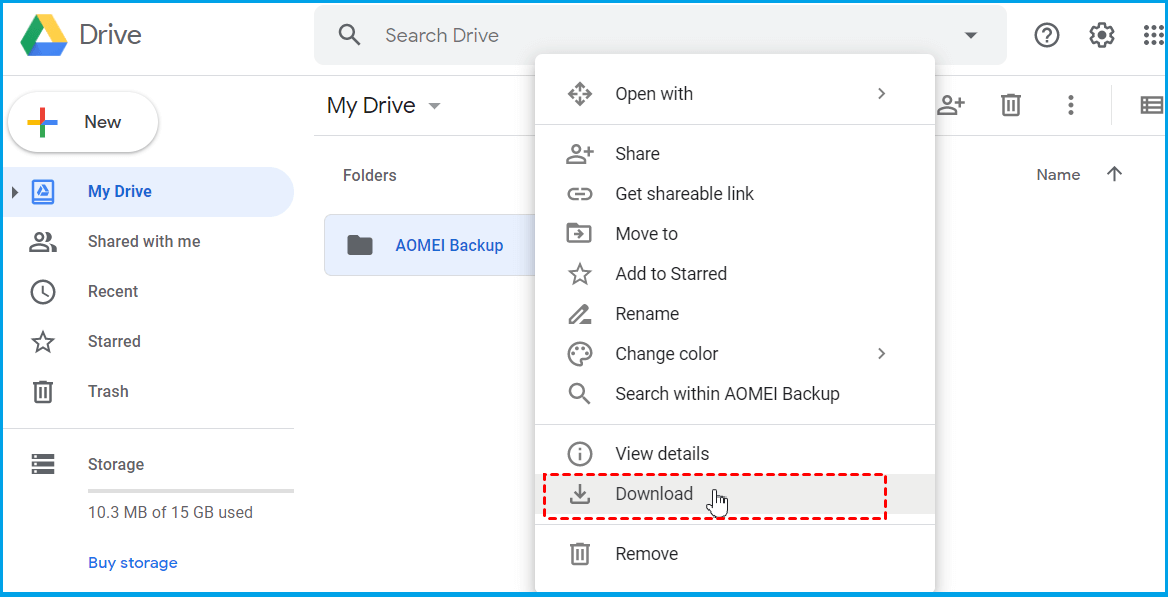
Note* Wait for the process to complete. Downloading speed depends on the data amount and internet speed.
Step 5: Once the process is over, open the Download folder on your PC, and extract all the files from the single zip file.
If you don't have the Dropbox app installed on your computer, copy and paste the file to the root folder in the C drive.
Step 6: Open the Dropbox website, and sign in to your account.
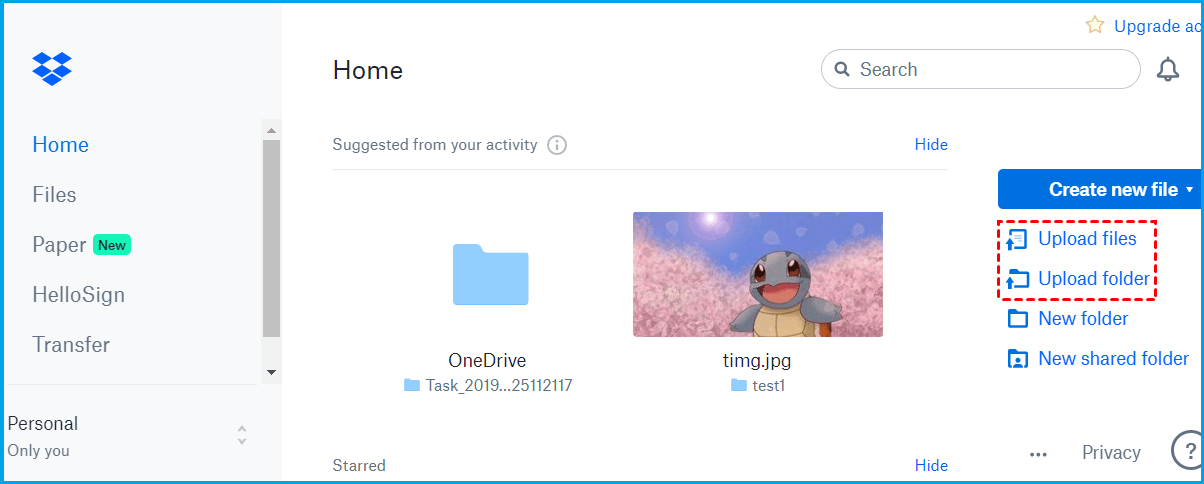
Step 7: To upload files or folders from your computer, navigate to the upper right corner and select the "Upload folder" or "Upload files" option.
Other Google Drive Transfer Options:
Here are more options to transfer files from Google Drive to Mega or move files from one Google Account to another.
Method 2: Move Files from Google Drive to Dropbox by Exporting All
The first method of transferring files is effective but may take some time, while the second method is a faster way to move files.
These detailed steps will help you proceed without any hassle.
Step 1: To access your Google account, go to the Google account page, or click on this link to open it directly.
Step 2: To begin, you need to log in to your Google account, but if you've already done so, you can skip this step.
Step 3: To access the "Manage your data & personalization" page, navigate to the Personal Data & Personalization option and click on it. This will take you to the page where you can manage your data and personalization settings.
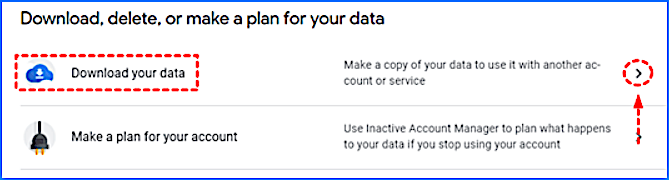
Step 4: To download your data, select the "Download your data" section, then click on the "> " symbol. This will initiate the download process, allowing you to access your data in a CSV file.
Note* Scroll down a bit to find this option.
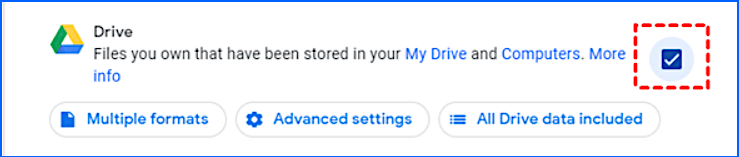
Step 5: To select all product data in Google Drive, choose Google Drive, and all product data will be selected by default. If you want to unselect everything, click on "Deselect all".
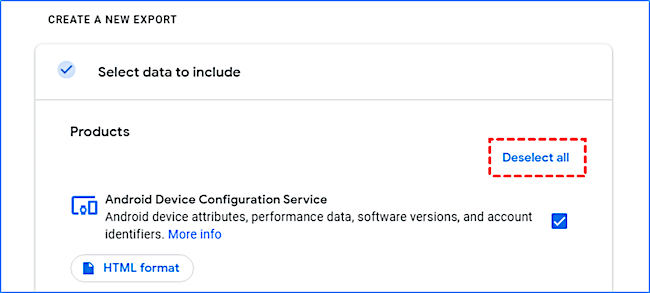
Step 6: To export data from Google Drive, click on the checkbox of the desired file or folder you want to export, which will select it, and then click on the "More" dropdown menu, followed by "Download" to initiate the export process.
Step 7: Click the "Next Step" option to follow the next interface.
Step 8: To select the data sharing method, click on "Add to Dropbox" and choose the file type and size.
Step 9: Once you've completed all the tasks, click "Create export" to transfer the data to Dropbox.
Note* The script will export all files to Dropbox in zip form, requiring users to unzip each folder individually.
Method 3: Move Files from Google Drive to Dropbox by Syncing
To sync Google Drive and Dropbox, first, download and install the Dropbox desktop app and the Google Drive desktop app on your computer. Then, create a new folder in your Dropbox account and name it something like "Google Drive Sync". Next, create a new folder in your Google Drive account and name it something like "Dropbox Sync".
Step 1: To sync Google Drive, go to the Chrome Web Store, type "Sync Google Drive" in the search bar, and install the Google Drive app.
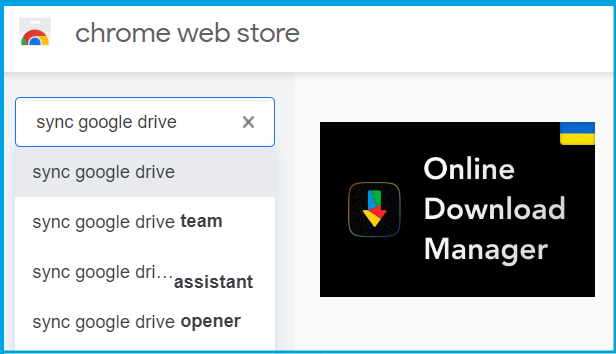
Step 2: Install any extension and, once installed, allow it to access your Google Drive and Dropbox accounts.
Step 3: Now, Select "Sync Two Cloud Accounts".
Step 4: To sync a file or folder from Google Drive, start by dragging the Google Drive icon into the first box, then select the desired file or folder from your Google Drive account.
Step 5: Drag the Dropbox icon into the second box and select the location where you want to sync your files.
Step 6: Click "Start Sync".
Note* All the synced files will be visible in your Dropbox account shortly.
Bonus Tip. Transfer Dropbox by Software
People save data on cloud drives like Dropbox and Google Drive, but these services often have limited storage space, prompting users to keep important files on their local Windows PC. If you want to transfer your Dropbox files to a PC, read on.
Transferring Dropbox data to a PC can be done in three ways: manual transfer, reinstallation, and using a data transfer tool. The latter is the most convenient method, allowing you to transfer Dropbox data to a PC without losing any files.
To transfer hundreds of files from Dropbox to your local drive without risking data loss or wasting time, we recommend using Qiling Disk Master.
This tool simplifies the process of delivering Dropbox's massive data, eliminating the need to follow confusing and tedious steps. It provides an affordable and quickest way to access and utilize the data, making it easy to use and manage.
Step 1. Connect two computers
To enable file syncing between two computers, ensure they're on the same local area network (LAN). Run Qiling Disk Master on both computers. On the source computer, access the "Backup and recovery" mode, and select "File sync" from the options.

Recognize the destination computer by its device name, then connect to it, input the account password or verification code of the target PC.

Step 2. Choose Dropbox to transfer
Now hover your mouse over the "Applications" category.

Locate the Dropbox, tick the box and click "Proceed".
Step 3. Start Dropbox transfer
Qiling Disk Master allows you to migrate your cloud drive application seamlessly from one computer to another, making the process hassle-free.
Conclusion
Transferring data from Google Drive to Dropbox can be done through three traditional methods, but the most efficient way is to use a tool like Qiling Disk Master, which can also be used to transfer files from Google Drive to Dropbox with ease, saving you time and effort.
Related Articles
- 3 Ways to Share/Transfer Files Between Two PCs in Windows 11/10
- Transferring Installed Programs from One Computer to Another Windows 11/10 - Here Is the Best Way
- [VLC Transfer]How to Transfer VLC Files to Android/iPhone/PC
- Fix 'Unable to Uninstall Program' in Windows Server 2012/2016/2019
- How to Back Up Files to pCloud on Windows 11/10/8/7🏆
Learn how to back up files to pCloud on Windows. Use pCloud backup or Qiling Disk Master to protect important files in cloud storage. - How to Back Up Files to QNAP NAS (Quick & Easy)👍
For many QNAP NAS users, backing up files to their NAS can be a daunting task. Fortunately, there are three simple methods to complete this task, which can be learned from this post to ensure your important files are safely stored on your QNAP NAS.
Products
Articles & Tutorials
- Data Recovery
- Data Backup
- File Recovery
- File Backup
- System Backup and Restore
- Disk and Partition Clone
- Technical articles
- Mobile articles
- Disk Master Help
- Windows Data Recovery Tutorials
- Windows Secure Delete Tutorials
- Windows Partition Management Tutorials
- Windows File Backup and Restore Tutorials
- Windows System Backup and Restore Tutorials
- Windows Disk Backup and Restore Tutorials
- Windows Clone Tutorials