How to Transfer Files from iCloud to Dropbox [Step-by-step Guide]
| Workable Solutions | Step-by-step Troubleshooting |
|---|---|
| Transfer Files from iCloud to Dropbox on iPhone | Step 1: Go to iCloud Drive. For that, you need to tap on the "Files" app. On the Browse tab, select "iCloud Drive" to...Full steps |
| Transfer Files from iCloud to Dropbox on Computer | 1. Move Files from iCloud to Dropbox on Windows PC...Full steps 2. Move Files from iCloud to Dropbox on Mac...Full steps |
| Bonus Tip: Transfer Dropbox between Windows PC | Step 1. Connect two computers. Ensure that the two computers are on the same LAN. You need to run Qiling Disk MaFull steps |
To ensure the safety of your essential files and documents, it's not enough to just store them on your computer's hard drive. You should also use a reliable cloud storage platform to prevent accidental data loss, making it easy and hassle-free.
Cloud storage solutions like iCloud and Dropbox offer distinct differences that make them suitable for various purposes. While both provide a means to store and access files from anywhere, they cater to different needs and preferences.
Dropbox, owned by Dropbox Incorporation, was developed by Arash Ferdowsi and Drew Houston. It offers 2 GB of free storage space, allowing users to share files via web applications, with the option to upgrade for a fee and sync files up to 10 GB in size.
Apple's iCloud offers 5 GB of free storage, allows file sharing via links, and provides additional storage at a lower cost than Dropbox, with a maximum file size of 50 GB, and does not use block-syncing.
People want to transfer files from iCloud to Dropbox for various reasons. The primary reason is availability, as Dropbox can be used by both Apple and Windows users, making it a more inclusive option. Additionally, Dropbox offers a wide range of features and a user-friendly interface, making it an attractive alternative to iCloud.
Dropbox is a better choice due to its collaboration features, Office integration, top-notch security, ample storage space, and optimal performance.
Transfer Files from iCloud to Dropbox on iPhone
To transfer files from iCloud to Dropbox on your iPhone, go to the Files app, tap "Locations" and select "iCloud Drive" to access your iCloud files. Then, tap on the file you want to transfer and select "Share" and choose "Save to Dropbox" from the list of options. You can also use the "Copy to Dropbox" feature to transfer multiple files at once. This way, you can easily transfer files between iCloud and Dropbox without needing to download and upload them manually.
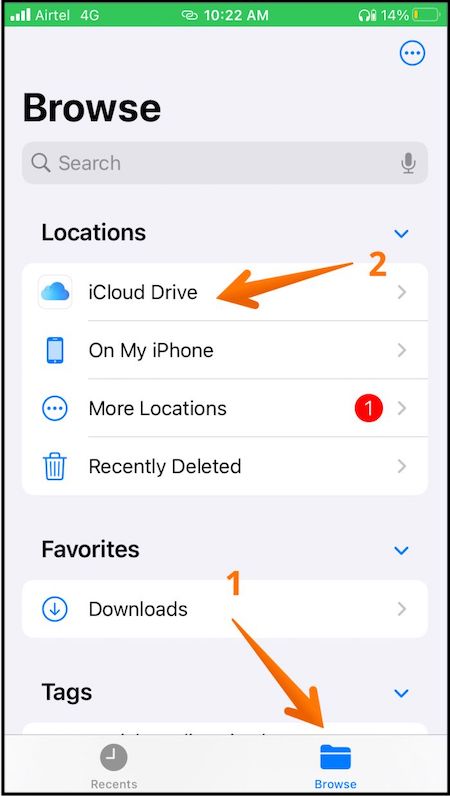
Step 1: To access iCloud Drive, open the "Files" app, then tap on the "Browse" tab and select "iCloud Drive".
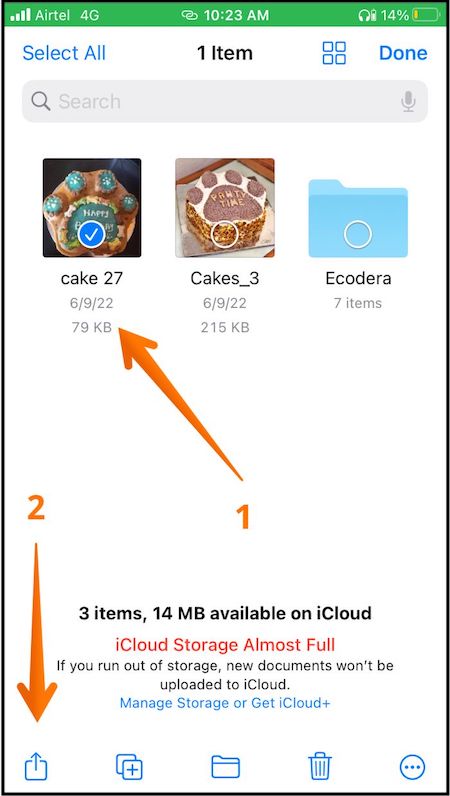
Step 2: To share a file or folder, select it and click the "Share" icon at the bottom left of the screen.
Step 3: To share a file from your iPhone, click the share icon, select Dropbox from the list of apps, and ensure the Dropbox app is installed on your device. Then, choose the desired folder to transfer the file to.
Step 4: To save a file, click on the "Save" option at the upper part of the screen, and the file will be saved in your Dropbox account.
Transfer Files from iCloud to Dropbox on Computer
1. Move Files from iCloud to Dropbox on Windows PC
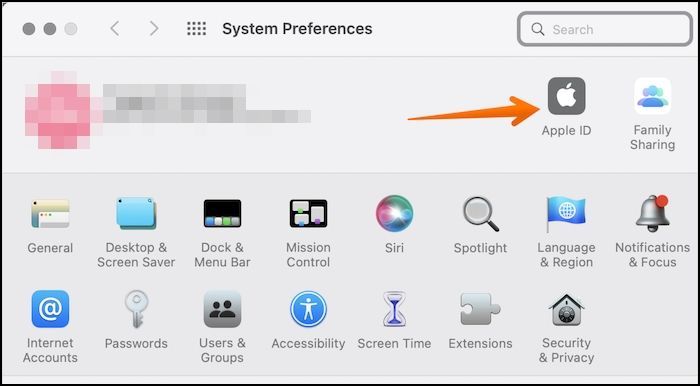
Step 1: Open System Preference on your Mac, then click on Apple ID.
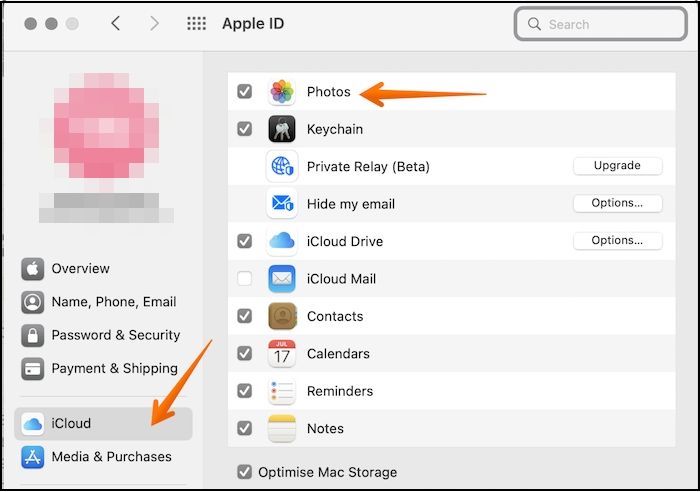
Step 2: To ensure iCloud Photos is enabled, select iCloud on the sidebar and make sure the Photos option is turned on.
Step 3: To transfer a file from iCloud to Dropbox, first download and install iCloud on your Windows PC. Then, select the file you want to transfer and go to the file on your iCloud. Next, find the sync folder of the iCloud file you want to transfer to Dropbox.
Step 4: To transfer files from iCloud to Dropbox on Windows, download the Dropbox desktop app, find the sync folder in Windows Explorer, and open the necessary folder in both iCloud and Dropbox simultaneously. Then, drag and drop the required file from iCloud to Dropbox, and the folder sync will automatically transfer the files.
2. Move Files from iCloud to Dropbox on Mac
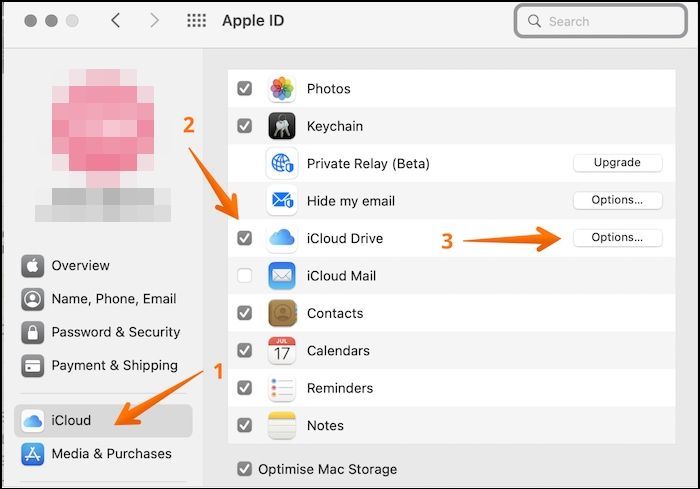
Step 1: To enable iCloud on a Mac, start by turning it on, then go to System Preferences and click on the Apple ID. From the sidebar, select the iCloud option and ensure the toggle is turned on. If it's not, click the toggle to turn it on and then click on the "Options" button in front of it.
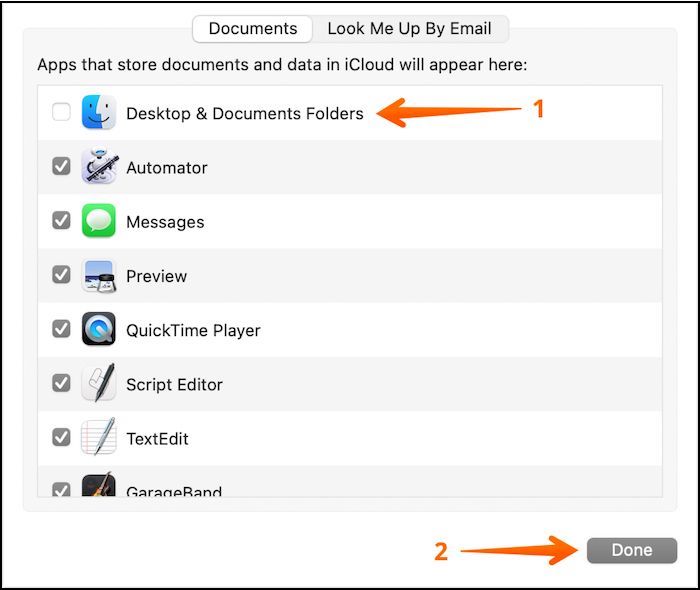
Step 2: Check if the Desktop and Documents tab is turned on. If not, make sure it is enabled.
Step 3: To move files to iCloud, go to File on your Mac, select Move to iCloud, and navigate to the local folder dedicated to iCloud.
Bonus Tip: Transfer Dropbox between Windows PCs
Another excellent method of transferring Dropbox between Windows PCs is the Qiling Disk Master, an excellent data migration software for Windows PCs that allows for automatic file migration with a single click, eliminating the risk of data loss.
You can safely transfer large files using the PC transfer migration software, which is compatible with popular applications like Word and Excel.
Using Qiling Disk Master for data migration is a straightforward process. Simply install the software on both computers, then follow a few simple steps, and the data transfer will be completed efficiently and hassle-free.
Step 1. Connect two computers
Ensure that the two computers are on the same LAN, run Qiling Disk Master on both computers, navigate to the "PC to PC" mode on the source computer, and click "PC to PC" to initiate the transfer.

Connect to the target PC by recognizing its device name, then input the account password or verification code of the target PC.

Step 2. Choose Dropbox to transfer
Now hover your mouse over the "Applications" category.

Locate the Dropbox, tick the box and click "Proceed".
Step 3. Start Dropbox transfer
Qiling Disk Master allows you to migrate cloud drive applications from one computer to another with ease, eliminating the hassle of manual setup and ensuring a seamless transition.
Qiling Disk Master also offers free professional technical assistance. If you have any issues, they will aid in resolving them immediately, allowing you to move installed programs to another drive without data loss.
Conclusion
It is easy and hassle-If you're looking to transfer files from iCloud to Dropbox, you can follow the steps outlined in the article to achieve this efficiently. The process involves a few straightforward steps to sync your iCloud and Dropbox accounts on your PC.
If you're looking to transfer Dropbox between two Windows PCs, you can use the Qiling Disk Master software, a data migration solution that facilitates quick and efficient transfers. This software is an impressive tool that makes it easy to migrate data between Windows PCs, allowing you to start the process right away.
Related Articles
- Qiling Disk Master vs. PCmover, Which File Transfer to Select
- How to Move Windows 11/10 Installed Apps to Another Hard Drive or Partition?
- A Step-by-Step Guide for Transferring Mozilla Firefox from Old PC to New PC
- How to Transfer Microsoft Teams to Another Computer [Full Guide]
- How to Create Disk Image Windows 10 for Free on Laptops & PCs
This article provides a step-by-step guide on how to create a disk image on Windows 10, using both the Qiling Disk Master software and the built-in Backup and Restore tool on Windows 11/10. - 2 Ways | How to Create System Image Windows 10 on External Hard Drive
Learn how to create a Windows 10 system image on an external hard drive with Backup and Restore or Qiling Disk Master.
Products
Articles & Tutorials
- Data Recovery
- Data Backup
- File Recovery
- File Backup
- System Backup and Restore
- Disk and Partition Clone
- Technical articles
- Mobile articles
- Disk Master Help
- Windows Data Recovery Tutorials
- Windows Secure Delete Tutorials
- Windows Partition Management Tutorials
- Windows File Backup and Restore Tutorials
- Windows System Backup and Restore Tutorials
- Windows Disk Backup and Restore Tutorials
- Windows Clone Tutorials