Transfer Files from Mega to OneDrive
Cloud storage is a necessity, and keeping files and data on it is safer than storing them locally. However, many people have a habit of transferring data from one cloud space to another, which is a common practice.
People often transfer data to cloud storage platforms for various reasons, including the need for more space, additional features offered by these services, and user-friendliness. Among the most popular cloud storage options are MEGA and OneDrive, which have gained widespread use due to their convenience and benefits.
Why Move Files from MEGA to OneDrive?
Users may want to transfer their large amount of data from MEGA to OneDrive for various reasons, despite both platforms being suitable for online file storage.
OneDrive is preferred due to its ability to upload files remotely from anywhere, a feature MEGA doesn't offer. Additionally, being a Microsoft product, OneDrive has a higher level of reliability, and unlike MEGA, it has no bandwidth limitations.
OneDrive is a reliable and secure platform for storing data, offering a safe haven for files that remain intact until deleted by the user, unlike MEGA which has been known to have issues with missing files. This reliability and security make OneDrive a popular choice for those seeking a trustworthy data storage solution.
OneDrive is a user-A user-friendly cloud space like OneDrive is highly sought after by users who want a seamless experience across all types of users. Many are also looking to switch from MEGA to OneDrive, as it offers the added benefit of being integrated with Microsoft Office products, making it an ideal choice for professionals who need these tools for their work.
How to Transfer Files from MEGA to OneDrive?
If a user already has files uploaded on MEGA and wants to transfer them to OneDrive, there are two possible methods: they can either use the MEGA client to download the files and then upload them to OneDrive, or they can use a third-party service that specializes in cloud storage transfers to move the files directly from MEGA to OneDrive.
It depends on the number of files and user preference, but you can transfer files from MEGA to OneDrive using either the MEGA to OneDrive file transfer tool or by manually uploading files to OneDrive.
1. Manual Way - Download and Upload
One method of transferring files from MEGA to OneDrive is a manual technique, which is time-consuming but simple. It's suitable for a limited number of files, but may be impractical for large amounts of data. However, for smaller file collections, this approach can be a viable option.
Here, you will find the steps to carry out the process of transferring files from MEGA to OneDrive manually.
Step 1. To transfer files from MEGA cloud storage, first log in to your account and download the files you wish to transfer using the download option. This will allow you to access your files on your PC.
Step 2. To download the required file, select the file to be transferred and choose the standard download option.
Step 3. The file will be downloaded on your PC in either a zip or simple format.
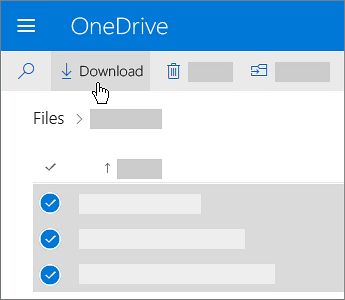
Step 4. Log in to your OneDrive account through the website, and then browse and select the desired location to upload your file.
Step 5. To upload a file, first determine the desired location for the file, then click the "upload" button and select the file from your computer that you want to transfer.
2. Faster Way - Run A Third-party Software
The process of downloading and uploading files from MEGA can be slow and time-consuming, but there are alternative options available. You can use third-party software to automate the file transfer process, making it quicker and more efficient. This can be a convenient solution for large files or for those who need to transfer files frequently.
OneDrive in a faster way.
Choosing the right software can resolve the common question people have in their minds about how to transfer files from one MEGA account to another.
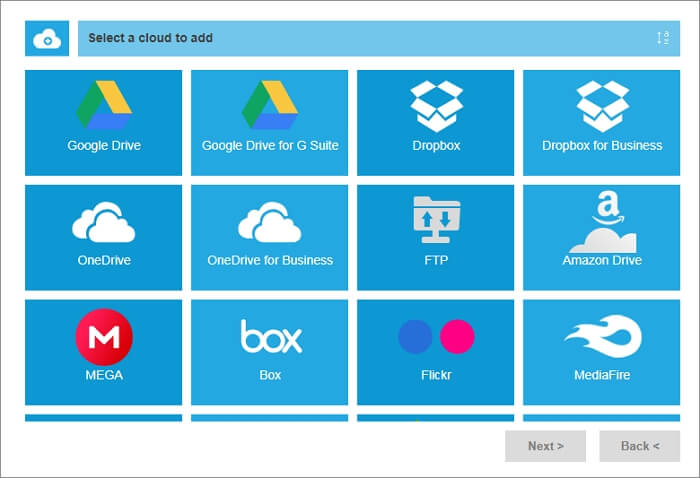
MultCloud is a software that can simplify and speed up file transfers using the following steps.
Step 1. To start, you'll need a MultCloud account. If you already have one, simply log in. If not, creating a new account is a straightforward process.
Step 2. To add MEGA to your MultCloud account, log in to your MultCloud account, then click the "add cloud" option at the top left corner, and add MEGA to your account.
Step 3. To add your MEGA account in MultCloud, you will need to enter your MEGA account credentials, which will then make your MEGA account visible in MultCloud.
Step 4. To add your OneDrive account to MultCloud, go back to the second step and enter your OneDrive credentials, making both accounts visible under MultCloud.
Step 5. Now, go to the Cloud Transfer Tab, choose the first box, add MEGA, click the second box, and add OneDrive into it.
Step 6. A window will appear where you can choose to exclude any files you don't want to transfer, and then click "transfer now" to proceed.
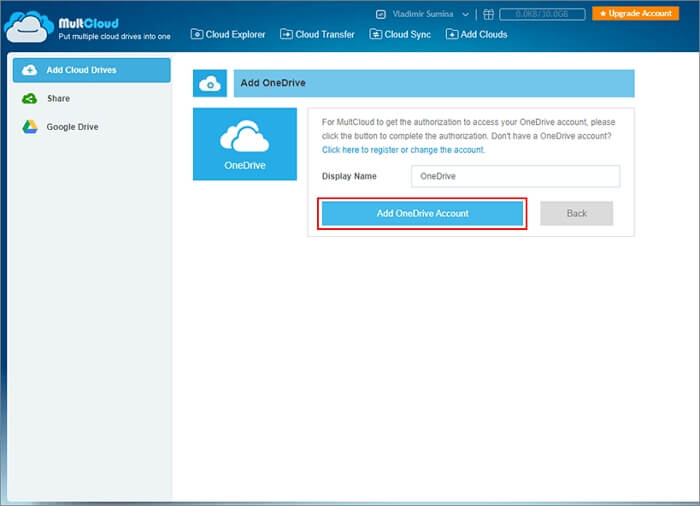
Files from MEGA will be transferred to OneDrive automatically, and your OneDrive will be backed up with all the files in no time.
Conclusion
Cloud services are crucial for keeping your data safe and accessible from anywhere in the world. However, choosing the right one can be a personal decision. If you need to switch cloud storage and transfer files from one to another, MultCloud is a convenient option to consider.
You May Like: Transfer Files between PCs without Cloud Service
If you've switched to a new PC and want to transfer data from your previous one, Qiling Disk Master is a great option. This software allows you to transfer all your files with just a single click, making the process quick and easy.
To transfer your files from an old PC to a new one, you can easily follow these steps.
Step 1. Launch Qiling Disk Master on both old and new computers. Click the "File sync" on the main screen to proceed.

Step 2. Connect two PCs on the same Local Area Network (LAN) by entering the password or verification code of the target PC. Choose the transmission direction and click "Connect" to proceed.
The verification code is located on the right side of the "File sync" main screen on the target computer. To proceed, turn on the button behind "Connection Verification".

Step 3. To move individual files, go to the Files section, select the specific files you want to move, and then proceed with the move process.

Step 4. To migrate data, click "Proceed" after selecting the files, and wait for the process to complete, which takes time based on the file size.
Related Articles
- How to Transfer Dropbox to New Windows 11
- Transfer QuickBooks to New PC with 100% Working Methods
- 7 Best Windows Easy Transfer Alternative Free Download [2022 Best Review: Free & Paid]
- How to Share Files with Dropbox [Step-by-Step Guide]
- How to Back Up An External Hard Drive to Another External Hard Drive in Windows 10 [Methods Provided]
Want to know how to back up an external hard drive to another external hard drive in Windows 10? We have a complete guide to help you copy your data from one drive to another easily. - Backup and Restore Not Working Windows 7? 3 Solutions and Best Alternatives
Backup and Restore not working on Windows 7? Learn common causes like corrupted system files and antivirus conflicts, and discover 3 fixes plus reliable alternatives like Qiling Backup to protect your data.
Products
Articles & Tutorials
- Data Recovery
- Data Backup
- File Recovery
- File Backup
- System Backup and Restore
- Disk and Partition Clone
- Technical articles
- Mobile articles
- Disk Master Help
- Windows Data Recovery Tutorials
- Windows Secure Delete Tutorials
- Windows Partition Management Tutorials
- Windows File Backup and Restore Tutorials
- Windows System Backup and Restore Tutorials
- Windows Disk Backup and Restore Tutorials
- Windows Clone Tutorials