Windows 7 Portable Download: How to Create Windows 7 Portable USB Drive
What is Portable USB For Windows 7?
Microsoft allows users to create a portable Windows on external storage devices, enabling a portable Windows experience. This feature is particularly useful for users who want to try out different Windows versions, such as Windows 7, on any device. Creating a portable Windows 7 USB drive offers several benefits, including the ability to quickly install Windows 7 on a new system in case of system failures, and the ability to try out Windows 7 features alongside newer versions like Windows 11 or 10. This feature provides a convenient and flexible way to experience different Windows versions without affecting the primary system.
Creating a portable version of your original OS can help eliminate stressful situations and keep important data safe. To create a bootable Windows 7 drive, you can use system transfer to install the OS on a new device, which only uses the original system. Alternatively, you can follow a step-by-step guide to create a portable Windows 7 download on a USB drive, allowing you to switch operating systems and files with ease. This process can be especially useful when purchasing a new computer system and wanting to transfer your existing files and OS to the new device.
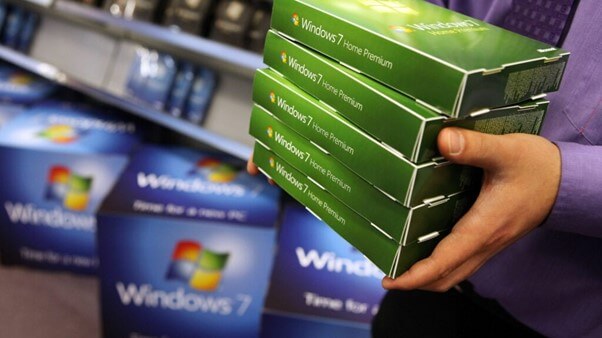
Download The Best Windows 7 Portable USB Software
Qiling OS2Go is a software that allows users to create a portable Windows 7 USB drive, replicating their system onto the drive and including all content in the partition system. This software stands out for its ability to create portable Windows regardless of the edition, making it easy to create a Windows 7 portable USB. The process is straightforward, and the software is compatible with all Windows versions. With Qiling OS2Go, users can create a portable Windows 7 USB for their MacBook, making it a convenient option for those who need to access Windows on a Mac. Additionally, the software offers an affordable way to create a portable Windows 7 hard drive.
How to Create a Windows 7 Portable USB Drive
To create a Windows 7 portable USB using Qiling OS2Go, you'll need a clean and fully formatted USB drive, a functional computer with Qiling OS2Go installed, and to follow the software's on-screen steps. It's essential to use a fresh and reliable USB drive, as a corrupted one may not be visible in the software. Once you've downloaded and run the software, you can easily create a portable Windows 7 USB drive, which can also be used for future OS migrations. The seamless integration offered by Qiling OS2Go on external USB devices is a notable feature of the software.
Step 1. To install Qiling OS2Go, plug in a USB drive that is larger than your system drive's used space, then run the installer. The program will display the used space on your system drive. Choose the target USB drive and click Next to continue with the installation process.
Step 2. Qiling OS2Go will notify you that the following operation would delete all data on your drive, prompting you to ensure you have backed up all important data before proceeding with the deletion.
Step 3. To adjust the disk layout, the default setup will mirror the resource drive's configuration on the target drive. However, you have the option to customize the layout as needed. If the target drive is a Solid State Drive (SSD) and will serve as the Windows boot drive, select the corresponding option. Once you've made your selection, click the "Proceed" button.
Step 4. Qiling OS2Go will start to create the portable USB drive, a process that may take a while depending on your OS and network condition. Once the progress reaches 100%, the USB drive should be bootable.
Step 5. To install Windows, insert the portable Windows USB into your computer and restart it. Press the key required to access the BIOS (usually F2, DEL, or F10), then select the USB drive as the boot device to proceed with the installation.
Note: To ensure a smooth booting process, it's crucial that the boot mode of the portable USB drive and the target computer match. If they don't align, you may encounter issues with booting.
If you encounter any issues while following the steps, you can always reach out to the technical team of Qiling for assistance, making it easy to create a Windows 7 portable USB.
Conclusion
Windows 7 remains a popular operating system despite being outdated, with users worldwide still preferring it over newer versions. To create a portable Windows 7 USB download, you can use various methods, but using third-party software like Qiling OS2Go is recommended for its efficiency and user-friendly interface. With Qiling OS2Go, you can easily follow a few simple steps to create a Windows 7 portable USB, making it a convenient option for those who want to use this retro operating system.
Qiling OS2Go supports all USB devices from various companies, making it compatible with Windows to Go's certified USB drive requirement. With over 530 million customers worldwide, Qiling OS2Go offers free tech support and 15+ years of industry experience. However, creating a Windows 7 portable download on a USB drive can take time, and uncertain cases or defaults may require restarting the computer and following the steps again to successfully create the portable Windows 7 OS on USB.
Related Articles
- How to Create a Windows To Go USB Stick?
- Fix WintoUSB Stuck at 0% and Install Windows with An Easy Tool
- Windows Installation | How to Install Windows on Chromebook
- For Mac Game Lover - How to Play Fortnite on Mac 2021
- How to Transfer Spotify Playlist|Change Spotify Install Location - Qiling
This article will outlines the best practice for how to transfer songs from one spotify account to another. You will get the spotify installer - Qiling Disk Master to do the spotify playlist transfer, and catch other manual way to change spotify install location. - How to Sync Desktop to OneDrive Automatically
Uploading and syncing desktop files and folders to the cloud with OneDrive allows for seamless collaboration and eliminates space and time constraints, as both computers can work on the same files simultaneously.
Products
Articles & Tutorials
- Data Recovery
- Data Backup
- File Recovery
- File Backup
- System Backup and Restore
- Disk and Partition Clone
- Technical articles
- Mobile articles
- Disk Master Help
- Windows Data Recovery Tutorials
- Windows Secure Delete Tutorials
- Windows Partition Management Tutorials
- Windows File Backup and Restore Tutorials
- Windows System Backup and Restore Tutorials
- Windows Disk Backup and Restore Tutorials
- Windows Clone Tutorials