Windows Backup Error 0x81000014: Shadow Copy Association Invalid
Quick Navigation:
- What the Association Means
- What Breaks the Link
- Reset the Shadow Storage
- Run an Image Backup on Its Own
- Frequently Asked Questions
A system image refuses to start and the only message is 0x81000014, described as an invalid shadow copy storage association. The wording points at the volume shadow copy service, but the fault is narrower than that suggests. Windows keeps a record of which volume owns which shadow storage area, and that record no longer matches the disks it refers to. Until the pair is rebuilt, every job that asks for a snapshot is rejected before the first file is opened.
What the Association Means
A shadow copy is written into a diff area, a reserved region on some volume. That region is bound to the volume it protects, and the binding is stored as an association. When the backup service asks for a snapshot of C:, it looks up the association for C: and reads the volume that holds its diff area. An association that points at a volume which no longer exists, or at a region that was deleted, fails this lookup.
The failure is not a lack of space, which is the separate error 0x80780119, and it is not a writer that refuses to cooperate, which surfaces as 0x8004230F. Here the storage itself cannot be resolved. Nothing is copied, the job ends immediately, and the destination disk sees no writes at all.
Because the check happens first, the source data is unaffected. That also means the error will repeat identically until the association is rebuilt, no matter how many times the backup is restarted or how much free space is added.
What Breaks the Link
The most common cause is a change to the disk layout after the association was created. Moving a drive letter, resizing or moving a partition, converting a disk between MBR and GPT, or restoring one partition from an image all change the identifier that the association stores. The old identifier survives in the configuration, and the new one has no shadow storage bound to it.
A second cause is a cleanup that removed the diff area. Deleting a volume that held shadow copies, or reclaiming its space from Disk Management, leaves the association pointing into empty space. StorageSense and some third-party cleaners can remove shadow copies as well, which is why the problem often appears days after a cleanup rather than straight after a layout change.
A third cause is competition. Two volumes may carry shadow storage entries that name the same area, for instance after a disk was cloned and both the source and the copy were connected at once. Windows then cannot decide which entry is authoritative, and the lookup fails.
Reset the Shadow Storage
Begin by listing what exists. vssadmin list shadowstorage prints every association with its used, allocated, and maximum size. vssadmin list shadows shows the snapshots themselves. vssadmin is a Microsoft tool that ships with Windows, used here only to view and rebuild the association; it is not part of Qiling Disk Master and it does not take a backup.
If an association names a volume that is gone, remove it with vssadmin delete shadowstorage /for=C: /on=D: using the letters the listing reported, then create a clean one with vssadmin add shadowstorage /for=C: /on=C: /maxsize=10%. Keeping the diff area on the same volume is the simplest arrangement and avoids the problem recurring when other disks are added or removed.
Reboot before you test. The volume shadow copy service caches the association at start-up, and a job launched in the same session can still read the old value. After the restart, run vssadmin list shadowstorage once more to confirm the new entry appears, then start the backup again. If a snapshot is created but never completes, the storage area is too small rather than invalid, and that is a different fix.
Run an Image Backup on Its Own
The association can fail again after the next partition change, and each failure costs another round of diagnosis. Qiling Disk Master writes its own image from the live disk layout, so a stale association in the Windows configuration has no bearing on the job. It is the practical option when the snapshot layer has become unreliable.
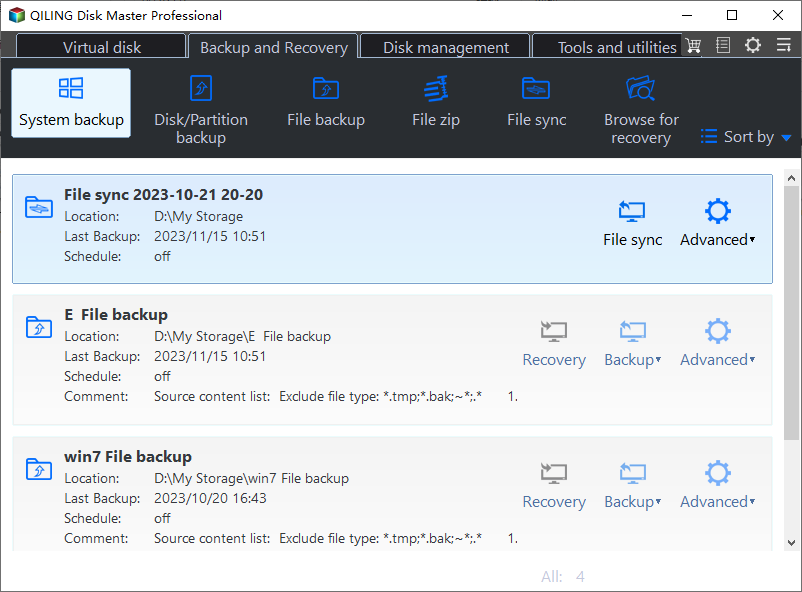
Step 1. Open System Backup from the Backup tab. Launch Qiling Disk Master, open Backup and Recovery, and click System Backup. That entry starts a job dedicated to the Windows environment, so no source path has to be typed and no old plan is inherited.
Step 2. Confirm the source that the program selected for you. System Backup ticks the Windows volume together with its boot and recovery partitions, and lists them on the disk map with a letter, a size in GB, and a file system. Compare those values with your own disk, and untick anything you do not want inside the image.

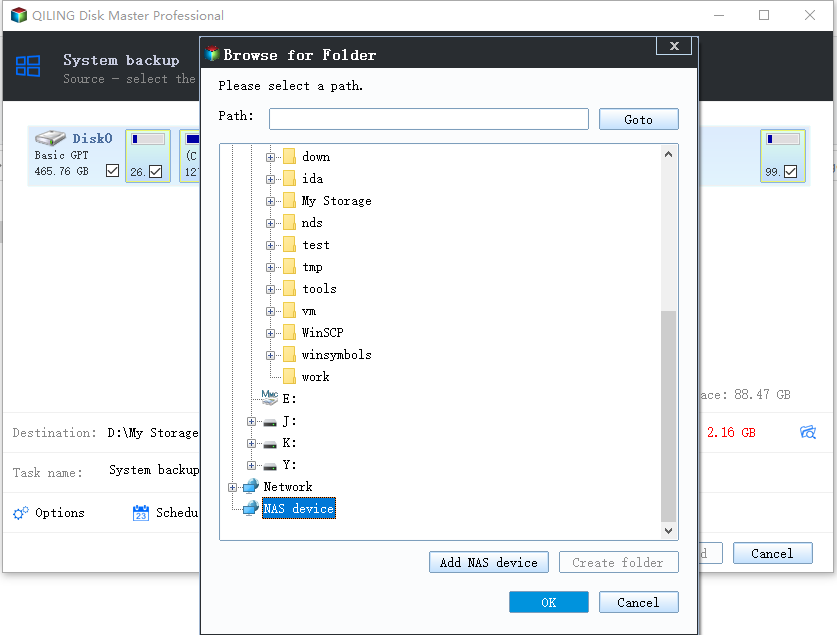
Step 3. Select a destination outside the source disk. A second internal disk is fastest, and an external drive on a stable port works when it keeps the same letter between sessions. Check the free space against the used size of the system volume before you confirm.
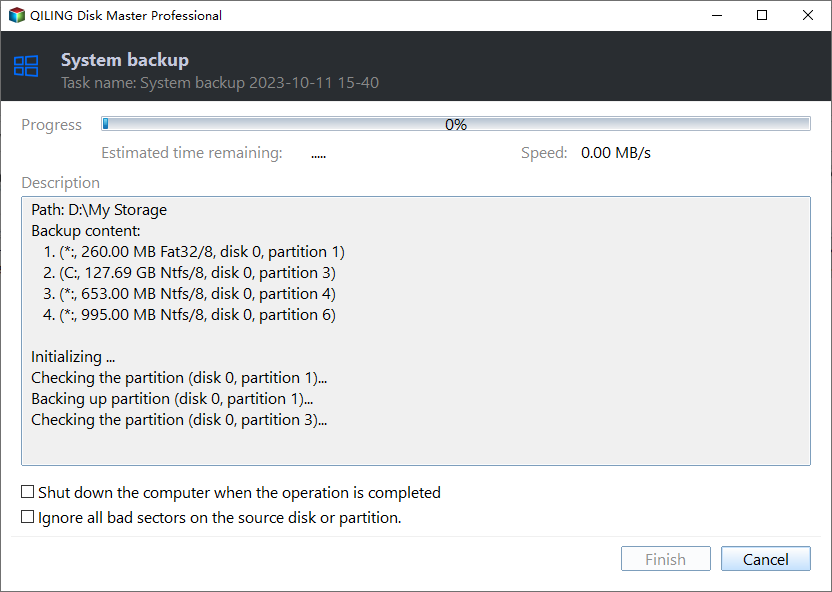
Step 4. Review the plan and click Proceed to create the image. The summary lists the source, the destination, and the image name. Start the job, leave the machine powered on until the completion window appears, and then verify the image on the destination.
Boot the rescue medium once and confirm that the image is listed. That check proves the restore path works, which is the part a successful backup log never shows.
Frequently Asked Questions
Does resetting the shadow storage delete my restore points?
Removing an association removes the shadow copies stored in that diff area, so older restore points on that volume are lost. Current files are not touched. If a restore point matters, export the data you need first, or keep the existing association and add a new one on a different volume.
Why does 0x81000014 return after I resize a partition?
Resizing changes the volume identifier that the association stores, so the recorded binding no longer resolves. Rebuilding the association after every layout change is the manual answer; an image tool that reads the live layout avoids the step entirely.
Can I ignore the error and copy files instead?
A file copy works for documents, but it cannot reproduce a bootable system and it may skip files that are open. When the goal is a full system image, fix the association or use a tool that images the disk directly, and keep the file copy as a supplement rather than a replacement.
Related Articles
- Windows Backup Error 0x81000019: Shadow Copy Failed
- Backup Error 0x80780119: Shadow Copy Storage Area Too Small
- VSS 0x80042324: Shadow Copy Not Supported on Volume
- VSS Writer Error: SQL Server Blocks the Backup
- System Restore Error 0x81000101: Cannot Create Restore Point
Products
Articles & Tutorials
- Data Recovery
- Data Backup
- File Recovery
- File Backup
- System Backup and Restore
- Disk and Partition Clone
- Technical articles
- Mobile articles
- Disk Master Help
- Windows Data Recovery Tutorials
- Windows Secure Delete Tutorials
- Windows Partition Management Tutorials
- Windows File Backup and Restore Tutorials
- Windows System Backup and Restore Tutorials
- Windows Disk Backup and Restore Tutorials
- Windows Clone Tutorials