Windows Backup Error 0x8100002F: Backup Failed While Copying
Quick Navigation:
- Where the Job Actually Stops
- Find the First File That Failed
- Test the Source Disk Read-Only
- Image the Disk and Skip the Damage
- Frequently Asked Questions
Error 0x8100002F appears with the message that Windows Backup failed while the backup was in progress, and this time it is accurate. The snapshot was created and the job really did start reading files. It stopped when one of them could not be copied. That difference matters, because it moves the investigation from the backup schedule to the source disk and to the individual files sitting on it.
Where the Job Actually Stops
A backup runs in two stages. The first creates a volume shadow copy, a frozen view of the disk at one instant. The second reads that view and writes the data to the destination. Errors raised in the first stage mention VSS, shadow storage, or the snapshot itself. 0x8100002F belongs to the second stage: the copy was running and one file or one sector could not be read.
Three conditions produce it most often. A sector that the drive cannot return reliably, which the controller reports as a read error after several retries. A file held open with an exclusive lock that the shadow copy could not bypass, typically a database or a virtual machine disk. A file whose permissions deny access to the account running the backup, which is common on folders inherited from another installation.
The progress bar often reveals the stage. A job that fails within seconds never reached the files. A job that fails at a percentage between a few and ninety percent was reading data, and the object it could not read is recorded in the log even when the dialog shows only the code.
Find the First File That Failed
Open Event Viewer, expand Applications and Services Logs, then Microsoft, Windows, and Backup, and read the newest error. The entry usually names the path or the volume where the copy stopped. Look for the first failure, not the last, because a job that gives up produces a chain of follow-on messages.
If a path is named, open it in File Explorer. A folder that takes a long time to list, or a file that cannot be opened at all, points at a failing sector rather than a permission problem. A file that opens normally but sits inside an application that is still running points at a lock, and closing the application is usually enough.
If no path is named, the failure is likely at the device level. In that case the read error came from the disk itself, and the next step is to test the disk rather than to retry the backup. Retrying a job that reads the same failing sector produces the same code and adds wear to a drive that may already be dying.
Test the Source Disk Read-Only
Run a surface scan before anything else. A read-only pass reports which sectors cannot be read without changing a single byte, so it is safe to run on a disk that holds the only copy of your data. The scan takes time on a large mechanical drive, and the time is well spent: it tells you whether one small area or a wide region is affected.
The command chkdsk E: /r performs a surface check, and chkdsk E: /scan runs an online scan on a mounted volume. chkdsk is a Microsoft tool supplied with Windows, used here only to report the condition of the disk; it is not part of Qiling Disk Master, and it does not create a backup.
If the scan reports unreadable sectors, stop writing to the drive. Copy the files you can still open to another disk, starting with the ones that matter most, and do not run a repair that writes to the failing area until those copies exist. A repair can complete the loss of data that the bad sector began.
Image the Disk and Skip the Damage
When a file-based copy keeps stopping on the same sector, switch to a disk-level image. Qiling Disk Master reads the disk in large blocks, records unreadable areas instead of aborting on them, and keeps the rest of the data intact. The image can then be mounted or restored, and the damaged region can be repaired on the copy while the original disk stays untouched.
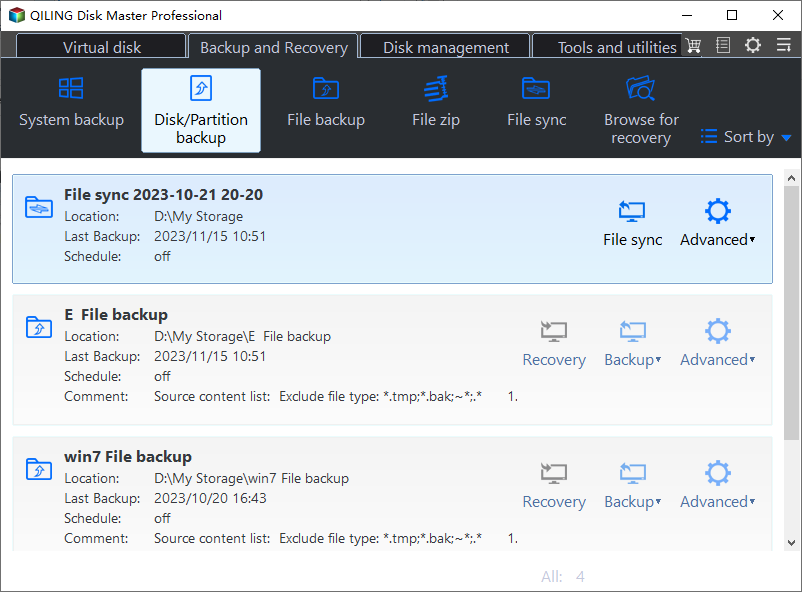
Step 1. Open Disk Backup from the Backup and Recovery tab. Launch Qiling Disk Master and switch to Backup and Recovery, where the backup types are listed as icons. Disk/Partition backup is the one that reads a whole disk block by block, which is what a failing surface needs.
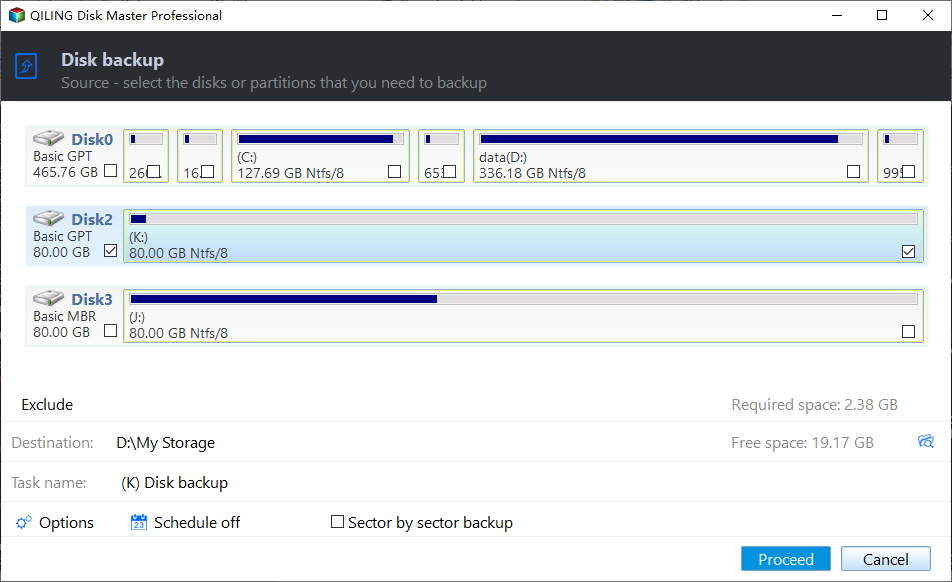
Step 2. Tick the disk that holds the failing files. Every attached disk is drawn with its number, capacity, style, and partitions, and each row has its own checkbox. Select the disk with the read errors, and check the number and capacity against the label on the drive, especially when several disks of the same size are attached.
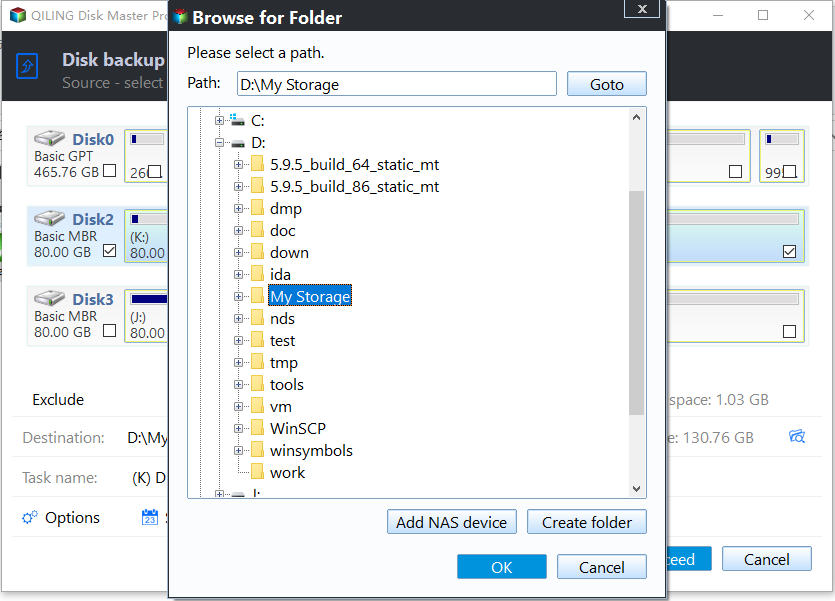
Step 3. Select a destination disk with enough free space. Never write the image back to the disk being read, and avoid a USB enclosure that has shown disconnects. Leave room for compression differences, because an image of a full disk can approach its used size.
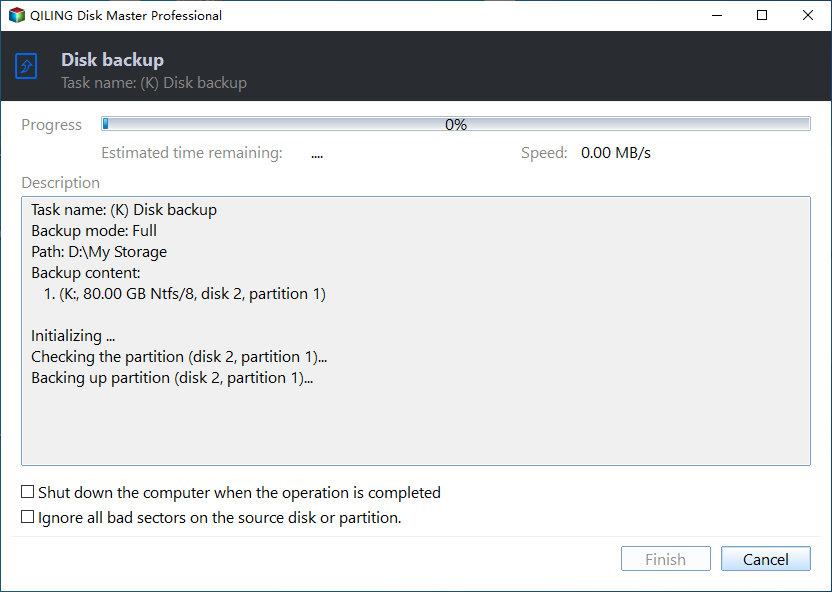
Step 4. Click Proceed and let the job run to the end. If a warning reports unreadable sectors, note their location and allow the job to continue rather than canceling it. Canceling leaves no usable image, while completing preserves every readable block on the disk.
Mount the finished image and open the folders you needed. If a file inside a damaged region is unreadable, the rest of the image still restores normally, which is precisely the outcome a file-based backup could not deliver.
Frequently Asked Questions
Does 0x8100002F damage the source disk?
No. The backup only reads from the source, and a read error is reported rather than caused by the job. Repeated attempts to read a failing sector can stress a weak drive, which is why one read-only scan and one block-level image are better than several retries of the same file copy.
Can a single locked file cause the whole backup to fail?
Yes, when the file cannot be included in the snapshot. Databases, mail stores, and virtual machine disks that are actively written often need their own quiescing step. Closing the application, or excluding its folder and backing it up with a method designed for that application, resolves the conflict.
Will a sector-level image copy the bad sectors as well?
It records them as unreadable placeholders so the file system stays consistent, and it copies every block that can still be read. After restoring that image to a healthy disk, run a file system check on the copy and recover the files that lived entirely outside the damaged area.
Related Articles
- VSS Writer Timed Out: Fix Backup Error 0x8004230F
- Backup Error 0x80070020: The File Is in Use
- Backup Error 0x80780119: Shadow Copy Storage Area Too Small
- How to Clone an SSD with Bad Sectors
- Backup Error 0x800705AA: Insufficient System Resources
Products
Articles & Tutorials
- Data Recovery
- Data Backup
- File Recovery
- File Backup
- System Backup and Restore
- Disk and Partition Clone
- Technical articles
- Mobile articles
- Disk Master Help
- Windows Data Recovery Tutorials
- Windows Secure Delete Tutorials
- Windows Partition Management Tutorials
- Windows File Backup and Restore Tutorials
- Windows System Backup and Restore Tutorials
- Windows Disk Backup and Restore Tutorials
- Windows Clone Tutorials