How to Find Hidden Files on iPhone X/8/7/6/5
Summary
If you need to view, find, and restore hidden files on your iPhone, there are some simple ways to do so. You can follow the steps on this page to locate and recover hidden contacts, photos and videos, messages, apps, and even deleted data.
You may need to hide your iPhone data in various situations, such as concealing photos and videos from others, limiting access to game apps for kids, or keeping messages private. Apple makes it easy to hide and unhide certain data like Photos, Contacts, Messages, Apps, and locations. However, what about data that has been completely removed from your device?
If your hidden files are still on your device, they can be recovered using various methods. Even if they've been deleted, they can still be found and restored using the right techniques. Don't worry, your hidden files are not completely gone and can be recovered using the methods outlined below.
| Workable Solutions | Step-by-step Troubleshooting |
|---|---|
| 1. Find and Restore Hidden Files from iPhone | Connect your iPhone to your computer and launch Qiling MobiSaver > Click "Recover from iOS Device,"...Full steps |
| 2. Unhide Photos and Albums from iPhone | Open the Photos app on your iPhone, and tap the "Albums" tab > Scroll down and tap "Hidden,"...Full steps |
| 3. Find Hidden Contacts on iPhone | Open your Contacts app > Tap "Contacts" at the bottom of > Tap "Groups" at the top-left corner...Full steps |
| 4. Show Hidden Messages on iPhone | Open your iPhone and go to Settings > Scroll down to find Notifications and tap it...Full steps |
| 5. Unhide Apps on iPhone | Open the App Store on your iPhone > Tap your photo at the top of the screen > Tap your...Full steps |
Part 1. How to Find and Restore Hidden Files from iPhone
You can't delete anything from your iPhone without it still existing somewhere on the device. To recover deleted items, you can use professional iPhone data recovery tools like Qiling MobiSaver, which can scan your device, find deleted items, and retrieve them for you. Currently, Qiling MobiSaver supports over 20 types of iOS data, including contacts, messages, photos, videos, Safari bookmarks, notes, voice memos, and WhatsApp chat history.
To find and restore hidden files from iPhone:
Step 1. Connect iPhone to Your PC
Launch Qiling MobiSaver, click "Recover from iOS device" and then click "Start".
Step 2.Scan for Lost iPhone Data
Qiling MobiSaver automatically scans your iPhone, iPad, or iPod and finds both present and lost data, allowing you to recover what's been lost. Just wait for the scan to complete.
Step 3.Click the "Recover" Button
You can select the specific data you want to recover, such as photos, videos, contacts, SMS, notes, voice mails, or other files, and save them to a new location.
Tips: If you've backed up your device to iCloud or iTunes, you can recover data from these backups. However, neither iCloud nor iTunes allows you to preview files before restoring, so it's essential to ensure that the backup contains the deleted files to avoid replacing your current data with the backup contents.
Part 2. How toUnhide Photos and Albums from iPhone
To find and unhide photos and albums on an iPhone, simply navigate to the Photos app, tap on "Albums" at the bottom, and then tap on the "Hidden" album. From there, you can view and unhide any previously hidden photos or albums. Alternatively, you can also search for the hidden item using the search bar at the top of the screen.
To find and unhide photos and videos on iPhone:
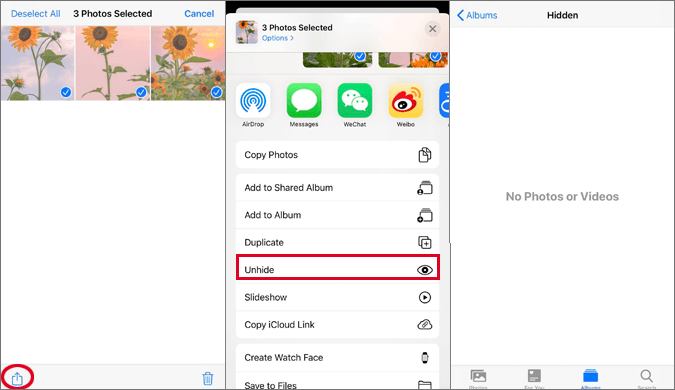
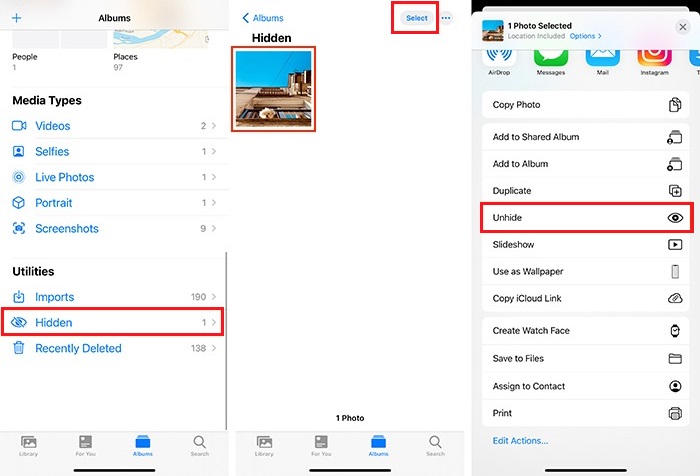
Step 1. To open the Photos app on your iPhone, tap the Photos icon, which resembles a multicolored flower. Then, tap the "Albums" tab at the bottom of the screen.
Step 2.Scroll down and tap "Hidden," which is under "Utilities."
Step 3. Choose photos and videos you wish to unhide.
Step 4.To unhide a post, tap the Share button (a square with an arrow pointing up) and then tap Unhide.
To find and unhide albums:
Step 1. To find hidden albums, tap the "Albums" tab and scroll down to find the Hidden album under Utilities.
Step 2. To unhide albums, go to Settings, tap Photos, scroll down and toggle off Hidden Album.
Part 3. How to Find Hidden Contacts on iPhone
You can find and unhide your contacts in two ways: via the Contacts app or via the Settings. To do so via the Contacts app, follow the steps, and to do so via the Settings, follow the steps. Whichever way you choose, here are the detailed steps.
To unhide contacts on iPhone via the Contacts app:
Step 1. Open your Contacts app.
Step 2. Tap "Contacts" at the bottom of the screen.
Step 3. Tap "Groups" at the top-left corner.
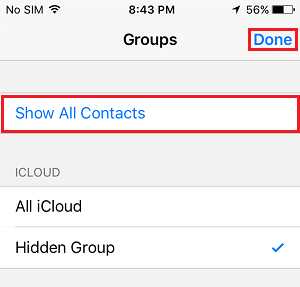
Step 4. Tap "Show All Contacts."
To unhide contacts on iPhone via the Settings:
Step 1. Go to your Settings > Contacts > Groups.
Step 2. From the Group page, choose "Show All Contacts."
Part 4. How to Show Hidden Messages on iPhone
Hiding messages is a good way to protect your private persona information from leakage. If you need to make your messages visible to yourself, you can follow these steps.
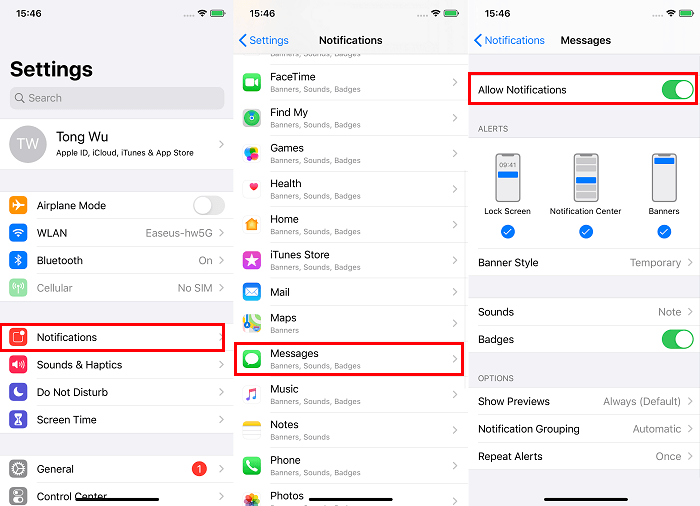
Step 1. To access notifications on your iPhone, open the Settings app, scroll down, and tap on "Notifications".
Step 2.Scroll down to find Messages and tap it.
Step 3.To allow notifications, go to Settings, then Notifications, and toggle the switch to the right to enable it. This way, you can receive notifications and preview messages on the iPhone screen.
Step 4. You can also choose to unhide alters from specific areas, such as the Lock Screen, Notification Center, Banners, or select all to show text conversations.
Part 5. How to Unhide Apps on iPhone
According to Apple, while you can't unhide an app on your iPhone, iPad, or iPod touch, you can redownload the purchased app without paying again.
Step 1. Open the App Store on your iPhone.
Step 2. Tap your photoat the top of the screen.
Step 3. To access the App Store, tap your name or Apple ID at the top of the screen, and if prompted, enter your Apple ID password to authenticate.
Step 4. Scroll down and tap "Hidden Purchases."
Step 5. To redownload an app on your iPhone, find the app you want to reinstall and tap the cloud icon next to it. This will start the download process, and the app will be reinstalled on your device.
The Bottom Line
If you've accidentally hidden data on your iPhone, don't worry! Depending on what you've hidden, you can use different methods to unhide it. If you've deleted important files, you can use a recovery tool like Qiling MobiSaver to get them back. Our guide should help you with the process, and we hope you have a nice day!
Related Articles
- The Best WhatsApp Recovery Software for iPhone & Android
- How to Fix Emails Disappeared from iPhone Error with 4 Solutions
- Where Do Deleted Text Messages Go on iPhone [Text Message Recovery Tips]
- Where Do AirDrop Files (Including Photos) Go on iPhone/Mac [Solved]
- NTFS File Recovery Freeware | Free Undelete NTFS [Full Guide]
Qiling NTFS undelete freeware supports to undelete NFTS files and recover data lost due to deletion, formatting, partition loss and some other reasons in a safe and easy way. All Windows OS such as Windows 10/8/7 are all supported. - How to Open ASD File and Recover Lost Word Document Easily
You can open ASD files in various ways, including using Word's Recover Unsaved Documents and Manage Documents features, as well as File Explorer. Additionally, you can recover lost ASD or Word files with Qiling data recovery software, which offers an easy-to-use solution for retrieving lost files.
Products
Articles & Tutorials
- Data Recovery
- Data Backup
- File Recovery
- File Backup
- System Backup and Restore
- Disk and Partition Clone
- Technical articles
- Mobile articles
- Disk Master Help
- Windows Data Recovery Tutorials
- Windows Secure Delete Tutorials
- Windows Partition Management Tutorials
- Windows File Backup and Restore Tutorials
- Windows System Backup and Restore Tutorials
- Windows Disk Backup and Restore Tutorials
- Windows Clone Tutorials