Clone GPT Disk to MBR for Legacy BIOS Boot Failure
Quick Navigation:
- Why a GPT Copy Cannot Start on Legacy BIOS
- MBR Limits to Check Before Converting
- Prepare the Target, Then Clone
- Clone to the MBR Disk with Qiling Disk Master
- Frequently Asked Questions
A GPT disk that will not start on a legacy board is usually not damaged. It is written in a layout the firmware cannot read. Legacy BIOS looks for boot code in the first sector and for one partition marked active, while a GPT disk opens with a protective record that points at a partition array instead. Nothing on the copy is wrong, yet the screen only reports a missing operating system. This guide explains what a legacy board needs, which MBR limits decide whether the copy can work at all, and how to build the layout on the new disk before you touch the original.
Why a GPT Copy Cannot Start on Legacy BIOS
Firmware in legacy mode boots from a master boot record. It reads the first sector of the disk, runs the small program stored there, and that program looks up the partition marked active. A GPT disk begins with a protective MBR that only states the disk is partitioned in the newer style, so the legacy program has nothing to load and the board reports no bootable device.
The boot files also differ. A UEFI system loads a boot manager from the EFI system partition, which legacy firmware never reads. A legacy copy needs a small boot volume in front of Windows and a boot sector that points at it, so a straight GPT copy only starts when the board is switched back to UEFI.
Confirm which style the copy carries before changing anything else. If the same disk boots on a UEFI machine and fails on the old one, the layout is the cause. If it fails on both, the copy itself is incomplete and the clone must be repeated from the source.
MBR Limits to Check Before Converting
The first limit is capacity. An MBR partition table cannot describe space beyond 2TB, so a 4TB source loses everything above that line. Check the used size of the source, not the size of the new disk, because a 1.5TB system volume still fits while a 2.4TB one does not.
The second limit is the partition count. The table holds four primary entries, and only one of them can be marked active. A GPT system disk usually carries an EFI partition, a reserved partition, Windows, and a recovery volume, which is already four, so one of those entries has to be dropped or merged into the legacy layout.
The third limit is the operating system itself. Windows 11 requires UEFI and GPT for a supported installation, so an MBR copy makes sense for Windows 10, Windows 8.1, Windows 7, or a legacy-only industrial controller. On a modern board, keep GPT and fix the firmware setting instead.
Prepare the Target, Then Clone
The order matters more than the tool. Windows can only convert a disk to MBR while it is empty, so the new disk is prepared first and the volumes are written into it afterwards. That order keeps the original disk bootable during the whole job, and a failed attempt costs a retry rather than a working system.
Disk Management is a Windows tool that does not belong to Qiling Disk Master. It is useful for one thing here: initializing the empty target as MBR before the clone starts. Never accept an initialize or format prompt on the disk that still holds your only copy of the data.
Plan the layout on paper first. A typical legacy disk holds a small boot volume, the Windows volume, and a recovery volume, which fits inside the four entries. The EFI partition is not copied, because legacy firmware cannot use it and it would only consume an entry.
Clone to the MBR Disk with Qiling Disk Master
Qiling Disk Master writes the selected volumes onto the MBR disk you prepared, and its preview page shows the layout before a single sector is written. Connect the target directly to a SATA or M.2 port rather than through a hub, and keep the source disk connected until the job reports completion.
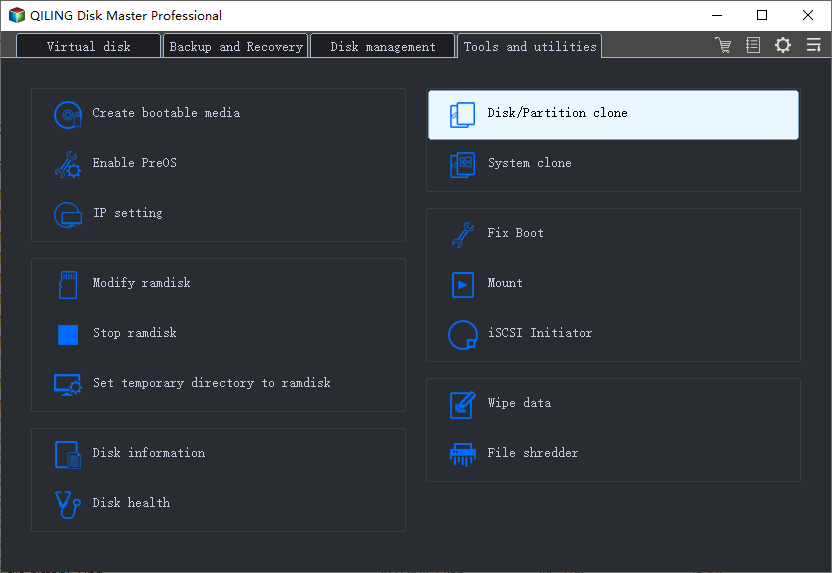
Step 1. Open Disk/Partition Clone
On the Tools and utilities tab, click Disk/Partition clone. Use the disk-level entry rather than System clone, because System clone copies only the Windows partition and would leave the boot volume behind, which no legacy board can start from.
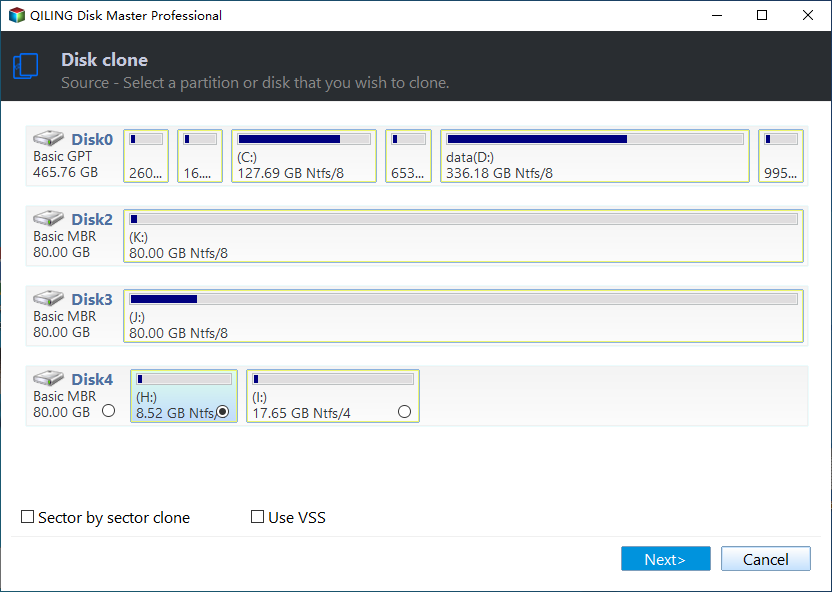
Step 2. Select the GPT Source Disk
Pick the disk that holds the current Windows installation and read the label on its row: it should say Basic GPT. Click Next. If the used space is close to 2TB, shrink the last partition on the source first, so the copy stays inside the range an MBR table can describe.
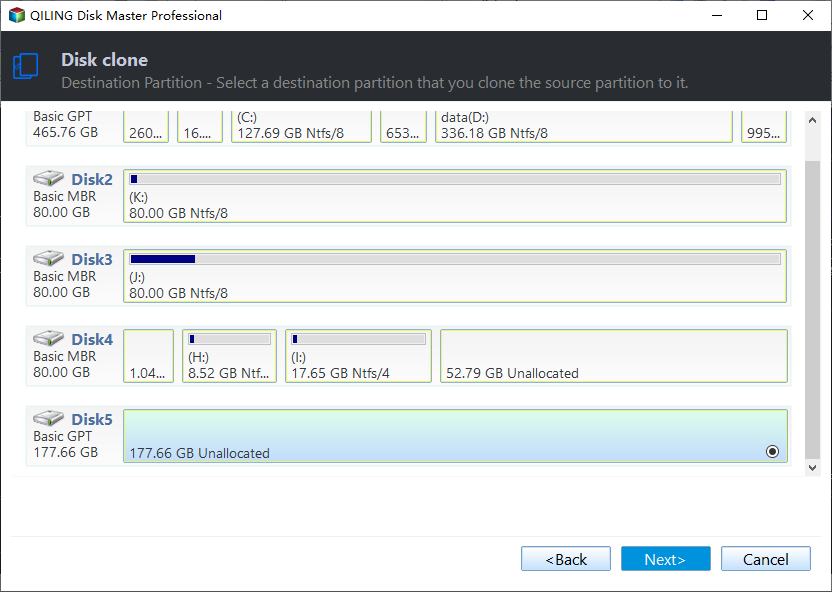
Step 3. Point the Job at the MBR Target
Select the disk you initialized as MBR, whose row reads Basic MBR, and compare its capacity with the label printed on the drive. Click Next. A target that appears with the wrong size, or with a size of zero, is a sign of a loose cable or a failing enclosure rather than a software problem.
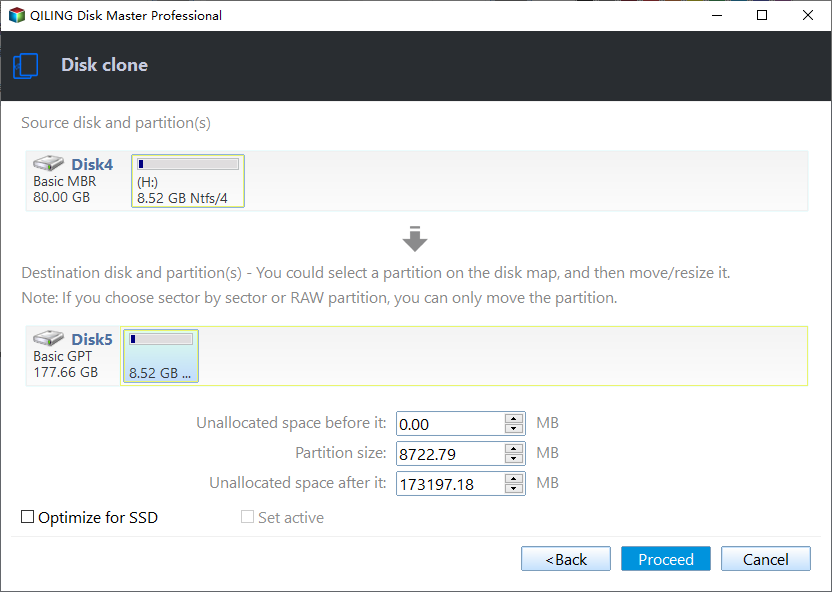
Step 4. Check the Layout and Click Proceed
Read the destination side of the preview. The boot volume should come first and stay small, and the Windows volume should follow it in the same order as the source. Use Edit disk layout if a boundary needs to move, then preview the pending operation and click Proceed, and accept the warning that the target will be overwritten.
Frequently Asked Questions
Why does the old machine still report no bootable device?
The clone can be perfect while the firmware looks in the wrong place. Set the new disk first in the boot order, enable legacy or CSM support, and turn off Secure Boot, which legacy boot cannot use on most boards.
Does the copy need the EFI system partition?
No. Legacy firmware never reads it, and on an MBR disk it would consume one of the four primary entries. The boot files belong in a small boot volume at the start of the disk.
Can I keep all four partitions from the GPT disk?
Only if the boot volume replaces the EFI and reserved entries. Dropping one is usually necessary, and the recovery volume is the safest candidate because Windows can rebuild a recovery environment later.
Related Articles
- How to Clone a GPT Disk to an MBR Disk
- How to Clone an MBR Disk to a GPT SSD
- Cloned Drive Wont Boot: Causes and Fixes
- No Bootable Device After Cloning
- GPT Protective Partition After Cloning
Products
Articles & Tutorials
- Data Recovery
- Data Backup
- File Recovery
- File Backup
- System Backup and Restore
- Disk and Partition Clone
- Technical articles
- Mobile articles
- Disk Master Help
- Windows Data Recovery Tutorials
- Windows Secure Delete Tutorials
- Windows Partition Management Tutorials
- Windows File Backup and Restore Tutorials
- Windows System Backup and Restore Tutorials
- Windows Disk Backup and Restore Tutorials
- Windows Clone Tutorials