GPT Protective Partition After Cloning: Fix It Safely
A cloned disk that shows a single GPT protective partition in Disk Management looks alarming, but the label is often a translation problem rather than a damaged disk. Windows uses the protective entry to describe a GPT layout that the current system cannot fully read.
The important question is whether the real partitions are still there. In most clone cases they are, hidden behind a table entry that was written incompletely or read by an older system.
PAGE CONTENT
- Why Windows Shows a Protective Partition
- Check the Disk Before Any Change
- Fix the Partition Safely
- Clone Again with Qiling Disk Master
- Verify the Volume Is Readable
- FAQs About Protective Partitions
- Back Up the Partition Table
Why Windows Shows a Protective Partition
- 32-bit Windows. A 32-bit system reads a GPT disk as one protected span.
- Enclosure bridge chip. Some USB adapters hide the GPT layout from Windows.
- Incomplete clone. The backup header was not written at the end of the disk.
- Style mismatch. An MBR-based tool read a GPT disk and described it as protected.
- Older Windows build. Pre-Vista systems cannot read GPT at all.
The protective partition is a placeholder that reserves the whole disk so legacy tools do not overwrite a GPT layout they cannot understand.
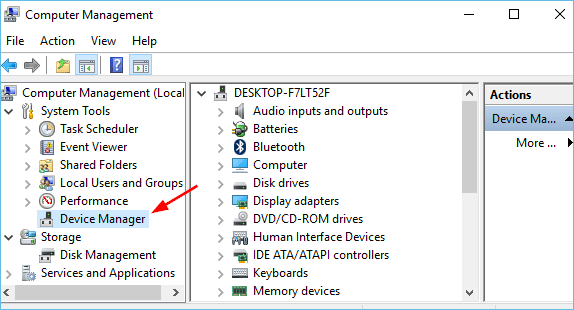
Check the Disk Before Any Change
- Confirm the data. The hidden volume may still hold every file.
- Use 64-bit Windows. Move the disk to a modern system before judging it.
- Connect by SATA. An internal port bypasses the enclosure bridge.
- Read with diskpart. list disk marks a GPT disk with a star.
- Save the table. Copy the partition table before you edit anything.
Move the disk between a USB enclosure and a direct SATA port once. If the partitions appear on the direct connection, the adapter was the cause and the disk is fine.
Fix the Partition Safely
- Clear the read-only flag. diskpart attributes disk clear readonly unlocks the disk.
- Convert only when empty. Clean the disk solely if it holds no data.
- Rebuild the GPT headers. A partition tool can restore primary and backup tables.
- Re-clone in the right style. Choose GPT for a UEFI target and MBR for Legacy.
- Never clean a data disk. clean erases the table and every partition with it.
Repairing a table works when the partition data survived the clone. If the clone stopped before the backup header was written, only a fresh clone guarantees a complete GPT layout, so do not gamble with clean on a disk that still holds files.
Clone Again with Qiling Disk Master
Re-cloning the whole disk writes both GPT headers and every partition entry in one pass, which avoids the protective label entirely.
Watch the video tutorial below to clone the drive step by step with Qiling Disk Master.
Step 1. Open Qiling Disk Master, choose Clone, and then select Disk Clone.

Step 2. Select the source disk and click Next.

Step 3. Select the destination SSD and confirm that its data will be replaced.

Step 4. Choose the clone mode and confirm the system partition gets the C letter on the target.

Step 5. Click Proceed, wait for the copy to finish, then shut the machine down before you remove any cable.

Verify the Volume Is Readable
- Reopen Disk Management. The real partitions should return with letters.
- Open the files. Browse a few folders on every partition.
- Confirm the style. diskpart list disk should show GPT with a star.
- Test on a second PC. A 64-bit machine confirms the layout is standard.
- Restart once. The table must survive a reboot without reverting.
If the protective label returns immediately, the file system is intact but the header is being rewritten by faulty hardware, which points to the enclosure or the disk itself.
FAQs About Protective Partitions
Does a protective partition mean the disk is empty?
No. It means the GPT layout is hidden from the current system while the partitions usually remain.
Is it safe to delete the protective partition?
No. Deleting it removes the placeholder but can also wipe the partitions it protects.
Why does the disk show this only through USB?
Some bridge chips do not pass the GPT layout correctly, so a direct SATA connection solves it.
Can I convert it back to MBR without losing data?
Only with a tool that keeps the partitions. A plain clean destroys the table.
Will Windows 11 read the cloned GPT disk?
Yes, if the headers are complete. A 64-bit UEFI system reads GPT natively.
Back Up the Partition Table
Table repairs touch the structure that makes every file reachable. Keep a full image of the disk so a failed rebuild can be reversed and the partitions restored.
Watch the video tutorial below to back up Windows and restore it if the clone fails.
Step 1. Open Qiling Disk Master and select System Backup to include the boot partitions.

Step 2. Save the image to a drive other than the target disk and start the backup.

Step 3. Click Proceed to start the system backup and wait patiently until it finishes. You can also tick Shut down the computer when the operation is completed to power off automatically.

Step 4. If the clone or the boot repair fails, restore the image and then reassign drive letters or rebuild the boot records from Windows Recovery.

Conclusion
A GPT protective partition after cloning is a layout Windows cannot fully read, not a sign that the data vanished. Test the disk on 64-bit Windows over SATA before you change anything, rebuild the headers with a partition tool if they are incomplete, and never run clean on a disk that holds files. A full re-clone with Qiling Disk Master writes a complete GPT layout in one attempt.
For more on disk style and layout, see Clone an MBR Disk to a GPT SSD, Clone a GPT Disk to an MBR Disk, Clone a Disk Larger Than 2TB, and Clone an M.2 SSD to a SATA SSD.
Related Articles
- Cloned SSD Not Showing Full Capacity
Fix the size after the copy. - Clone a Dynamic Disk to a Basic Disk
Convert the layout safely. - Cloned Drive Won't Boot? Fix It
Repair the boot after a clone. - Clone the System Reserved Partition
Keep the boot files intact. - SSD Not Detected After Cloning
When the disk is not listed at all.
Products
Articles & Tutorials
- Data Recovery
- Data Backup
- File Recovery
- File Backup
- System Backup and Restore
- Disk and Partition Clone
- Technical articles
- Mobile articles
- Disk Master Help
- Windows Data Recovery Tutorials
- Windows Secure Delete Tutorials
- Windows Partition Management Tutorials
- Windows File Backup and Restore Tutorials
- Windows System Backup and Restore Tutorials
- Windows Disk Backup and Restore Tutorials
- Windows Clone Tutorials