HP Pavilion SSD Upgrade: Clone the Drive Safely
HP Pavilion 14 and Pavilion 15 laptops are common candidates for an SSD upgrade because many shipped with a mechanical hard drive. The exact storage layout changes with the model and the year, so the first task is to identify what your machine actually uses.
This guide explains how to tell SATA from NVMe, how to plan around a single slot, which preparation steps keep BitLocker and HP recovery intact, and how to clone Windows with Qiling Disk Master. It ends with checks for the first boot on the new drive.
PAGE CONTENT
- Identify the Storage in Your Pavilion
- Plan for a Single Slot and a Tight Chassis
- Prepare Windows, BitLocker, and the Target
- Clone with Qiling Disk Master
- Reassemble, Boot, and Verify
- FAQs About Pavilion SSD Upgrades
- Back Up Before You Clone
Identify the Storage in Your Pavilion
- Pavilion 14 and 15 vary. Some models ship with a 2.5-inch SATA hard drive, others with an M.2 SATA or NVMe SSD. Check the model number and the manual.
- Service manual. HP publishes a maintenance and service guide for each Pavilion generation, with the exact slot layout and the correct part numbers.
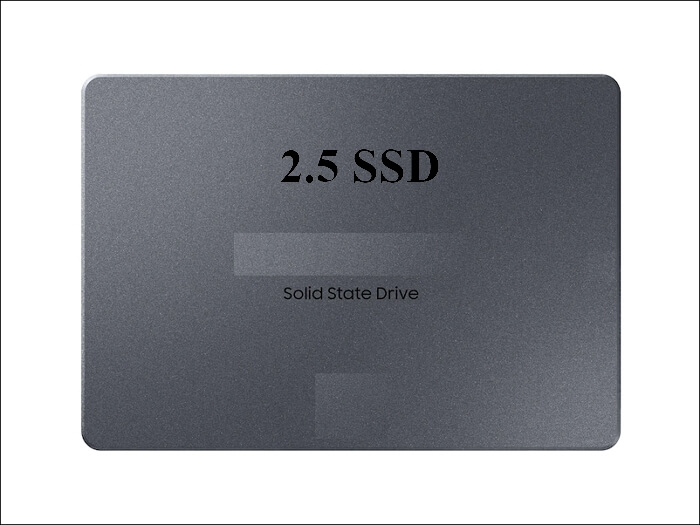
- M.2 or 2.5-inch. If the laptop has a 2.5-inch bay, a SATA SSD is a simple drop-in replacement. Some models also provide an M.2 slot for a second drive.
- Optical bay on older models. Some older Pavilions have a DVD drive bay that can take a caddy, but that is storage expansion, not a boot upgrade.
- Recovery partition. HP recovery media and the recovery partition help rebuild boot files, so keep them intact during the clone.
The easiest way to confirm the storage type is the existing drive itself. A 2.5-inch drive is SATA, while an M.2 drive can be SATA or NVMe. The service manual lists the supported upgrade options for your exact model.
Plan for a Single Slot and a Tight Chassis
- One slot on most models. Expect to swap rather than add, so plan on a USB enclosure or a SATA-to-USB adapter for the new drive.
- SATA adapter for 2.5-inch drives. A USB 3.0 SATA adapter is inexpensive and reliable for cloning to a 2.5-inch SSD.
- NVMe enclosure for M.2 drives. Match the enclosure to NVMe. A SATA M.2 drive will not work in an enclosure built only for NVMe.
- Clearance and screws. Pavilion chassis are tight, so keep the screws organized and mind the keyboard ribbon when you lift the cover.
- Battery and power. Remove or disconnect the battery and unplug the adapter before you service the drive or the memory.
If the laptop has both a 2.5-inch bay and an M.2 slot, decide which one will hold the boot drive. A SATA SSD in the bay is easy and cheap, while an NVMe drive in the M.2 slot is faster when the slot supports PCIe.
Prepare Windows, BitLocker, and the Target
- Check health and back up. Read the SMART values of the current drive and copy personal files somewhere safe before you start.
- Suspend BitLocker. Pause BitLocker on the system drive and save the recovery key. Resume protection after the new drive boots.
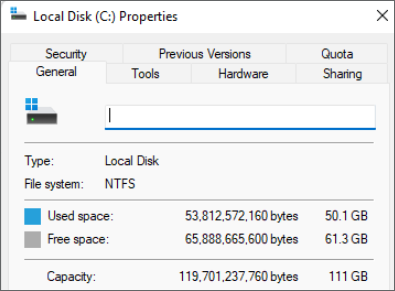
- Match capacity and layout. The target must hold the used space. Initialize it as GPT for UEFI or MBR for a legacy BIOS.
- Free up space. Delete temporary files and old downloads so the clone is shorter and fits comfortably on the new drive.
- Prepare the adapter. Connect the new drive through the adapter or enclosure and confirm Windows lists it before you clone.
HP recovery partitions are sometimes large and are easy to overlook. A full disk clone keeps them, which matters if you want the original recovery options after the upgrade.
Clone with Qiling Disk Master
Qiling Disk Master clones the Pavilion system disk with all of its partitions, aligns the new SSD for 4K performance, and can expand the Windows partition when the target is larger. It works with both SATA and NVMe targets.
Watch the video tutorial below to clone the drive step by step with Qiling Disk Master.
Step 1. Open Qiling Disk Master, choose Clone, and then select Disk Clone.

Step 2. Select the source disk and click Next.

Step 3. Select the destination SSD and confirm that its data will be replaced.

Step 4. Choose the clone mode and adjust the partition size if the target is larger.

Step 5. Click Proceed, wait for the copy to finish, then shut the machine down before you remove any cable.

Reassemble, Boot, and Verify
- Reassemble carefully. Refit the drive, reconnect the battery, and close the cover before you apply power.
- Set the boot order. Enter BIOS or the boot menu and make the new SSD the first device. Keep the boot mode consistent with the partition style.
- Check Disk Management. Confirm the system, EFI, and recovery partitions exist, and extend Windows if space is still unallocated.
- Run HP diagnostics. Start the UEFI hardware diagnostics and run a short drive test to confirm the new SSD is healthy.
- Check activation and updates. Confirm Windows is activated and let Windows Update install any storage-related updates.
If the Pavilion boots into HP Recovery instead of Windows, the firmware did not find a valid boot entry. Check the boot order and the SATA mode, then rebuild the entry from a recovery drive if needed.
FAQs About Pavilion SSD Upgrades
Does my Pavilion use SATA or NVMe storage?
It depends on the model and the year. Check the service manual or the installed drive. A 2.5-inch drive is SATA, while an M.2 drive can be SATA or NVMe.
Can I keep the old drive as external storage?
Yes. Once the new SSD boots reliably, put the old drive in a USB enclosure or a caddy and use it for backups or extra files.
Do I need HP recovery media?
Only if the clone fails or you want to return to the factory state. HP recovery media can recreate the original installation, but it erases the target drive.
Why does Windows not boot after the drive swap?
Check the boot order, the SATA mode in BIOS, and the boot entry. A GPT clone needs UEFI, while an MBR clone needs legacy or CSM support.
Will a larger SSD show its full capacity?
Only after you extend the partition. If Disk Management shows unallocated space, extend the Windows volume or merge the free space into it.
Back Up Before You Clone
A clone writes over the target disk and depends on a readable source. Back up the system first so a failed job, a power loss, or a bad sector never leaves you without a working Windows installation.
Watch the video tutorial below to back up Windows and restore it if the clone fails.
Step 1. Open Qiling Disk Master and select System Backup to include the boot partitions.

Step 2. Save the image to a drive other than the target disk and start the backup.

Step 3. Click Proceed to start the system backup and wait patiently until it finishes. You can also tick Shut down the computer when the operation is completed to power off automatically.

Step 4. If the clone fails, restore the image and check the source disk before you retry.

Conclusion
An HP Pavilion upgrade starts with identifying the drive type. Once you know whether the machine takes a 2.5-inch SATA SSD or an M.2 drive, the rest is a careful clone, a correct boot order, and a check of the partition layout. The old drive then becomes a ready-made backup.
For related guides, see How to Clone an HP Laptop HDD to SSD, How to Replace an HP Laptop Hard Drive, How to Clone a Windows 10 System Image to an SSD, and How to Clone a Drive Before Selling Your Laptop.
Related Articles
- How to Clone an HP Laptop HDD to SSD
Clone an HP laptop hard drive to an SSD, with model checks, boot settings, and verification after the swap. - How to Replace HP Laptop Hard Drive (2022 Ultimate Guide)
A step-by-step HP laptop hard drive replacement guide covering tools, drive access, and first boot checks. - How to Clone a BitLocker-Encrypted Drive
Clone an encrypted Windows drive safely by suspending BitLocker and keeping the recovery key available. - Clone to a Larger Drive and Merge Unallocated Space
Use the extra capacity on a larger SSD by extending the system partition or merging unallocated space. - Cloned Drive Won't Boot? How to Fix It
Repair boot records, EFI entries, and BIOS settings when a cloned drive refuses to start Windows.
Products
Articles & Tutorials
- Data Recovery
- Data Backup
- File Recovery
- File Backup
- System Backup and Restore
- Disk and Partition Clone
- Technical articles
- Mobile articles
- Disk Master Help
- Windows Data Recovery Tutorials
- Windows Secure Delete Tutorials
- Windows Partition Management Tutorials
- Windows File Backup and Restore Tutorials
- Windows System Backup and Restore Tutorials
- Windows Disk Backup and Restore Tutorials
- Windows Clone Tutorials