Clone Windows 10 to an SSD Before the Windows 11 Upgrade
Many people plan an SSD upgrade and a Windows 11 upgrade in the same week. Doing both at once turns one problem into two, because a failed boot could be the clone, the firmware, or the new operating system.
The safer order is to clone Windows 10 to the SSD, confirm that it boots, and only then run the upgrade. This guide covers that sequence and the checks that belong to each step.
PAGE CONTENT
- Why Clone First and Upgrade Second
- Prepare Windows 10 for the Clone
- Run the Upgrade on the New SSD
- Clone with Qiling Disk Master
- Check Activation and Device Health
- Clone and Upgrade Questions
- Back Up Before You Clone
Why Clone First and Upgrade Second
- One change at a time. If the machine fails to boot after a combined job, you cannot tell whether the drive, the firmware or the upgrade caused it.
- Clean rollback. Windows 11 keeps a rollback option for a limited time. A clone on the old drive gives you a second, independent way back.
- Space for the upgrade. The upgrade needs free space for the new system files and the rollback image. A larger SSD gives it that room.
- Activation clarity. A digital license follows the hardware. Cloning first lets you confirm that the license survived the drive change before you change the OS too.
- Firmware stability. TPM and Secure Boot settings are easier to verify on a known-good Windows 10 install than during an upgrade that is already failing.
Treat the two jobs as separate projects with a test boot in between. That single rule removes most of the risk.
Prepare Windows 10 for the Clone
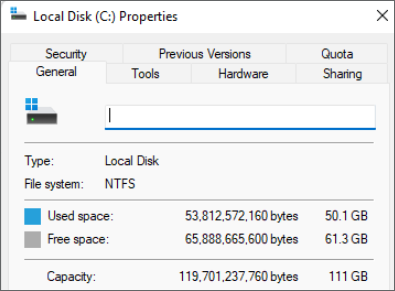
- Free space. Check how much is used and keep the target comfortably larger, because Windows 11 plus updates needs more room than Windows 10 alone.
- BitLocker. Suspend protection or unlock the system volume before cloning, and save the recovery key outside the machine.
- Updates. Install pending Windows 10 updates first, so the image you copy is current and the upgrade has fewer fixes to apply.
- Health. Read the SMART data of the old drive. A drive with warnings can stall a clone, and those warnings are worth knowing before you start.
- Checklist. Note the boot mode, the partition style and the TPM state, so the upgraded system can be compared with the original.
Run the clone from a normal Windows session, and close games and sync clients so nothing writes to the source during the copy.
Run the Upgrade on the New SSD
- TPM 2.0. Confirm that the firmware exposes TPM 2.0, usually as a firmware TPM on modern boards and laptops. Enable it if the option is off.
- Secure Boot. The system must be UEFI with Secure Boot capability. It does not have to be switched on for the check, but the firmware must support it.
- Compatibility check. Run the official PC Health Check before the upgrade, so a blocked CPU or missing TPM is known in advance.
- Free space and updates. Install all Windows 10 updates, then start the upgrade from a stable session with power connected.
- Rollback window. Windows 11 normally allows a return to Windows 10 for about ten days. Decide within that window, because the files are removed afterward.
Upgrade the cloned drive, not the original, so the old disk remains a working Windows 10 system if the new OS disappoints.
Clone with Qiling Disk Master
Qiling Disk Master clones the whole disk or only the system partition, resizes the target and keeps the EFI and recovery partitions in place. It also covers the backup step at the end of this guide.
Watch the video tutorial below to clone the drive step by step with Qiling Disk Master.
Step 1. Open Qiling Disk Master, choose Clone, and then select Disk Clone.

Step 2. Select the source disk and click Next.

Step 3. Select the destination SSD and confirm that its data will be replaced.

Step 4. Choose the clone mode and adjust the partition size if the target is larger.

Step 5. Click Proceed, wait for the copy to finish, then shut the machine down before you remove any cable.

Check Activation and Device Health
- Activation. Open Settings and confirm that Windows is activated after the clone, before you start the upgrade. A digital license usually follows the same hardware.
- Drivers. Check Device Manager for warnings, and install the chipset and storage drivers for the new SSD platform if anything is flagged.
- Rollback files. After the upgrade, confirm that the previous version option exists in Recovery. It disappears after the retention period ends.
- Space after upgrade. Windows 11 plus the rollback folder can use a large amount of space. Verify the free space before you install large apps.
- Firmware. Update the BIOS or firmware only after the system is stable, and never in the middle of an operating system upgrade.
Keep the original Windows 10 disk untouched until the upgraded system has passed a few days of normal use.
Clone and Upgrade Questions
Can I upgrade to Windows 11 before cloning?
You can, but the two changes then share one failure path. Cloning first keeps the boot test separate from the upgrade test and preserves a Windows 10 fallback.
Does cloning keep my Windows activation?
Usually yes, because the license is tied to the hardware and the cloned system reports the same identifiers. Confirm activation before you change the drive or the OS.
How long can I roll back Windows 11?
Microsoft normally allows about ten days after the upgrade to return to the previous version. After that, the rollback files are removed and a clean install is the only way back.
What if BitLocker is on during the clone?
Suspend protection or unlock the volume first, then re-enable it after the new drive boots. Keep the recovery key available in case the hardware change triggers a prompt.
Do I need TPM 2.0 before the clone?
The clone does not require it, but the Windows 11 upgrade does. Check the TPM state early so a missing or disabled TPM does not block the upgrade later.
Back Up Before You Clone
Two major changes in one week deserve a fallback that does not depend on either drive. A system image of Windows 10 on a separate disk lets you restore the original state even if the clone or the upgrade goes wrong.
Watch the video tutorial below to back up Windows and restore it if the clone fails.
Step 1. Open Qiling Disk Master and select System Backup to include the boot partitions.

Step 2. Save the image to a drive other than the target disk and start the backup.

Step 3. Click Proceed to start the system backup and wait patiently until it finishes. You can also tick Shut down the computer when the operation is completed to power off automatically.

Step 4. If the clone fails, restore the image and check the source disk before you retry.

Conclusion
Clone Windows 10 to the SSD, boot once, and confirm activation and drivers before you touch Windows 11. That order turns a risky double upgrade into two ordinary jobs, each with its own test and its own fallback.
For related guides, see Clone Windows 11 to a Smaller SSD, Clone an SSD to a Larger SSD, Clone the Windows 11 System Reserved Partition, and Best Free SSD Cloning Software.
Related Articles
- Clone an HDD to an SSD on Windows 10
The complete Windows 10 migration order, from partition checks to the first boot on the new SSD. - Clone a Windows 10 System Image to an SSD
Restore a Windows 10 image onto a new SSD when a direct clone cannot be run on the live system. - Clone an HDD to an NVMe SSD for Windows 11
What changes when the target is NVMe and the destination system is Windows 11 rather than Windows 10. - Windows Not Activated After Cloning
Check the digital license, the hardware identifiers and the edition before you retry activation. - Fix a Cloned Drive That Will Not Boot
Boot mode, EFI partition and the clone mode explain most failures when the copied drive refuses to start.
Products
Articles & Tutorials
- Data Recovery
- Data Backup
- File Recovery
- File Backup
- System Backup and Restore
- Disk and Partition Clone
- Technical articles
- Mobile articles
- Disk Master Help
- Windows Data Recovery Tutorials
- Windows Secure Delete Tutorials
- Windows Partition Management Tutorials
- Windows File Backup and Restore Tutorials
- Windows System Backup and Restore Tutorials
- Windows Disk Backup and Restore Tutorials
- Windows Clone Tutorials