Kingston SSD Manager Clone: Can It Migrate Windows?
Kingston SSD Manager is a free utility that reports drive health, updates firmware, and exposes a few secure erase options. It never copies a disk. Users who search for a Kingston SSD Manager clone usually find forum answers pointing at other software, and the reason is simple: the manager was never built for migration.
This article explains what the utility does, why the clone question keeps coming up, and how to move Windows to a Kingston SSD with a tool that treats every disk the same.
PAGE CONTENT
- What Kingston SSD Manager Does
- Prepare the Kingston SSD
- Why Manager Cannot Clone
- Clone with Qiling Disk Master
- Check the Cloned Drive
- FAQs About Kingston Cloning
- Back Up Before You Clone
What Kingston SSD Manager Does
- It reads drive health. Remaining life, temperature, and power-on hours appear in one view.
- It updates firmware. Supported Kingston drives can be flashed from the utility.
- It reports capacity details. Partition usage and spare area are shown per drive.
- It offers secure erase. Some models can be wiped before resale or reuse.
- It cannot copy data. There is no clone, image, or migration function anywhere in it.
The utility is honest about its scope. It keeps a Kingston drive healthy; it does not move an operating system onto it.
Prepare the Kingston SSD
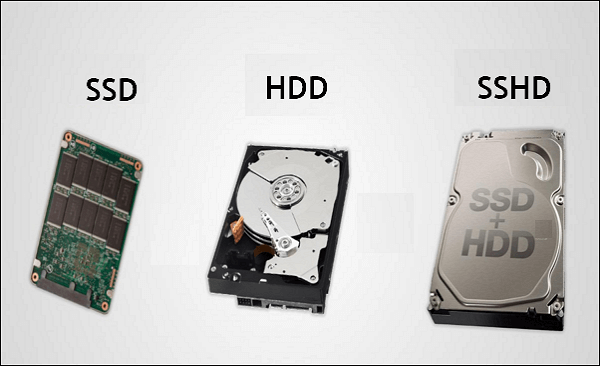
- Clear the Kingston SSD. The migration replaces everything on the target.
- Install the drive internally. A SATA port or free M.2 slot avoids USB quirks.
- Compare data, not capacity. Only the used space has to fit on the new disk.
- Turn off BitLocker. Suspend encryption so the copy can read every block.
- Update firmware early. Flash the SSD while it is empty, then clone.
Most Kingston SSDs arrive with recent firmware, but a quick check in the manager costs a minute and removes one unknown from the process.
Why Manager Cannot Clone
- The utility talks to one drive. It manages the controller, not the file system on it.
- Cloning needs block-level access. A migration tool must read and write whole partitions.
- Boot records need repair. A working clone also updates the EFI entries or the BCD.
- Kingston ships no clone license. The company recommends third-party software instead.
- Bundled offers change. Any free clone bundle expires and rarely covers new models.
The absence is not a defect. Kingston builds drives, and the migration step is left to software that specializes in it.
Clone with Qiling Disk Master
Qiling Disk Master fills that gap without conditions. It reads the Kingston SSD as plain storage, copies the system partitions, and writes boot entries that match the target layout.
Watch the video tutorial below to clone the drive step by step with Qiling Disk Master.
Step 1. Open Qiling Disk Master, choose Clone, and then select Disk Clone.

Step 2. Select the source disk and click Next.

Step 3. Select the destination SSD and confirm that its data will be replaced.

Step 4. Choose the clone mode and confirm the system partition gets the C letter on the target.

Step 5. Click Proceed, wait for the copy to finish, then shut the machine down before you remove any cable.

Check the Cloned Drive
- Remove the old disk. Boot with the Kingston SSD as the only drive.
- Check Disk Management. The system volume must be online and flagged as boot.
- Verify the user profiles. Desktop files and installed programs should open normally.
- Read SMART through the manager. This is the utility's real job, and it works on the clone too.
- Hold the old drive. Keep it intact until the new setup proves stable.
If Windows asks for a repair on the first boot, the target layout probably differs from the source. Rerun the clone after matching the partition style.
FAQs About Kingston Cloning
Can Kingston SSD Manager clone a drive?
No. It monitors health, updates firmware, and can erase supported drives, but it has no cloning feature.
What software should I use with a Kingston SSD?
Any tool that performs a disk clone and repairs boot records, including the free editions of mainstream utilities.
Will cloning to a Kingston SSD void the warranty?
No. Normal cloning does not affect the warranty, though flashing firmware with unknown tools can.
Why is the Kingston SSD not shown as a target?
The port, cable, or driver is hiding it. Reconnect it to a SATA port and refresh the tool.
Do I need to format the new drive first?
No. The clone overwrites the partition table, so formatting beforehand adds no benefit.
Back Up Before You Clone
A migration is a full read of your system disk, and drives that are already weak often fail during it. Back up first, and a failing source becomes an inconvenience rather than a loss.
Watch the video tutorial below to back up Windows and restore it if the clone fails.
Step 1. Open Qiling Disk Master and select System Backup to include the boot partitions.

Step 2. Save the image to a drive other than the target disk and start the backup.

Step 3. Click Proceed to start the system backup and wait patiently until it finishes. You can also tick Shut down the computer when the operation is completed to power off automatically.

Step 4. If the clone or the boot repair fails, restore the image and then reassign drive letters or rebuild the boot records from Windows Recovery.

Conclusion
Kingston SSD Manager is a maintenance tool, and asking it to clone is asking the wrong program. Use it to check the new drive, use a migration tool to fill it, and the move from an old disk to a Kingston SSD stays predictable.
For more on Kingston upgrades, see Clone a Kingston SSD, Clone an SSD to a Larger SSD, Cloned Drive Won't Boot? Fix It, and Best Free SSD Cloning Software.
Related Articles
- Migrate the Operating System to an SSD
Move only Windows to the new drive. - SSD Not Detected After Cloning
Make Windows recognize the new SSD. - Sector-by-Sector Clone vs Intelligent Clone
Pick the copy mode that fits the job. - 4K Alignment When Cloning an SSD
Keep the partitions aligned for full SSD speed. - SSD Slow After Cloning? Fix It
Recover the expected read and write speed.
Products
Articles & Tutorials
- Data Recovery
- Data Backup
- File Recovery
- File Backup
- System Backup and Restore
- Disk and Partition Clone
- Technical articles
- Mobile articles
- Disk Master Help
- Windows Data Recovery Tutorials
- Windows Secure Delete Tutorials
- Windows Partition Management Tutorials
- Windows File Backup and Restore Tutorials
- Windows System Backup and Restore Tutorials
- Windows Disk Backup and Restore Tutorials
- Windows Clone Tutorials