Kioxia SSD Utility Clone: Move Windows to a Kioxia Drive
Kioxia SSD Utility is the free maintenance tool for Kioxia drives, and many of those drives still carry the Toshiba name. The utility reports health, updates firmware, and adjusts over-provisioning. It does not clone, which is why Toshiba and Kioxia owners keep searching for a migration option that does not exist.
This article explains the utility's real scope, the gap Toshiba users inherit, and a direct way to clone Windows to a Kioxia Exceria or any other Kioxia SSD.
PAGE CONTENT
- What Kioxia SSD Utility Covers
- Prepare the Kioxia Drive
- Toshiba Owners Meet the Same Gap
- Clone with Qiling Disk Master
- Validate the Kioxia Clone
- FAQs About Kioxia Cloning
- Back Up Before You Move Windows
What Kioxia SSD Utility Covers
- It reports drive health. Remaining life, temperature, and errors are shown per drive.
- It updates firmware. Supported Kioxia SSDs can be flashed from the utility.
- It sets over-provisioning. Spare area can be reserved to protect endurance.
- It runs diagnostics. Short and extended self-tests are available.
- It cannot clone. The utility has no copy, image, or migration function.
That is a complete maintenance kit for a drive that already holds data. It says nothing about how the data gets there.
Prepare the Kioxia Drive
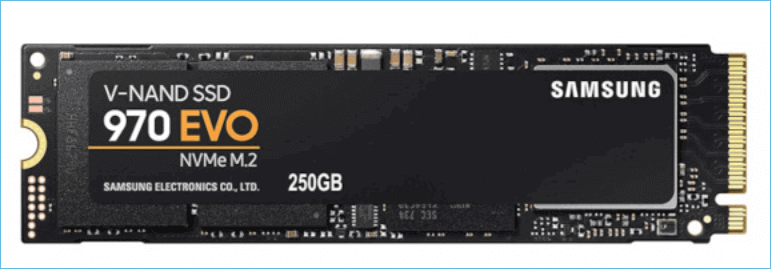
- Empty the Kioxia SSD. The clone overwrites the current contents.
- Connect it internally. SATA or M.2 direct links are the most dependable.
- Measure used space. The target needs room for the data, not the full source disk.
- Suspend BitLocker. Encryption must be paused before any block copy.
- Note UEFI or BIOS mode. The target must match the source boot style.
Kioxia drives sold as Toshiba OCZ models behave the same way. The label changed, the controller did not, and the clone process is identical.
Toshiba Owners Meet the Same Gap
- Toshiba owners were left behind. Legacy OCZ tools are discontinued, and none of them cloned disks.
- No official clone build exists. Kioxia points to third-party software for migration.
- Old utilities reject new drives. A tool that predates the model cannot see it.
- Some enclosures hide NVMe drives. USB bridges may not pass the drive through at all.
- No verification report. Even when a copy runs, there is no log to prove it finished.
The pattern is not unique to Kioxia. Most SSD makers ship monitoring tools, and nearly all of them leave migration to someone else.
Clone with Qiling Disk Master
That leaves the copy to a cloning tool, which is simpler than the branding suggests. Qiling Disk Master copies the system disk, keeps the recovery partition, and writes boot entries for the Kioxia target.
Watch the video tutorial below to clone the drive step by step with Qiling Disk Master.
Step 1. Open Qiling Disk Master, choose Clone, and then select Disk Clone.

Step 2. Select the source disk and click Next.

Step 3. Select the destination SSD and confirm that its data will be replaced.

Step 4. Choose the clone mode and confirm the system partition gets the C letter on the target.

Step 5. Click Proceed, wait for the copy to finish, then shut the machine down before you remove any cable.

Validate the Kioxia Clone
- Boot from the Kioxia SSD only. Disconnect every other drive first.
- Inspect Disk Management. The system volume must be online and active.
- Check user data. Profiles, documents, and installed programs should load.
- Run the utility. Read health and firmware on the new drive now.
- Wait before erasing. Keep the old disk until a week of use passes.
A clone that starts but runs slowly usually points at alignment rather than at the drive. Check the partition offsets before you suspect the hardware.
FAQs About Kioxia Cloning
Does Kioxia SSD Utility clone a disk?
No. It monitors, updates firmware, and tunes spare area, but it cannot copy partitions.
What do Toshiba SSD owners use instead?
Third-party cloning software, since the discontinued OCZ tools never included a clone feature.
Can I clone to a Kioxia Exceria?
Yes. It behaves like any NVMe drive, and mainstream cloning tools accept it.
Why is the Kioxia SSD not detected?
Check the slot, the BIOS drive list, and the USB bridge if one is used. Reseating often helps.
Do I need to partition the new drive first?
No. A disk clone writes the partition table, so an empty drive is enough.
Back Up Before You Move Windows
The copy pass stresses a source disk that may already be old. A recent system image gives you a clean starting point if the migration stops halfway through.
Watch the video tutorial below to back up Windows and restore it if the clone fails.
Step 1. Open Qiling Disk Master and select System Backup to include the boot partitions.

Step 2. Save the image to a drive other than the target disk and start the backup.

Step 3. Click Proceed to start the system backup and wait patiently until it finishes. You can also tick Shut down the computer when the operation is completed to power off automatically.

Step 4. If the clone or the boot repair fails, restore the image and then reassign drive letters or rebuild the boot records from Windows Recovery.

Conclusion
Kioxia SSD Utility keeps a healthy drive healthy, and that is all it claims. Moving Windows is a separate task: copy the full disk, confirm the boot alone, and check the new drive in the utility afterwards.
For more on Kioxia and Toshiba upgrades, see Clone a Toshiba SSD, Clone an SSD to a Larger SSD, Cloned Drive Won't Boot? Fix It, and Best Free SSD Cloning Software.
Related Articles
- Migrate the Operating System to an SSD
Move only Windows to the new drive. - SSD Not Detected After Cloning
Make Windows recognize the new SSD. - Sector-by-Sector Clone vs Intelligent Clone
Pick the copy mode that fits the job. - 4K Alignment When Cloning an SSD
Keep the partitions aligned for full SSD speed. - SSD Slow After Cloning? Fix It
Recover the expected read and write speed.
Products
Articles & Tutorials
- Data Recovery
- Data Backup
- File Recovery
- File Backup
- System Backup and Restore
- Disk and Partition Clone
- Technical articles
- Mobile articles
- Disk Master Help
- Windows Data Recovery Tutorials
- Windows Secure Delete Tutorials
- Windows Partition Management Tutorials
- Windows File Backup and Restore Tutorials
- Windows System Backup and Restore Tutorials
- Windows Disk Backup and Restore Tutorials
- Windows Clone Tutorials