PCIe 5.0 SSD Clone Stalls From Thermal Throttling
Quick Navigation:
- How a PCIe 5.0 Drive Hits the Thermal Wall
- Tell Throttling From a Real Stall
- Cool the Drive Before You Retry
- Clone Again with Qiling Disk Master
- Frequently Asked Questions
A PCIe 5.0 SSD that starts a clone at full speed and then crawls along at a fraction of it is behaving as designed, not failing. These drives reach their quoted throughput for short bursts and then reduce speed as the controller heats up. A clone is the opposite of a benchmark: it writes for tens of minutes without a pause, so the burst ends early and the rest of the job runs slow. The copy still finishes, but a job that looked like twenty minutes can take hours. This guide explains what the limit is, how to recognise it, and how to cool the drive so the clone finishes on the first attempt.
How a PCIe 5.0 Drive Hits the Thermal Wall
A PCIe 5.0 controller moves roughly twice the data of the previous generation and pays for it in heat. Under a sustained write the package climbs quickly, and once it passes the firmware threshold the drive trims its internal timing to stay inside a safe range. Speed falls in steps rather than gradually, which is why the progress bar jumps ahead and then barely moves.
Most drives ship without a heatsink, and a bare M.2 stick in a slot under a graphics card has almost no airflow. A thin copper sticker is not enough at this speed, so the throttle arrives within a few minutes of continuous writing and stays for the length of the job.
An enclosure makes it worse. A USB or Thunderbolt bridge adds its own controller heat and caps the link well below the drive rating, so the drive works close to its limit while the bridge throttles as well.
Tell Throttling From a Real Stall
Throttling keeps moving. The percentage advances in bursts, the write figure reported by the tool drops to a plateau instead of zero, and the drive still answers every request. A genuine stall shows the opposite: no bytes written for many minutes, no disk activity, and a queue that sits at zero.
The vendor utility or the drive health section of a system information tool reports the current temperature and the number of thermal events. A reading near the throttle threshold during the job, with the count rising, confirms the diagnosis without any guesswork.
If the temperature stays cool and the job still stops, look elsewhere. A source disk with weak sectors retries each block, and a target that drops off the bus leaves the tool waiting, both of which look similar from the progress bar and very different from the temperature graph.
Cool the Drive Before You Retry
Fit a heatsink with a proper thermal pad, and use the motherboard plate if the board provides one. The pad must touch the controller and the memory chips, because a heatsink resting on a gap cools the label rather than the silicon.
Move the drive to a slot with airflow. On many boards the slot under the graphics card is the hottest place in the case, while the slot below the processor runs twenty degrees cooler. In a laptop, clone with the bottom panel removed or move the job to a desktop.
Give the drive time to cool before the retry. A drive that finished a cancelled job is still hot, and starting again immediately puts it back into the throttled state within minutes, which makes the second attempt look like a failure of the tool.
Clone Again with Qiling Disk Master
Qiling Disk Master shows the write speed and the elapsed time while the job runs, so a drop in throughput is visible rather than invisible. Connect the SSD directly to the board, keep the case closed only after the airflow is arranged, and let the drive start the job at room temperature.
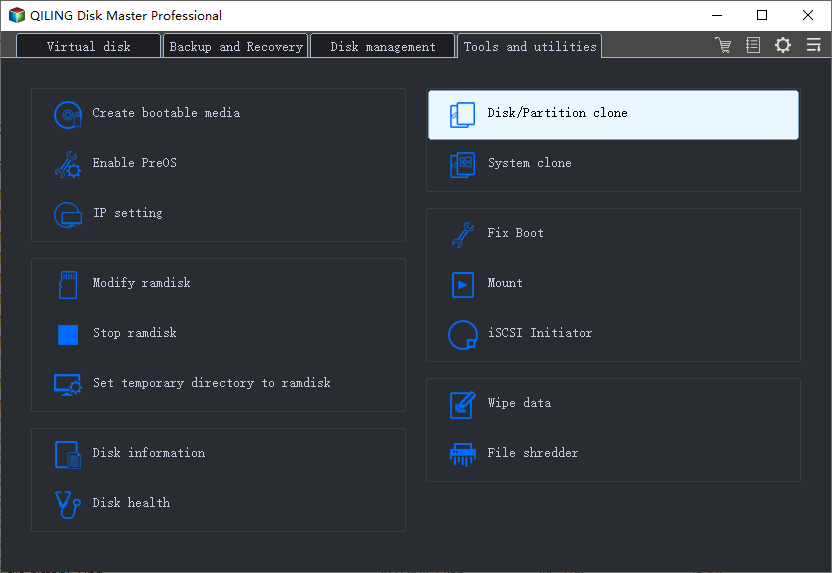
Step 1. Open Disk/Partition Clone
On the Tools and utilities tab, click Disk/Partition clone. Close other jobs that write to the same drive first, such as a backup or a game download, because a second write stream adds heat without adding useful progress.
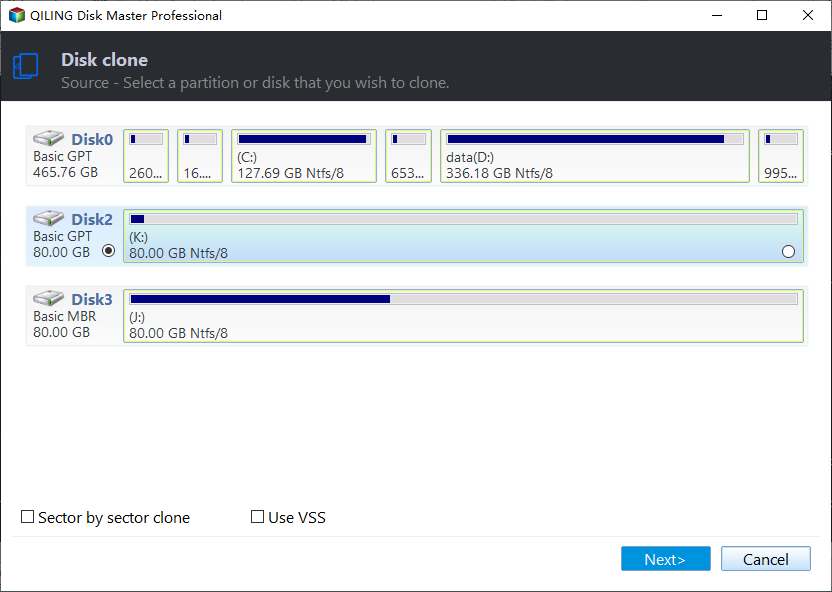
Step 2. Select the Source Disk
Pick the disk that holds the installation you are moving and click Next. A healthy source needs the default copy, so leave Sector by sector clone unticked: the raw copy reads and writes every sector, including empty ones, and that extra traffic is exactly what pushes a hot drive over its limit.
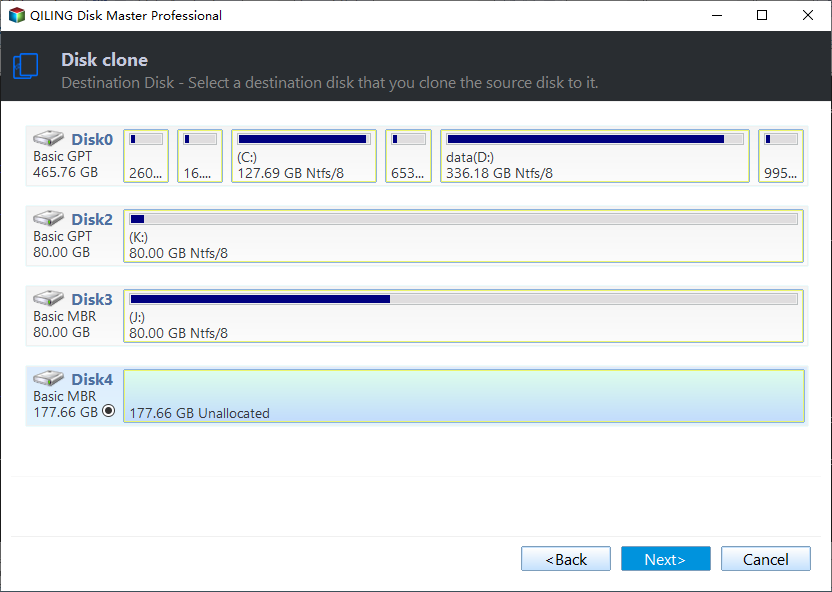
Step 3. Choose the PCIe 5.0 SSD as the Target
Select the new drive and check that the capacity matches the label. If the drive appears through an enclosure, expect the link to stay below its rating, so move it to an M.2 slot for the real job.
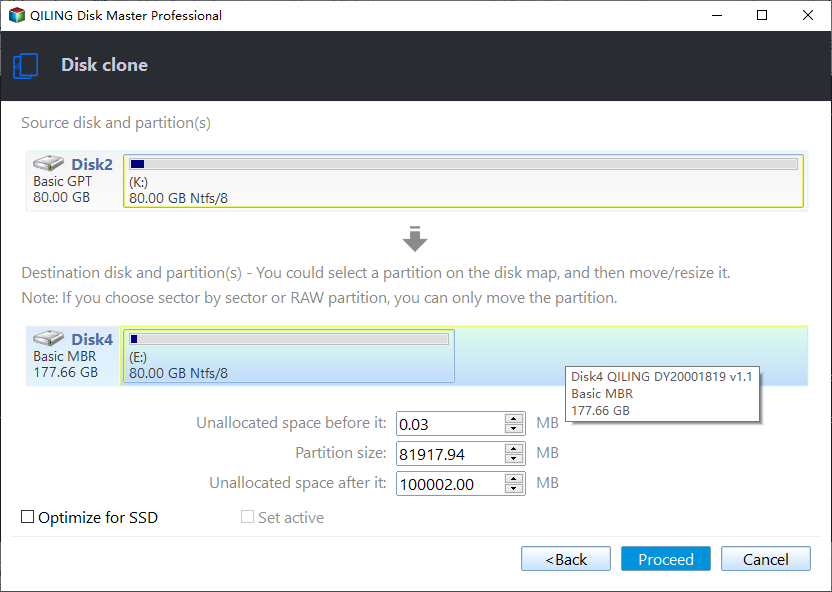
Step 4. Enable SSD Optimisation and Proceed
Tick Optimize for SSD so the copy is aligned for flash, confirm the destination layout, then preview the pending operation and click Proceed. Watch the speed figure during the first few minutes: a drop to a steady plateau with a rising temperature is the throttle, and the job will still complete.
Frequently Asked Questions
Does throttling damage the SSD?
No. The drive reduces speed to protect itself and keeps the temperature inside the range the manufacturer set. The cost is time, and a drive that runs hot for years is more likely to age quickly than one that is cooled properly.
Why does only the second half of the clone slow down?
The first minutes fit inside the burst budget, while the rest of the job runs with a warm controller. A larger copy therefore shows the throttle more clearly than a small one.
Can I pause the clone and let the drive cool?
You can cancel and start again after the drive cools, but a paused job is not available in most tools, and a cancelled destination has to be written from the beginning. Fixing the cooling first is faster than interrupting the job.
Related Articles
- How to Clone Windows to a PCIe 5.0 SSD
- Clone Write Speed Drops Halfway Through
- SSD Slow After Cloning: What to Check
- Cloning a Drive Through an NVMe Enclosure
- Why an SMR Drive Makes a Clone Take Forever
Products
Articles & Tutorials
- Data Recovery
- Data Backup
- File Recovery
- File Backup
- System Backup and Restore
- Disk and Partition Clone
- Technical articles
- Mobile articles
- Disk Master Help
- Windows Data Recovery Tutorials
- Windows Secure Delete Tutorials
- Windows Partition Management Tutorials
- Windows File Backup and Restore Tutorials
- Windows System Backup and Restore Tutorials
- Windows Disk Backup and Restore Tutorials
- Windows Clone Tutorials