SanDisk SSD Dashboard Clone: Migrate Windows to SanDisk
SanDisk ships its SSDs with the SSD Dashboard, a utility that shows health, temperature, and firmware status. Many buyers assume the word dashboard hides a migration button somewhere. It does not, and that surprise sends people looking for a clone path halfway through an upgrade.
This article separates what the SanDisk SSD Dashboard actually does from the cloning work, explains the official alternative SanDisk and WD share, and shows how to move Windows to a SanDisk SSD without a brand check getting in the way.
PAGE CONTENT
- What the Dashboard Does
- Prepare the SanDisk SSD
- Why There Is No Clone Button
- Clone with Qiling Disk Master
- Confirm the Copy Works
- FAQs About SanDisk Cloning
- Back Up Before You Migrate
What the Dashboard Does
- It reports drive health. The dashboard reads SMART data and shows remaining life and temperature.
- It updates firmware. New firmware can fix compatibility problems that appear after installation.
- It applies over-provisioning. Extra spare area can be reserved to extend the life of the drive.
- It runs TRIM and diagnostics. Manual TRIM and short self-tests are available from the same window.
- It has no clone function. No version of the dashboard copies partitions or boot files.
The dashboard is a maintenance console, and it does that job well. Treat it as the tool you open after the migration, not before it.
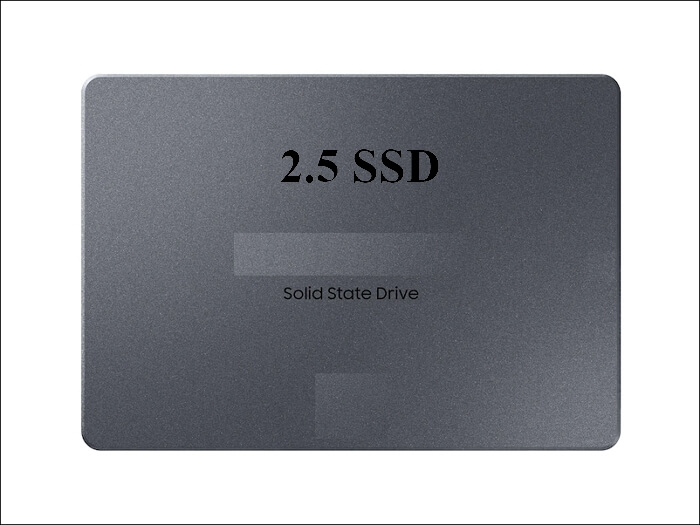
Prepare the SanDisk SSD
- Back up the target. A clone overwrites the SanDisk SSD, so remove anything you want to keep.
- Connect the SSD. Use a SATA port or a USB enclosure that Windows lists as a disk.
- Check used space. The SSD only has to hold the data on the source drive.
- Pause encryption. Suspend BitLocker so the cloning tool can read every sector.
- Update the firmware first. Do it in the dashboard before the copy, not afterwards.
Firmware updates are easier before the clone, because the drive is empty and a failed flash costs you nothing. Once Windows lives there, plan the next update for a quiet evening.
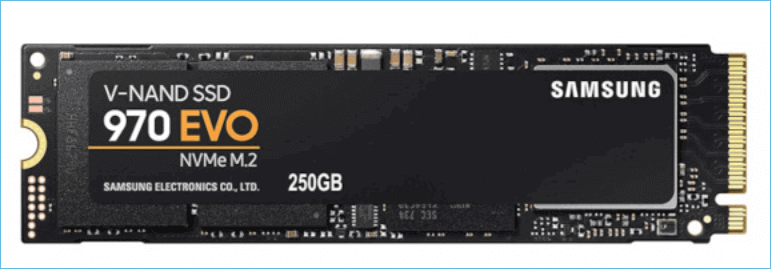
Why There Is No Clone Button
- The dashboard is monitoring software. It talks to the controller, and it has no block-copy engine.
- SanDisk points to Acronis. The official clone path is a custom Acronis True Image build for SanDisk and WD drives.
- That build needs a matching drive. The installer checks for a SanDisk or WD disk before it unlocks.
- Its license is tied to the drive. A replacement SSD may not accept the same install.
- Support is version bound. Older custom builds stop accepting newer NVMe models.
So the answer to a SanDisk SSD Dashboard clone is no, and the official workaround only helps while the drive and the build agree. A general cloning tool skips that negotiation entirely.
Clone with Qiling Disk Master
A tool without a brand check treats a SanDisk SSD like any other disk. Qiling Disk Master copies the system drive, rebuilds the boot records, and lets you review the partition layout before the write starts.
Watch the video tutorial below to clone the drive step by step with Qiling Disk Master.
Step 1. Open Qiling Disk Master, choose Clone, and then select Disk Clone.

Step 2. Select the source disk and click Next.

Step 3. Select the destination SSD and confirm that its data will be replaced.

Step 4. Choose the clone mode and confirm the system partition gets the C letter on the target.

Step 5. Click Proceed, wait for the copy to finish, then shut the machine down before you remove any cable.

Confirm the Copy Works
- Boot from the SanDisk SSD alone. Disconnect the old disk before the first start.
- Look at Disk Management. The system partition should be online and active.
- Open a few applications. Confirm that installed programs still find their files.
- Run the dashboard. Now is the time to check firmware, health, and temperature on the new drive.
- Wait before wiping the old disk. Keep it as a fallback until a week of normal use passes.
A clone that boots but misbehaves usually has a missing EFI or recovery partition. Compare the partition list on both disks before you delete the original.
FAQs About SanDisk Cloning
Does SanDisk SSD Dashboard clone a drive?
No. It monitors health, updates firmware, and runs diagnostics, but it cannot copy partitions or boot files.
What software does SanDisk recommend for cloning?
A customized Acronis True Image build, which requires a SanDisk or WD drive to unlock.
Can I clone to a SanDisk SSD with free software?
Yes. Any tool that copies used blocks and rebuilds boot records works, and free editions cover most drives.
Why is my SanDisk SSD not listed as a target?
The enclosure, cable, or driver hides it. Try a direct SATA port before you blame the drive.
Will the clone affect my SanDisk warranty?
Cloning does not void the warranty, but flashing firmware with unsupported tools can make support harder.
Back Up Before You Migrate
A migration touches the only copy of Windows you have. An image taken beforehand turns a failed clone into a one-hour restore instead of a rebuild.
Watch the video tutorial below to back up Windows and restore it if the clone fails.
Step 1. Open Qiling Disk Master and select System Backup to include the boot partitions.

Step 2. Save the image to a drive other than the target disk and start the backup.

Step 3. Click Proceed to start the system backup and wait patiently until it finishes. You can also tick Shut down the computer when the operation is completed to power off automatically.

Step 4. If the clone or the boot repair fails, restore the image and then reassign drive letters or rebuild the boot records from Windows Recovery.

Conclusion
The SanDisk SSD Dashboard is the right place to check a new drive, not to move Windows onto it. Use it after the clone, use a cloning tool that ignores branding for the copy itself, and the migration stays a single pass.
For more on SanDisk upgrades, see Clone a Hard Drive to a SanDisk SSD, Best Free SSD Cloning Software, Cloned Drive Won't Boot? Fix It, and Sector-by-Sector Clone vs Intelligent Clone.
Related Articles
- Migrate the Operating System to an SSD
Move only Windows to the new drive. - SSD Not Detected After Cloning
Make Windows recognize the new SSD. - Clone an SSD to a Larger SSD
Expand the copy onto a bigger drive. - 4K Alignment When Cloning an SSD
Keep the partitions aligned for full SSD speed. - SSD Slow After Cloning? Fix It
Recover the expected read and write speed.
Products
Articles & Tutorials
- Data Recovery
- Data Backup
- File Recovery
- File Backup
- System Backup and Restore
- Disk and Partition Clone
- Technical articles
- Mobile articles
- Disk Master Help
- Windows Data Recovery Tutorials
- Windows Secure Delete Tutorials
- Windows Partition Management Tutorials
- Windows File Backup and Restore Tutorials
- Windows System Backup and Restore Tutorials
- Windows Disk Backup and Restore Tutorials
- Windows Clone Tutorials