Seagate DiscWizard Clone: Move Windows to a New Drive
DiscWizard is the free cloning utility that Seagate bundles for its own drives, and it is the first tool most Seagate owners try after buying a larger disk. The wizard looks simple: choose a source, choose a target, wait. It stops being simple when the attached hardware is not what the software expects.
This guide explains what Seagate DiscWizard actually does, which disks it accepts, where it fails, and how to finish the migration with a tool that has no brand check.
PAGE CONTENT
- What DiscWizard Does
- Check the Hardware First
- Where DiscWizard Falls Short
- Clone with Qiling Disk Master
- Verify the New Drive Boots
- FAQs About DiscWizard
- Back Up Before the Move
What DiscWizard Does
- It is a rebranded Acronis build. DiscWizard uses Acronis True Image code, licensed for Seagate and Maxtor disks.
- It copies whole disks or single partitions. Both modes keep the boot files when the full disk is selected.
- It resizes while copying. A smaller source can be expanded to fill a larger target drive.
- It is free for Seagate owners. No key is sold separately, and the setup checks for a matching drive.
- It runs from Windows. The copy starts on the desktop and reboots only when it is done.
Because the boot files travel with the copy, a complete DiscWizard clone usually starts on the new disk without a manual repair. That is the main reason people keep using it.
Check the Hardware First
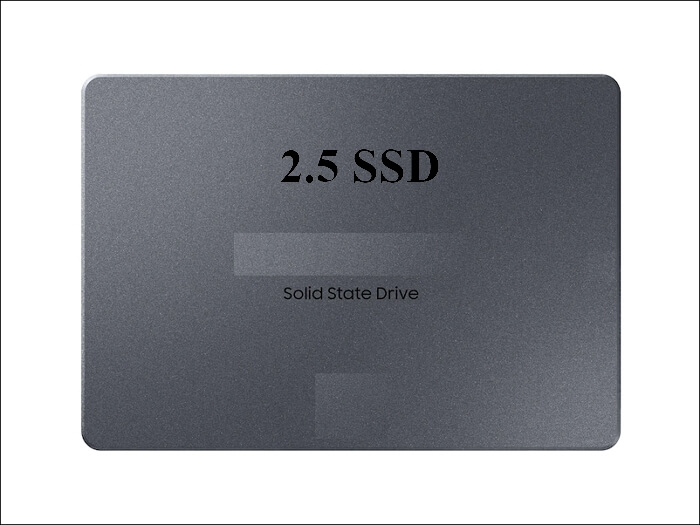
- Clear the target disk. Everything on it is overwritten, so move any files you still need.
- Connect both drives at once. SATA is the safest link, and a USB adapter works only when the wizard can see it.
- Compare used space, not capacity. The target must hold the data on the source, not its full size.
- Suspend BitLocker. Encrypted volumes cannot be read by the wizard until protection is paused.
- Close other tools. Antivirus scans and backup jobs lock files and slow the copy down.
These five checks remove most of the reasons a clone fails. If either drive reports SMART warnings, image it with a tool that can skip bad sectors instead of pressing on.
Where DiscWizard Falls Short
- A Seagate or Maxtor disk is required. The wizard refuses to start when both drives come from other brands.
- USB targets are often invisible. Some enclosures never appear in the destination list.
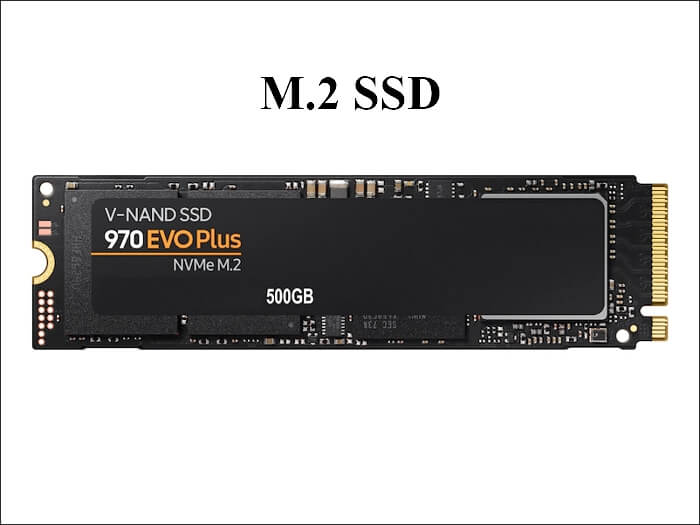
- New models are rejected. Recent NVMe drives can fail the brand check even when the label is correct.
- There is no verification report. The wizard gives no checksum or log that proves the copy is complete.
- The build is dated. Older downloads stop accepting current hardware and are not updated.
Nearly every DiscWizard complaint comes from one of these limits rather than from a faulty disk. If the destination list is empty, test a direct SATA connection before replacing hardware.
Clone with Qiling Disk Master
When the wizard refuses the pair, a general cloning tool finishes the same job. Qiling Disk Master copies any disk, rebuilds the boot records for the target, and shows the partition layout before it writes.
Watch the video tutorial below to clone the drive step by step with Qiling Disk Master.
Step 1. Open Qiling Disk Master, choose Clone, and then select Disk Clone.

Step 2. Select the source disk and click Next.

Step 3. Select the destination SSD and confirm that its data will be replaced.

Step 4. Choose the clone mode and confirm the system partition gets the C letter on the target.

Step 5. Click Proceed, wait for the copy to finish, then shut the machine down before you remove any cable.

Verify the New Drive Boots
- Boot with only the new disk. Disconnect the old drive so firmware cannot fall back to it.
- Open Disk Management. The system partition must be online and flagged as the boot volume.
- Check This PC. Your Windows folder and user files should be there.
- Read the SMART data. Confirm the new disk reports no reallocated sectors before you trust it.
- Keep the old drive. Store it untouched as a rollback copy for at least a week.
If the first boot stalls, the boot entry probably still points at the old disk. Rebuild it from Windows Recovery before you clone a second time.
FAQs About DiscWizard
Does Seagate DiscWizard work with other brands?
No. The setup checks for a Seagate or Maxtor drive, and without one the wizard stops before it can clone anything.
Can DiscWizard clone to a smaller SSD?
Yes, if the used data fits. Shrink the source volume first, then let the wizard copy only the used blocks.
Why does DiscWizard report too little space?
It compares the target with the full source size. A clone that copies used data only avoids that error.
Does it copy the EFI and recovery partitions?
A full disk clone does. A partition-only clone can skip them, and then the new disk will not boot.
Is DiscWizard still updated?
Only the current download is maintained. Older builds reject recent drives, which is why many owners move to another tool.
Back Up Before the Move
A clone is one pass over a working disk, and an interrupted pass leaves nothing usable. Keep a system image so a failed move costs an evening rather than a weekend.
Watch the video tutorial below to back up Windows and restore it if the clone fails.
Step 1. Open Qiling Disk Master and select System Backup to include the boot partitions.

Step 2. Save the image to a drive other than the target disk and start the backup.

Step 3. Click Proceed to start the system backup and wait patiently until it finishes. You can also tick Shut down the computer when the operation is completed to power off automatically.

Step 4. If the clone or the boot repair fails, restore the image and then reassign drive letters or rebuild the boot records from Windows Recovery.

Conclusion
DiscWizard is a fair free option while both drives carry the right label. The moment a drive from another brand appears, the brand check becomes the problem. Confirm the new disk boots alone, keep the old one as a rollback, and Windows moves without a reinstall.
For more on moving Windows to new hardware, see Clone a Seagate SSD to a Larger Drive, Sector-by-Sector Clone vs Intelligent Clone, Cloned Drive Won't Boot? Fix It, and Best Free SSD Cloning Software.
Related Articles
- Clone a Drive with Acronis True Image
Use the full Acronis tool instead of the Seagate build. - SSD Not Detected After Cloning
Make Windows recognize the new SSD. - Migrate the Operating System to an SSD
Move only Windows to the new drive. - Clone an SSD to a Larger SSD
Expand the copy onto a bigger drive. - 4K Alignment When Cloning an SSD
Keep the partitions aligned for full SSD speed.
Products
Articles & Tutorials
- Data Recovery
- Data Backup
- File Recovery
- File Backup
- System Backup and Restore
- Disk and Partition Clone
- Technical articles
- Mobile articles
- Disk Master Help
- Windows Data Recovery Tutorials
- Windows Secure Delete Tutorials
- Windows Partition Management Tutorials
- Windows File Backup and Restore Tutorials
- Windows System Backup and Restore Tutorials
- Windows Disk Backup and Restore Tutorials
- Windows Clone Tutorials